Most people don't stay with their invoicing tool because they love it. They stay because leaving looks like a week of copy and paste.
Years of clients, half-paid invoices, an invoice number series your accountant expects to continue. Nobody wants to rebuild that by hand, and nobody wants to explain a gap in the numbering at year end.
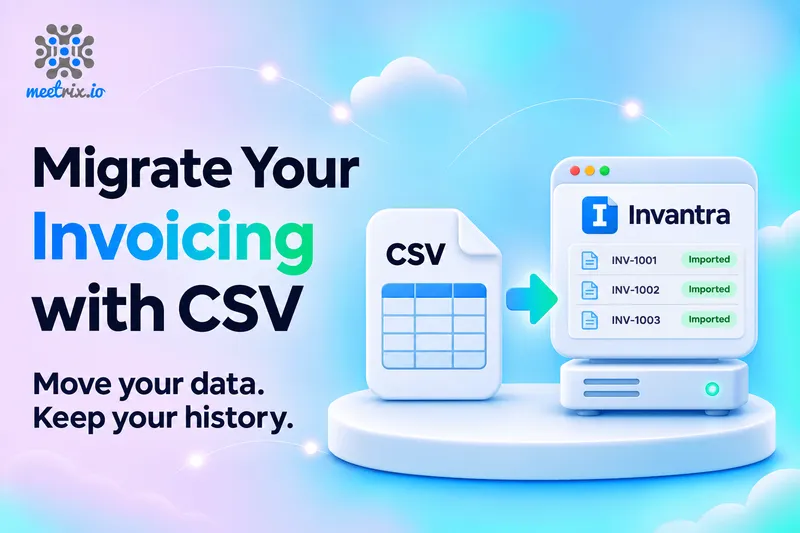
The good news is that you don't have to. Almost every invoicing tool exports to CSV, and a careful CSV import moves the things that matter in an afternoon. This guide covers the plan: what to move and what to leave behind, how to clean the export files, the order to import them in, and how to prove the numbers match before you switch off the old system. The examples use Invantra, the self-hosted invoicing app Meetrix makes, but the plan works for any tool with a CSV import.
What to move, and what to leave behind
The biggest mistake in any migration is trying to move everything. You don't need ten years of paid invoices in the new tool. You need what you'll actually work with, plus a reliable archive of the rest.
Move
- Active customers, with their currency and billing details.
- Your items or services catalogue.
- Every unpaid or part-paid invoice, so balances carry over.
- Open estimates that might still turn into work.
- Recent paid invoices (the current and previous financial year is a sensible cut-off), so reports have history.
Archive, don't move
- Older paid invoices: download them as PDFs or keep the CSV export.
- Payment attachments and receipts.
- Email history and reminders.
- Customers you haven't billed in years.
The archive matters. Tax rules in most countries require you to keep invoices for years after you stop using the tool. In the UK, HMRC expects VAT records, including copies of the invoices you issue, to be kept for at least six years. In the US, the IRS baseline is normally three years, with longer periods for specific records such as employment tax (four years) and property-related documents. Save the full export somewhere you control before the old subscription lapses. If you work with EU clients, our guide to GDPR compliant invoicing covers how retention and deletion requests interact.
Export and clean the CSV files
Most invoicing tools export customers, items, invoices and payments as separate CSV files, usually from a reports or settings page. Export all four (plus estimates, if you use them), then make a copy of each file before you touch anything.
Cleaning is where most migrations go wrong, and it's almost always the spreadsheet's fault rather than the data's. Three things to watch for:
Dates get rewritten
Open a CSV in a spreadsheet and save it, and dates often come back in your local format, like 20/11/2026. Invantra expects 2026-11-20 (YYYY-MM-DD). Set the column's format before saving.
Leading zeros vanish
Phone numbers and IDs that start with 0 can lose it when a spreadsheet treats them as numbers. Format those columns as text first.
Formulas sneak in
A value starting with =, +, - or @ can run as a formula. Invantra writes such values with a leading apostrophe on export and strips it again on import.
Next, check the column headers. Invantra matches column names while ignoring case, spaces and underscores, so "Invoice Number", "invoice_number" and "InvoiceNumber" all work. Its import reads the column names that a common invoicing system uses in its exports, so some tools' files import as they are. From others, you'll rename a few headers. These are the ones that matter:
| File | Key columns |
|---|---|
| Customers | Contact ID, Display Name, EmailID, Billing Address, Billing Country, Currency Code, Tax ID, Status |
| Items | Item ID, Item Name, Description, Rate, Currency Code |
| Estimates | Estimate ID, Estimate Number, Estimate Date, Estimate Status, Customer ID or Customer Name, then per line Item Name, Quantity, Item Price |
| Invoices | As estimates, with Invoice in place of Estimate, plus Due Date and Estimate Number |
| Payments | Payment Number, Date, Amount, Mode, Reference Number, Invoice Number |
Estimates and invoices use one row per line item, with the document's own columns repeated on each row.
How to migrate invoicing software data in the right order
Order matters, because each file finds what it refers to in the files imported before it. An invoice looks up its customer; a payment looks up its invoice. Import them like this:
- CustomersEveryone you bill
- ItemsYour catalogue
- EstimatesFind their customers
- InvoicesFind customers and estimates
- PaymentsFind their invoices
In Invantra, each of those pages has an Import CSV button, available to admins and members. The steps:
- Fill in Settings firstBusiness details, logo and default currency. Approved documents take the business details as they are at the moment of import, so set them before you start.
- Import customers, then itemsCheck the customer list after the import. Customers are matched by their ID column, or by name when there's no ID, so fix duplicates now rather than after the invoices arrive.
- Import estimates and invoicesEach import reports how many records it created, updated and skipped, with a reason for every skipped row. Fix the file and import it again.
- Import payments lastPayments attach to their invoices by invoice number, and they're what turns an imported invoice into Paid.
- Set the next numbersIn Settings, set the next invoice, estimate and payment numbers so new documents carry on after the imported ones.
Importing the same file twice updates records instead of duplicating them, because each row keeps its original ID (Contact ID, Invoice ID, and so on). Fix, re-import, and check again.
How statuses and numbers carry over
Every invoicing tool has its own status names, and the import translates them. In Invantra, anything that was sent to a client counts as approved, because it already went out:
| Status in the old tool | Becomes in Invantra |
|---|---|
| Draft | Draft |
| Pending, Submitted | Pending approval |
| Rejected, Declined | Rejected |
| Sent, Open, Unpaid, Overdue, Partially paid, Paid, Closed | Approved, then Paid once its payments cover it |
| Accepted, Expired (estimates) | Approved |
| Invoiced (estimates) | Invoiced |
| Void | Void |
Statuses are kept: an imported approved estimate stays approved, a void invoice stays void, and an invoice becomes Paid when its imported payments cover it.
Two details are worth knowing before you check the results:
- A paid invoice shows as Approved until its payments are imported. Status follows the money, so import the payments file before judging whether paid invoices came through.
- Totals are recalculated from the lines. Invantra keeps prices to two decimals. If your old tool priced a line to three decimals, a total can come out a cent different from what the client was sent; the import then adds a "Rounding" charge to make it match and lists the document in its report.
Invoice numbers are kept exactly as they were, and payment numbers too where they're free. Every imported document also says so in its Activity tab, so there's a record of where it came from.
Check the numbers match before you switch
This is the step that turns "I think it worked" into something you can show your accountant. Run the same reports in both tools, for the same date, and compare:
Reconciliation checklist
- Invoice count for the period you migrated, per status.
- Total invoiced for the same period, per currency.
- Outstanding balance per customer. In Invantra, that's the Customer balances report.
- Receivables aging: what's current and what's overdue, from the Aging summary.
- Spot-check five invoices line by line, including one with a discount and one part-paid.
If the customer balances match, the migration is right where it matters: you know exactly who owes you what. Small differences usually trace back to a payment that didn't find its invoice (check the import report) or a rounding charge.
Run both tools for one cycle, then switch
Don't switch off the old tool the day you import. Pick a cut-off date, ideally the start of a month, and run both for one billing cycle:
- New invoices go out from the new tool only, from the cut-off onwards.
- Payments for old invoices get recorded in both until the month closes.
- At month end, run the reconciliation again. If it matches, export a final archive from the old tool and cancel it.
This is also a good moment to fix the process, not just the tool. If several people raise invoices, our estimate approval workflow guide shows how to add a sign-off step so nothing goes out unchecked in the new system.
Common invoice CSV import errors
Invantra skips a row it can't import and tells you why. These are the messages you're most likely to see:
| Message | What to do |
|---|---|
| "This doesn't look like a file of invoices" | The file has no Invoice Number column, or you picked the wrong file. Check the header row. |
| "The customer was not found. Import customers first." | Import the customers file, or make sure the Customer ID or Customer Name matches exactly. |
| "The invoice date is missing or not YYYY-MM-DD" | A spreadsheet reformatted the dates. Change the column to 2026-11-20 style and import again. |
| "Unknown status" | Your old tool used a status name the import doesn't recognise. Change it to one from the table above. |
| "Payments need an approved invoice" | The invoice is still a draft or pending. Fix its status in the invoices file and re-import it first. |
One attachment caveat
Where to run it
Frequently Asked Questions
How do I migrate invoicing software without losing my history?
Export your data to CSV. Move active customers, unpaid invoices, and recent history into your new tool. Archive older data as PDFs or CSV backups for tax purposes, since attachments and older PDFs won't come across in a CSV.
Can I keep my invoice numbers when I switch tools?
Yes. Invantra keeps invoice and payment numbers exactly as they were, and you set the next numbers in Settings so new documents continue the series.
Why did my CSV dates fail to import?
A spreadsheet probably reformatted them. Invantra expects dates in YYYY-MM-DD format (e.g., 2026-11-20). Format the date column as text before saving.
Do attachments and PDFs move with a CSV import?
No. CSVs carry text only. The payments export lists filenames, not the files themselves, so download and archive your attachments separately.
How long does an invoicing migration take?
The import itself can take an afternoon. Run both tools in parallel for one billing cycle to confirm the balances reconcile before you cancel the old subscription.
What happens to my invoice statuses when I import?
They're kept. An approved estimate stays approved, a void invoice stays void, and an invoice becomes Paid once its payments are imported.
How long do I need to keep invoices after migrating?
It depends on where you operate. In the UK, HMRC expects VAT records, including invoices, to be kept for at least six years. In the US, the IRS baseline is normally three years, with longer periods for specific record types. Check your local rules before you delete anything.
Bring Your Invoicing History with You
Launch Invantra on your own AWS account, import your customers, invoices and payments from CSV, and carry on your numbering where you left off. No per-user fees.
Get Invantra on AWS Marketplace