Learn how to deploy Invantra on AWS with our step-by-step guide. It walks you through launching the Meetrix Invantra AMI with CloudFormation, pointing your domain at it, signing in for the first time, and keeping the server healthy once it runs.
Invantra is a self-hosted invoicing application for small businesses and service teams. You keep your customers and items in one place, send estimates for approval, turn approved estimates into invoices, and record the payments you receive. Because it runs on an EC2 instance in your own account, your billing data never sits on a third-party SaaS platform. If you need full accounting, inventory and HR alongside invoicing, our ERPNext developer guide and Odoo developer guide cover two complete ERP suites you can host on AWS the same way, and our ERPNext vs Odoo comparison helps you choose between them.
Prerequisites
Before you get started with the Invantra AMI, ensure you have the following prerequisites:
- Basic knowledge of AWS services, including EC2 instances and CloudFormation.
- An active AWS account with appropriate permissions.
- An EC2 key pair in the region you will deploy to.
- An S3 bucket in the same region for backups.
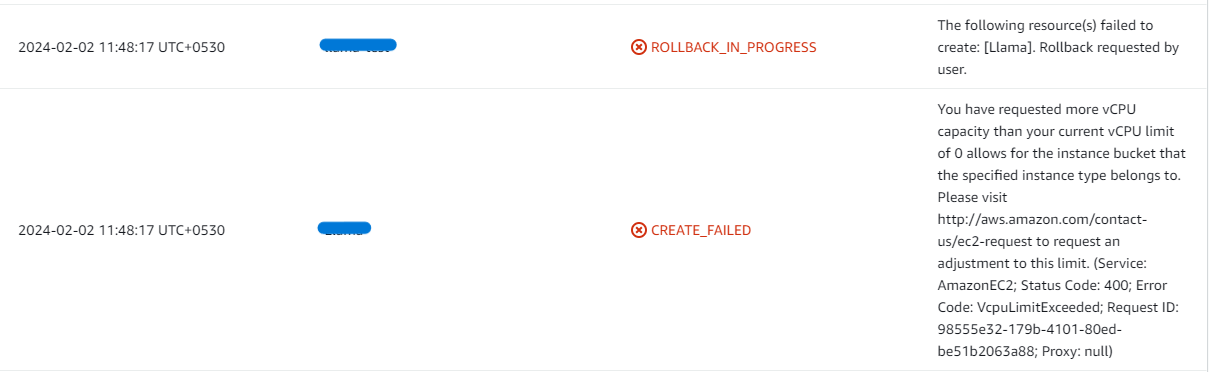
- If you encounter a vCPU quota error when launching the stack, follow https://meetrix.io/blogs/increase-aws-vcpu-quota/ to increase your vCPU limit.
Launching the AMI
Step 1: Find and Select Invantra AMI
- Log in to your AWS Management Console.
- Navigate to 'Invantra' in AWS Marketplace.
Step 2: Initial Setup & Configuration
- Click the "Continue to Subscribe" button.
- After subscribing, accept the terms and click "Accept Terms".
- Wait a few minutes until processing completes, then click "Continue to Configuration".
- Select "CloudFormation script to deploy Invantra" as the fulfillment option and choose your region. Click "Continue to Launch".
- From the "Choose Action" dropdown, select "Launch CloudFormation" and click "Launch".
Create CloudFormation Stack
Step 1: Create a stack
- Ensure the "Template is ready" option is selected under "Prepare template".
- Click "Next".
Step 2: Specify stack options
- Provide a unique "Stack name".
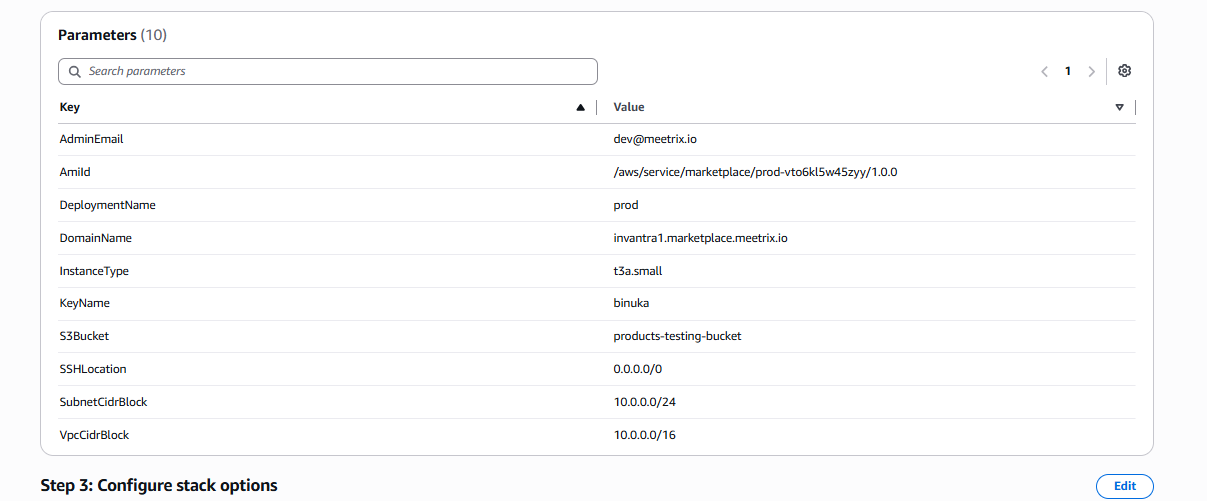
- Enter the "AdminEmail". This is the email you sign in to Invantra with, and it is also used for SSL certificate generation.
- Keep the default value of "AmiId".
- Enter a value for "DeploymentName".
- Provide a public domain for "DomainName". Invantra will automatically try to set up SSL if the domain is hosted on Route 53. If unsuccessful, you must set up SSL manually.
- Choose an instance type "InstanceType" (Recommended: t3a.small).
- Select your preferred "KeyName".
- Enter the name of your S3 bucket for "S3Bucket", used for storing backups.
- Set "SSHLocation" to 0.0.0.0/0, or restrict it to your own IP range.
- Keep "SubnetCidrBlock" as 10.0.0.0/24.
- Keep "VpcCidrBlock" as 10.0.0.0/16.
- Click "Next".
Step 3: Configure stack options
- Choose "Roll back all stack resources" and "Delete all newly created resources" under "Stack failure options".
- Click "Next".
Step 4: Review
Review and verify the parameters you've entered.
- Tick "I acknowledge that AWS CloudFormation might create IAM resources with custom names".
- Click "Submit".

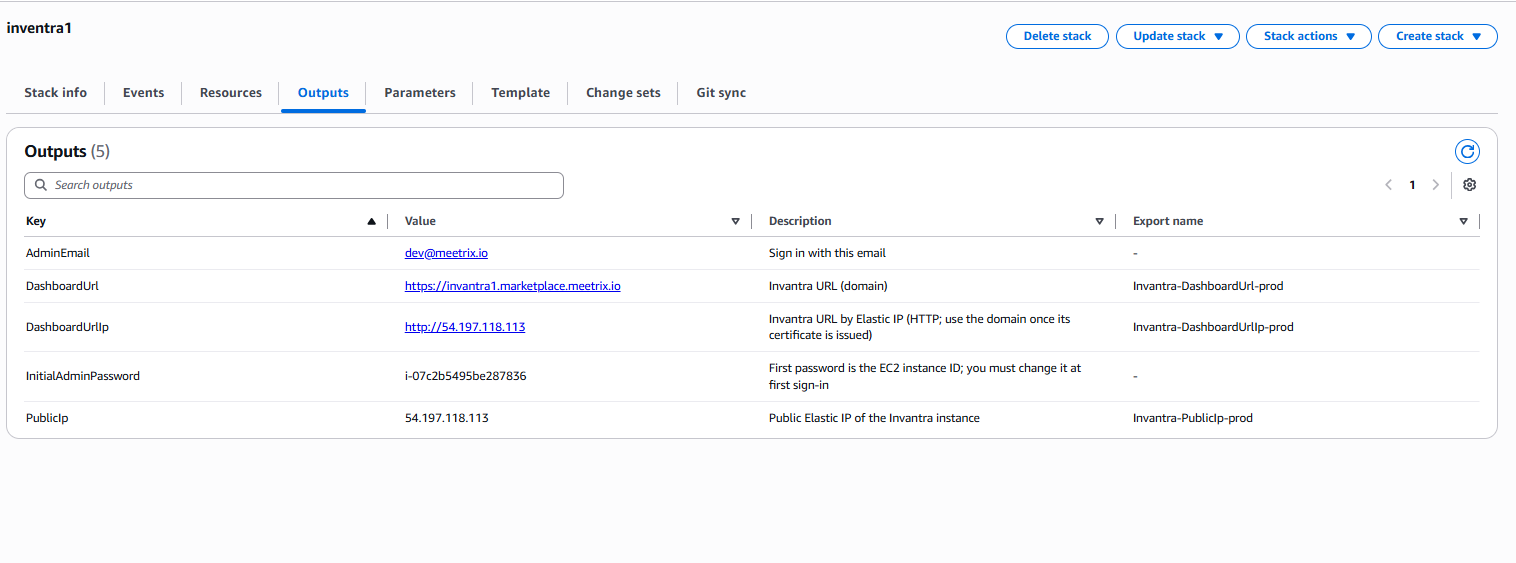
Afterward, you'll be directed to the CloudFormation stacks page. Please wait 5-10 minutes until the stack status shows CREATE_COMPLETE. The "Outputs" tab then lists everything you need for the next steps: the sign-in email, the dashboard URLs, the initial admin password and the public IP.
Update DNS
Step 1: Copy IP Address
Copy the public IP labeled "PublicIp" in the "Outputs" tab shown above. It is an Elastic IP, so it stays the same if you stop and start the instance.
Step 2: Update DNS
- Go to AWS Route 53 and navigate to "Hosted Zones".
- Click Create record.
- Add a record name matching the DomainName you entered, keep the record type as A, and paste the copied PublicIp into the value textbox.
- Click "Create records".
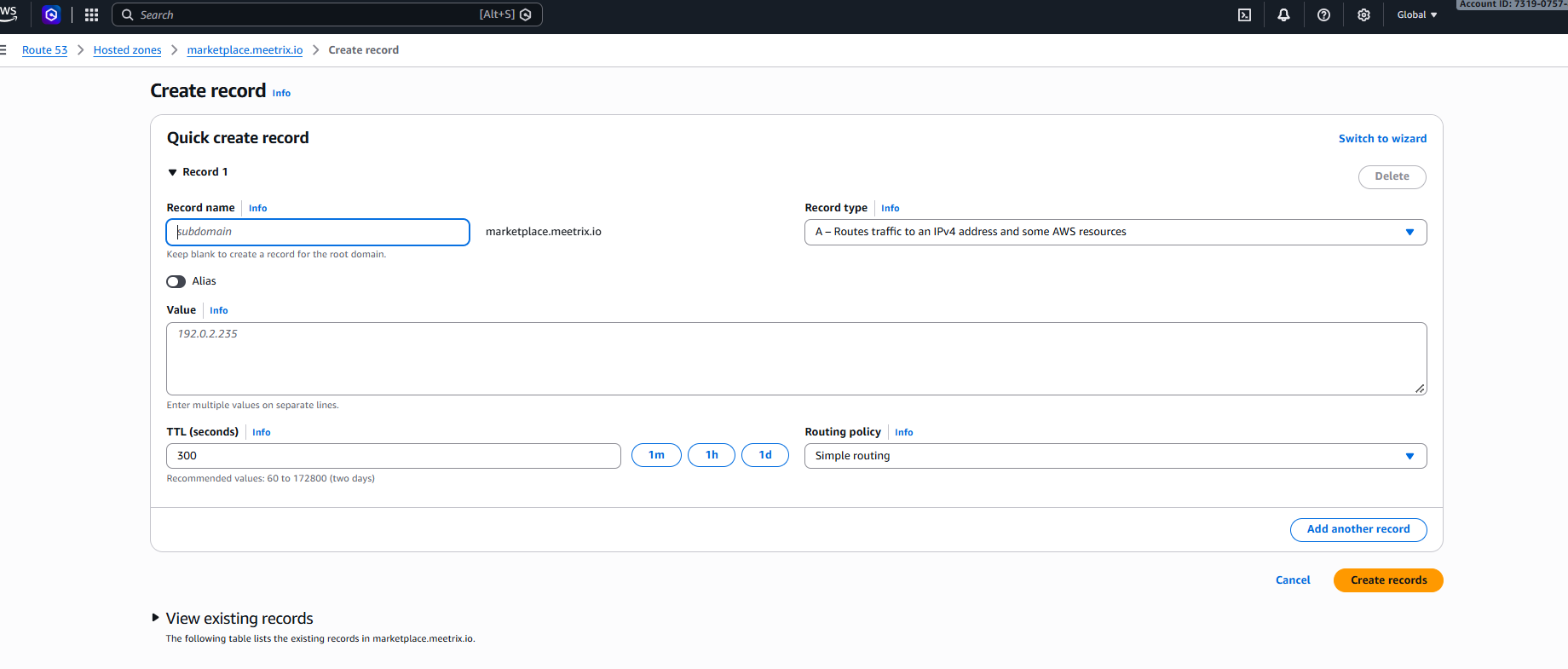
If your domain is hosted with another DNS provider, create the same A record there. The Route 53 documentation explains each field of the record form.
Access Invantra
Access Invantra using the "DashboardUrl" in the Outputs tab. Until DNS and SSL are in place you can use "DashboardUrlIp" instead, which serves the dashboard over plain HTTP. Switch to the domain once its certificate is issued.
Note
Step 1: Sign in
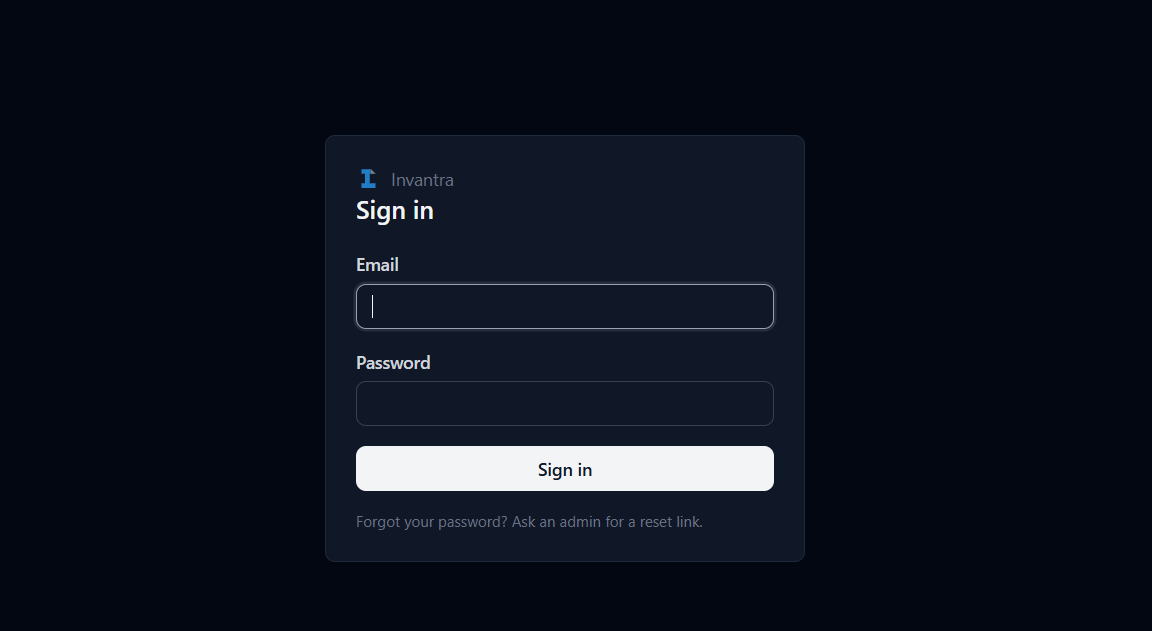
On the sign-in page, enter the AdminEmail from the Outputs tab. For the password, use the value of "InitialAdminPassword", which is the ID of the EC2 instance (it starts with i-). Click "Sign in".
Step 2: Change the initial password
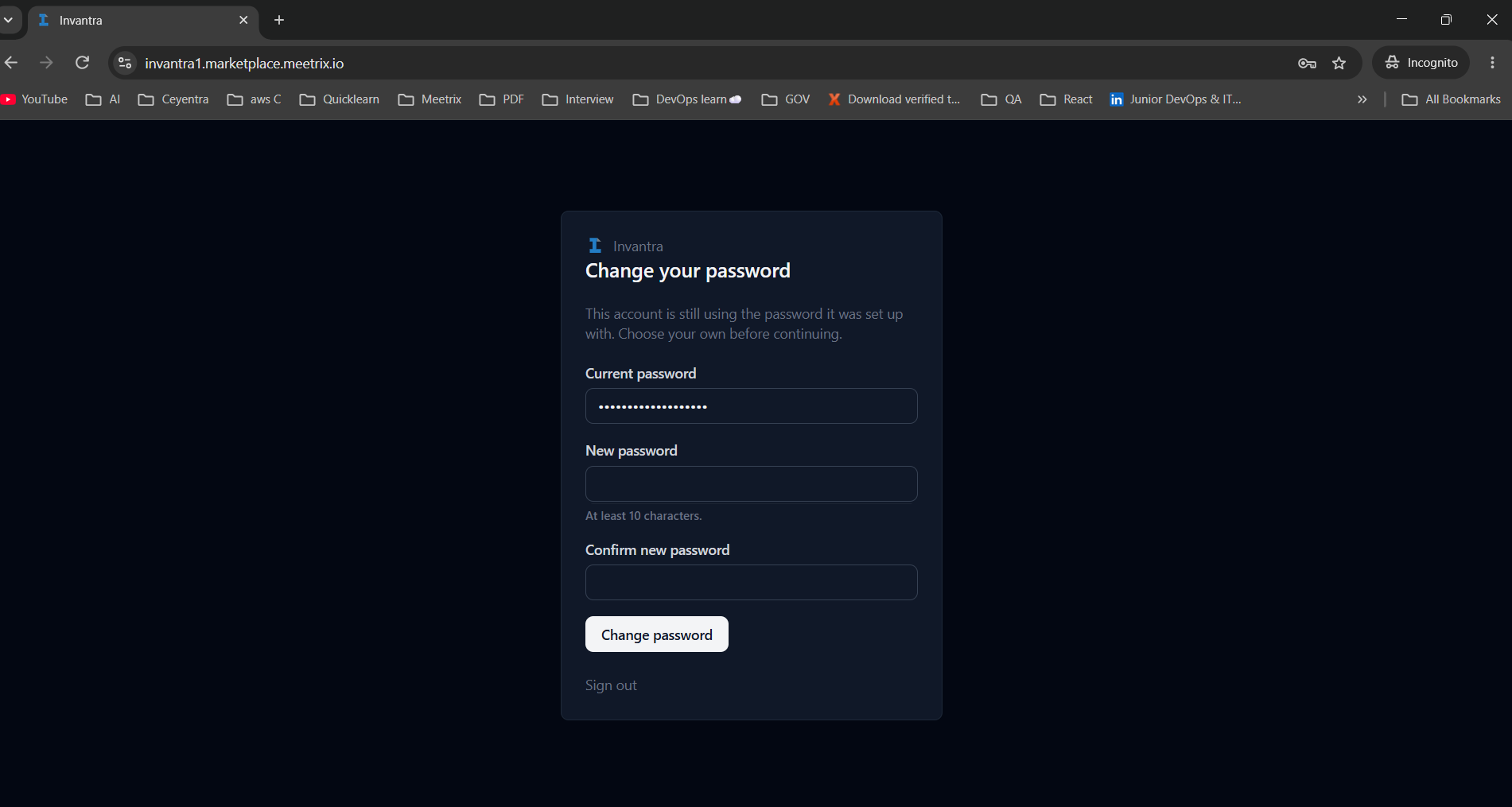
Invantra asks you to choose your own password before you continue. Enter the instance ID again as the Current password, then enter and confirm a new password of at least 10 characters, and click "Change password". Store the new password securely.
Step 3: Set up your business details
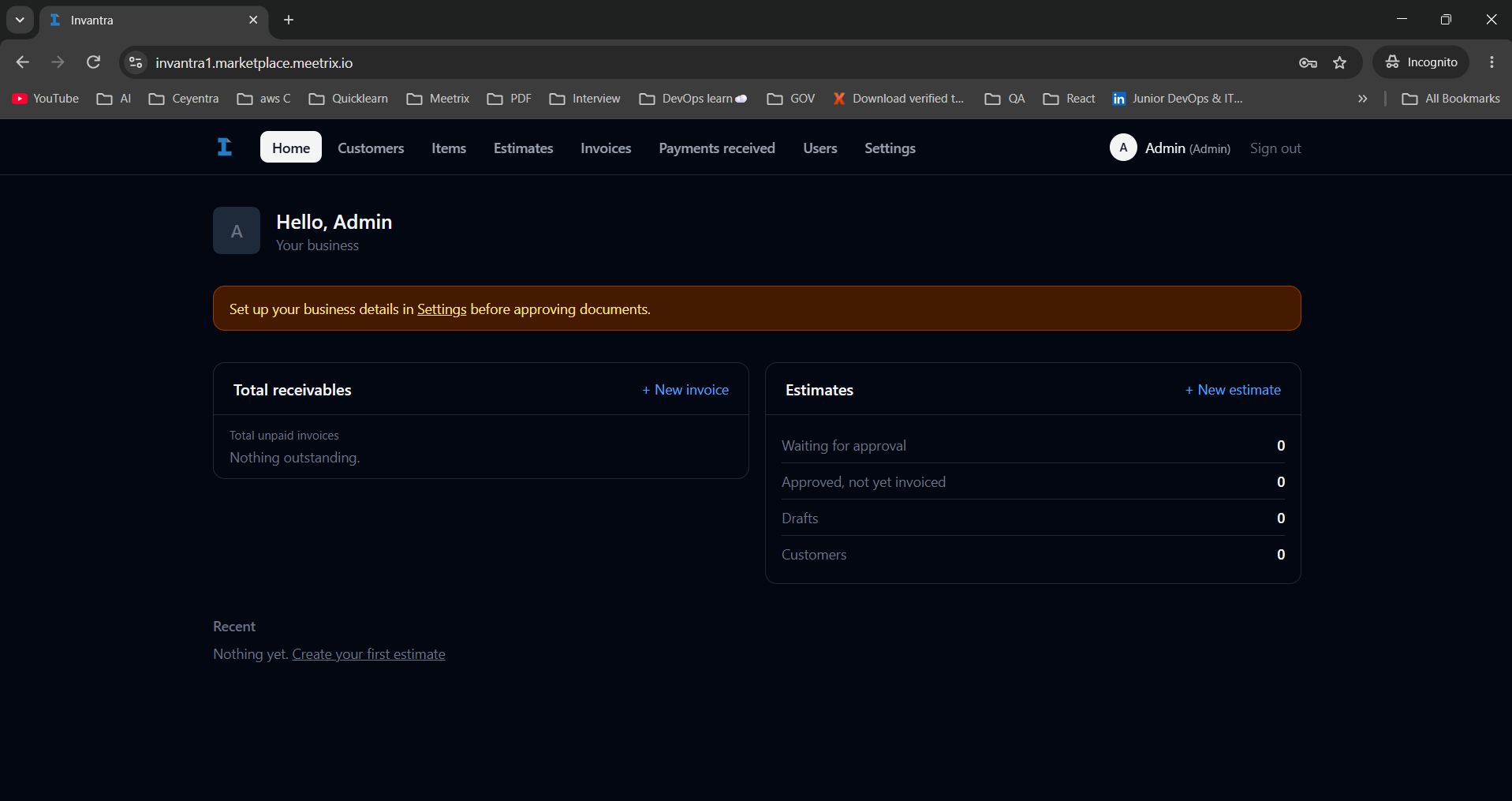
After the password change you land on the Invantra home page, with your total receivables, estimate counts and recent activity. A banner asks you to set up your business details before approving documents. Open Settings and fill them in first, since they appear on every estimate and invoice you send.
From there, a typical first run looks like this:
- Add your customers under Customers.
- Add the products or services you bill for under Items.
- Create an estimate under Estimates and send it for approval.
- Convert the approved estimate into an invoice under Invoices.
- Record the money you receive under Payments received.
Admin account
Generate SSL Manually
Invantra will automatically try to set up SSL when a Route 53-hosted domain is provided. If it fails, follow these steps to generate SSL manually.
Step 1: Copy IP Address
- Follow the Update DNS steps above, if not already done.
- Copy the Public IP indicated as "PublicIp" in the "Outputs" tab.
Step 2: Log in to the server
- Open the terminal and go to the directory where your private key is located.
- Run the following command, replacing the key name and IP address.
- Type "yes" and press Enter to confirm.
ssh -i <your key name> ubuntu@<Public IP address>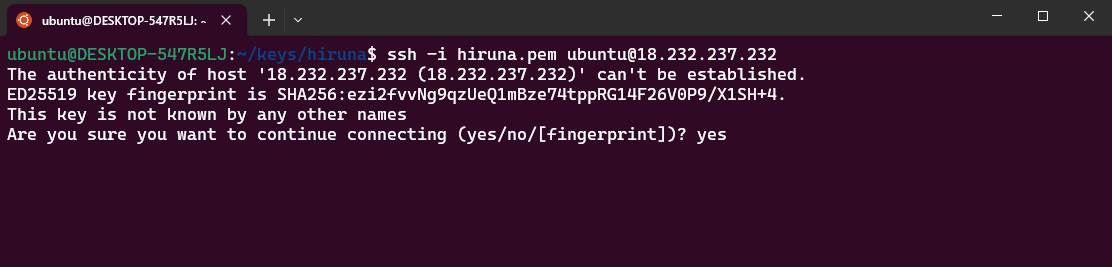
Step 3: Generate SSL
Run the following command and follow the prompts:
sudo /root/certificate_generate_standalone.shCheck Server Logs
Step 1: Log in to the server
ssh -i <your key name> ubuntu@<Public IP address>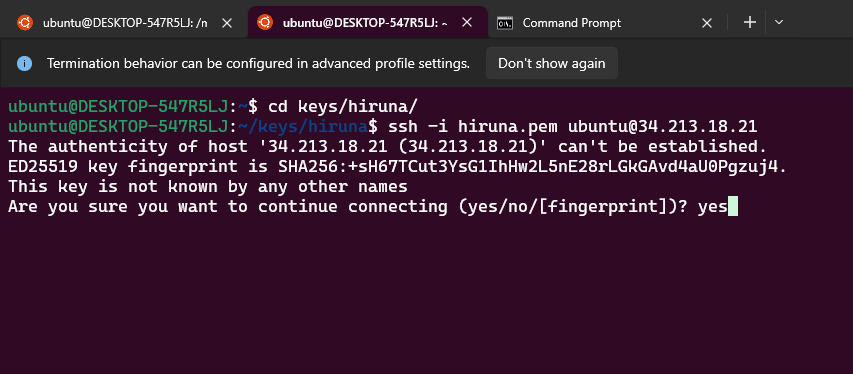
Step 2: Check the logs
List the running containers, then view the logs of a container using the first few characters of its container ID:
sudo docker ps

sudo docker logs <container-id-prefix>
Shutting Down Invantra
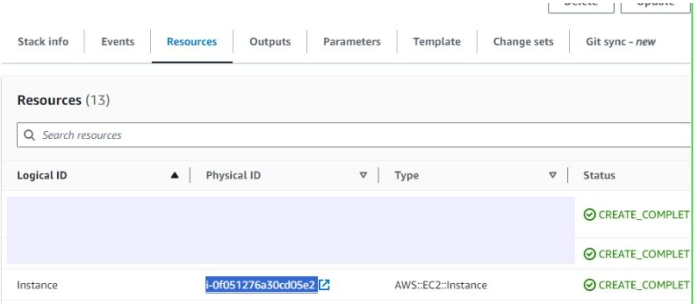
- In CloudFormation, click the link labeled "Instance" in the "Resources" tab to open the EC2 instance.
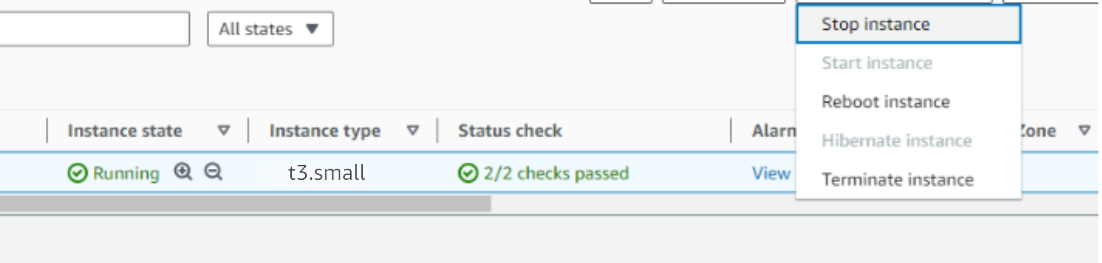
- Stop the Invantra instance from the Instance state dropdown. You can restart it later as needed.
Note
Remove Invantra
Delete the CloudFormation stack from the AWS Management Console under "CloudFormation Stacks" by clicking "Delete". This removes the instance and its data, so back up anything you need first.
Upgrades
When a new version is available in AWS Marketplace, remove the previous deployment after backing up necessary server data, and relaunch with the new version.
Troubleshoot
If you face vCPU quota limits, request an increase: How to increase AWS quota.
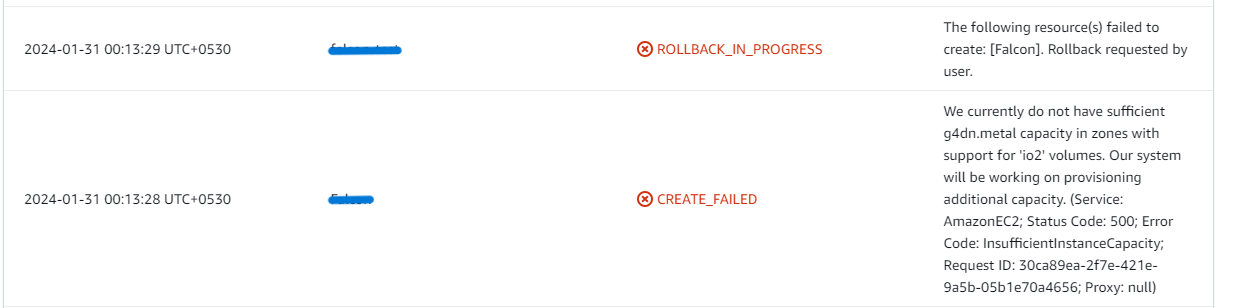
If you face insufficient capacity errors while creating the stack, try another region or time.
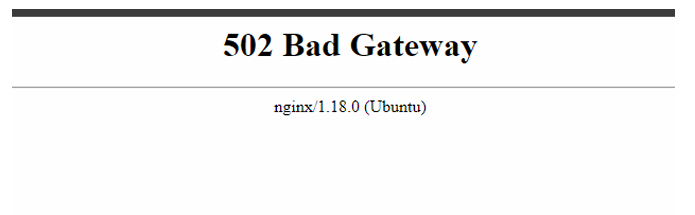
If the dashboard shows a 502 Bad Gateway error, wait 5-10 minutes and retry. Invantra can take a few minutes to start after the instance boots.
If you cannot approve an estimate or invoice, check that your business details are filled in under Settings. Invantra blocks approval until they are.
Check whether the instance storage is full. Log into the server and run:
df -h
If the root volume is between 90-100%, resize the EBS volume, then reboot and restart the service.
Conclusion
The Meetrix Invantra Deployment Guide helps you run your own invoicing system in your AWS environment. Whether you're a business owner, a finance team, or a DevOps engineer setting it up for them, this guide provides step-by-step instructions for a secure setup. See the Invantra store page for what the Meetrix image includes. To keep an eye on what the instance itself costs to run, set up an AWS billing alarm alongside it.
Technical Support
Reach out to Meetrix Support (aws@meetrix.io) for assistance with Invantra issues.
Frequently Asked Questions
What is Invantra?
Invantra is a self-hosted invoicing application. You keep a list of customers and items, send estimates for approval, turn approved estimates into invoices, and record the payments you receive, all on a server in your own AWS account.
What are the login details for Invantra?
Sign in with the AdminEmail you entered in the CloudFormation stack parameters. The first password is the EC2 instance ID, shown as InitialAdminPassword in the stack's Outputs tab. Invantra asks you to change it at first sign-in, and the new password must be at least 10 characters.
Which instance type is recommended?
t3a.small is the recommended baseline. Choose a larger instance if many users will work in Invantra at the same time.
What is the S3Bucket parameter used for?
It is an S3 bucket in your account that the instance uses to store backups. Create the bucket before launching the stack, in the same region.
Why can't I approve an estimate or invoice?
Invantra needs your business details before it will approve documents, because they are printed on every estimate and invoice. Open Settings, fill in your business details, and save. Approval then works as normal.
How do I upgrade Invantra?
When a new version is available in AWS Marketplace, back up the data you need, remove the previous deployment, then launch a new stack with the new version.
How do I get technical support?
Reach out to Meetrix Support at aws@meetrix.io for assistance with Invantra issues.
Ready to Deploy Your Own Invantra Instance?
Get started in minutes with our pre-configured AMI and keep your invoices, estimates and payments on your own server.
Deploy Invantra from AWS Marketplace