
If your first GPU instance on a fresh AWS account fails to launch, the cause is almost always the vCPU quota. The launch, or the CloudFormation stack behind a Marketplace AMI, stops with this:
You have requested more vCPU capacity than your current vCPU limit of 0 allows for the instance bucket that the specified instance type belongs to. Please visit http://aws.amazon.com/contact-us/ec2-request to request an adjustment to this limit.That's error code VcpuLimitExceeded. Nothing is wrong with the AMI, the instance type, or your IAM permissions. The account simply isn't allowed to run any vCPUs from that instance family yet. AWS sets these limits so a new or compromised account can't spin up a fleet of expensive instances by accident, and for GPU families the default is 0.
The fix is a quota increase through Service Quotas. This guide covers how the quotas are counted (which is where most requests go wrong), the console steps with screenshots, the equivalent AWS CLI commands, and what to do when a request sits in review.
How AWS vCPU Quotas Are Counted
EC2 doesn't limit you by the number of instances. It limits the total vCPUs of running instances, per account, per Region, grouped into buckets of instance families. From the EC2 On-Demand quota docs:
- Only instances in the
runningstate count. Stopped, stopping, pending and hibernated instances don't. - Capacity Reservations count against the quota even if they're empty.
- Every instance in a bucket draws from the same pool. A G quota of 16 could be four g4dn.xlarge, two g5.2xlarge, or one g4dn.4xlarge. Any mix works as long as the vCPU total fits.
- On-Demand and Spot are separate quotas. Raising one doesn't touch the other.
These are the buckets you'll run into most. The codes are what the CLI and the Service Quotas URLs use:
| Quota name | Quota code | Default | Covers |
|---|---|---|---|
| Running On-Demand Standard (A, C, D, H, I, M, R, T, Z) instances | L-1216C47A | 5 | General purpose, compute and memory instances (t3, c5, m6i, r6i...) |
| Running On-Demand G and VT instances | L-DB2E81BA | 0 | g4dn, g5, g6, g6e and other graphics GPU instances |
| Running On-Demand P instances | L-417A185B | 0 | p4d, p5 and other training-class GPUs |
| Running On-Demand Inf instances | L-1945791B | 0 | Inferentia (inf1, inf2) |
| Running On-Demand Trn instances | L-2C3B7624 | 0 | Trainium (trn1, trn2) |
| All G and VT Spot Instance Requests | L-3819A6DF | 0 | G instances bought as Spot |
| All Standard (A, C, D, H, I, M, R, T, Z) Spot Instance Requests | L-34B43A08 | 5 | Standard instances bought as Spot |
The full list, including F, X, DL, HPC and High Memory, is on the EC2 instance quotas page. The defaults above are AWS's documented starting values. Your account may already sit higher, since EC2 also raises On-Demand quotas automatically as usage builds up.
What "Applied account-level quota value" means
The Service Quotas page for each bucket shows two numbers. AWS default quota value is the documented default. Applied account-level quota value is the limit actually enforced on your account in that Region, and it's the only one that matters. If it reads 0 (or shows as not available, which means the same thing), nothing in that bucket will launch there until an increase is approved.
The Standard quota catches people too
The Standard bucket defaults to 5 vCPUs, which looks like plenty until you do the arithmetic. A c5.xlarge (4 vCPUs) fits. A c5.2xlarge (8 vCPUs) doesn't, and neither do two c5.xlarge. If a CloudFormation update replaces an instance, the old and new ones run side by side for a few minutes, so a single 4-vCPU server can briefly need 8.
Step 1: Work Out How Many vCPUs You Need
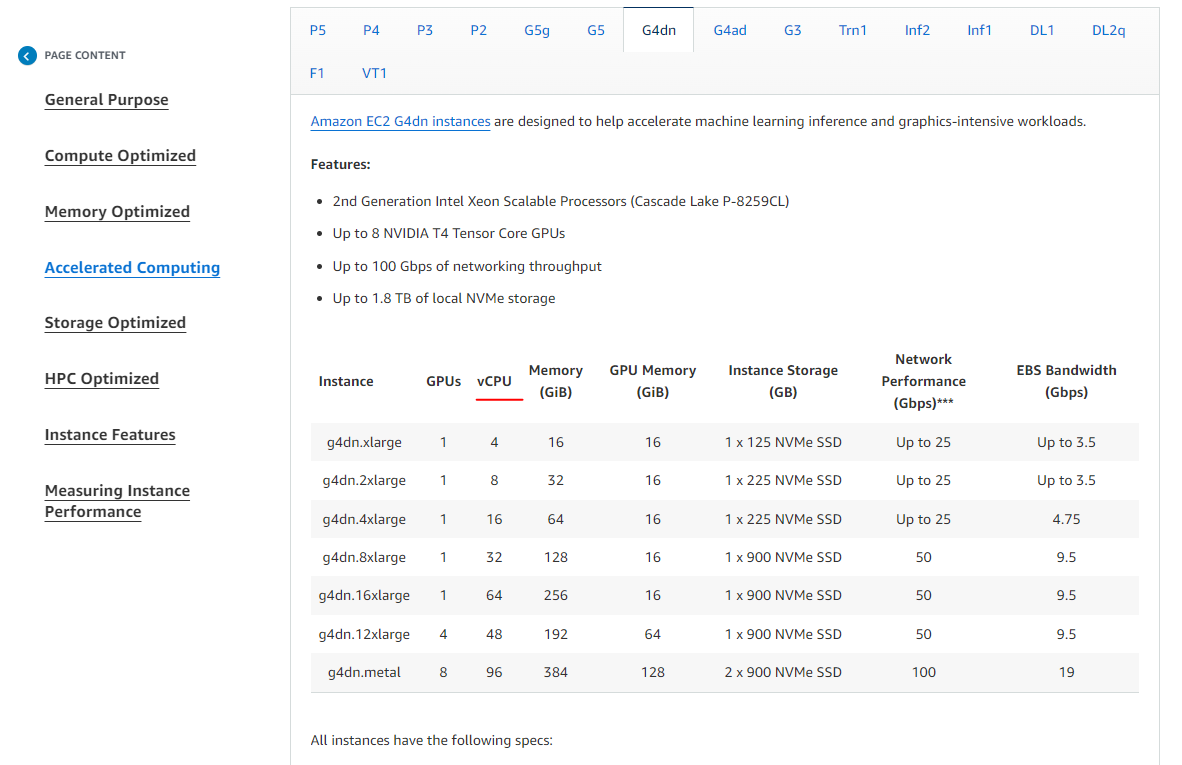
Before opening a request, add up the vCPUs of everything in that bucket you plan to run in the Region. AWS lists vCPU counts for every size on its instance types page:

Under Accelerated Computing, each family has a table like this one for G4dn:
Or skip the web page and ask the API directly:
aws ec2 describe-instance-types \
  --instance-types g4dn.xlarge g5.2xlarge c5.xlarge \
  --query "InstanceTypes[].[InstanceType, VCpuInfo.DefaultVCpus, MemoryInfo.SizeInMiB]" \
  --output table
For reference, these are the sizes our own AMIs are usually deployed on:
| Instance type | vCPUs | Memory | GPU | Quota bucket |
|---|---|---|---|---|
| c5.xlarge | 4 | 8 GiB | None | Standard |
| g4dn.xlarge | 4 | 16 GiB | 1x NVIDIA T4 | G and VT |
| g4dn.2xlarge | 8 | 32 GiB | 1x NVIDIA T4 | G and VT |
| g5.2xlarge | 8 | 32 GiB | 1x NVIDIA A10G | G and VT |
| g5.12xlarge | 48 | 192 GiB | 4x NVIDIA A10G | G and VT |
The Jitsi Meet AWS guide runs on c5.xlarge, so it lives inside the Standard default. The Fooocus and vLLM guides use G instances, and bigger models like Llama 4 need the multi-GPU sizes, where one instance is 48 vCPUs on its own.
Then add headroom. I'd request at least double what a single deployment needs: 8 for one g4dn.xlarge, 16 for one g5.2xlarge. It covers the replacement window during stack updates, and it saves you a second request the day someone wants a staging copy.
Step 2: Request the Increase in the Service Quotas Console
Open the quota for your instance family
For G instances, this link goes straight to Running On-Demand G and VT instances:
https://us-west-1.console.aws.amazon.com/servicequotas/home/services/ec2/quotas/L-DB2E81BA
For any other bucket, swap the code at the end of the URL for one from the table above, or open Service Quotas, choose Amazon EC2, and filter by "On-Demand".
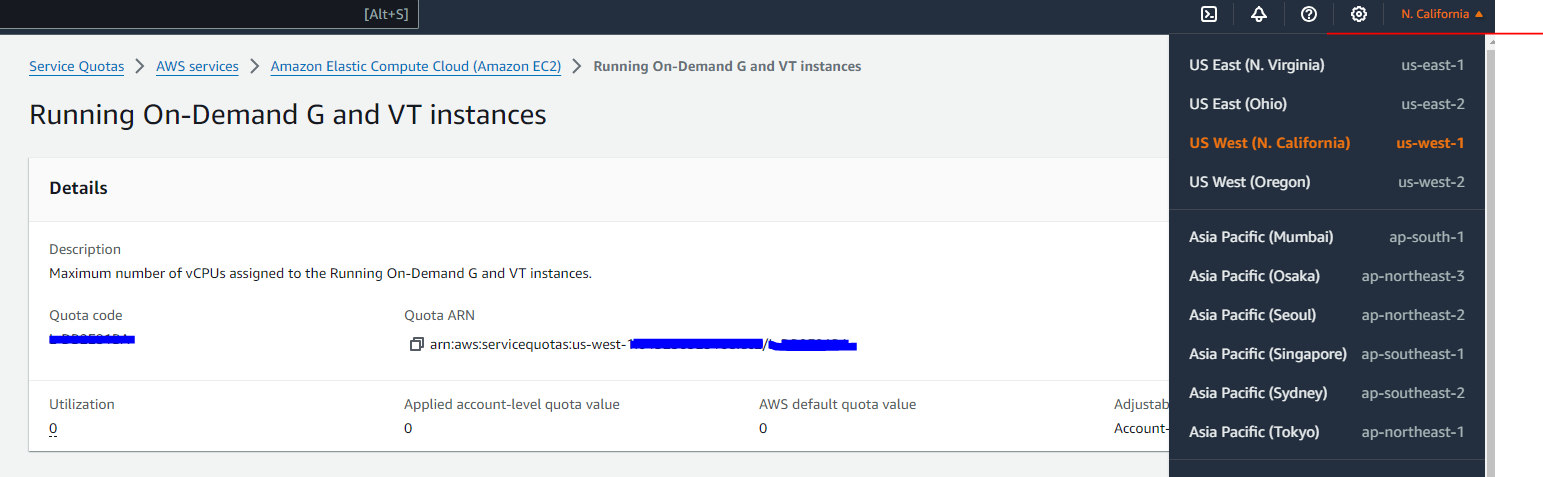
Switch to the Region you'll deploy in
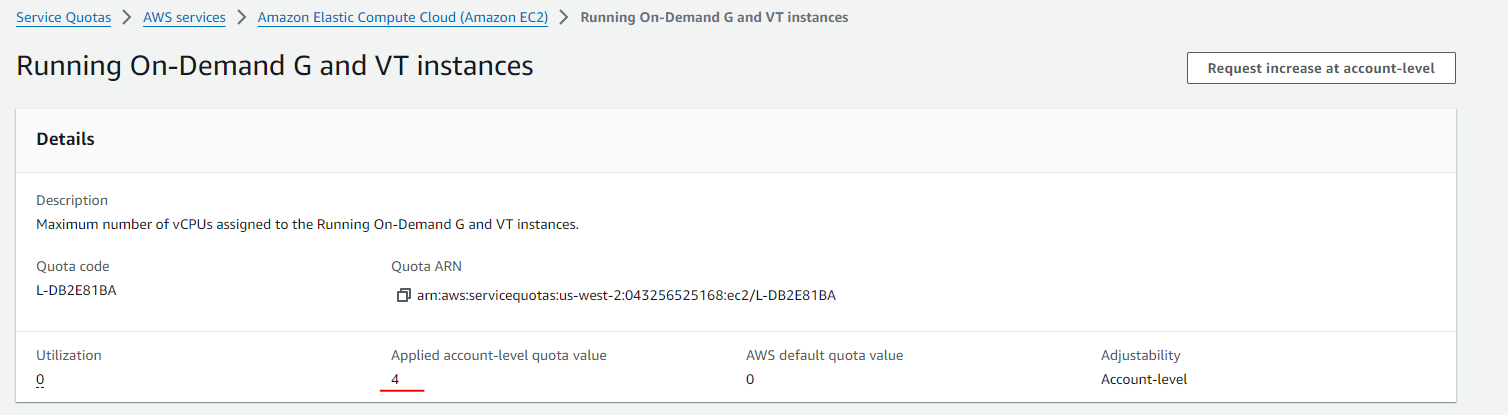
The link above opens us-west-1. Change the Region selector to wherever the instance will actually run (us-west-2 in these screenshots). This is the step people skip: the request is Region-specific, and approving it in the wrong one changes nothing. A fresh account shows an applied account-level quota value of 0 here.
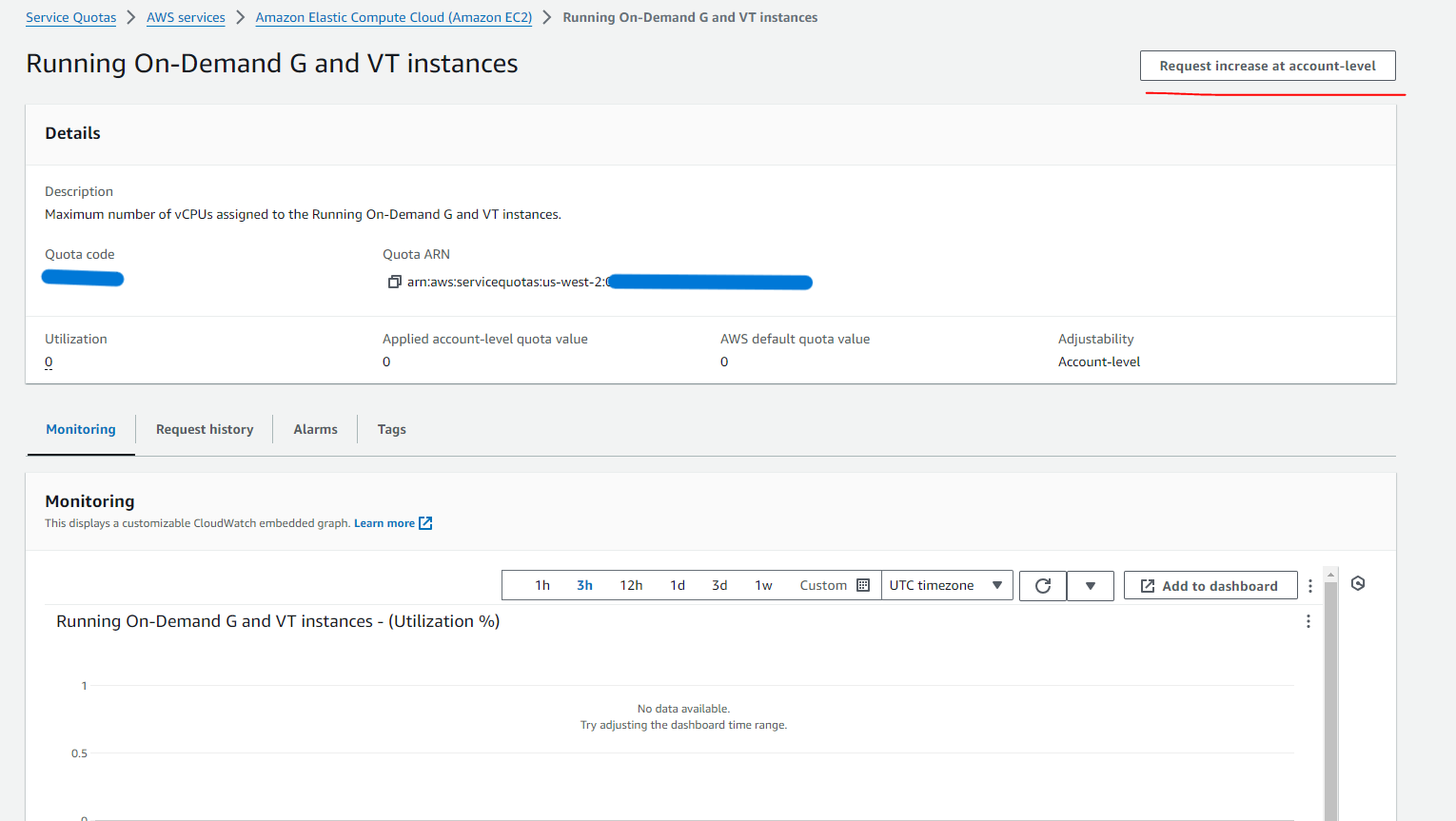
Click "Request increase at account level"
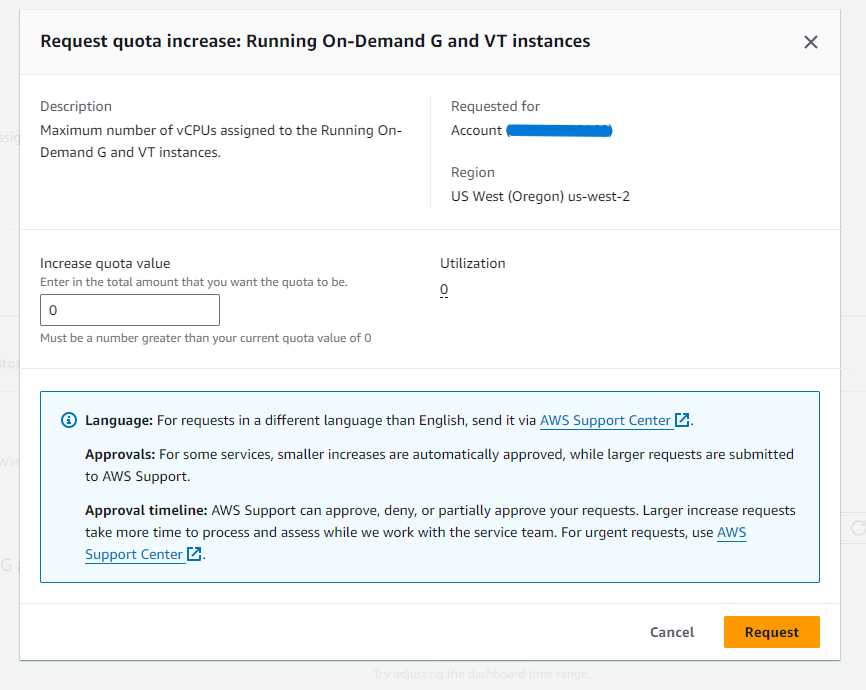
Enter the new total, not the difference
The value is the new quota, not an amount to add. If you're at 4 and need room for another g4dn.xlarge, enter 8, not 4.
After you click Request, a green banner confirms it was submitted:

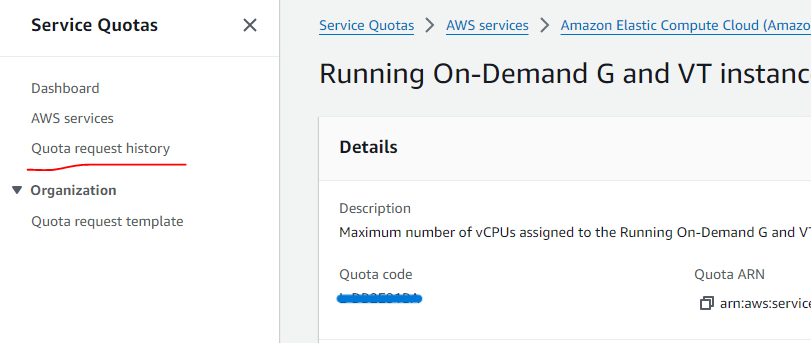
Track it under Quota request history
Open Quota request history in the left sidebar to follow the status:

Confirm the applied value changed
Once approved, the applied account-level quota value on the quota page shows the new number. In this example it went from 0 to 4 within a few minutes.
Bigger requests can take several hours. If one is turned down or handed to a reviewer, it appears as a case in your AWS support case history, where you can reply with the reason you need the increase: https://support.console.aws.amazon.com/support/home#/case/history
Increase the vCPU Limit from the AWS CLI
Same thing from a terminal, which is handy when you're setting up several Regions or scripting account setup. Check the current value first:
aws service-quotas get-service-quota \
  --service-code ec2 \
  --quota-code L-DB2E81BA \
  --region us-west-2 \
  --query "Quota.Value"
Request the new total:
aws service-quotas request-service-quota-increase \
  --service-code ec2 \
  --quota-code L-DB2E81BA \
  --desired-value 8 \
  --region us-west-2
And watch the request until its status reaches APPROVED (other states you'll see are PENDING, CASE_OPENED, DENIED and CASE_CLOSED):
aws service-quotas list-requested-service-quota-change-history-by-quota \
  --service-code ec2 \
  --quota-code L-DB2E81BA \
  --region us-west-2 \
  --query "RequestedQuotas[].[Status, DesiredValue, Created]" \
  --output table
The IAM identity running these needs servicequotas:GetServiceQuota, servicequotas:RequestServiceQuotaIncrease and servicequotas:ListRequestedServiceQuotaChangeHistoryByQuota. The full parameter reference is in the AWS CLI docs for request-service-quota-increase.
How Long an AWS Quota Increase Takes, and When It Stalls
Small increases on an account with some billing history usually clear automatically, often in minutes, like the example above. Two things push a request to a human reviewer instead: a big jump (asking for 96 vCPUs of G on an account that has never run one) and a very new account. Those turn into a support case, and the status moves to CASE_OPENED.
When that happens, open the case from the support case history link above and answer it properly. Say what you're running, which instance type, how many, and that you understand the cost. A one-line "need GPU for AI app" gets slower answers than "one g5.2xlarge in us-west-2 for a self-hosted vLLM inference server, running 24/7". AWS can also approve a lower number than you asked for. If that happens, the usual route is to run at the approved level for a while and ask again once the account has some usage behind it.
Watch Usage Before You Hit the Limit Again
A quota increase fixes today's launch, not next quarter's. Service Quotas reports vCPU usage against each EC2 quota to CloudWatch, so you can put an alarm on it before an autoscaling group or a new deployment runs into the ceiling. On the quota's page in the Service Quotas console, open the Alarms tab and create one at 80 percent of the applied value. The details are in Service Quotas and CloudWatch alarms. Trusted Advisor's Service Limits check shows the same numbers if you prefer a single dashboard.
With the quota in place, go back and launch the product. Not sure which GPU instance to request quota for? Our GPU price comparison for AWS and GCP lists the hourly cost of each option.
Frequently Asked Questions
What does an applied account-level quota value of 0 mean?
Your account can't run a single instance from that family in that Region. G, P, Inf, Trn and the other accelerated buckets default to 0 on most accounts, so the first GPU launch fails until you request an increase.
How long does an AWS vCPU quota increase take?
Small requests on an account with some billing history are often approved within minutes. Larger jumps, or requests from new accounts, get routed to AWS Support and can take several hours or a few business days.
Is the AWS vCPU limit per Region?
Yes. Every On-Demand and Spot vCPU quota applies per account, per Region. A G quota of 8 in us-east-1 does nothing for us-west-2, so request the increase in the Region you actually deploy to.
Do stopped instances count toward the vCPU quota?
No. Only running instances count. Pending, stopping, stopped and hibernated instances don't. Capacity Reservations do count, even when nothing is using them.
Why do I get "Max spot instance count exceeded"?
Spot has its own vCPU quotas, separate from On-Demand. A healthy On-Demand G quota doesn't help a Spot request. Raise "All G and VT Spot Instance Requests" (L-3819A6DF), or the Spot quota for your family.
How many vCPUs does a g4dn.xlarge have?
4 vCPUs, 16 GiB of memory and one NVIDIA T4 GPU. So one g4dn.xlarge needs a Running On-Demand G and VT instances quota of at least 4 in that Region.