Welcome to the Fooocus 2.0 Setup Guide, your key to unlocking the full potential of our AI-powered image creation tool. In this step-by-step guide, we'll walk you through the seamless installation process.
Video

Prerequisites
Before you begin, ensure you have the following prerequisites in place:
- Basic knowledge of AWS services (EC2 and CloudFormation).
- An active AWS account.
- Equipped with necessary vCPU quota for your selected instance type. Read how to increase AWS vCPU quota here: https://meetrix.io/blogs/increase-aws-vcpu-quota/
Launching the AMI
Step 1: Find and Select 'Fooocus 2.0' AMI
- Log in to your AWS Management Console.
- Navigate to the "Fooocus 2.0" in AWS Marketplace.
Step 2: Initial Setup and Configuration
- Click the "Continue to Subscribe" button.
- After subscribing, you will need to accept the terms and conditions. Click on "Accept Terms" to proceed.
- Please wait for a few minutes while the processing takes place. Once it's completed, click on "Continue to Configuration".
- Select the "CloudFormation Template for fooocus" as the fulfilment option and choose your preferred region on the "Configure this software" page. Afterward, click the "Continue to Launch" button.
- From the "Choose Action" dropdown menu in "Launch this software" page, select "Launch CloudFormation" and click "Launch" button.
Create CloudFormation Stack
Step 1: Create Stack
- Ensure the "Template is ready" radio button is selected under "Prepare template".
- Click "Next".
Step 2: Specify Stack Options
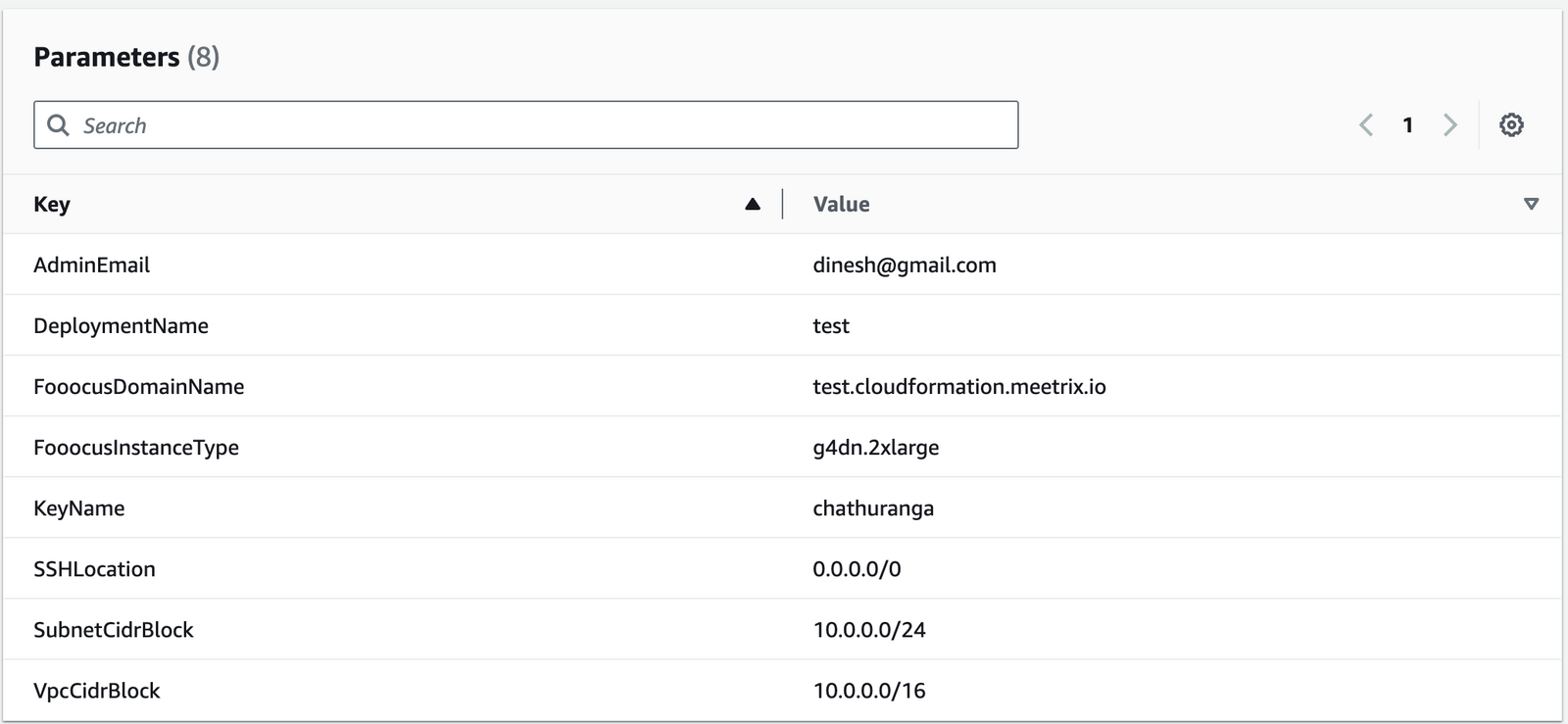
- Provide a unique "Stack name".
- Provide the "Admin Email" for SSL generation.
- For "DeploymentName", enter a name of your choice.
- Provide the domain name for "FooocusDomainName". (Fooocus will automatically try to setup SSL based on provided domain name, if that domain is hosted on Route 53. Please make sure your domain name is hosted on Route 53. If it's unsuccessful then you have to setup SSL manually.)
- Choose an instance type, "FooocusInstanceType" (Recommended:
g4dn.2xlarge). - Select your preferred "keyName".
- Set "SSHLocation" as
0.0.0.0/0. - Keep "SubnetCidrBlock" as
10.0.0.0/24. - Keep "VpcCidrBlock" as
10.0.0.0/16. - Click "Next".
Step 3: Configure Stack Options
- Under "Stack failure options", select "Roll back all stack resources".
- Click "Next".
Step 4: Review
- Review and verify the details you've entered.
- Tick the box that says, "I acknowledge that AWS CloudFormation might create IAM resources with custom names".

- Click "Submit".
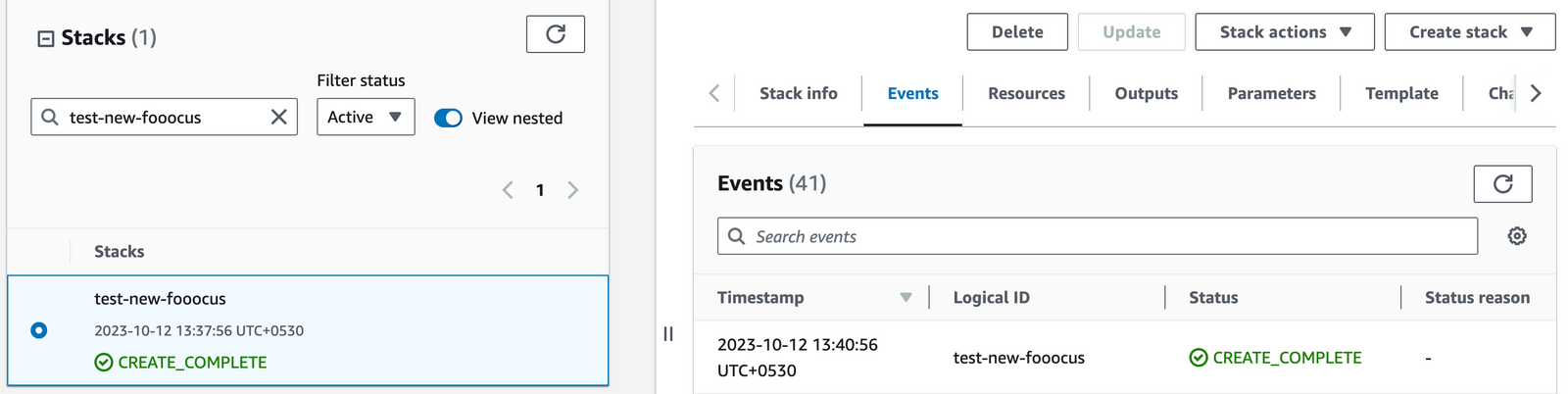
Afterward, you'll be directed to the CloudFormation stacks page. You can easily locate the corresponding stack by searching for the stack name you entered in Step 2. Please wait for 5-10 minutes until the stack has been successfully created. Afterward, you can click the "Refresh" button under the "Stacks" section.
Access Fooocus Dashboard
Method 1: Using Public IP
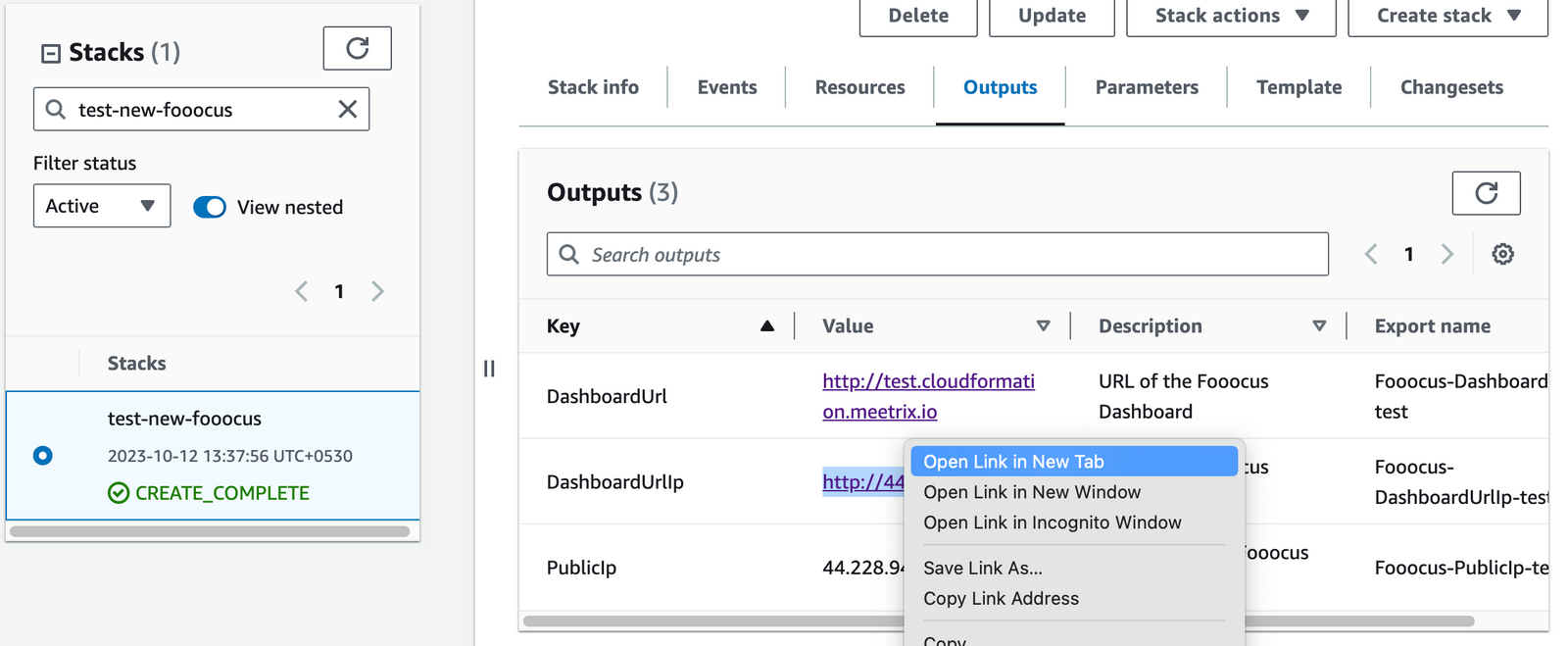
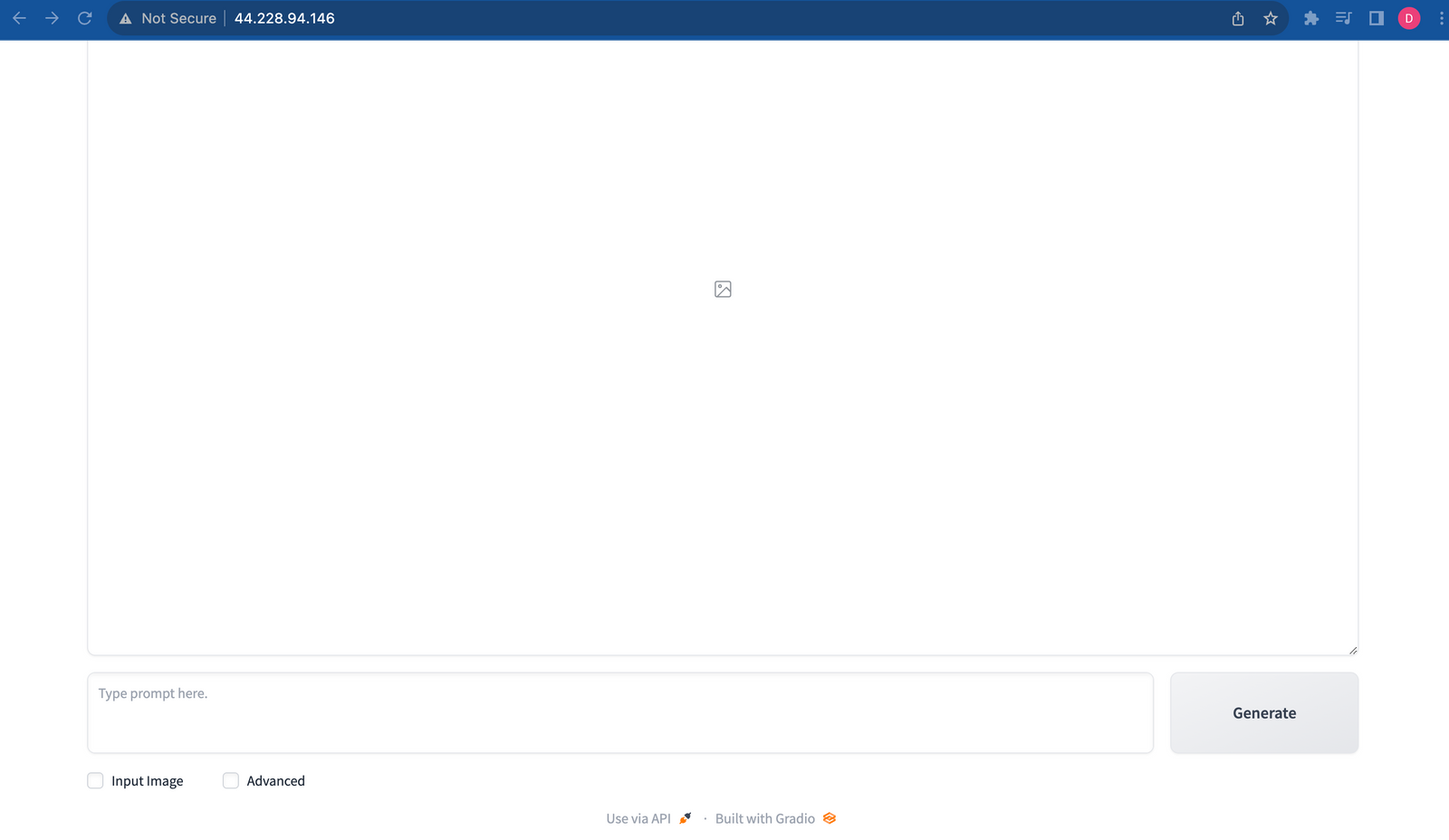
Click the link located under the "DashboardUrlIp" section in the "Outputs" tab. This will direct you to the Fooocus Dashboard.
Method 2: Using Domain
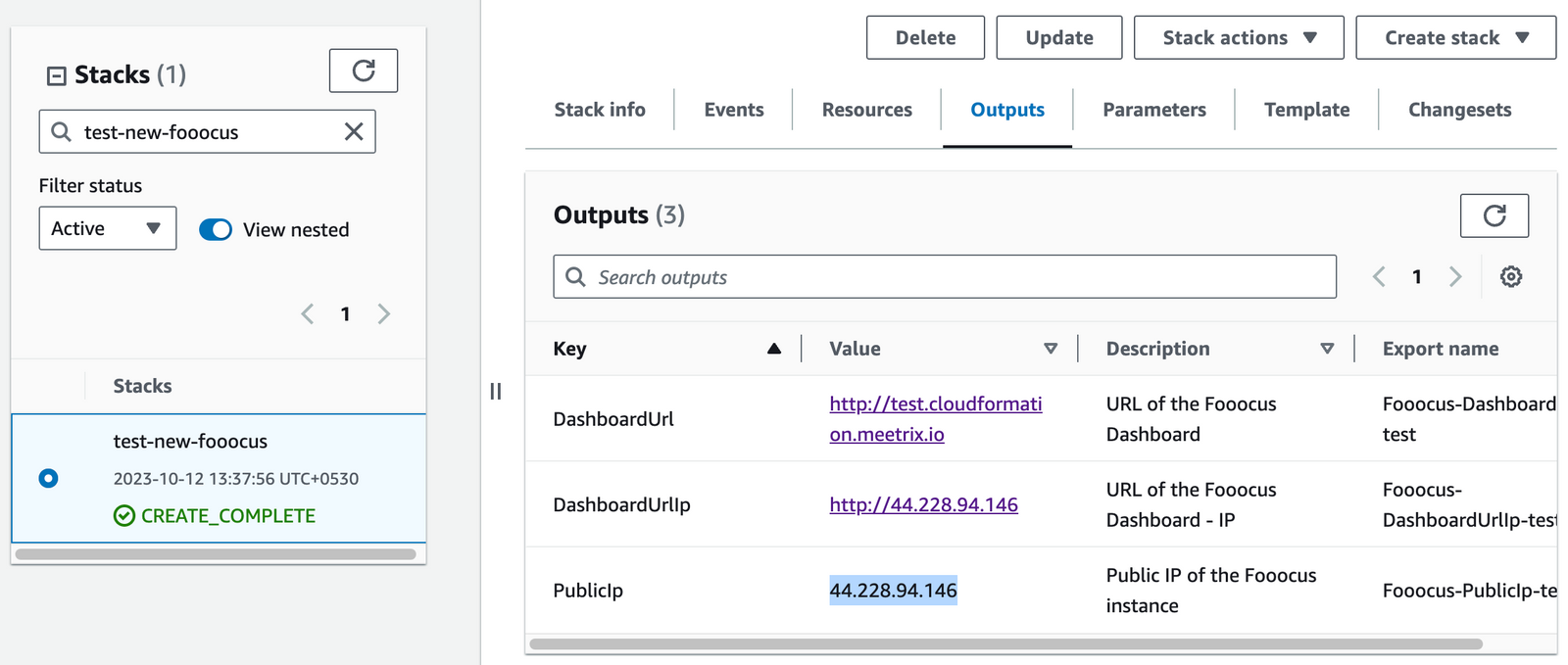
- Copy the Public IP address indicated as "PublicIp" in the "Outputs" tab.
- Go to AWS "Route 53" and navigate to "Hosted Zones".
- From there, select the domain you provided to "FooocusDomainName".
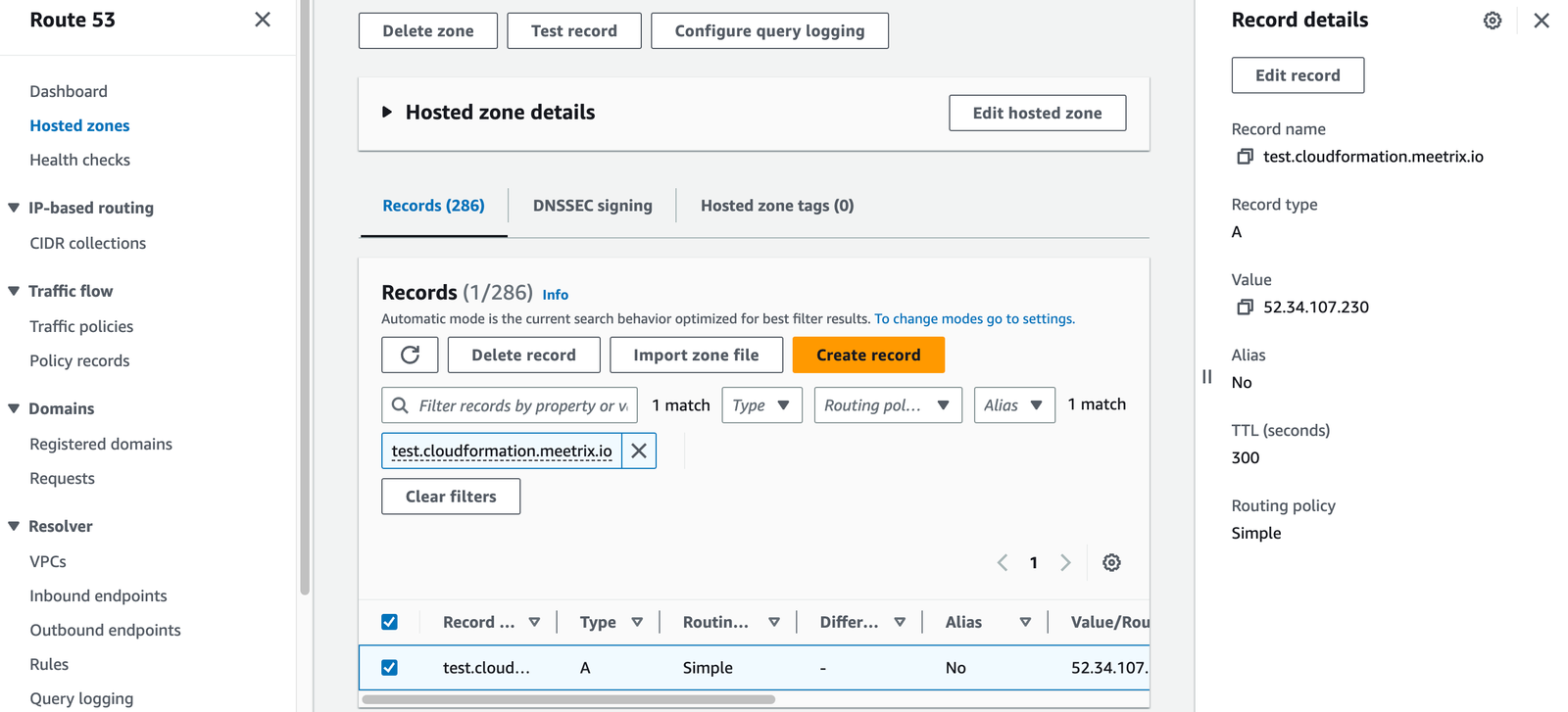
- Click "Edit record" in the "Record details" and then paste the copied "PublicIp" into the "value" textbox and click "Save".
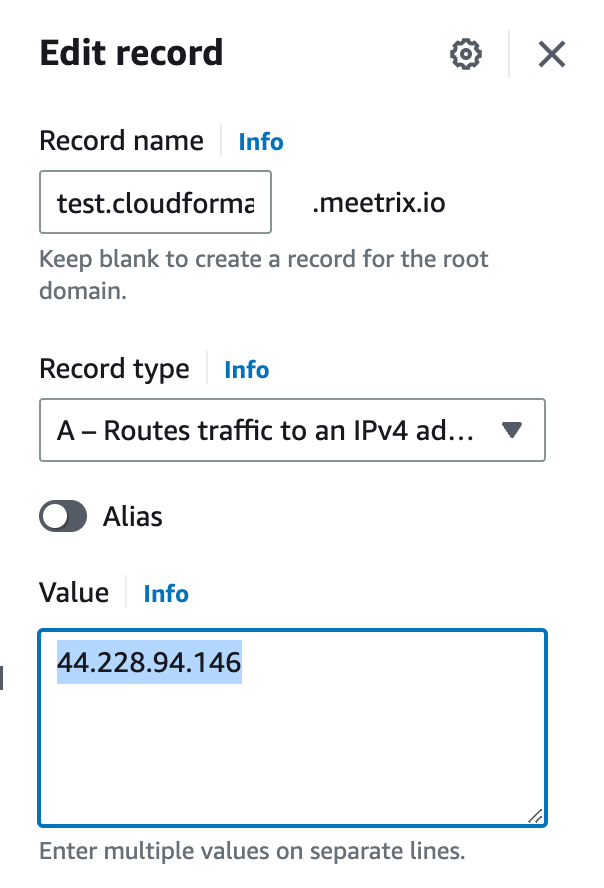
- Open a new tab and navigate to the "FooocusDomainName" to access the Fooocus dashboard.
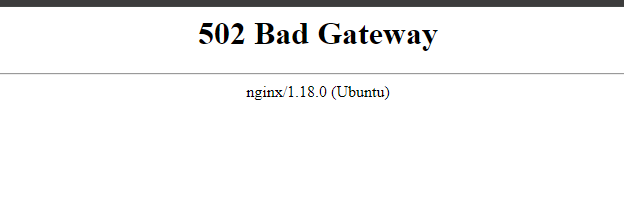
502 Bad Gateway Error?
Generate SSL Manually
Fooocus will automatically try to setup SSL based on the provided domain name, if that domain is hosted on Route 53. If it's unsuccessful then you have to setup SSL manually. Admin Email is required to generate SSL certificates.
Step 1: Point Domain Name to Server IP
Follow steps 1 to 4 in the "Method 2: Using Domain" section mentioned above, under "Access Fooocus Dashboard", to point the domain name to the server's IP.
Step 2: Log in to the Server
- Copy the Public IP address indicated as "PublicIp" in the "Outputs" tab.
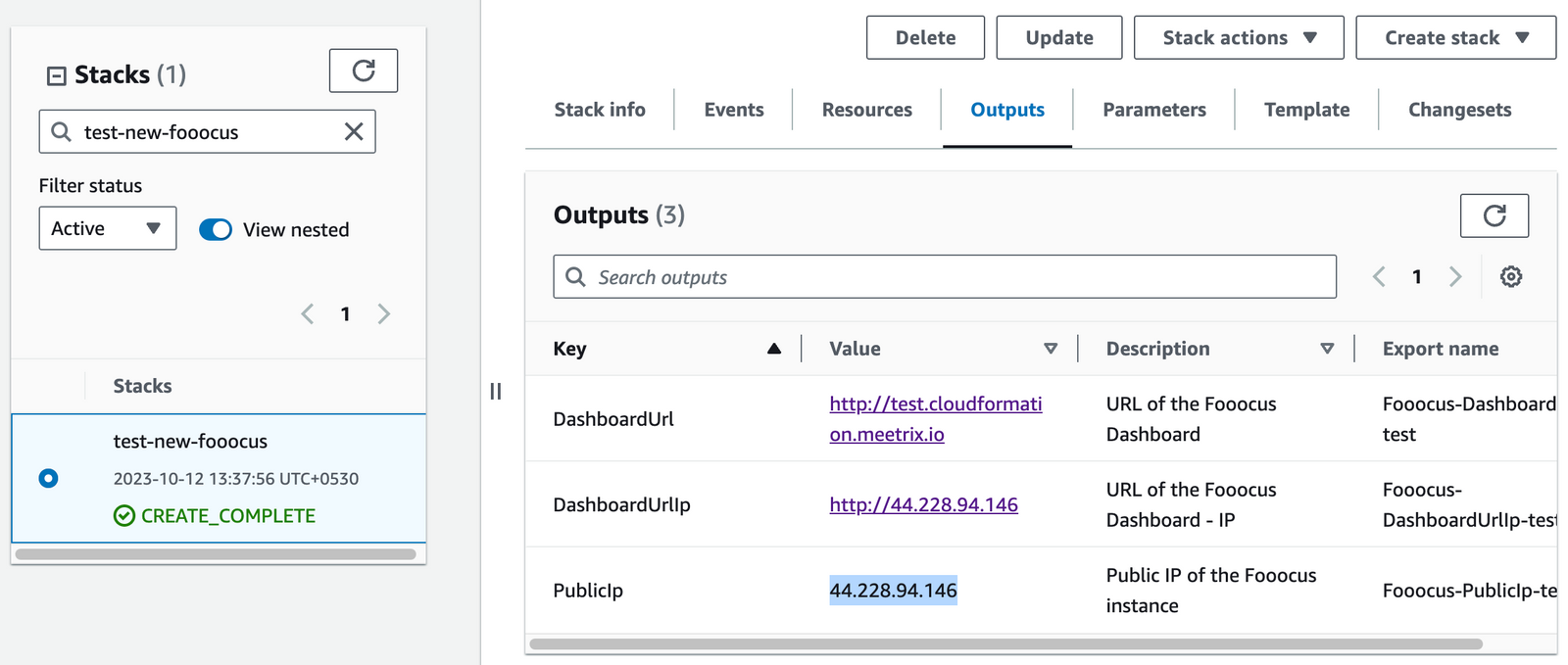
- Open the terminal and go to the directory where your private key is located.
- Paste the following command into your terminal and press Enter:
ssh -i <your key name> ubuntu@<Public IP address>
Type "yes" and press Enter. This will log you into the server.
Step 3: Generate SSL
Paste the following command into your terminal and press Enter:
sudo /root/certificate_generate_standalone.shShutting Down
- Click the link labeled "Fooocus" in the "Resources" tab to access the EC2 instance. You will be directed to the Fooocus instance in EC2.
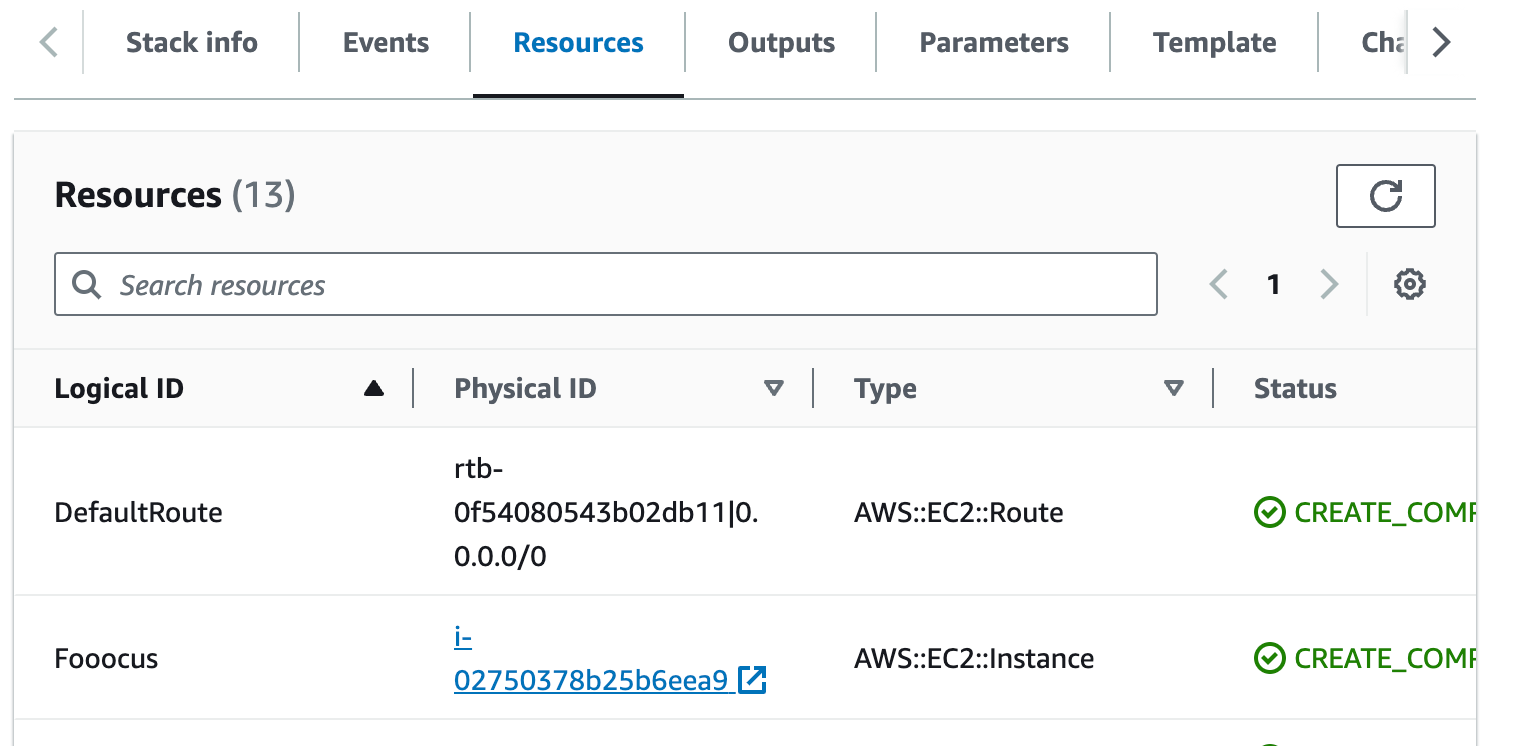
- Select the Fooocus instance by marking the checkbox and click "Stop instance" from the "Instance state" dropdown. You can restart the instance at your convenience by selecting "Start instance".

Remove Fooocus
Delete the stack that has been created in the AWS Management Console under 'CloudFormation Stacks' by clicking the 'Delete' button.
API Documentation
1. Generate Text-to-Image
Generate images based on the provided prompt.
Endpoint: /api/v1/generation/text-to-image
Method: POST
Request Body (Enter the text in 'prompt'):
{
  "prompt": "car",
  "negative_prompt": "",
  "style_selections": [
    "Fooocus V2",
    "Fooocus Enhance",
    "Fooocus Sharp"
  ],
  "performance_selection": "Speed",
  "aspect_ratios_selection": "1152*896",
  "image_number": 1,
  "image_seed": -1,
  "sharpness": 2,
  "guidance_scale": 4,
  "base_model_name": "juggernautXL_version6Rundiffusion.safetensors",
  "refiner_model_name": "None",
  "refiner_switch": 0.5,
  "loras": [
    {
      "model_name": "sd_xl_offset_example-lora_1.0.safetensors",
      "weight": 0.1
    }
  ],
  "advanced_params": {
    "adaptive_cfg": 7,
    "adm_scaler_end": 0.3,
    "adm_scaler_negative": 0.8,
    "adm_scaler_positive": 1.5,
    "canny_high_threshold": 128,
    "canny_low_threshold": 64,
    "controlnet_softness": 0.25,
    "debugging_cn_preprocessor": false,
    "debugging_inpaint_preprocessor": false,
    "disable_preview": false,
    "freeu_b1": 1.01,
    "freeu_b2": 1.02,
    "freeu_enabled": false,
    "freeu_s1": 0.99,
    "freeu_s2": 0.95,
    "inpaint_disable_initial_latent": false,
    "inpaint_engine": "v1",
    "inpaint_erode_or_dilate": 0,
    "inpaint_respective_field": 1,
    "inpaint_strength": 1,
    "invert_mask_checkbox": false,
    "mixing_image_prompt_and_inpaint": false,
    "mixing_image_prompt_and_vary_upscale": false,
    "overwrite_height": -1,
    "overwrite_step": -1,
    "overwrite_switch": -1,
    "overwrite_upscale_strength": -1,
    "overwrite_vary_strength": -1,
    "overwrite_width": -1,
    "refiner_swap_method": "joint",
    "sampler_name": "dpmpp_2m_sde_gpu",
    "scheduler_name": "karras",
    "skipping_cn_preprocessor": false
  },
  "require_base64": false,
  "async_process": false,
  "webhook_url": "string"
}
Response Body:
[
  {
    "base64": null,
    "url": "http://fooocus-test-prod.meetrix.io/api/files/2024-02-16/d0c43ae9-a4fa-4111-ac86-3976fcdaf3ea.png",
    "seed": "7157889350071648458",
    "finish_reason": "SUCCESS"
  }
]
2. List Models
Retrieves a list of available models.
Endpoint: /api/v1/engines/all-models
Method: GET
Response Body:
{
  "model_filenames": [
    "juggernautXL_version6Rundiffusion.safetensors",
    "sd_xl_base_1.0_0.9vae.safetensors",
    "sd_xl_refiner_1.0_0.9vae.safetensors"
  ],
  "lora_filenames": [
    "sd_xl_offset_example-lora_1.0.safetensors"
  ]
}
You can find out the full API documentation here https://github.com/konieshadow/Fooocus-API/blob/main/docs/api_doc_en.md
Upgrades
When there is an upgrade, we will update the product with a newer version. You can check the product version in AWS Marketplace. If a newer version is available, you can remove the previous version and launch the product again using the newer version. Remember to backup the necessary server data before removing.
Troubleshoot
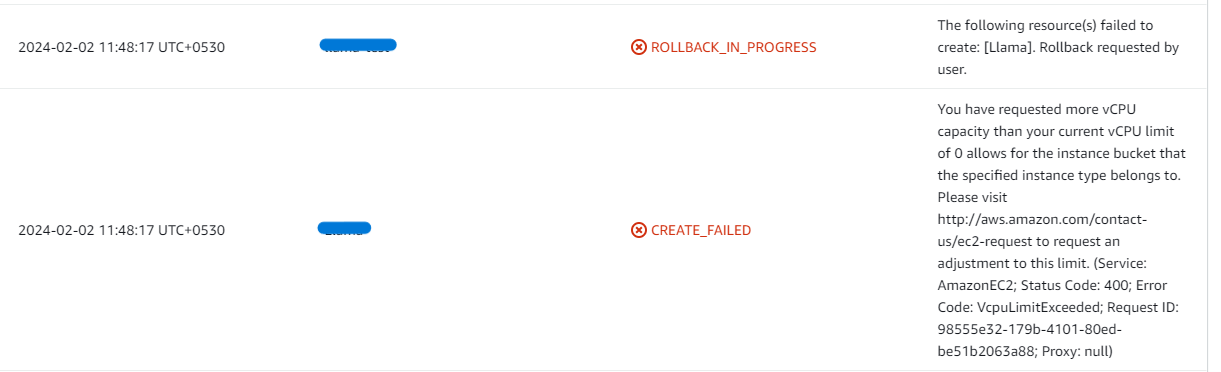
- If you face the following error, please follow https://meetrix.io/blogs/increase-aws-vcpu-quota/ blog to increase vCPU quota.
- If you face the following error (do not have sufficient <instance_type> capacity...) while creating the stack, try changing the region or try creating the stack at a later time.
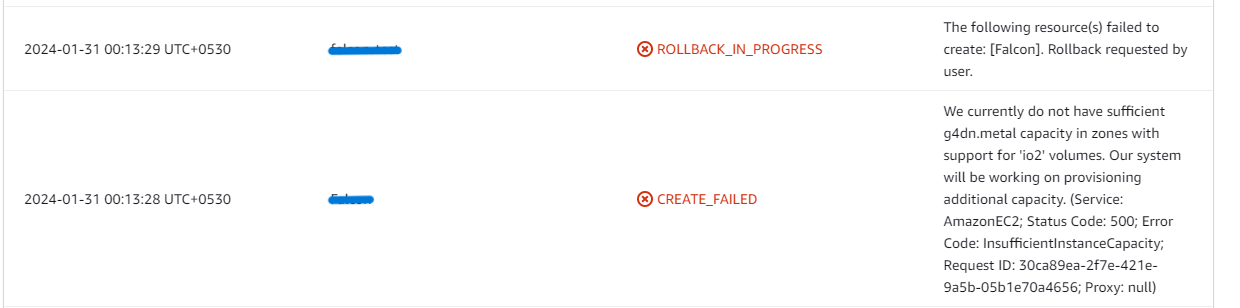
- If you face the below error, when you try to access the API dashboard, please wait 5-10 minutes and then try.
Conclusion
The Fooocus 2.0 Setup Guide equips you with the knowledge to seamlessly install and unlock the full potential of this AI-powered image creation tool. Fooocus excels in AI-driven image generation with its unique inpainting algorithms, image prompt enhancements, versatile model support, and robust API capabilities. Offering a user-friendly yet powerful platform for both novice and advanced creators, Fooocus simplifies the creative process, allowing users to produce stunning, relevant images effortlessly. As you follow this guide, you'll discover why Fooocus is rapidly becoming the preferred choice for AI-generated imagery among beginners and seasoned professionals alike.
Technical Support
Reach out to Meetrix Support (aws@meetrix.io) for assistance with Fooocus issues.
Frequently Asked Questions
What instance type is recommended for Fooocus?
We recommend g4dn.2xlarge for optimal performance with Fooocus image generation workloads.
How do I increase my AWS vCPU quota?
Follow our guide to increasing your AWS vCPU quota to request an increase in your AWS account.
What should I do if SSL setup fails automatically?
If your domain is not hosted on Route 53, automatic SSL setup will fail. You will need to manually run the certificate generation script: sudo /root/certificate_generate_standalone.sh
How do I upgrade to a newer version of Fooocus?
When a new version is available in AWS Marketplace, remove the previous stack and launch the product again using the newer version. Remember to back up your server data before removing the old version.
Ready to Launch Fooocus on AWS?
Get started in minutes with our pre-configured AMI and unlock the full power of AI image generation.
Deploy Fooocus from AWS Marketplace