Learn how to deploy NetBox on AWS with our step-by-step guide. It walks you through launching the Meetrix NetBox AMI with CloudFormation, pointing your domain at it, logging in for the first time, adding your first site and prefix, creating an API token for automation, and keeping the server healthy once it runs.
NetBox is the open-source source of truth for network infrastructure. It brings IP address management (IPAM) and data center infrastructure management (DCIM) together, so your sites, racks, devices, cables, prefixes, IP addresses and VLANs live in one database instead of a dozen spreadsheets. Because everything is reachable over an API, NetBox is also where automation reads its inventory from: our article on the benefits of Ansible automation covers the playbook side, and NetBox can serve as its inventory. Running NetBox on your own AWS account keeps that map of your network on infrastructure you control.
Prerequisites
Before you get started with the NetBox AMI, ensure you have the following prerequisites:
- Basic knowledge of AWS services, including EC2 instances and CloudFormation.
- An active AWS account with appropriate permissions.
- An EC2 key pair in the region you will deploy to.
- An S3 bucket in the same region for backups.
- If you encounter a vCPU quota error when launching the stack, follow https://meetrix.io/blogs/increase-aws-vcpu-quota/ to increase your vCPU limit.
Launching the AMI
Step 1: Find and Select NetBox AMI
- Log in to your AWS Management Console.
- Navigate to 'NetBox' in AWS Marketplace.
Step 2: Initial Setup & Configuration
- Click the "Continue to Subscribe" button.
- After subscribing, accept the terms and click "Accept Terms".
- Wait a few minutes until processing completes, then click "Continue to Configuration".
- Select "CloudFormation script to deploy NetBox" as the fulfillment option and choose your region. Click "Continue to Launch".
- From the "Choose Action" dropdown, select "Launch CloudFormation" and click "Launch".
Create CloudFormation Stack
Step 1: Create a stack
- Ensure the "Template is ready" option is selected under "Prepare template".
- Click "Next".
Step 2: Specify stack options
- Provide a unique "Stack name".
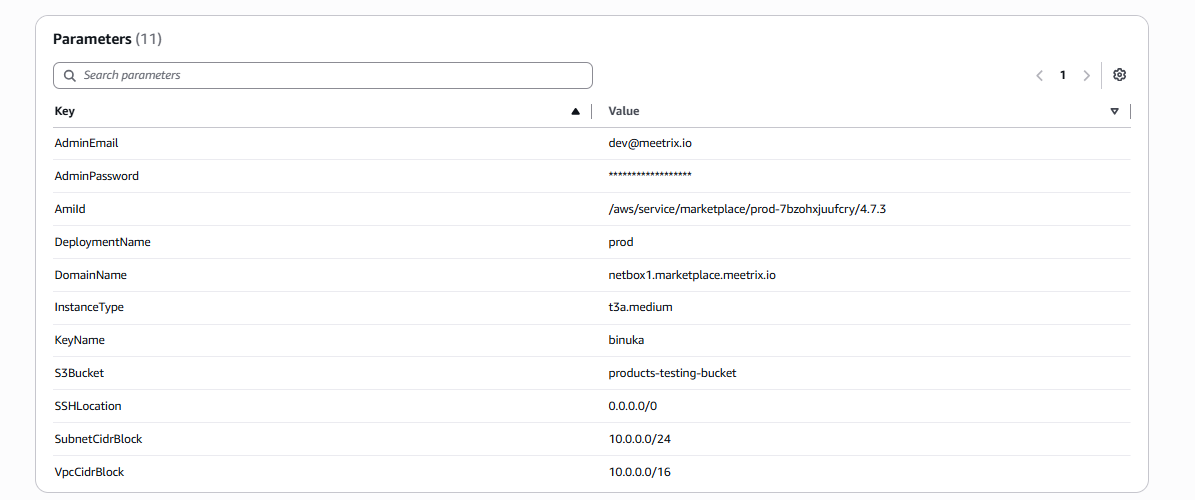
- Enter the "AdminEmail" used for SSL certificate generation.
- Enter an "AdminPassword". This is the password for the NetBox admin superuser you log in with, so store it securely.
- Enter a value for "DeploymentName".
- Provide a public domain for "DomainName". NetBox will automatically try to set up SSL if the domain is hosted on Route 53. If unsuccessful, you must set up SSL manually.
- Choose an instance type "InstanceType" (Recommended: t3a.medium).
- Select your preferred "KeyName".
- Enter the name of your S3 bucket for "S3Bucket", used for storing backups.
- Set "SSHLocation" to 0.0.0.0/0, or restrict it to your own IP range.
- Keep "SubnetCidrBlock" as 10.0.0.0/24.
- Keep "VpcCidrBlock" as 10.0.0.0/16.
- Click "Next".
Step 3: Configure stack options
- Choose "Roll back all stack resources" and "Delete all newly created resources" under "Stack failure options".
- Click "Next".
Step 4: Review
Review and verify the parameters you've entered.
- Tick "I acknowledge that AWS CloudFormation might create IAM resources with custom names".
- Click "Submit".

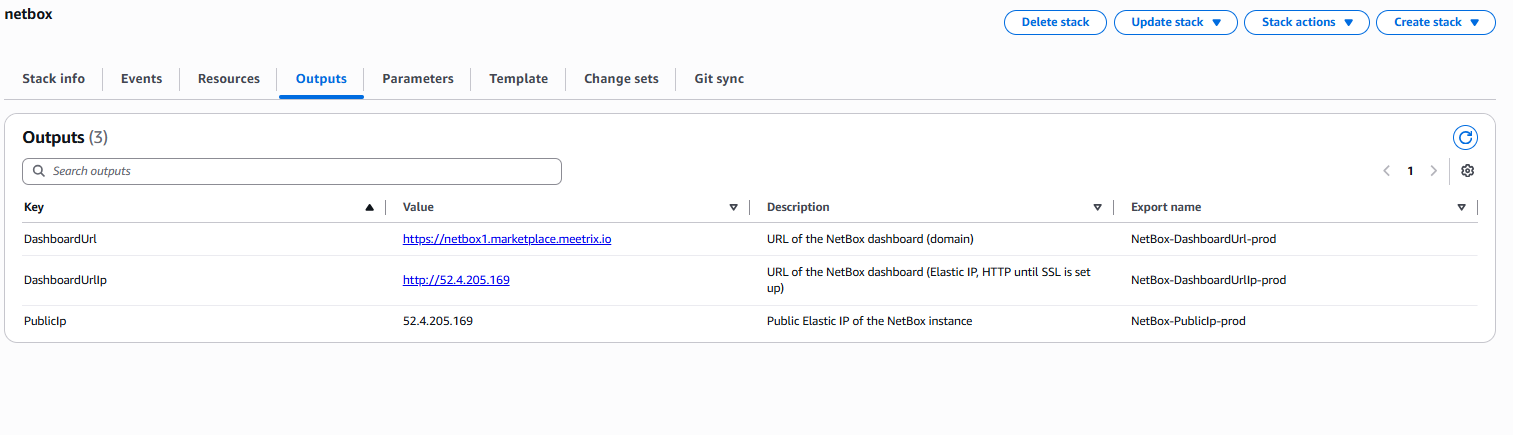
Afterward, you'll be directed to the CloudFormation stacks page. Please wait 5-10 minutes until the stack status shows CREATE_COMPLETE.
Update DNS
Step 1: Copy IP Address
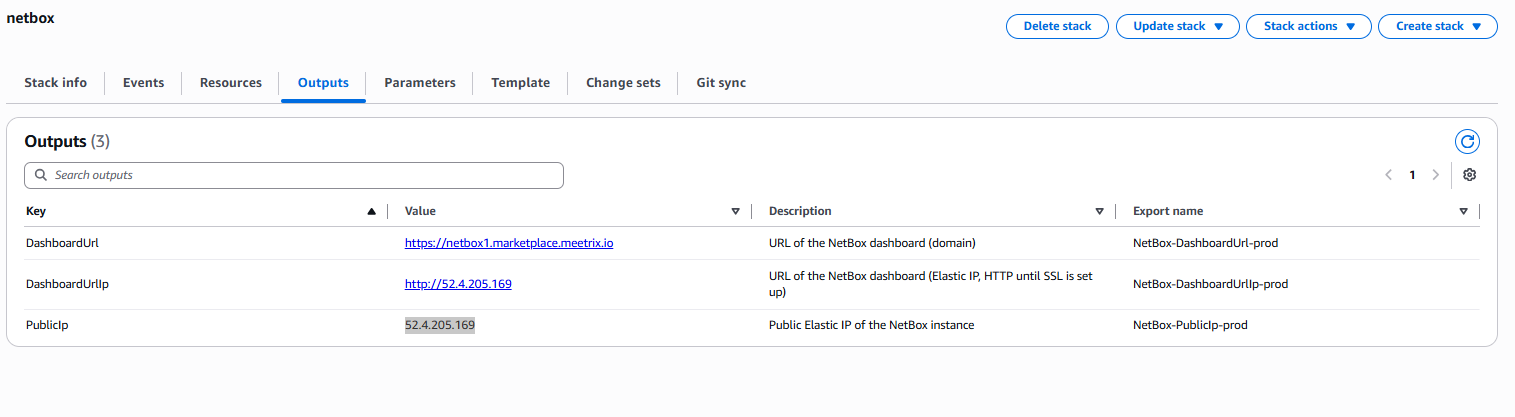
Copy the public IP labeled "PublicIp" in the "Outputs" tab.
Step 2: Update DNS
- Go to AWS Route 53 and navigate to "Hosted Zones".
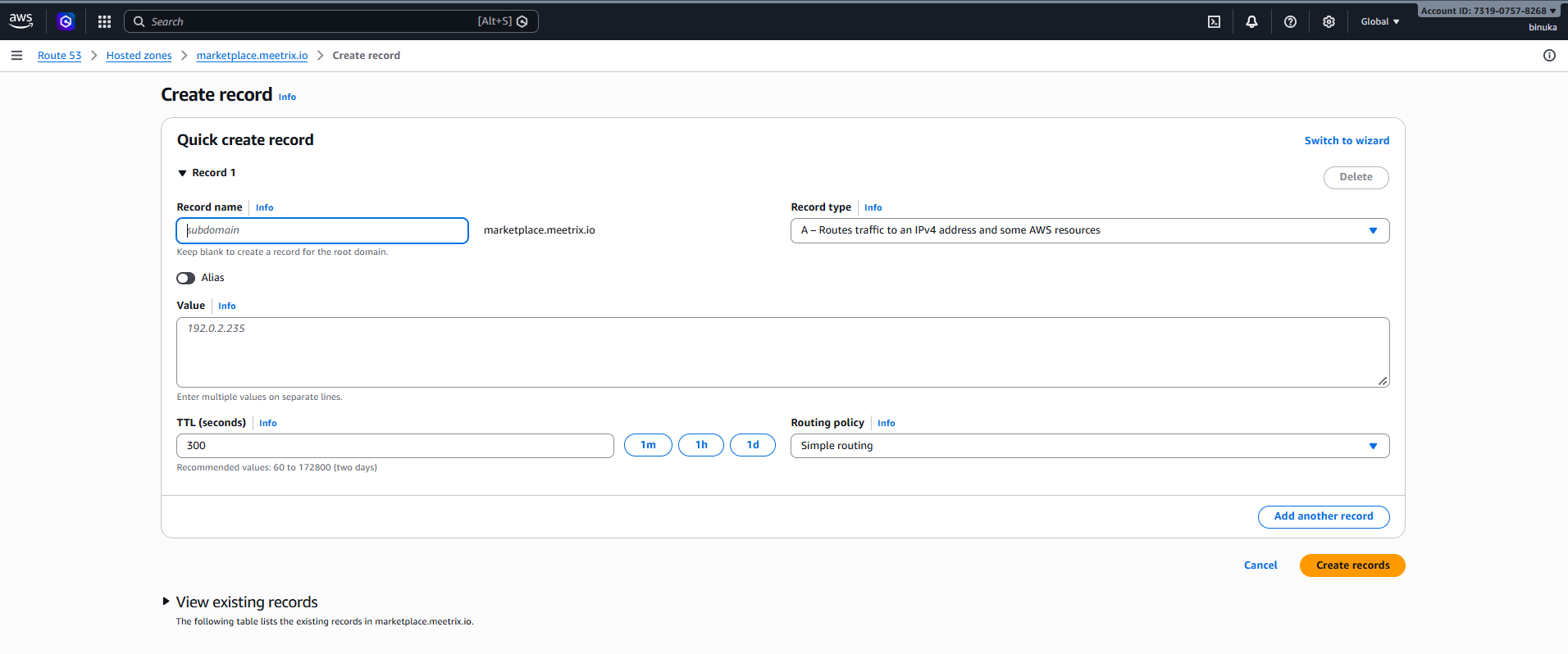
- Click Create record.
- Add a record name matching the DomainName you entered, keep the record type as A, and paste the copied PublicIp into the value textbox.
- Click "Create records".
Access NetBox
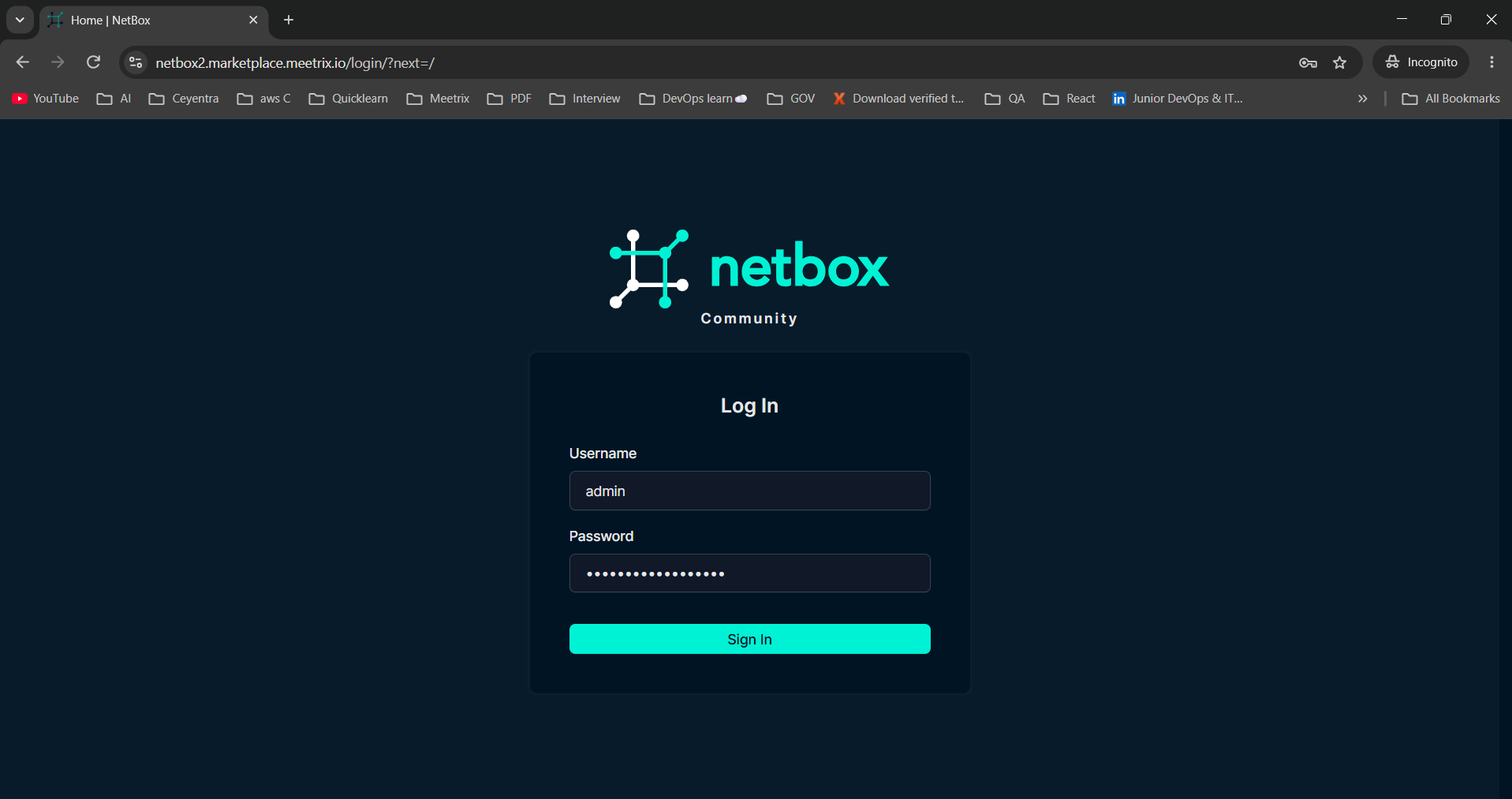
Access NetBox using the "DashboardUrl" in the Outputs tab. Until DNS and SSL are in place you can use "DashboardUrlIp" instead, which serves NetBox over plain HTTP.
Note
On the login screen, enter the username admin and the AdminPassword you set in the stack parameters, then click "Sign In".
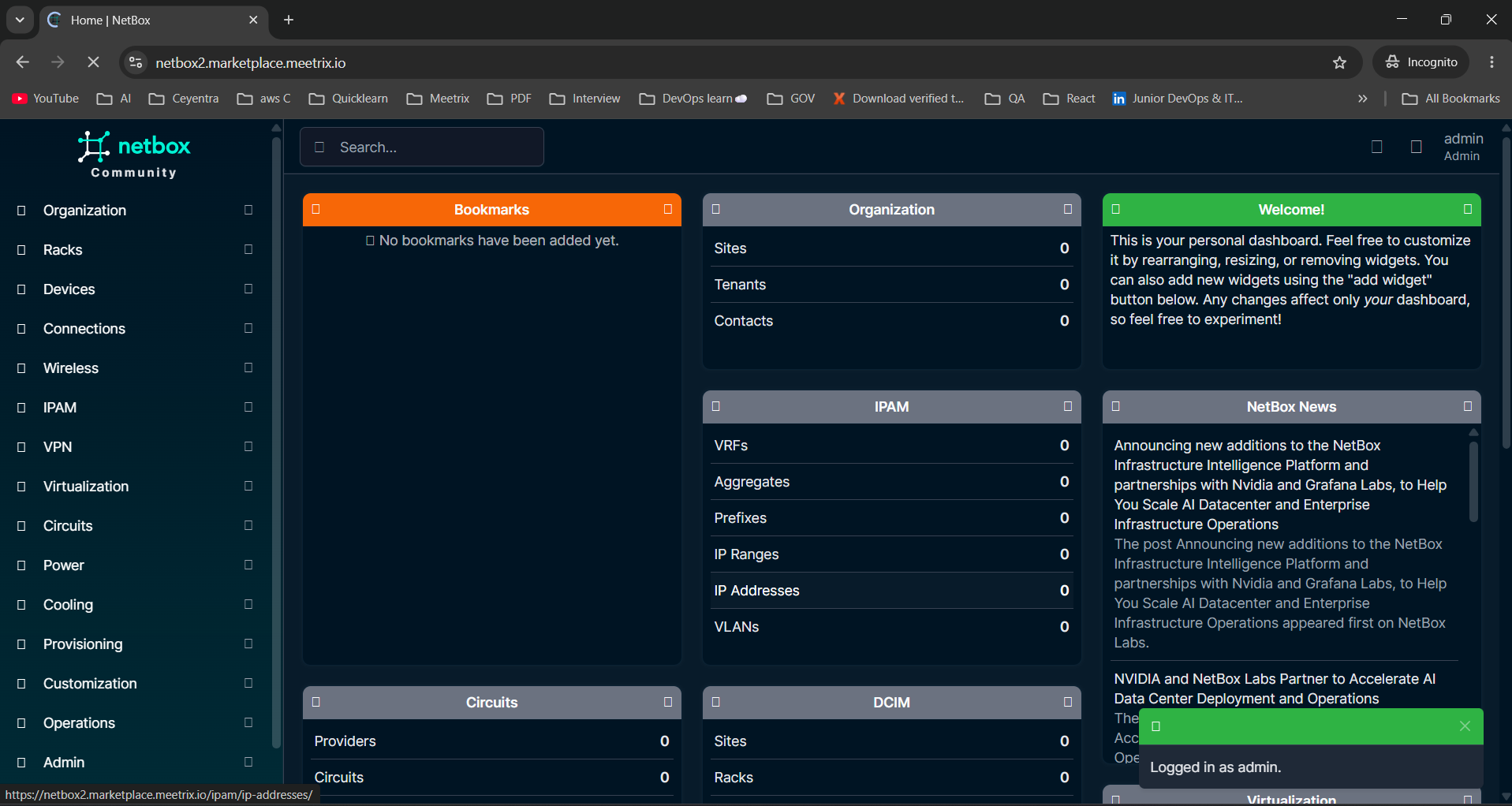
After logging in you land on the NetBox dashboard. The navigation on the left groups everything NetBox tracks, from Organization, Racks and Devices to IPAM, VPN, Virtualization and Circuits. The widgets show zero objects until you start adding your own.
Admin account
Add Your First Site and Prefix
Most NetBox objects hang off a site, so start there, then record the address space it uses.
- Open Organization in the navigation, go to Sites and click "Add".
- Enter a Name (for example, the data center or office it represents). NetBox fills in the Slug for you. Set the Status, then click "Create".
- Open IPAM, go to Prefixes and click "Add".
- Enter the network in CIDR notation, such as 10.10.0.0/16, assign it to the site you just created, and click "Create".
From there you can add racks to the site, then manufacturers, device types and devices, and NetBox will show which addresses in each prefix are used and which are free. The NetBox documentation describes every object in the data model and how they relate.
Create an API Token
Scripts, Ansible playbooks and other tools talk to NetBox through its REST API, and each one needs a token.
- Click your username in the top-right corner and open API Tokens.
- Click "Add". Leave write enabled off unless the tool needs to change data, and set an expiry date if the token is temporary.
- Click "Create" and copy the token right away. NetBox does not show the full token again.
Test the token by asking NetBox for its status, replacing the domain and token with your own:
curl -H "Authorization: Bearer <your API token>" \
  -H "Accept: application/json" \
  https://<your NetBox domain>/api/status/
A JSON response with the NetBox and Python versions means the token works. You can browse the whole API at /api/ on your NetBox domain, and the interactive reference lives at /api/schema/swagger-ui/. The official REST API guide covers filtering, pagination and token formats in detail.
Generate SSL Manually
NetBox will automatically try to set up SSL when a Route 53-hosted domain is provided. If it fails, follow these steps to generate SSL manually.
Step 1: Copy IP Address
- Follow the Update DNS steps above, if not already done.
- Copy the Public IP indicated as "PublicIp" in the "Outputs" tab.
Step 2: Log in to the server
- Open the terminal and go to the directory where your private key is located.
- Run the following command, replacing the key name and IP address.
- Type "yes" and press Enter to confirm.
ssh -i <your key name> ubuntu@<Public IP address>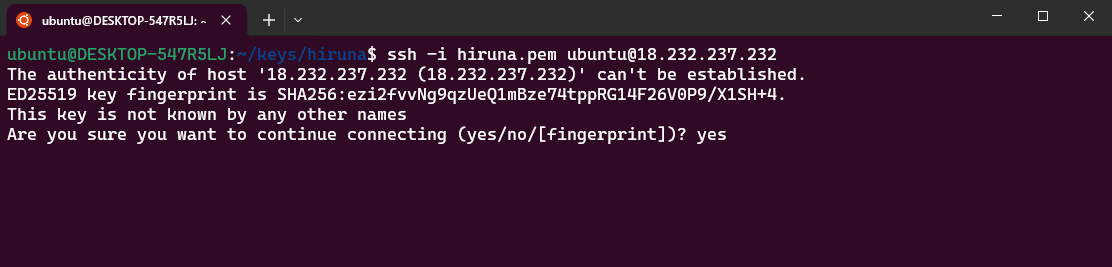
Step 3: Generate SSL
Run the following command and follow the prompts:
sudo /root/certificate_generate_standalone.shOnce the certificate is in place, switch any scripts or integrations that call the API over http to the https DashboardUrl.
Check Server Logs
Step 1: Log in to the server
ssh -i <your key name> ubuntu@<Public IP address>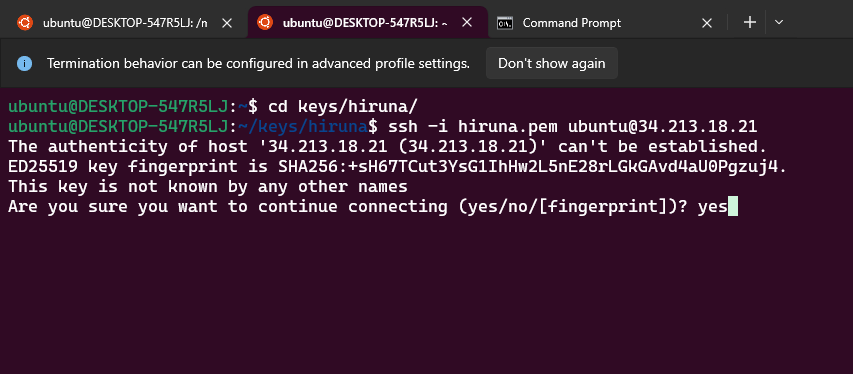
Step 2: Check the logs
List the running containers, then view the logs of a container using the first few characters of its container ID. NetBox depends on PostgreSQL and Redis, so check those containers as well if NetBox does not load:
sudo docker ps

sudo docker logs <container-id-prefix>
Shutting Down NetBox
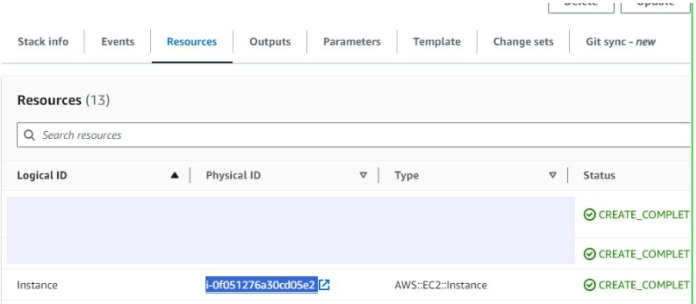
- In CloudFormation, click the link labeled "Instance" in the "Resources" tab to open the EC2 instance.
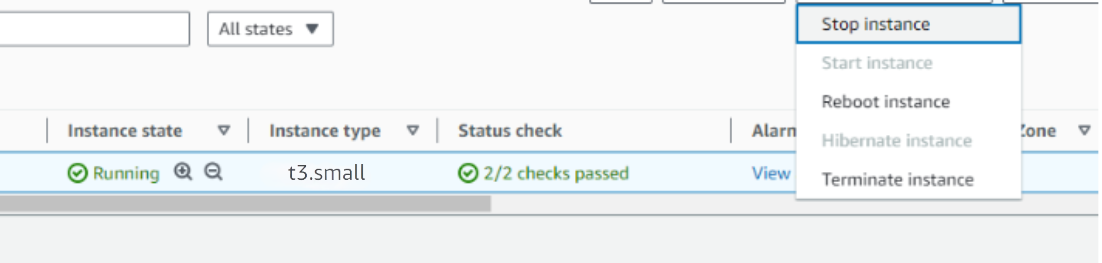
- Stop the NetBox instance from the Instance state dropdown. You can restart it later as needed.
Note
Remove NetBox
Delete the CloudFormation stack from the AWS Management Console under "CloudFormation Stacks" by clicking "Delete".
Upgrades
When a new version is available in AWS Marketplace, remove the previous deployment after backing up necessary server data, and relaunch with the new version.
Troubleshoot
If you face vCPU quota limits, request an increase: How to increase AWS quota.
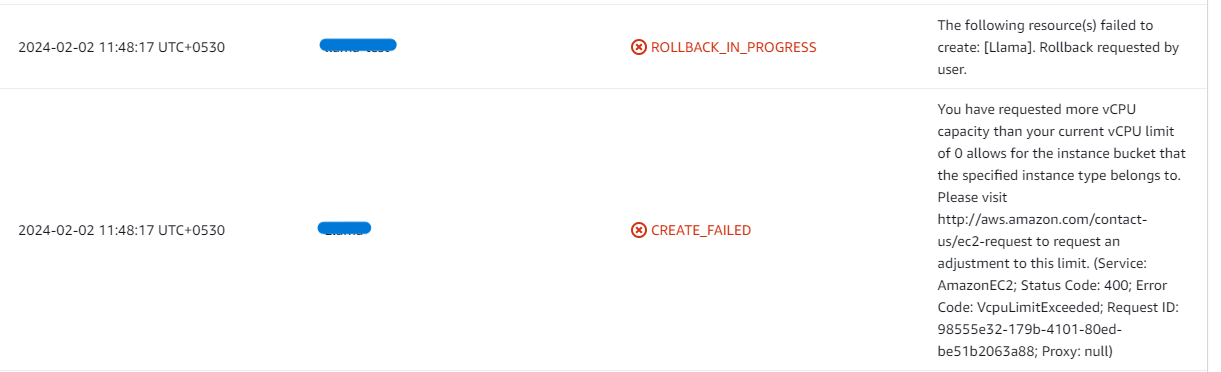
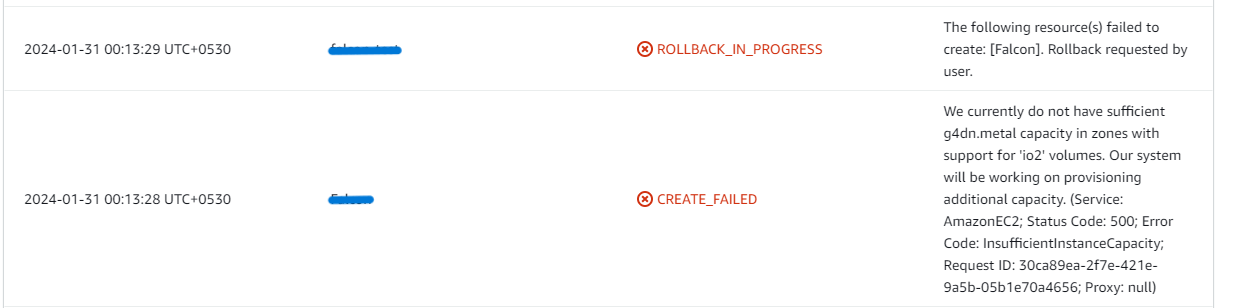
If you face insufficient capacity errors while creating the stack, try another region or time.
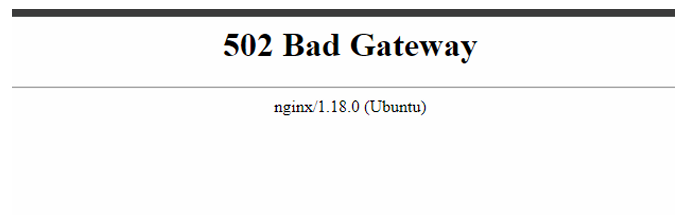
If NetBox shows a 502 Bad Gateway error, wait 5-10 minutes and retry. NetBox runs its database migrations on first start, which can take a few minutes after the instance boots.
If API calls return 403 Forbidden, check that the token has not expired, that it has write access for requests that change data, and that the request sends it in the Authorization header.
Check whether the instance storage is full. Log into the server and run:
df -h
If the root volume is between 90-100%, resize the EBS volume, then reboot and restart the service.
Conclusion
The Meetrix NetBox Deployment Guide helps you run a source of truth for your network in your AWS environment, with the data in a database you control. Whether you're a network engineer, DevOps engineer, or IT lead, this guide provides step-by-step instructions for a secure setup. See the NetBox store page for what the Meetrix image includes. NetBox records what your network should look like; to watch how it actually behaves, our Grafana developer guide sets up monitoring dashboards on AWS, and the Headscale developer guide gives your team private access to the networks NetBox documents. The source code and release notes are on GitHub.
Technical Support
Reach out to Meetrix Support (aws@meetrix.io) for assistance with NetBox issues.
Frequently Asked Questions
What is NetBox?
NetBox is an open-source source of truth for network infrastructure. It combines IP address management (IPAM) and data center infrastructure management (DCIM), so sites, racks, devices, cables, prefixes, IP addresses and VLANs are documented in one place, with a REST API and a GraphQL API for automation.
What are the login details for NetBox?
Log in with the username admin and the AdminPassword you set in the CloudFormation stack parameters. The admin account is a superuser, so store the password securely and create separate accounts for the rest of your team.
Which instance type is recommended?
t3a.medium is the recommended baseline. NetBox runs alongside PostgreSQL and Redis, and the extra memory keeps searches and API calls responsive as your inventory grows. Choose a larger instance if many users or automation jobs hit NetBox at the same time.
What is the S3Bucket parameter used for?
It is an S3 bucket in your account that the instance uses to store backups. Create the bucket before launching the stack, in the same region.
Can I use NetBox with Ansible and other automation tools?
Yes. NetBox exposes a REST API and a GraphQL API, and the netbox.netbox Ansible collection can use NetBox as a dynamic inventory or create and update NetBox objects from a playbook. Create an API token for each tool, with write access only where the tool needs it.
How do I upgrade NetBox?
When a new version is available in AWS Marketplace, back up the data you need, remove the previous deployment, then launch a new stack with the new version.
How do I get technical support?
Reach out to Meetrix Support at aws@meetrix.io for assistance with NetBox issues.
Ready to Deploy Your Own NetBox?
Get started in minutes with our pre-configured AMI and keep your network's source of truth on infrastructure you own.
Deploy NetBox from AWS Marketplace