On this page
Kurento Media Server is an open source WebRTC media server built around media pipelines. Your application tells it, through a JSON-RPC API, how to connect endpoints and filters: record a stream, mix it, run computer vision on it, or send it somewhere else. That flexibility is why people still pick it for custom media processing rather than plain video calls.
The original version of this guide installed Kurento 6.7 on Ubuntu 16.04, using an apt-key command and a repository line that no longer exist. Both install methods below are current for Kurento 7.3. The source and release notes live on Kurento's GitHub.
Which version and OS
| Option | Use it when |
|---|---|
| apt packages on Ubuntu 24.04 | You want Kurento as a system service, or you will build custom modules |
| Docker image | Any other OS, including Ubuntu 22.04 and 26.04, or you want easy upgrades |
Kurento 7.3 officially supports Ubuntu 24.04 only for local installation. Don't add the noble repository to a different Ubuntu release and hope; the packages link against 24.04's libraries. Use Docker there instead.
Install on Ubuntu 24.04
Add the repository signing key to its own keyring:
sudo apt-get update
sudo apt-get install --no-install-recommends --yes gnupg
sudo mkdir -p /etc/apt/keyrings
sudo gpg --no-default-keyring --keyring /etc/apt/keyrings/kurento.gpg \
    --keyserver hkp://keyserver.ubuntu.com:80 \
    --recv-keys 234821A61B67740F89BFD669FC8A16625AFA7A83
Add the Kurento 7.3.0 repository for your Ubuntu codename, and install:
source /etc/lsb-release
sudo tee /etc/apt/sources.list.d/kurento.list > /dev/null <<EOF
deb [signed-by=/etc/apt/keyrings/kurento.gpg] http://ubuntu.openvidu.io/7.3.0 $DISTRIB_CODENAME main
EOF

sudo apt-get update
sudo apt-get install --no-install-recommends --yes kurento-media-server
Start it and enable it at boot. The 2019 guide used update-rc.d for this; on current Ubuntu it is systemd:
sudo systemctl enable --now kurento-media-server
sudo systemctl status kurento-media-server --no-pager
sudo ss -tlnp | grep 8888
Logs go to /var/log/kurento-media-server/. The old instruction to export LC_ALL and LC_CTYPE before starting is not needed with the systemd service.
Kurento Docker install on any Linux host
On any Linux host with Docker:
docker run -d --name kurento --restart unless-stopped --network host \
    kurento/kurento-media-server:7.3.0
Host networking is the important part. WebRTC media uses a wide range of UDP ports chosen at runtime, and mapping that range through Docker's port publishing is slow and fragile. The image reads settings from environment variables, for example KMS_MIN_PORT and KMS_MAX_PORT for the RTP port range and KMS_TURN_URL for TURN.
Install Kurento Media Server on Windows
There is no native Windows build, and there never has been one. Kurento is built on GStreamer and Debian packaging, so from Windows you run it one of two ways:
- Docker Desktop with the WSL2 backend. Good enough for local development against the API on port 8888. Host networking on Docker Desktop is limited and changes between versions, so publish a small RTP port range explicitly instead of relying on it.
- An Ubuntu 24.04 VM or cloud instance. The right answer once a browser on another machine has to connect, because the media path then has a real host network and a reachable address.
WSL2 sits behind its own NAT, so a Kurento running there advertises an address your other machines cannot reach. It is the same NAT problem a cloud server has, with the same fix in the STUN and TURN section below.
Ports and security
| Port | Who connects | Expose publicly? |
|---|---|---|
| 8888 TCP (WebSocket API) | Your application server | No |
| RTP UDP range | Browsers and other media peers | Yes |
Never expose port 8888 to the internet
For apt installs, the RTP port range is set with minPort and maxPort in /etc/kurento/modules/kurento/BaseRtpEndpoint.conf.ini. Pick a range, then open exactly that range in your firewall, rather than all high UDP ports.
STUN and TURN
Kurento on a laptop in your office works. The same setup on a cloud server behind NAT usually doesn't, because Kurento advertises addresses remote browsers cannot reach. Configure STUN, and for users behind strict firewalls TURN, in /etc/kurento/modules/kurento/WebRtcEndpoint.conf.ini:
stunServerAddress=198.51.100.1
stunServerPort=3478
turnURL=kurento:REPLACE_WITH_PASSWORD@198.51.100.1:3478?transport=udp
Both values must be IP addresses; Kurento's own config file states that domain names are not supported. Configure the same STUN and TURN servers in the browser's RTCPeerConnection too. Setting it on only one side is a common reason a connection still fails.
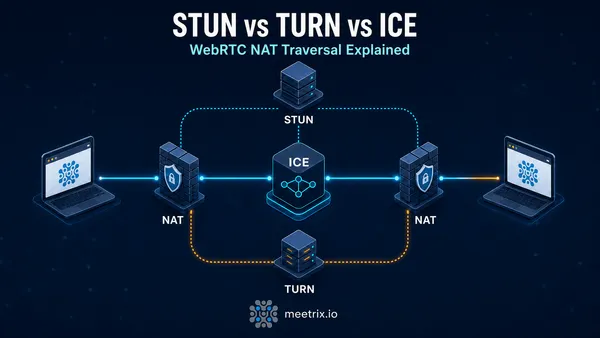
If you don't have a TURN server yet, installing Coturn on Ubuntu covers it, including the long-term credentials Kurento needs because it can't generate time-limited ones. STUN vs TURN vs ICE explains when you need which.
sudo systemctl restart kurento-media-serverRunning on AWS
We used to publish a lightly modified version of Kurento's CloudFormation template here. Kurento's installation documentation now covers AWS itself, so start from the official instructions rather than an old copy. Whichever way you launch the instance, three things decide whether it works:
- Security group: the RTP UDP range open to everyone, port 8888 open only to your app server.
- NAT: EC2 instances see only their private IP, so STUN (or TURN) must be configured as above.
- Instance type: pipelines that transcode, mix or run filters are CPU-heavy. Size for the processing you do, not the number of connections.
From here, the natural next step is doing something with the media. Creating an OpenCV filter for Kurento walks through building a custom module, and if you are still choosing a media server, the best open source WebRTC media servers compares Kurento with Jitsi, mediasoup, Janus and LiveKit.
Frequently Asked Questions
Which Ubuntu versions does Kurento Media Server support?
Kurento 7.3 officially supports Ubuntu 24.04 (noble) for local installs. On other Linux versions, including Ubuntu 22.04 and 26.04, run the official Docker image instead, which avoids package dependency problems entirely.
What port does Kurento Media Server use?
The Kurento API listens on port 8888 over WebSocket, and media flows over a range of UDP ports for RTP. Only your application server should reach port 8888; browsers never connect to it directly.
Is Kurento still maintained?
Yes. Kurento 7.3 is the current release line, with packages for Ubuntu 24.04 and Docker images. Development is slower than in its early years, so for new group-calling products compare it with other media servers before committing.
Why does Kurento connect on my LAN but fail over the internet?
Kurento behind NAT needs STUN or TURN configured in WebRtcEndpoint.conf.ini, and the client needs the same servers. Without them, Kurento offers only private addresses and remote browsers cannot reach them.
Can I use a domain name for the TURN server in Kurento?
No. Kurento's configuration requires IP addresses for both stunServerAddress and turnURL. A hostname there fails without a clear error, so resolve it yourself and use the IP.
Can I install Kurento Media Server on Windows?
Not natively. Run the Docker image under Docker Desktop with WSL2 for local development, or use an Ubuntu 24.04 virtual machine for anything else. WSL2 sits behind its own NAT, so remote browsers need STUN or TURN configured.
Where is the Kurento source code?
On GitHub, under the Kurento organization. The main repository holds the media server, the client libraries and the build tooling, and releases there match the version numbers used by the apt repository and the Docker tags.
Need TURN for Your Kurento Server?
A pre-configured Coturn TURN and STUN server on AWS, ready to point Kurento and your browser clients at.
Deploy Coturn from AWS Marketplace