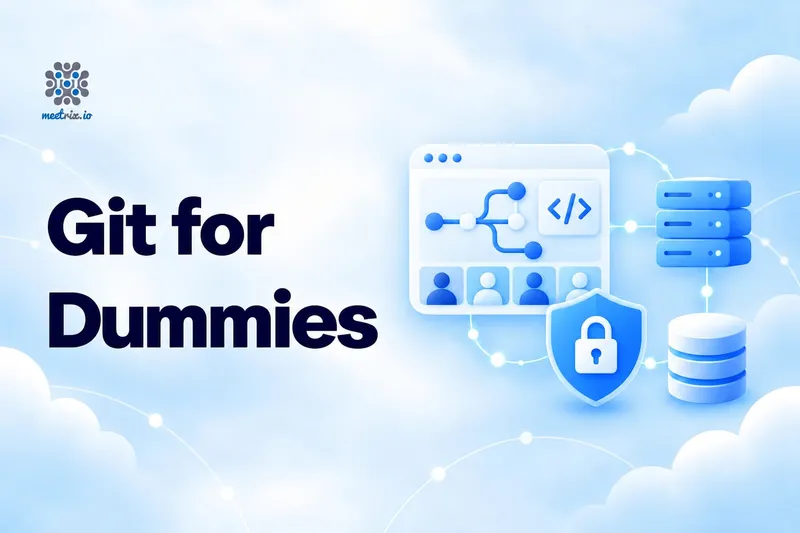
Git keeps the history of a project and lets several people change it at the same time without overwriting each other. That's it. Everything else is detail.
If you are new to it, you probably have questions like these:
- How do I work on my code without breaking the version everyone else uses?
- How do I get other people's updates, and share mine?
- How do I get my changes into the main code?
- How do I see what changed between two versions?
Each question maps to one or two commands. Here they are in the order you'd use them on a normal day.
Four words to know first
- Repository (repo): the project folder plus its complete history.
- Commit: a saved snapshot of the project, with a message saying what changed.
- Branch: a separate line of work. Like a branch of a tree, it grows out of another branch. Most projects have a main branch that holds the working code.
- Remote: the copy of the repo on GitHub, GitLab or Bitbucket that everyone shares, usually called
origin.
Basic Git commands for beginners
git clone: get the project
git clone https://github.com/example/project.git
cd project
git pull: get everyone else's updates
Do this before you start work, so you build on the latest code:
git pullgit switch: make your own branch
Never work straight on the main branch. Create a branch for each fix or feature:
git switch -c fix-login-button   # create the branch and move to it
git switch main                   # go back to main later
Older guides use git checkout -b for this. It still works; git switch is the newer, clearer command.
git status and git diff: see what changed
git status          # which files changed
git diff            # the exact lines that changed
git diff main       # compare your branch with main
git add and git commit: save a snapshot
First choose which changes go into the snapshot, then save it with a message:
git add src/login.js
git commit -m "Fix login button not responding on mobile"
Write the message for the person reading the history in six months. "Fix login button on mobile" helps them. "changes" or "wip" doesn't.
git push: share your work
git push -u origin fix-login-button   # first push of a new branch
git push                               # after that
Pull requests: get your change into main
On most teams you don't merge into main yourself. You open a pull request (GitHub, Bitbucket) or merge request (GitLab) from your branch. A teammate reviews the code, and once it's approved, it gets merged. This is where most learning happens on a new team, so read the review comments carefully.
git merge: combine branches
To bring main's latest changes into your branch:
git switch fix-login-button
git merge main
If you and someone else changed the same lines, Git stops with a merge conflict and marks both versions in the file. Edit the file to keep the right version, then git add it and git commit. Scary the first time, routine by the tenth.
git stash: park changes for a moment
Halfway through something and need to switch branches? Stash your uncommitted changes and bring them back later:
git stash         # put changes aside
git stash pop     # bring them back
To throw away changes you don't want at all, git restore file.js discards them for that file. Be sure; they're gone.
Simple Git commands cheat sheet
| I want to... | Command |
|---|---|
| Copy a project | git clone URL |
| Get the latest updates | git pull |
| Start a new branch | git switch -c name |
| See what I changed | git status, git diff |
| Save my work | git add file, then git commit -m "message" |
| Share my work | git push |
| See the history | git log --oneline |
| Undo my last (unpushed) commit | git reset --soft HEAD~1 |
| Undo a pushed commit | git revert HEAD |
Don't rewrite pushed history
git reset --hard and git push --force change history that other people already have. On a shared branch, that breaks their copies. Use git revert for anything already pushed.
Where to go next
The free Pro Git book is the best next step, and git help <command> opens the manual for any command. Once you're comfortable, Git becomes the base for automated deployments: every push can build and ship your code, as in our guide to a GitLab CI/CD pipeline for Jitsi Meet and deploying a Jekyll blog to AWS. If you work on shared servers too, Ansible applies the same "keep it in Git" idea to server configuration.
Frequently Asked Questions
What are the basic Git commands for beginners?
clone to copy a project, status to see what changed, add and commit to save a snapshot, pull to get others' work, push to share yours, switch to move between branches, and merge to combine them. That covers most days.
What is the difference between git pull and git fetch?
git fetch downloads new commits from the remote but doesn't change your files. git pull does a fetch and then merges (or rebases) those commits into your current branch. Fetch is the safe way to look before you combine.
What is the difference between Git and GitHub?
Git is the version control tool that runs on your computer. GitHub, GitLab and Bitbucket are websites that host Git repositories and add pull requests, issues and CI on top.
How do I undo my last commit?
If you haven't pushed it, git reset --soft HEAD~1 removes the commit but keeps your changes staged. If you already pushed, use git revert HEAD, which adds a new commit that undoes it without rewriting shared history.
Should I use git checkout or git switch?
For branches, git switch. It was added to split up git checkout, which did too many different things. git restore handles the other half, discarding changes to files.