On this page
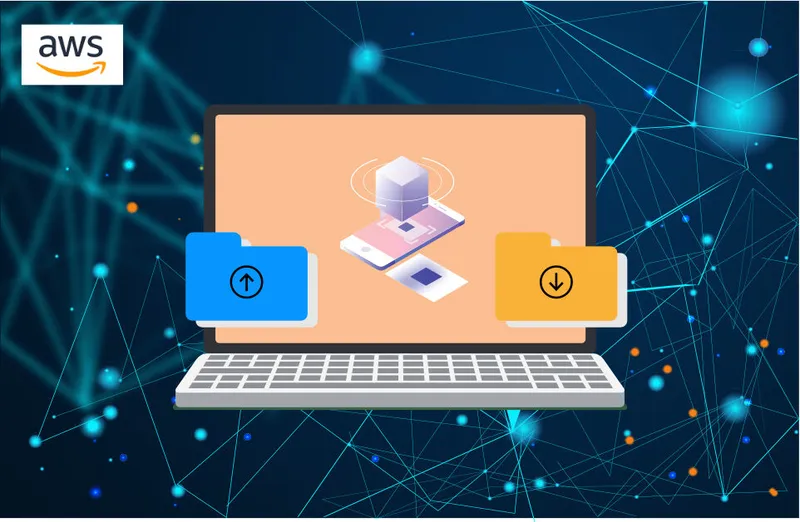
Sometimes the same machine image has to run in two places: on a VMware or VirtualBox host on-premises, and on EC2. AWS VM Import/Export is the service that converts between the two. You upload a disk image to S3, and AWS turns it into an AMI. Or you point it at an AMI, and it writes a VMDK, VHD or raw disk back to S3.
When this guide was first written in 2018, getting it to work took some trial and error: official cloud images downloaded from Canonical refused to import, and only a VM installed from the ISO inside VirtualBox went through. That lesson still holds, and AWS now states it plainly. The commands and limits below are current.
What is AWS Import/Export?
A naming note first, because it trips up a lot of searches. "AWS Import/Export" was originally a physical disk-shipping service: you mailed hard drives to AWS and they loaded the data. That service later became the AWS Snow family. This article is about VM Import/Export, the image conversion service, which is what most people searching for AWS import export today actually want.
When AWS VM Import makes sense
- Moving an existing server image to AWS without rebuilding it, for example an appliance a vendor ships as an OVA.
- Keeping one golden image for on-prem and cloud, built locally and imported.
- Handing an AMI to someone who runs VMware, via export.
If you are migrating many running servers continuously, AWS Application Migration Service is the better tool. VM Import/Export is for one-off image conversions.
Prepare the VM
Most failed imports are decided before you upload anything. Check these against the official requirements:
| Requirement | What that means in practice |
|---|---|
| Supported OS | Ubuntu 22.04, 24.04 and 26.04 are on the list, along with Debian, RHEL, Rocky and Amazon Linux. Use the list, not your luck. |
| Architecture | x86_64 only. ARM64 is not supported, and 32-bit i386 imports stopped working on April 1, 2026. |
| Installed natively | The OS must have been installed inside the VM. Physical-to-virtual conversions are not supported. |
| Format | OVA, stream-optimized VMDK, VHD or VHDX, or raw. |
| File system | ext2, ext3, ext4, XFS, Btrfs (no subvolumes) or JFS, on MBR or GPT. |
Inside the guest, make sure networking uses DHCP rather than a static IP, and that you can log in over SSH with a key or password you know. The imported instance boots with whatever network config the image had, and a static address from your office LAN means an unreachable instance.
Then export it. In VirtualBox that is File, Export Appliance, saved as an .ova. Upload it to an S3 bucket in the same region you want the AMI in. If you have not set up the CLI yet, installing AWS CLI v2 covers it, and for multi-gigabyte images uploading large files to S3 explains the multipart settings that keep the upload from crawling:
aws s3 mb s3://my-vm-imports --region eu-central-1
aws s3 cp ubuntu-server.ova s3://my-vm-imports/vms/ubuntu-server.ova
Create the vmimport role
VM Import/Export works on your behalf through a service role that must be named vmimport. Create trust-policy.json:
{
  "Version": "2012-10-17",
  "Statement": [
    {
      "Effect": "Allow",
      "Principal": { "Service": "vmie.amazonaws.com" },
      "Action": "sts:AssumeRole",
      "Condition": {
        "StringEquals": { "sts:Externalid": "vmimport" }
      }
    }
  ]
}
And role-policy.json, with your import bucket and, if you plan to export, a second bucket for exports:
{
  "Version": "2012-10-17",
  "Statement": [
    {
      "Effect": "Allow",
      "Action": ["s3:GetBucketLocation", "s3:GetObject", "s3:ListBucket"],
      "Resource": [
        "arn:aws:s3:::my-vm-imports",
        "arn:aws:s3:::my-vm-imports/*"
      ]
    },
    {
      "Effect": "Allow",
      "Action": ["s3:GetBucketLocation", "s3:GetObject", "s3:ListBucket", "s3:PutObject", "s3:GetBucketAcl"],
      "Resource": [
        "arn:aws:s3:::my-vm-exports",
        "arn:aws:s3:::my-vm-exports/*"
      ]
    },
    {
      "Effect": "Allow",
      "Action": ["ec2:ModifySnapshotAttribute", "ec2:CopySnapshot", "ec2:RegisterImage", "ec2:Describe*"],
      "Resource": "*"
    }
  ]
}
aws iam create-role --role-name vmimport --assume-role-policy-document file://trust-policy.json
aws iam put-role-policy --role-name vmimport --policy-name vmimport --policy-document file://role-policy.jsonTwo permission details that changed since 2018
iam:PassRole on the vmimport role, which older guides never mentioned. And if EBS encryption by default is on in your account with a customer managed KMS key, the role needs KMS permissions on that key, or imports fail at the snapshot step. Both are covered in the required permissions page.
AWS EC2 import image with the CLI
aws ec2 import-image \
    --description "ubuntu-server from VirtualBox" \
    --license-type BYOL \
    --disk-containers '[{
      "Format": "OVA",
      "UserBucket": {
        "S3Bucket": "my-vm-imports",
        "S3Key": "vms/ubuntu-server.ova"
      }
    }]'
For Linux, BYOL is the right licence type, and it is also what AWS assumes if you leave the flag out. The command returns an ImportTaskId straight away; the conversion runs in the background. Old guides tell you to watch it with describe-conversion-tasks, but that command belongs to the legacy instance-import API. For image imports use:
aws ec2 describe-import-image-tasks --import-task-ids import-ami-0abcd1234exampleThe status walks through validating, converting, updating, booting and preparing ami, then completed with an ImageId. Launch an instance from that AMI like any other. If you hit a vCPU limit on the first launch in a fresh account, raising the EC2 vCPU quota sorts it out.
AWS export AMI to VMDK, VHD or raw
The 2018 version of this guide said you could only export instances you had previously imported. That was true of the old instance export. Today export-image works on most AMIs you built yourself:
aws ec2 export-image \
    --description "ubuntu-server for VMware" \
    --image-id ami-0abcd1234example \
    --disk-image-format VMDK \
    --s3-export-location S3Bucket=my-vm-exports,S3Prefix=exports/

aws ec2 describe-export-image-tasks --export-image-task-ids export-ami-0abcd1234example
The file lands at exports/export-ami-<id>.vmdk. Use VHD for Hyper-V or Xen, or RAW for KVM tooling.
What blocks an export is a short, specific list, and it is worth checking before you start:
- Windows, SQL Server, or any AMI created from an AWS Marketplace image.
- Encrypted EBS snapshots in the block device mapping.
- An AMI shared with you from another account.
- Volumes larger than 1 TiB, or EBS volumes attached after launch rather than in the mapping.
- A deleted base AMI, when exporting something launched from it.
- An export bucket using SSE-KMS encryption. SSE-S3 or unencrypted buckets work.
The Marketplace rule catches people more than any other. An instance launched from a Marketplace listing, including pre-built self-hosted software AMIs, cannot be exported, even after you have customised it.
Why imports fail
When a task ends in deleted with a StatusMessage, it is usually one of these:
- An unsupported kernel error means the kernel inside the image is not on the supported list for that distribution. Update the guest kernel and export again.
- Disk or partition errors usually mean an unsupported file system, or a VMDK that was not exported as stream-optimized. Re-export as OVA.
- Access denied on S3 almost always means the bucket is in a different region from the import, or the role policy names the wrong bucket.
- Images downloaded rather than installed. Cloud images from a vendor download page often fail the checks, which matches what we saw when this guide was first written. Install from the ISO inside the hypervisor and import that.
Frequently Asked Questions
How do I get started with AWS VM Import/Export?
Export your VM as an OVA, upload it to S3 in the target region, create the vmimport service role, then run aws ec2 import-image pointing at the file. Poll describe-import-image-tasks until it completes and gives you an AMI ID.
Is AWS Import/Export the same as VM Import/Export?
No, although the names cause constant confusion. The original AWS Import/Export was a service for shipping physical hard drives to AWS, and it evolved into the Snow family. VM Import/Export is a different service that converts virtual machine disk images into AMIs and back.
Can I export any EC2 instance or AMI to a VMDK?
No. You cannot export Windows or SQL Server images, anything created from an AWS Marketplace image, AMIs with encrypted EBS snapshots, AMIs shared from another account, or volumes larger than 1 TiB. Regular Linux AMIs you built yourself generally export fine.
Which --license-type should I use for an Ubuntu import?
BYOL. For Linux imports, leaving license-type out behaves the same as BYOL, and Ubuntu has no licence cost to replace. The AWS license type matters for Windows Server, where it swaps your licence for an AWS-provided one.
Can I import an ARM64 virtual machine?
No. VM Import/Export does not support ARM64 images, and 32-bit i386 imports stopped working on April 1, 2026. Import an x86_64 VM, or build ARM images directly on Graviton instances instead.
How long does a VM import take?
It depends mostly on disk size, from under an hour for a small single-disk Linux VM to several hours for large multi-disk images. Poll describe-import-image-tasks; the status moves through validating, converting, updating, booting and preparing ami before completing.