On this page
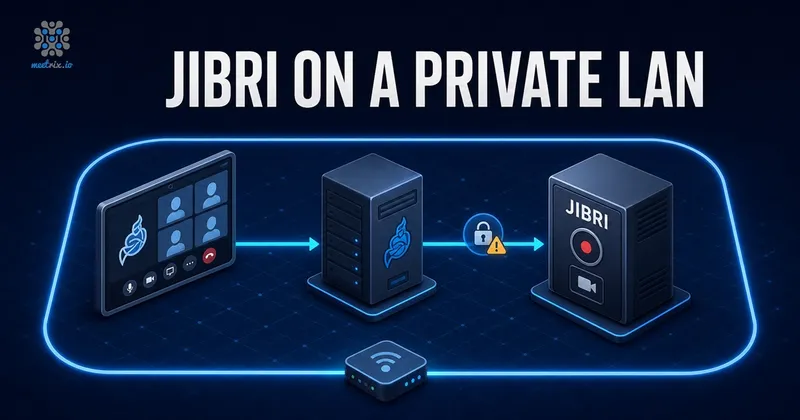
Recording works fine on a public Jitsi Meet server and then falls over the moment you move the same setup onto an internal network. The meeting itself is fine. Press record, Jibri goes to PENDING, and thirty seconds later the button flips back off with no explanation in the UI.
Nearly always it is the certificate. Jibri is not a headless API client, it is a real Chrome session driven by Selenium plus an XMPP client (our explainer on how Jibri recording works goes through the pieces), and both halves refuse a certificate your browser would merely warn you about.
This page covers only the parts that are different on a private LAN. For the install itself, work through How to Set Up Jibri for Jitsi Meet Recording and Streaming on Ubuntu 22.04 first, then come back and apply the changes below.
What actually breaks on a LAN
Three assumptions in a default Jitsi install stop holding when there is no public domain:
| Assumption | What goes wrong | Fix |
|---|---|---|
| The meeting URL is publicly resolvable | Jibri builds the call URL from the room JID and cannot reach it | base-url in the XMPP environment |
| The certificate chains to a trusted CA | The XMPP connection is rejected, and Chrome shows an interstitial instead of the meeting | trust-all-xmpp-certs and a Chrome flag |
| Media candidates are public addresses | ICE has nothing routable to offer between the bridge and Jibri | Jicofo private-address connectivity, on by default |
Everything else, the brewery MUC, the recorder account, the ALSA loopback module, is identical to a public deployment and follows the Jibri README. If you plan to stream rather than record, the same fixes apply; see Jitsi live streaming for that side.
Pointing Jibri at the internal address
By default Jibri works out which page to open from the room JID it is asked to record. On a LAN that produces a hostname nothing can resolve. Set base-url on the XMPP environment and Jibri joins that address instead:
sudo nano /etc/jitsi/jibri/jibri.confjibri {
api {
xmpp {
environments = [
{
name = "internal environment"
xmpp-server-hosts = [ "10.0.10.5" ]
xmpp-domain = "meet.internal.example.com"
// The address Jibri's Chrome will actually open
base-url = "https://meet.internal.example.com"
control-muc {
domain = "internal.auth.meet.internal.example.com"
room-name = "JibriBrewery"
nickname = "jibri-01"
}
control-login {
domain = "auth.meet.internal.example.com"
username = "jibri"
password = "JibrisPass"
}
call-login {
domain = "recorder.meet.internal.example.com"
username = "recorder"
password = "RecordersPass"
}
strip-from-room-domain = "conference."
usage-timeout = 0
trust-all-xmpp-certs = true
}
]
}
}
}Note that xmpp-server-hosts takes the internal IP of the Prosody machine while xmpp-domain stays a hostname. That split is deliberate. Jibri connects to the IP, then presents the domain during the XMPP handshake, so the domain has to match what Prosody is configured for even though nothing on the public internet resolves it.
Use a hostname, not a bare IP
https://10.0.10.5 and skip DNS. Resist it. Prosody, Jicofo and Jibri all key off XMPP domains, and a certificate for a bare IP is more trouble than a five-minute entry in your internal DNS. Pick something like meet.internal.example.com, point it at the internal IP, and use that name everywhere.
Getting past the self-signed certificate
This is the part that costs people an afternoon. There are two separate certificate checks in Jibri and fixing one does nothing for the other.
The XMPP connection
Jibri's XMPP client validates Prosody's certificate. One line per environment turns that off:
trust-all-xmpp-certs = trueIf this is wrong you get an authentication or TLS failure in /var/log/jitsi/jibri/log.0.txt and Jibri never appears in the brewery at all. The symptom is a recording button that is greyed out or reports no available recorder, because Jicofo has nobody to hand the job to.
The Chrome session
The second check happens when Jibri opens the meeting. Chrome hits the same self-signed certificate and shows its interstitial, so ffmpeg captures a warning page. Add the flag to the Chrome flag list:
jibri {
  chrome {
    flags = [
      "--use-fake-ui-for-media-stream",
      "--start-maximized",
      "--kiosk",
      "--enabled",
      "--autoplay-policy=no-user-gesture-required",
      "--ignore-certificate-errors"
    ]
  }
}
The list replaces the defaults rather than adding to them, so keep the five original flags and append yours. Dropping --use-fake-ui-for-media-stream in particular will leave Chrome sitting on a camera permission prompt forever.
Then restart and watch it join:
sudo systemctl restart jibri
sudo journalctl -u jibri -f
A healthy start logs the brewery join within a few seconds. If the log stops after the Selenium session opens, it is still Chrome, not XMPP.
These flags are for closed networks
trust-all-xmpp-certs and --ignore-certificate-errors disable certificate validation. That is a reasonable trade on an isolated LAN where you control every host. Do not carry them into a deployment that is reachable from the internet. If you need both a private hostname and real validation, issue the certificate from a public CA using DNS-01 validation, which never requires the host itself to be reachable.
Jicofo and private-address ICE
Jicofo has a setting that decides whether private addresses are allowed as ICE candidates for Jibri. On a LAN, private addresses are the only ones there are:
jicofo {
  jibri {
    brewery-jid = "JibriBrewery@internal.auth.meet.internal.example.com"
    pending-timeout = 90 seconds
    use-private-address-connectivity = true
  }
}
It defaults to true, so on a clean install you do not need to add it. Check it anyway if you inherited a config from a public deployment where somebody turned it off, because the failure it produces looks like a Jibri problem rather than a Jicofo one: the recorder joins the room, ICE never connects, and the session dies at the 30 second timeout.
Steps you can now skip
Most LAN guides for Jibri were written around 2020 and a good half of what they tell you to do is now either unnecessary or actively wrong. If you are following one, here is what has changed.
| Old step | Status | What to do instead |
|---|---|---|
Edit /etc/jitsi/jibri/config.json | Replaced | /etc/jitsi/jibri/jibri.conf, in HOCON. Keys are kebab-case now: recordings-directory, control-login, strip-from-room-domain. |
Patch JibriSelenium.kt and rebuild with Maven to accept insecure certificates | Not needed | Add --ignore-certificate-errors to jibri.chrome.flags. |
Patch StreamingJibriService.kt to change the RTMP target | Not needed | jibri.streaming.rtmp-allow-list takes regex patterns, and the client passes the URL. |
Set org.jitsi.jicofo.jibri.BREWERY in sip-communicator.properties | Replaced | jicofo.jibri.brewery-jid in /etc/jitsi/jicofo/jicofo.conf. |
Install AdoptOpenJDK 8 and edit launch.sh to point at it | Wrong today | The package depends on OpenJDK 17 or 21 and apt installs it for you. Forcing Java 8 will stop Jibri starting. |
Change bosh: to an IP address in the Jitsi Meet config | Superseded | Set base-url on the Jibri XMPP environment and leave the meet config alone. |
Fetch ChromeDriver from chromedriver.storage.googleapis.com | Endpoint gone | That host stopped serving releases at Chrome 115. Use the Chrome for Testing endpoints and match the driver to your installed Chrome major version. |
Load the snd-aloop ALSA module | Still required | Unchanged. No loopback device means no audio capture and the recording stops early. |
The Jibri launcher still passes --config /etc/jitsi/jibri/config.json for backwards compatibility, which is why the old file sometimes appears to still work. jibri.conf is the file that is actually read for everything in this article. Editing only config.json on a current build gets you silence.
What a LAN deployment costs you
Worth being clear about the trade before you commit to it.
- Browsers will complain. Every participant gets a certificate warning and has to click through it, unless you distribute an internal CA to every machine.
- The mobile apps are the hard limit. Android stopped trusting user-installed CAs for app traffic in Android 7, so even a device-installed root certificate usually will not get the Jitsi Meet app to connect. Plan for browser-only access, or use a publicly trusted certificate.
- Live streaming still needs the internet. RTMP goes out to YouTube or wherever you are sending it. File recording is genuinely offline-capable, streaming is not.
- Recordings pile up locally. With no S3 bucket to finalize into,
recordings-directoryfills the disk. Set a finalize script that moves files onto a network share and prunes them.
There is a middle path that avoids most of this: keep the deployment internal, but get a real certificate for an internal hostname through DNS-01 validation. The server never has to be reachable from outside, the mobile apps work, and nobody clicks through a warning. It is worth the extra half hour.
Commercial support for Jitsi Meet
Frequently Asked Questions
Can Jibri run on a network with no internet access at all?
Yes, once it is installed. Jibri only talks to Prosody and to the Jitsi Meet web server, both of which are on your LAN. You need internet during the install to pull the Debian packages, Chrome and ChromeDriver, and again for live streaming, since RTMP goes out to an external service. File recording works fully offline.
Do I still have to patch the Jibri source code to accept a self-signed certificate?
No. That was necessary on the 2020 builds. Today you set trust-all-xmpp-certs = true on the XMPP environment and add --ignore-certificate-errors to jibri.chrome.flags, both in /etc/jitsi/jibri/jibri.conf. No Maven build, no replacing the jar.
Why does Jibri join the meeting but record a blank or error page?
Chrome is refusing your certificate, or it cannot resolve the meeting hostname. Jibri opens the meeting in a real Chrome session, so anything that would show a browser warning on your laptop stops the recording too. Add --ignore-certificate-errors to jibri.chrome.flags and confirm the Jibri machine resolves the Jitsi hostname to the internal IP.
Can I use an IP address instead of a domain name for Jitsi Meet?
It technically works for the web page, but it causes more problems than it solves. Certificates for bare IPs are awkward, and the XMPP domains in Prosody, Jicofo and Jibri all expect a hostname. Pick an internal hostname such as meet.internal.example.com, resolve it through your own DNS, and issue a certificate for that name.
Will the Jitsi Meet mobile app work on a private LAN?
Usually not with a self-signed certificate. Android has not trusted user-installed CAs for app traffic since Android 7, so even installing your root CA on the device does not normally fix it. If mobile clients matter, issue the certificate from a publicly trusted CA for an internal hostname using DNS-01 validation.
Does the brewery MUC need to be reachable from the LAN?
No, and it should not be. The internal MUC component exists so Jicofo and Jibri can find each other over localhost or over your server subnet. Meeting participants never touch it, so leave Prosody's 5222 and 5347 closed to general LAN traffic and open them only between your Jitsi servers.
How many Jibri instances do I need?
One per concurrent recording. Each Jibri launches its own Chrome and ffmpeg, so it handles exactly one recording or stream at a time. Point additional machines at the same brewery MUC and Jicofo will hand work to whichever one is idle.
Jitsi Meet with Recording, Already Wired Up
A pre-configured Jitsi Meet deployment with Jibri, the brewery MUC and the recorder account already set up, so you skip the Prosody and Jicofo wiring entirely.
Get Jitsi Meet with Recording on AWS Marketplace