On a single Jitsi server, certificate renewal is a cron job and you forget it exists. On Kubernetes it isn't: the pods don't run certbot, the HTTP-01 challenge usually can't reach them through the load balancer, and the TURN server needs its own certificate that nothing renews for you. This is the procedure we use on a GKE deployment with HAProxy in front of Jitsi Meet and a separate coturn deployment: issue both certificates with certbot over a DNS challenge, load them into the cluster, restart, verify. Then, further down, how to stop doing it by hand with cert-manager. If you are deciding whether Kubernetes is the right home for Jitsi at all, see Docker vs Kubernetes for self-hosted video conferencing.
Before You Begin
my.domain.com and your TURN server's domain is turn.my.domain.com. Please replace these placeholders with your actual domain names. This process is based on a Google Kubernetes Engine (GKE) setup with HAProxy; steps may vary slightly depending on your cloud provider and configuration.
Schedule Downtime
Check When the Jitsi and TURN Certificates Expire
Before touching anything, find out how long you have. Let's Encrypt certificates last 90 days. Check both endpoints from any machine, including the TURN server's TLS port (5349 by default, or 443 if you run TURN over TLS on 443):
echo | openssl s_client -connect my.domain.com:443 -servername my.domain.com 2>/dev/null | openssl x509 -noout -enddate
echo | openssl s_client -connect turn.my.domain.com:5349 -servername turn.my.domain.com 2>/dev/null | openssl x509 -noout -enddate
The TURN one is the certificate people forget. The web page keeps working, so nobody notices, until users behind strict firewalls who depend on TURN over TLS start failing to connect. For a single-server Jitsi install (no Kubernetes), our Jitsi SSL certificate renewal guide covers the simpler Let's Encrypt route.
Section 1: Preparing the Environment
You'll need a temporary Linux VM with internet access to run certbot. Why not run it in the cluster? Because the DNS-01 challenge only needs a DNS record, not inbound traffic, so any throwaway machine works and nothing on the cluster changes until you're ready.
Step 1.1: Log into Your Server
Connect to your cloud server via SSH. All subsequent commands will be run from this server.
Step 1.2: Set Up Certbot
Install Certbot and the acme-dns-auth script, which will help automate the DNS challenge for certificate issuance.
sudo apt update
sudo apt install snapd
sudo snap install core; sudo snap refresh core
sudo apt remove certbot
sudo snap install --classic certbot
sudo ln -s /snap/bin/certbot /usr/bin/certbot
wget https://github.com/joohoi/acme-dns-certbot-joohoi/raw/master/acme-dns-auth.py
chmod +x acme-dns-auth.py
sed -i 's|#!/usr/bin/env python|#!/usr/bin/env python3|' acme-dns-auth.py
sudo mkdir /etc/letsencrypt
sudo mv acme-dns-auth.py /etc/letsencrypt/Section 2: Obtaining the SSL Certificates
Next, we will generate the certificates for both your Jitsi Meet and TURN domains separately.
Step 2.1: Generate Certificate for Jitsi Meet Domain
- Run the Certbot command for your Jitsi domain (
my.domain.com). - Follow the prompts: Add your email address when prompted to continue.
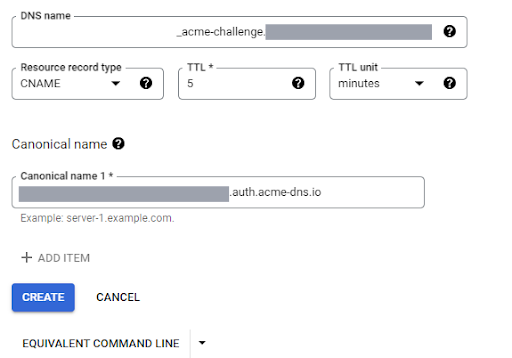
- Create a CNAME record: Certbot will ask you to add a specific CNAME record to your domain's DNS zone. Log into your DNS provider (e.g., Google Cloud DNS) and add this record.
- Continue and verify: Press Enter in the terminal to allow Certbot to verify the DNS record.
- Locate your certificate: Once successful, your certificate and private key will be saved.
- Certificate:
/etc/letsencrypt/live/my.domain.com/fullchain.pem - Key:
/etc/letsencrypt/live/my.domain.com/privkey.pem
- Certificate:
sudo certbot certonly --manual --manual-auth-hook /etc/letsencrypt/acme-dns-auth.py --preferred-challenges dns --debug-challenges -d my.domain.com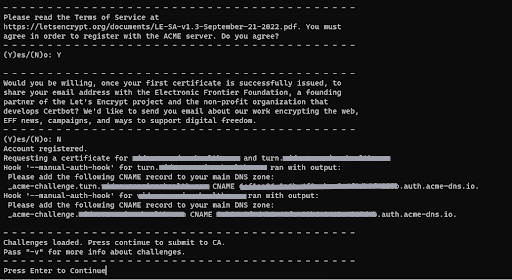
Step 2.2: Generate Certificate for TURN Server Domain
- Run the Certbot command for your TURN domain (
turn.my.domain.com). - Follow the same process: Add the new CNAME record to your DNS zone as prompted.
- Locate your certificate: Your new certificate and key will be saved.
- Certificate:
/etc/letsencrypt/live/turn.my.domain.com/fullchain.pem - Key:
/etc/letsencrypt/live/turn.my.domain.com/privkey.pem
- Certificate:
sudo certbot certonly --manual --manual-auth-hook /etc/letsencrypt/acme-dns-auth.py --preferred-challenges dns --debug-challenges -d turn.my.domain.comSection 3: Deploying the Certificates to Kubernetes
With the new certificates generated, you can now deploy them to your Kubernetes cluster.
Step 3.1: Update ConfigMaps
- Save certificates locally: Copy the contents of the
fullchain.pemandprivkey.pemfiles for both domains to your local machine. - Connect to your cluster: Ensure
kubectlis installed and configured to connect to your Kubernetes cluster. - Update HAProxy/Meet ConfigMap: Modify the YAML file for your HAProxy or Jitsi Meet ConfigMap, replacing the old certificate and key for
my.domain.comwith the new ones. - Update TURN ConfigMap: Similarly, update the TURN ConfigMap YAML with the new certificate and key for
turn.my.domain.com.
Editing PEM blocks inside YAML by hand is where mistakes happen (a missing line break and HAProxy won't start). Generating the ConfigMap straight from the files avoids that. HAProxy wants the certificate and key in one file:
cat fullchain.pem privkey.pem > my.domain.com.pem
kubectl create configmap haproxy-certs \
  --from-file=my.domain.com.pem \
  --dry-run=client -o yaml | kubectl apply -f -

kubectl create configmap turn-certs \
  --from-file=fullchain.pem=turn-fullchain.pem \
  --from-file=privkey.pem=turn-privkey.pem \
  --dry-run=client -o yaml | kubectl apply -f -
Use the ConfigMap names your deployments already mount; the ones above are examples. Private keys in a ConfigMap are readable by anyone who can read ConfigMaps in that namespace, which is one more reason to move to Secrets with cert-manager below.
Step 3.2: Apply Changes and Restart Deployments
- Apply the new configurations to your cluster.
- Restart the deployments to ensure they pick up the new certificates.
# First, set your kubectl context
kubectl config use-context <your-context-name>

# Apply the updated ConfigMap files
kubectl apply -f <haproxy-configmap-yaml-filename>
kubectl apply -f <turn-configmap-yaml-filename># Get the names of your deployments
kubectl get deployments
# Restart the relevant deployments
kubectl rollout restart deployment <haproxy-deployment-name>
kubectl rollout restart deployment <turn-deployment-name>Step 3.3: Verify the New Certificates
Run the expiry check from the top of this article again against both domains. The dates should now be about 90 days out. Then join a test meeting from a network that blocks UDP (a phone hotspot with a strict firewall app, or a corporate guest network) to confirm TURN over TLS still connects, because a broken TURN certificate doesn't show up on the web page.
Automating Jitsi Kubernetes SSL with cert-manager
Doing this by hand every 90 days gets old, and the one time it slips is the one time it matters. On Kubernetes the standard fix is cert-manager with the same DNS-01 challenge, using Cloud DNS on GKE:
apiVersion: cert-manager.io/v1
kind: ClusterIssuer
metadata:
  name: letsencrypt-dns
spec:
  acme:
    server: https://acme-v02.api.letsencrypt.org/directory
    email: you@my.domain.com
    privateKeySecretRef:
      name: letsencrypt-dns-account
    solvers:
      - dns01:
          cloudDNS:
            project: <your-gcp-project>
---
apiVersion: cert-manager.io/v1
kind: Certificate
metadata:
  name: jitsi-tls
spec:
  secretName: jitsi-tls
  dnsNames:
    - my.domain.com
    - turn.my.domain.com
  issuerRef:
    name: letsencrypt-dns
    kind: ClusterIssuer
One catch: cert-manager writes the certificate to a Secret, not a ConfigMap. If your HAProxy and TURN deployments read certificates from ConfigMaps (as in the manual steps above), change them to mount the jitsi-tls Secret instead, and make sure they reload when it changes; coturn and HAProxy don't pick up a new file on their own, so pair it with a rollout restart or a reloader. If you're also scaling the bridges on Kubernetes, our guide to scaling Jitsi videobridges with Octo on Kubernetes covers the rest of that setup, and the TURN server guide for Jitsi explains why the TURN certificate matters.
Section 4: Final Cleanup
After confirming that your services are running correctly with the new certificates, you can perform the final cleanup steps.
- Remove DNS Records: Delete the temporary CNAME records you added to your DNS zone for Certbot verification.
- Decommission Server: You can now safely stop or terminate the cloud server instance you used to generate the certificates.
Frequently Asked Questions
Why do I need a separate server to generate certificates?
Using a separate, temporary server for Certbot simplifies the process by providing a clean environment with public internet access, which is necessary for the DNS challenge, without altering your core Kubernetes infrastructure.
What happens if I don't update my SSL certificates?
Expired SSL certificates will cause browsers to show security warnings to your users, and many clients or services may refuse to connect altogether, leading to service outages.
How do I check when my Jitsi certificate expires?
Run openssl s_client against the domain on port 443 and pipe it to openssl x509 -noout -enddate. Do the same for the TURN domain on its TLS port, usually 5349. Let's Encrypt certificates last 90 days.
Can I automate this process?
Yes. cert-manager can issue and renew the certificates automatically with the same DNS-01 challenge; see the cert-manager section above. The manual process is still worth knowing for the first setup and for when automation breaks.
Need Help with Your Jitsi Deployment?
Managing Kubernetes and Jitsi can be complex. If you need assistance with your deployment, security, or automation, our team of experts is here to help.
Get Expert Support