Learn how to deploy Umami on AWS with our step-by-step guide. It walks you through launching the Meetrix Umami AMI with CloudFormation, pointing your domain at it, logging in for the first time, adding the tracking code to your website, and keeping the server healthy once it runs.
Umami is an open-source, privacy-focused web analytics platform. It shows page views, visitors, referrers and custom events on one clean dashboard, without cookies and without sending your visitors' data to a third party. Running it on your own AWS account means the analytics database belongs to you. If you publish with Ghost, our Ghost developer guide sets up a blog you can track with Umami on the same cloud, and the Coolify developer guide covers a self-hosted platform for deploying the sites themselves.
Prerequisites
Before you get started with the Umami AMI, ensure you have the following prerequisites:
- Basic knowledge of AWS services, including EC2 instances and CloudFormation.
- An active AWS account with appropriate permissions.
- An EC2 key pair in the region you will deploy to.
- An S3 bucket in the same region for backups.
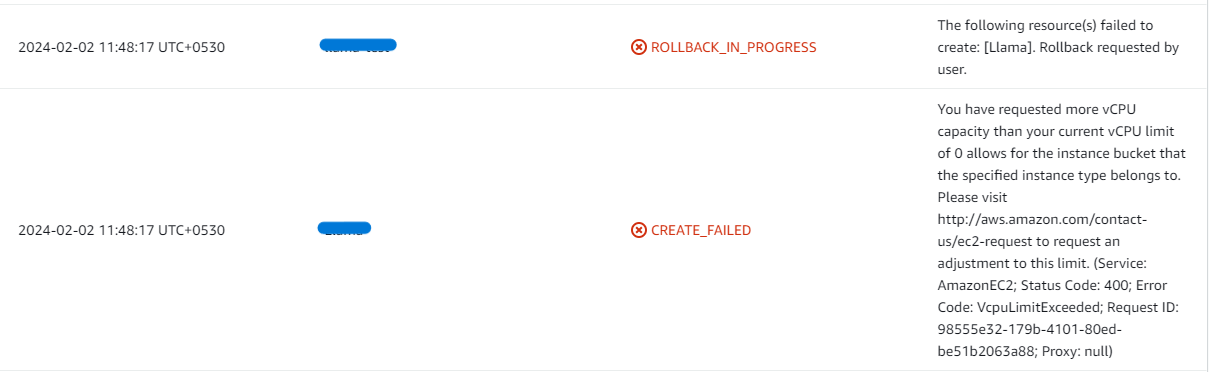
- If you encounter a vCPU quota error when launching the stack, follow https://meetrix.io/blogs/increase-aws-vcpu-quota/ to increase your vCPU limit.
Launching the AMI
Step 1: Find and Select Umami AMI
- Log in to your AWS Management Console.
- Navigate to 'Umami' in AWS Marketplace.
Step 2: Initial Setup & Configuration
- Click the "Continue to Subscribe" button.
- After subscribing, accept the terms and click "Accept Terms".
- Wait a few minutes until processing completes, then click "Continue to Configuration".
- Select "CloudFormation script to deploy Umami" as the fulfillment option and choose your region. Click "Continue to Launch".
- From the "Choose Action" dropdown, select "Launch CloudFormation" and click "Launch".
Create CloudFormation Stack
Step 1: Create a stack
- Ensure the "Template is ready" option is selected under "Prepare template".
- Click "Next".
Step 2: Specify stack options
- Provide a unique "Stack name".
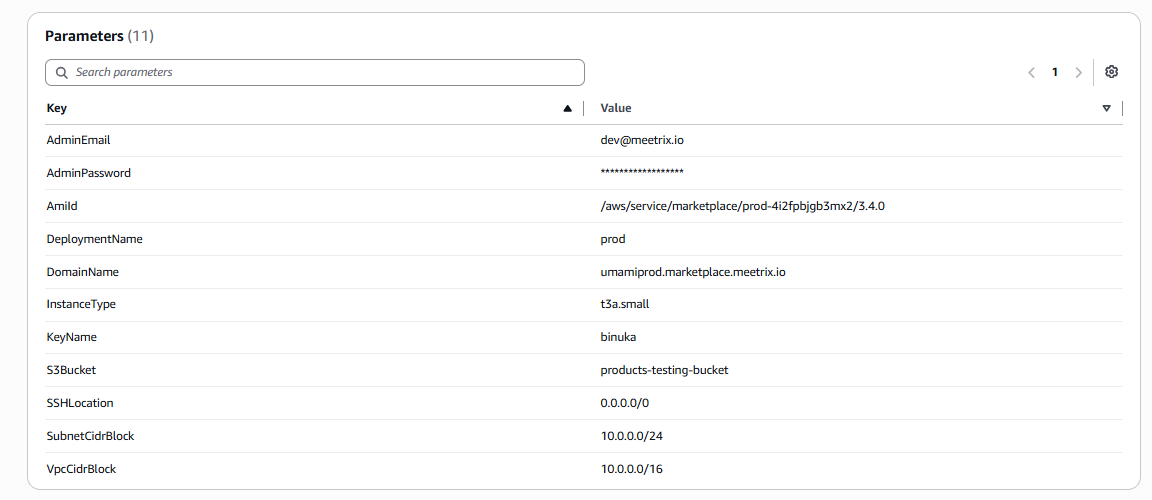
- Enter the "AdminEmail" used for SSL certificate generation.
- Enter an "AdminPassword". This is the password for the Umami admin account you log in with, so store it securely.
- Enter a value for "DeploymentName".
- Provide a public domain for "DomainName". Umami will automatically try to set up SSL if the domain is hosted on Route 53. If unsuccessful, you must set up SSL manually.
- Choose an instance type "InstanceType" (Recommended: t3a.small).
- Select your preferred "KeyName".
- Enter the name of your S3 bucket for "S3Bucket", used for storing backups.
- Set "SSHLocation" to 0.0.0.0/0, or restrict it to your own IP range.
- Keep "SubnetCidrBlock" as 10.0.0.0/24.
- Keep "VpcCidrBlock" as 10.0.0.0/16.
- Click "Next".
Step 3: Configure stack options
- Choose "Roll back all stack resources" and "Delete all newly created resources" under "Stack failure options".
- Click "Next".
Step 4: Review
Review and verify the parameters you've entered.
- Tick "I acknowledge that AWS CloudFormation might create IAM resources with custom names".
- Click "Submit".

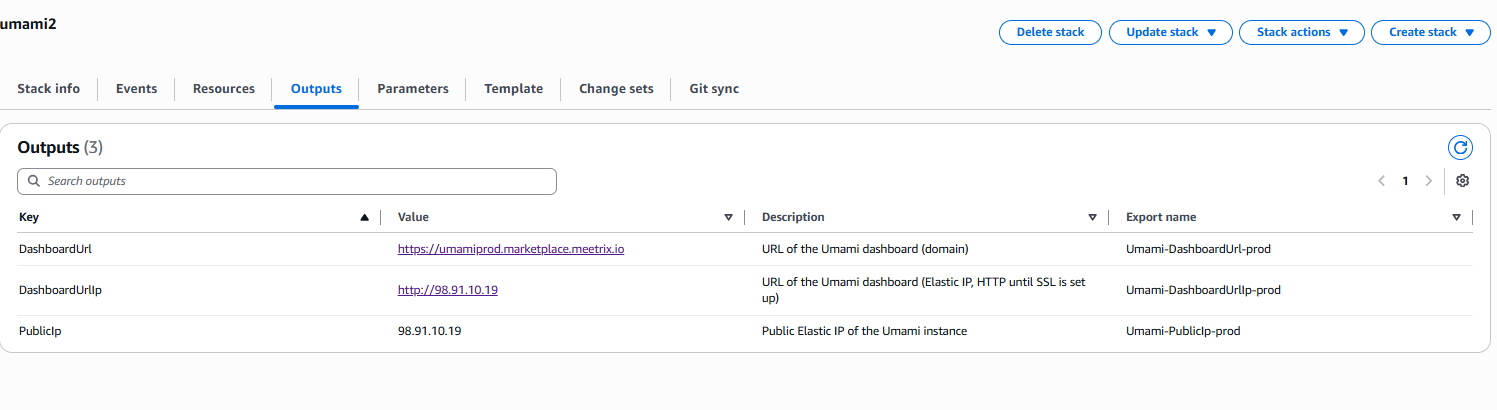
Afterward, you'll be directed to the CloudFormation stacks page. Please wait 5-10 minutes until the stack status shows CREATE_COMPLETE.
Update DNS
Step 1: Copy IP Address
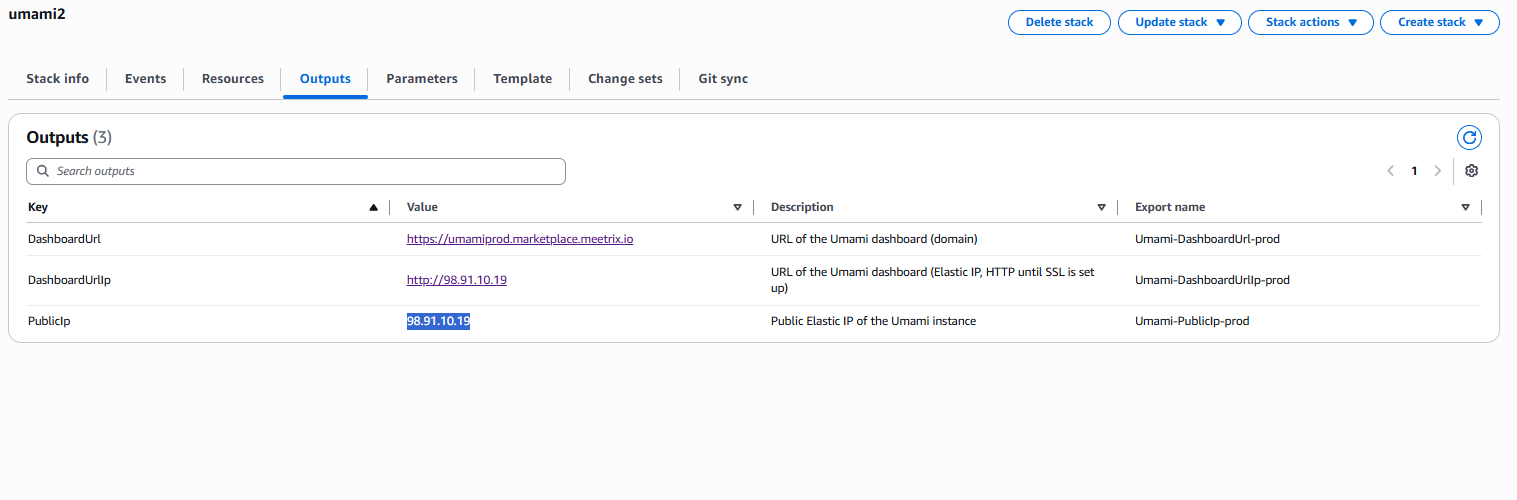
Copy the public IP labeled "PublicIp" in the "Outputs" tab.
Step 2: Update DNS
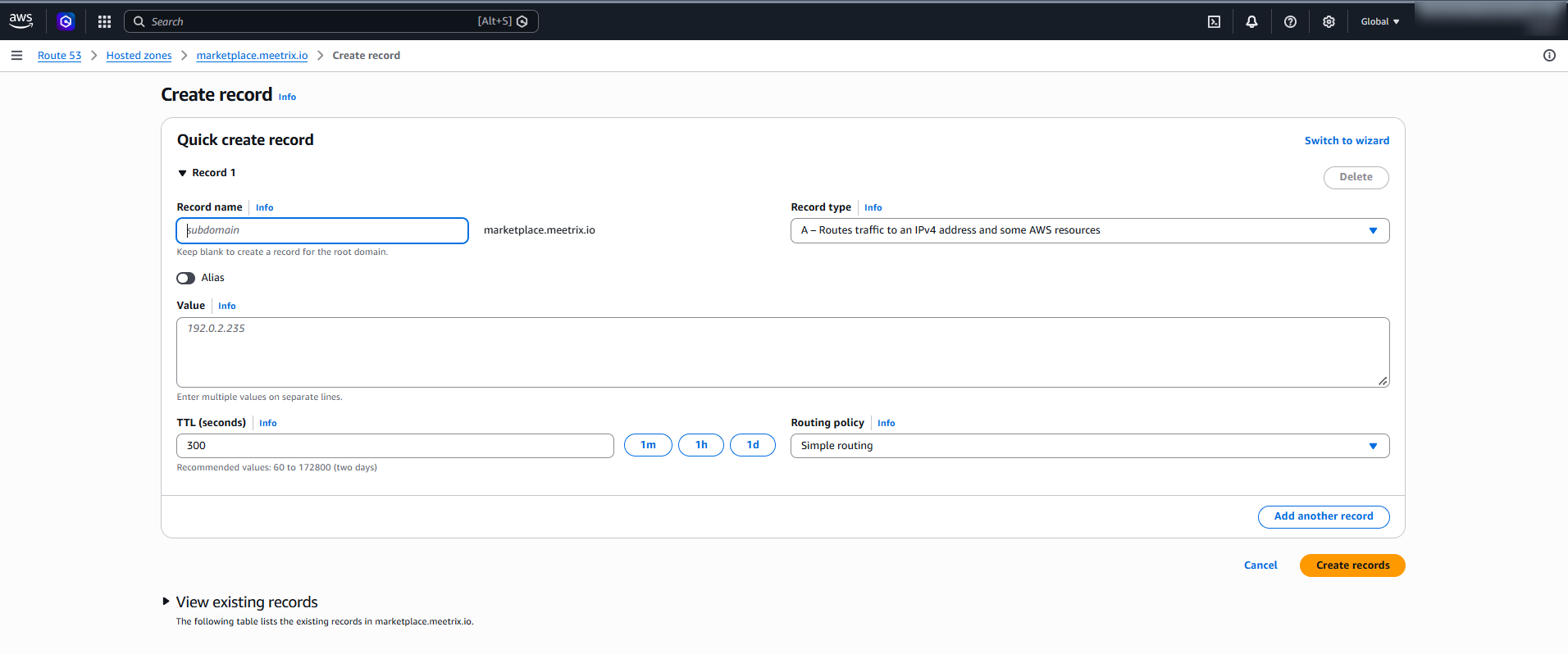
- Go to AWS Route 53 and navigate to "Hosted Zones".
- Click Create record.
- Add a record name matching the DomainName you entered, keep the record type as A, and paste the copied PublicIp into the value textbox.
- Click "Create records".
Access Umami
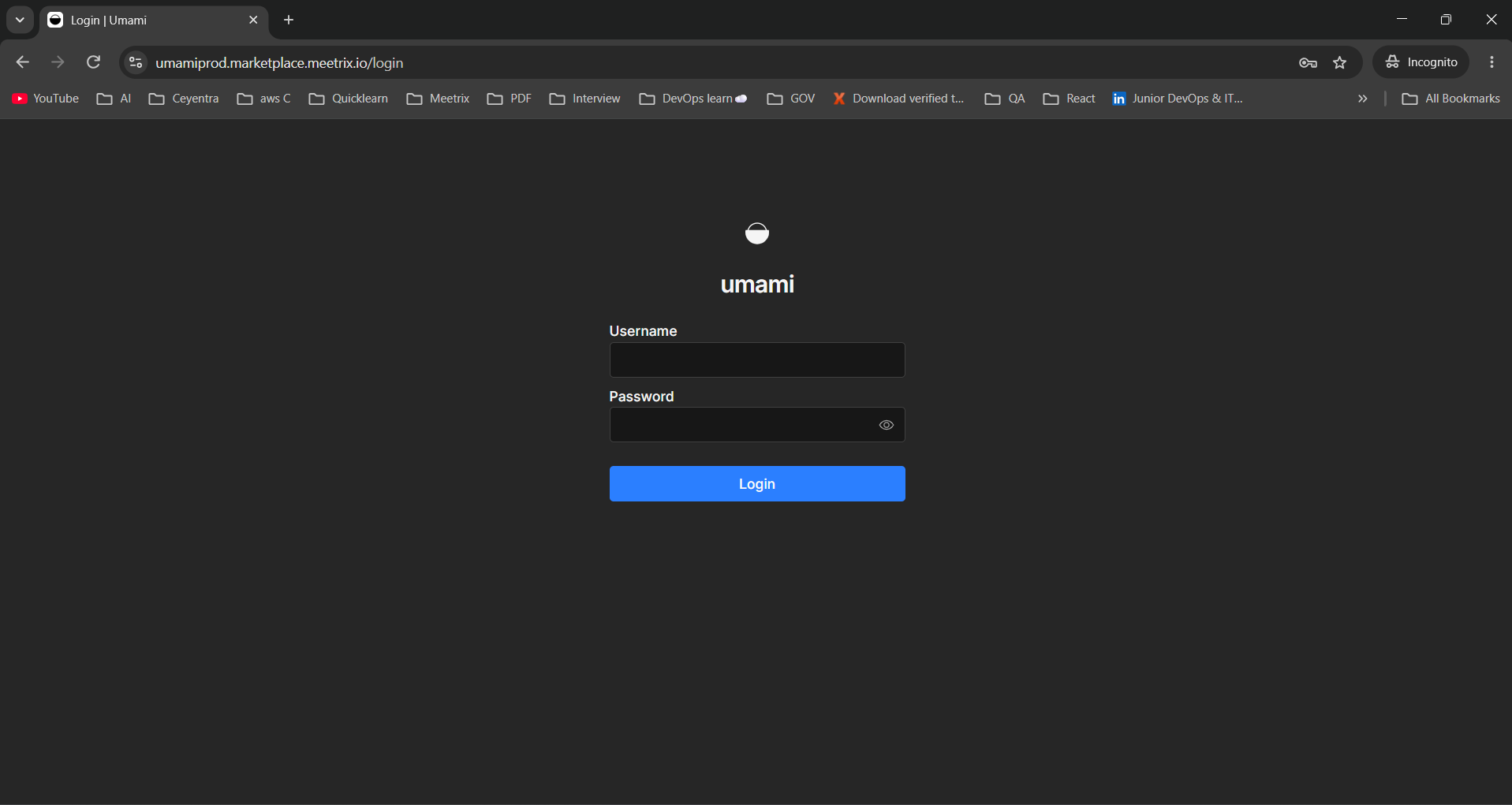
Access Umami using the "DashboardUrl" in the Outputs tab. Until DNS and SSL are in place you can use "DashboardUrlIp" instead, which serves the dashboard over plain HTTP.
Note
On the login screen, enter the username admin and the AdminPassword you set in the stack parameters, then click "Login".
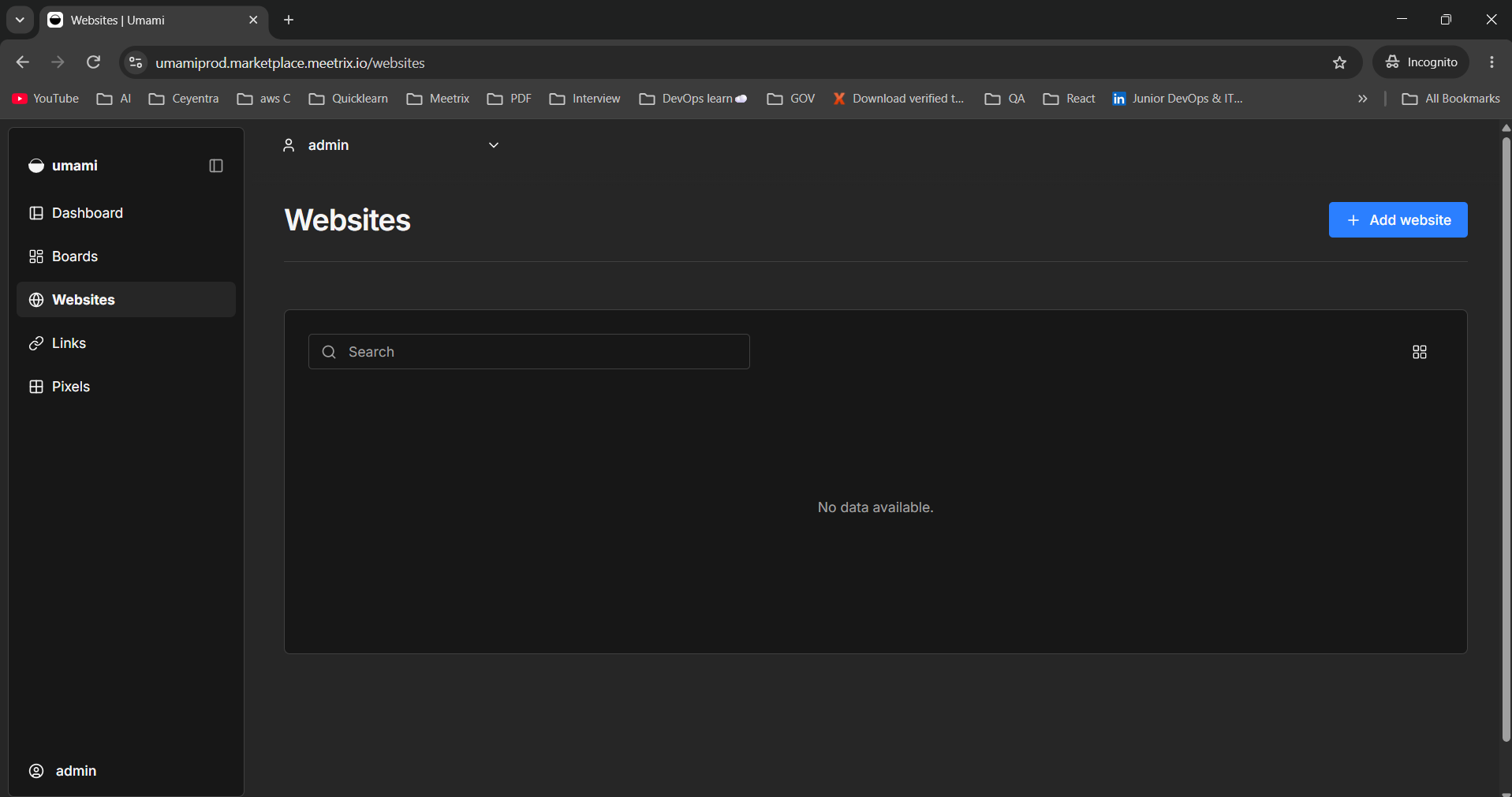
After logging in you land on the Websites page, which stays empty until you add your first site.
Admin account
Add Your First Website
- On the Websites page, click "Add website".
- Enter a Name (usually the site's domain) and the site's Domain, then click "Save".
- Click "Edit" on the new website and open its Tracking code section.
- Copy the snippet and paste it into the <head> of every page you want to track.
The snippet looks like this, with your own Umami domain and website ID filled in:
<script defer src="https://<your Umami domain>/script.js" data-website-id="<your website ID>"></script>Visit your site once, and the visit appears on the Umami dashboard within a few seconds. The official guides to adding a website and collecting data cover framework-specific setups and custom event tracking.
Generate SSL Manually
Umami will automatically try to set up SSL when a Route 53-hosted domain is provided. If it fails, follow these steps to generate SSL manually.
Step 1: Copy IP Address
- Follow the Update DNS steps above, if not already done.
- Copy the Public IP indicated as "PublicIp" in the "Outputs" tab.
Step 2: Log in to the server
- Open the terminal and go to the directory where your private key is located.
- Run the following command, replacing the key name and IP address.
- Type "yes" and press Enter to confirm.
ssh -i <your key name> ubuntu@<Public IP address>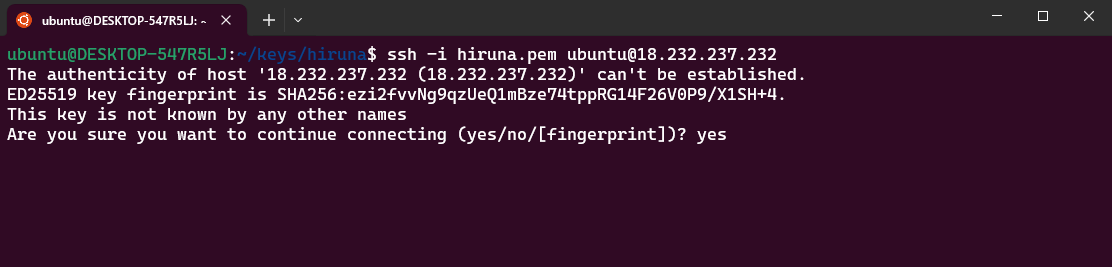
Step 3: Generate SSL
Run the following command and follow the prompts:
sudo /root/certificate_generate_standalone.shOnce the certificate is in place, update the tracking snippet on your websites to load script.js over https. Browsers block an http script on an https page, so tracking silently stops otherwise.
Check Server Logs
Step 1: Log in to the server
ssh -i <your key name> ubuntu@<Public IP address>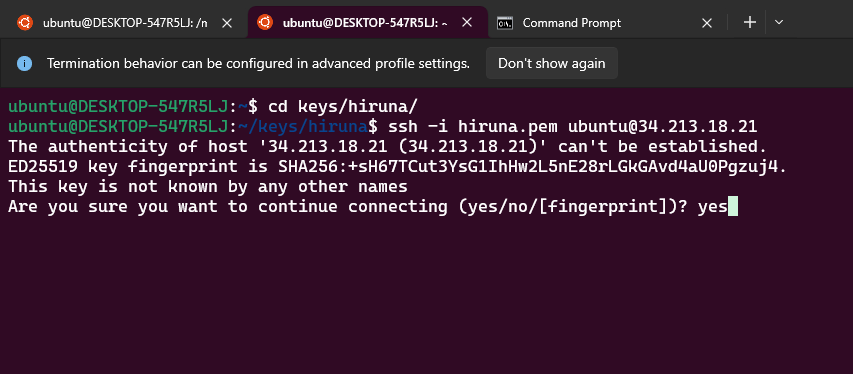
Step 2: Check the logs
List the running containers, then view the logs of a container using the first few characters of its container ID. Umami runs alongside a PostgreSQL database, so check both containers if the dashboard does not load:
sudo docker ps

sudo docker logs <container-id-prefix>
Shutting Down Umami
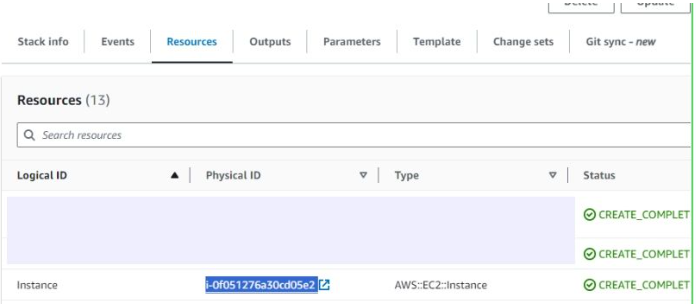
- In CloudFormation, click the link labeled "Instance" in the "Resources" tab to open the EC2 instance.
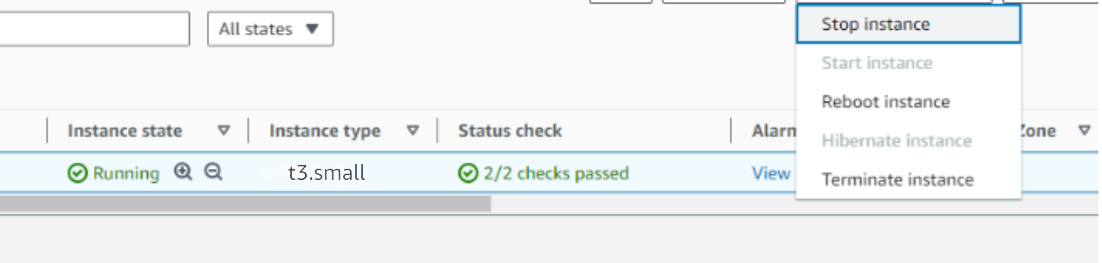
- Stop the Umami instance from the Instance state dropdown. You can restart it later as needed.
Note
Remove Umami
Delete the CloudFormation stack from the AWS Management Console under "CloudFormation Stacks" by clicking "Delete".
Upgrades
When a new version is available in AWS Marketplace, remove the previous deployment after backing up necessary server data, and relaunch with the new version.
Troubleshoot
If you face vCPU quota limits, request an increase: How to increase AWS quota.
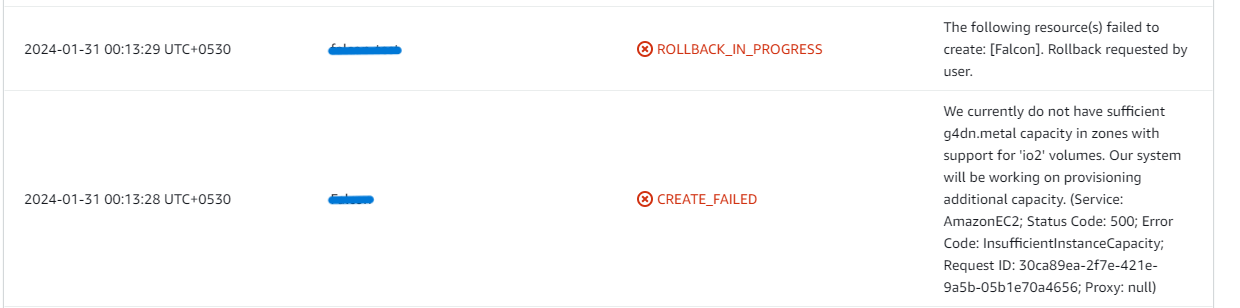
If you face insufficient capacity errors while creating the stack, try another region or time.
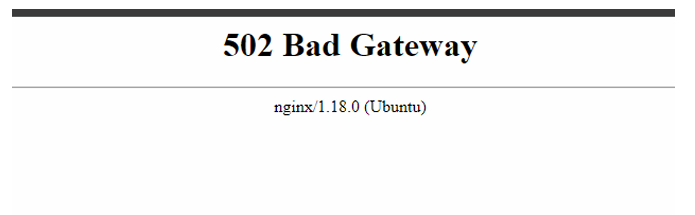
If the dashboard shows a 502 Bad Gateway error, wait 5-10 minutes and retry. Umami can take a few minutes to start after the instance boots.
If the dashboard loads but no visits appear, open your website with the browser's developer tools and check that script.js loads from your Umami domain. Ad blockers and privacy extensions often block analytics scripts, so test from a browser without them.
Check whether the instance storage is full. Log into the server and run:
df -h
If the root volume is between 90-100%, resize the EBS volume, then reboot and restart the service.
Conclusion
The Meetrix Umami Deployment Guide helps you run privacy-focused web analytics in your AWS environment, with the data in a database you control. Whether you're a DevOps engineer, developer, or marketing lead, this guide provides step-by-step instructions for a secure setup. See the Umami store page for what the Meetrix image includes. Umami tells you who visits your websites; for metrics on the servers behind them, our Grafana developer guide sets up monitoring dashboards on AWS. The source code and release notes are on GitHub.
Technical Support
Reach out to Meetrix Support (aws@meetrix.io) for assistance with Umami issues.
Frequently Asked Questions
What is Umami?
Umami is an open-source, privacy-focused web analytics platform and a lightweight alternative to Google Analytics. It tracks page views, visitors, referrers, devices and custom events without cookies and without collecting personal data, and all the data stays in your own database.
What are the login details for the Umami dashboard?
Log in with the username admin and the AdminPassword you set in the CloudFormation stack parameters. Store the password securely, since the admin account can see and change every website you track.
Which instance type is recommended?
t3a.small is the recommended baseline and comfortably handles small to medium sites. If you track several busy websites, choose a larger instance so the database has more memory to work with.
What is the S3Bucket parameter used for?
It is an S3 bucket in your account that the instance uses to store backups. Create the bucket before launching the stack, in the same region.
Do I need a cookie consent banner for Umami?
Umami does not set cookies and does not collect personal data, which is why many sites run it without a consent banner. Whether you need one still depends on the privacy laws that apply to you, so check with your own legal or compliance team.
How do I upgrade Umami?
When a new version is available in AWS Marketplace, back up the data you need, remove the previous deployment, then launch a new stack with the new version.
How do I get technical support?
Reach out to Meetrix Support at aws@meetrix.io for assistance with Umami issues.
Ready to Deploy Your Own Umami Analytics?
Get started in minutes with our pre-configured AMI and keep your website analytics on infrastructure you own.
Deploy Umami from AWS Marketplace