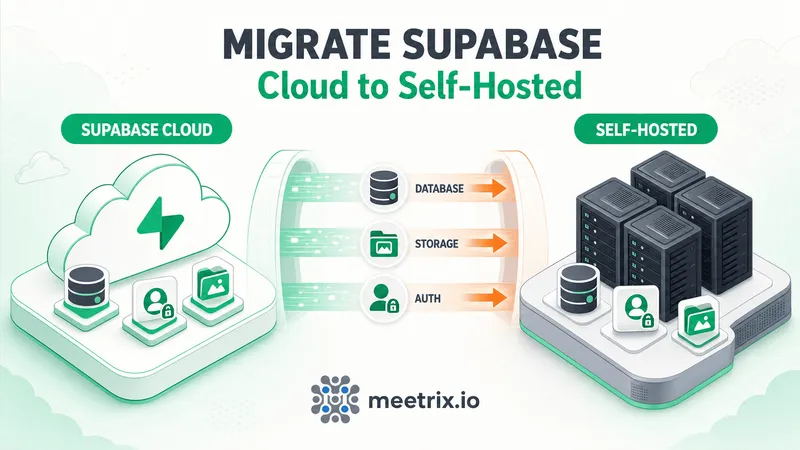
Migrating Supabase Cloud to self-hosted is three separate migrations wearing one trenchcoat: the Postgres database, the storage objects, and the auth configuration. Most guides only really cover the first one, which is why people run a straight pg_dump, hit permission errors on Supabase's internal schemas, and give up halfway through.
This is the actual runbook: export the database the way Supabase's own CLI intends it to be exported, move storage objects separately, and reconnect the parts of auth that don't travel with a SQL dump at all.
Quick answer
Jump to a section
Before you migrate Supabase Cloud to self-hosted
Get the target environment running first. If you haven't deployed a self-hosted Supabase instance yet, our Supabase self-hosting guide and the AWS developer guide (or the GCP version) cover that install. This article assumes the self-hosted side is already up and picks up from there, moving data into it.
- Supabase CLI installed locally, or available via
npx supabase psqlon whatever machine you're running the restore from- Your Cloud project's database connection string (dashboard, "Connect" button, session pooler or direct connection)
- The database password for your self-hosted instance
- A maintenance window. Users will need to log back in after the cutover, this isn't a zero-downtime migration
Test on staging first
Step 1: Export your Cloud database
Use the Supabase CLI's db dump, not a raw pg_dump against the connection string. The CLI applies Supabase-specific filtering, stripping internal schemas and reserved roles that would otherwise cause permission errors on restore. Export it in three separate files, in this order:
# Roles first
supabase db dump --db-url "postgresql://postgres:[YOUR-PASSWORD]@[CLOUD-HOST]:5432/postgres" \
  -f roles.sql --role-only

# Schema second
supabase db dump --db-url "postgresql://postgres:[YOUR-PASSWORD]@[CLOUD-HOST]:5432/postgres" \
  -f schema.sql

# Data last, using COPY for cross-version compatibility
supabase db dump --db-url "postgresql://postgres:[YOUR-PASSWORD]@[CLOUD-HOST]:5432/postgres" \
  -f data.sql --use-copy --data-only
Three files instead of one matters here. Restoring roles, then schema, then data in sequence avoids the ordering conflicts you'd hit trying to load everything from a single monolithic dump, and the --use-copy flag on the data export produces statements that work across different Postgres major versions.
Step 2: Check extensions and Postgres version
Before restoring anything, check which Postgres extensions your Cloud project actually uses:
select * from pg_extension;Enable any non-default ones on your self-hosted instance first, restoring data that depends on an extension that isn't installed yet just fails partway through. Also confirm the Postgres major version on both sides. Supabase Cloud sometimes runs a newer major version (Postgres 17, for example) than the self-hosted Docker image defaults to (commonly Postgres 15). If your data.sql has version-specific syntax, like a SET transaction_timeout line that only exists on PG17, it'll fail against an older self-hosted Postgres.
Two ways to handle it: strip the incompatible lines before restoring, or deploy your self-hosted instance on a matching Postgres version so the question doesn't come up.
# Comment out a PG17-only setting that PG15 doesn't recognize
sed -i 's/^SET transaction_timeout/-- &/' data.sql
Step 3: Restore into self-hosted Postgres
Restore the three files in order, in a single transaction, against your self-hosted database:
psql \
  --single-transaction \
  --variable ON_ERROR_STOP=1 \
  --file roles.sql \
  --file schema.sql \
  --command 'SET session_replication_role = replica' \
  --file data.sql \
  --dbname "postgresql://postgres:[SELF-HOSTED-PASSWORD]@[YOUR-DOMAIN]:5432/postgres"
The session_replication_role = replica setting before the data import isn't optional flavor, it prevents triggers from re-running as data loads, which matters specifically to avoid things like double-encrypting columns that were already encrypted when the dump was taken. --single-transaction with ON_ERROR_STOP=1 means a failure partway through rolls back cleanly instead of leaving you with a half-restored database to untangle by hand.
Step 4: Migrate storage objects
This is the step most migration writeups skip, and it's not part of the database dump at all. Supabase Storage keeps file objects in a separate system (S3-compatible storage backing the Storage API), so a database restore gets you the storage.objects metadata rows but not the actual files behind them.
- Small buckets (a few GB or less): pull files down through the Storage API or the Cloud dashboard, then upload them into your self-hosted instance's storage backend the same way.
- Larger buckets: use rclone against Supabase's S3-compatible storage endpoint to sync objects directly into your self-hosted storage backend (commonly MinIO on a self-hosted deployment), rather than downloading and re-uploading through application code.
- Update hardcoded URLs. Cloud storage URLs look like
https://[project-ref].supabase.co/storage/v1/.... After migration those need to point at your self-hosted domain instead, check your database rows and frontend code for anywhere that URL got saved directly rather than constructed at request time.
Step 5: Reconnect auth, OAuth, and SMTP
The auth.users table comes across with the rest of your data, so accounts, hashed passwords, and identities are intact. What doesn't travel with a SQL dump is anything that lives in environment variables or dashboard configuration rather than the database itself:
| What | What you need to do |
|---|---|
| JWT secret and API keys | Generate new ones for the self-hosted instance. Every existing session and access token was signed with Cloud's secret and is invalid the moment you cut over, users log in again once. |
| OAuth / social login providers | Reconfigure through GOTRUE_EXTERNAL_* environment variables, and update the redirect URLs registered with each provider (Google, GitHub, etc.) to point at your self-hosted domain. |
| SMTP / transactional email | Set the SMTP_* environment variables yourself. Cloud's built-in email sending doesn't carry over. |
| Edge functions | Copy function source over manually and redeploy, they're not part of the database dump. |
| Custom domain / DNS | Point your domain at the new self-hosted instance once you're confident in the cutover. |
Verify the migration
Before pointing production traffic at the new instance, check the basics actually came across:
-- Confirm your tables exist
\dt public.*

-- Confirm user accounts migrated
SELECT count(*) FROM auth.users;

-- Confirm extensions are installed
SELECT * FROM pg_extension;
Then log in with a real test account, exercise a write path that depends on RLS policies (not just a read), and pull a file from a migrated storage bucket. A row count matching is a good sign, but it doesn't confirm RLS policies or storage permissions came across correctly, only actually using the app does that.
Self-hosted vs Cloud: cost and trade-offs
The honest version of "supabase self hosted vs cloud" isn't that one is universally cheaper, it's that they trade different costs. Supabase Cloud's Pro plan starts at $25 a month with usage-based overages on top for database size, bandwidth, and function invocations, that's a predictable line item until a project grows past the included limits. Self-hosting swaps the subscription for server costs (often less in raw dollars once you're past a certain scale) plus the ongoing work of patching containers, watching disk usage, rotating secrets, and being the one who gets paged when Postgres runs low on connections. Automating your Postgres backups removes at least one of those pager-duty scenarios.
If the migration is happening because Cloud's overage billing stopped being predictable at your usage level, self-hosting solves that specific problem. It doesn't remove the operational work, it just moves who's responsible for it from Supabase to you. That includes security: before the migrated project takes real traffic, go through our self-hosted Supabase security checklist.
If you'd rather not run that infrastructure from a bare Docker Compose checkout, the Meetrix Supabase AMI gives you a pre-configured starting point on AWS, with the CloudFormation stack, dashboard credentials, and networking already handled, so the migration above lands on something closer to production-ready than a fresh clone.
Frequently Asked Questions
How do I export data from Supabase Cloud?
Use the Supabase CLI, not raw pg_dump: supabase db dump --role-only for roles, a plain supabase db dump for schema, and supabase db dump --use-copy --data-only for data. The CLI strips Supabase-internal filtering that raw pg_dump would otherwise choke on during restore.
Will my users need to log in again after migrating to self-hosted?
Yes. Your self-hosted instance gets a new JWT secret, and every existing session and access token was signed with the old one. The auth.users rows carry over so accounts still exist, but everyone has to re-authenticate once, there's no way around this part.
Does Supabase Storage migrate automatically with the database dump?
No. The database dump covers your tables, auth, and RLS policies, but Storage keeps file objects outside Postgres. You need a separate transfer, either through the Storage API, rclone against the S3-compatible endpoint, or Supabase's storage-sync tooling.
Is self-hosted Supabase actually cheaper than Supabase Cloud?
It can be, but you're trading a predictable monthly bill for infrastructure and ops time. Supabase Cloud's Pro plan starts at $25/month with usage-based overages; self-hosting swaps that for server costs plus the time to patch, back up, and monitor the stack yourself.
What Postgres version issues come up when migrating?
Supabase Cloud sometimes runs a newer Postgres major version than the self-hosted Docker image defaults to. If your data.sql has PG17-only syntax, it fails against PG15. Either strip the incompatible lines or deploy self-hosted on a matching Postgres version first.
Can I migrate back from self-hosted to Supabase Cloud later?
There's no official reverse migration path built for this, but the mechanics are the same in principle: pg_dump your self-hosted database and restore it into a new Cloud project, then handle storage and auth reconnection the same way you did going the other direction.
Land Your Migration on a Managed Baseline
Deploy a pre-configured self-hosted Supabase instance on AWS before you start the migration, so you're restoring data into a solid baseline instead of a bare docker-compose checkout.
Get Supabase on AWS Marketplace