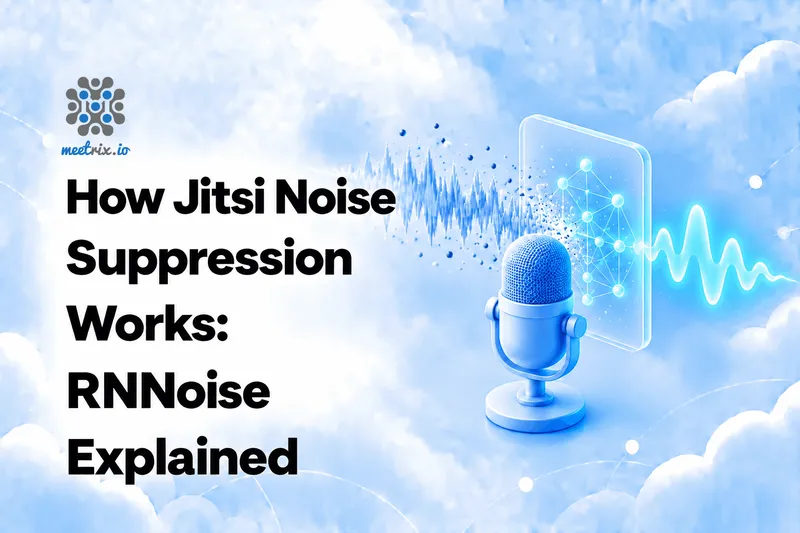
Jitsi Meet's noise suppression is a small neural network called RNNoise. It runs inside your browser, listens to your microphone, and strips out steady background sound such as fans, hum and keyboard clicks before your audio leaves your device. It is one toggle, it costs a self-hosted server nothing, and it works best on steady noise, not on other people talking.
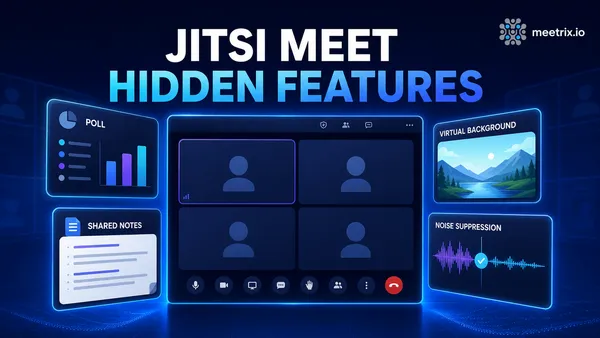
This article covers how it works, how to switch it on, what it can't remove, and what to do about recordings that were made without it. If you want the wider tour of Jitsi's less obvious controls, our guide to Jitsi Meet's hidden features shows this toggle next to polls and virtual backgrounds.
The Quick Verdict
Meetings, lessons, interviews
Leave it on. Fans, hum and keyboard clicks are exactly what it was built to remove.
Music or singing
Switch it off. The model treats instruments as noise, so music comes out thin or watery.
Someone talking nearby
It won't help. A second voice looks like speech to the model, so it passes straight through.
A recording you already have
Clean the saved file with a noise remover built on the same model, in your browser, with no upload.
The Short Version
- Jitsi's noise suppression is RNNoise, an open-source model that pairs classic signal processing with a small neural network.
- It runs in each participant's browser as WebAssembly inside an audio worklet, so the server does no extra work.
- It only affects your own microphone. Every participant has to switch it on for themselves.
- It handles steady noise well: fans, air conditioning, hum, clicks. It struggles with voices, bangs and echo, and it can hurt music.
- Because it runs before the audio is sent, a Jibri recording picks up the cleaned audio for anyone who had it on.
What RNNoise Actually Does
RNNoise was written by Jean-Marc Valin at Xiph.Org and Mozilla. Its design choice is to keep the ordinary signal processing that noise suppression needs anyway and hand only the hard judgement calls to a neural network. The network does not rebuild the audio sample by sample. It works on 22 frequency bands and, for each one, decides how much to turn the volume up or down, close to a graphic equaliser that adjusts itself many times a second. The method is described in Valin's paper, A Hybrid DSP/Deep Learning Approach to Real-Time Full-Band Speech Enhancement.
Two things follow from that. It is small and fast enough to run live on a laptop or phone. And it was built around speech: it learned what a voice looks like, so much of what does not look like a voice gets treated as noise.
How It Runs Inside Jitsi
Jitsi compiles the RNNoise C library to WebAssembly so it can run in a browser. The rnnoise-wasm repository is open source under Apache-2.0. In Jitsi's own write-up of the feature, the team explains that they first processed audio on the main browser thread and moved to an audio worklet, because a modified track makes latency noticeable and any load on the interface thread would hurt the sound.
There is one awkward detail. An audio worklet hands over 128 samples at a time, while RNNoise wants frames of 480 samples. Jitsi bridges the gap with a circular buffer so the samples are not copied around more than necessary.
RNNoise cannot look ahead more than about 10 ms, which is what keeps it usable in a live call. It is also why it cannot be clever about everything: the same design that makes it fast leaves it with coarse frequency resolution, so it cannot filter noise sitting between the harmonics of a voice.
The same library also powers a quieter feature. Jitsi has used RNNoise's voice detection for a while to drive the "talk while muted" prompt and the noisy microphone warning, which is why enableNoisyMicDetection and enableTalkWhileMuted sit next to the audio options in config.js.
Because all of this happens on the sender's device, the video bridge never sees the noise. That is why noise suppression adds no load to a self-hosted Jitsi server, which is worth knowing when you are sizing one. Our Jitsi self-hosting cost breakdown covers what does drive server cost.
Turn It On in Jitsi Meet
The setting affects only your own microphone, so every participant has to switch it on for themselves. The control has moved between Jitsi Meet versions, so check both of these places:
- Click the arrow next to the microphone icon, open the audio settings, and look for Noise Suppression.
- If it is not there, open the More actions menu (the three dots) and look for a Noise Suppression button.
- Switch it on, then speak and ask someone on the call to confirm the background sound is gone.
If you embed Jitsi in your own application, Jitsi has added an API command to switch it on programmatically, so an integration can turn it on for every participant instead of asking them to find the button.
Check your microphone first
Not the Same as Browser Filters
Browsers apply their own audio processing to any microphone a web page opens: echo cancellation, automatic gain control and a basic noise filter. Jitsi exposes switches for those in config.js. The comment on disableNS describes disabling noise suppression for local audio tracks, and disableAP turns off the whole group of echo cancellation, gain control and noise suppression.
disableNS: true,
disableAP: true,
Leave both alone for ordinary meetings. They exist for music lessons and other cases where you want the raw microphone signal, and turning them off makes voice calls noisier and echoier. The Noise Suppression toggle is a separate, additional layer that uses RNNoise, so the two can be on together.
What It Cannot Remove
RNNoise's own author is candid about the limits. Enhancement of this kind can only destroy information, so the gain in how understandable speech is tends to be small. In practice it sorts sounds like this:
| Sound | What to expect | Why |
|---|---|---|
| Fans, air conditioning, mains hum | Handled well | Steady and repetitive, so the model learns to hold them down |
| Keyboard and mouse clicks | Handled well | Short, non-speech sounds the model was trained to remove |
| Road noise through a window | Handled well | Steady background that does not look like a voice |
| A second person talking nearby | Passes through | To the model, a voice is speech to keep |
| A TV with dialogue | Passes through | Same reason: it contains speech |
| A sudden loud bang | Struggles | Too abrupt for a 10 ms look-ahead to anticipate |
| A very echoey room | Struggles | Reverb smears speech, so the model cannot separate it cleanly |
| Music or singing | Can make it worse | Instruments and singing are treated as noise to remove |
So the rule is simple. Leave it on for meetings, lessons and interviews. If you teach music over Jitsi, switch it off and use the audio-processing settings above instead.
Cleaning Recordings You Already Have
Noise suppression happens before the audio is sent, so it also shapes what gets recorded. A recording made with Jibri picks up each speaker's audio as it arrived at the server, cleaned for anyone who had the toggle on. Our guide to setting up Jitsi Meet with recordings covers how that recording pipeline is built.
The gap is everyone who left it off. A call that was recorded with a humming server-room fan in one person's background keeps the hum. For that, we built a free audio noise remover that runs the same RNNoise model, compiled from Jitsi's own rnnoise-wasm package, on a saved file. You drop in a recording, hear the before and after side by side, and download a cleaned WAV. Everything happens in your browser and the file is not uploaded. It works on clips up to 20 minutes, so a long recording needs to be split first, and the same speech-only caveat applies. If you need only the sound from a video file, the MP4 to MP3 converter extracts it first.
A clean recording also transcribes better. Speech recognition accuracy falls on noisy audio, so it is worth running the noise remover before the audio to text tool.
If You Host Jitsi Yourself
The model runs in each participant's browser, so there is nothing to install or tune on the server. It ships with the Jitsi Meet web app, so a current install has it. The rest of the stack is where a self-hosted server needs the work, from the TURN server to recording. If you are still choosing how to deploy, our overview of Jitsi Meet and the Jitsi Meet store page lay out the options, and the common Jitsi errors article helps when a call misbehaves for reasons that have nothing to do with noise.
Where I'd Start
Everyday meetings
Switch on Noise Suppression and leave it on. Have everyone on the call do the same.
Music lessons
Keep it off, and use the audio-processing switches in config.js to get the raw signal.
Recordings with noise in them
Run the saved file through the audio noise remover before you transcribe or share it.
Self-hosted servers
Nothing to configure for noise. Spend the effort on TURN and recording instead.
Where the Noise Suppression control sits has changed between Jitsi Meet versions, so check the audio settings and the More actions menu on your own deployment rather than trusting a screenshot.
Frequently Asked Questions
Does Jitsi Meet have noise suppression?
Yes. Jitsi Meet includes a Noise Suppression option built on RNNoise, a small neural network that runs in your browser. It cleans your own microphone before the audio is sent, so other participants hear the filtered version.
What is RNNoise?
RNNoise is an open-source noise suppressor by Jean-Marc Valin of Xiph.Org and Mozilla. It pairs classic signal processing with a small recurrent neural network, and it is fast enough to run in real time on an ordinary CPU.
Does Jitsi noise suppression use my server's resources?
No. The filtering runs on each participant's device, in the browser, before the audio is sent. The video bridge receives audio that is already cleaned, so a self-hosted server does no extra work for it.
Can Jitsi noise suppression remove other people talking?
Not reliably. The model is built to keep speech, so a second voice in the room is treated as speech and passes through. It handles steady sounds such as fans, hum and keyboards far better than voices.
Does noise suppression affect Jitsi recordings?
Yes, if each speaker had it on. It runs before the audio is sent, so a recording made with Jibri picks up the cleaned audio. Participants who left it off are recorded with their background noise intact.
How do I remove noise from a Jitsi recording I already have?
Run the saved file through a noise remover built on the same RNNoise model. Our free audio noise remover does this in your browser without uploading the file, though it is limited to clips under 20 minutes.
Run Your Own Jitsi Server With Recording
Meetrix's pre-configured Jitsi Meet servers for AWS and Google Cloud, with recording available, so meetings are captured and browser-side features such as noise suppression work without extra setup.
Explore Jitsi Meet on the Store