On this page
Jitsi Meet can record a meeting without a recording server. Local recording runs inside the browser of whoever presses the button and saves a video file to their own machine. No Jibri, no extra VM, no S3 bucket.
It is also the most misunderstood recording option Jitsi has, mostly because the guides written for it in 2022 describe a feature that has changed a lot since. The 1 GB cap is gone, the file handling is different, and the browser requirements are stricter than people expect. Here is how it works now.
Jitsi Meet recording: local vs Jibri
Almost every question about Jitsi recording is really a question about which of these two you want:
| Local recording | Jibri recording | |
|---|---|---|
| Where it runs | The recording participant's browser | A separate server that joins the call |
| Where the file ends up | That participant's computer | The Jibri server, or S3 or Dropbox after upload |
| Server setup | One block in config.js | Jibri, Chrome, ALSA loopback, Prosody and Jicofo changes |
| Who can record | Desktop Chrome, Edge and other Chromium browsers | Any moderator on any client |
| Live streaming | No | Yes, RTMP to YouTube and others |
| Cost | Nothing | One VM per concurrent recording |
If you only occasionally need a copy of a meeting and the person recording is on a desktop Chromium browser, local recording is enough and you can stop reading after the next two sections. If recording has to be dependable, read the last section first.
What Jitsi local recording captures
This is where the current implementation differs from what most articles describe, so it is worth being precise. Everything below comes from the recording code in the jitsi-meet source, not from old screenshots.
- Full meeting mode captures the browser tab with
getDisplayMedia(the same API behind WebRTC screen sharing and recording) and mixes in the audio of every participant. You are asked to share the current tab, and the recorder checks that you actually picked this tab and not another window. - Self recording records only your own camera and microphone, with no tab capture.
- The output is WebM, VP8 video at 2.5 Mbps with Opus audio, or audio-only WebM if you only record sound. If you only need the audio from a full recording, MP4 to MP3 also takes WebM and gives you an MP3.
- The file is streamed to disk as the recording runs through the browser's File System Access API, instead of being held in memory and downloaded at the end. That is why the old size cap is gone.
One thing did not change: the recording is only finalized when you stop it. Jitsi even warns you about this when recording starts. Close the tab or leave the meeting without pressing stop and you should not count on a usable file.
Enable it on your server
On a Debian or Ubuntu package install, the meeting config lives in /etc/jitsi/meet/ with your domain in the filename:
sudo nano /etc/jitsi/meet/meet.example.com-config.jsFind the commented localRecording block, or add it, and set it like this:
localRecording: {
    // Whether to disable local recording or not.
    disable: false,

    // Whether to notify all participants when a participant is recording locally.
    notifyAllParticipants: true,

    // Whether to disable the self recording feature (only local participant streams).
    disableSelfRecording: false,
},
Set notifyAllParticipants to true on any server used by people outside your own team. The default is false, which means someone can record a meeting and nobody else gets told. That is a consent problem waiting to happen, and in a lot of countries a legal one.
No restart is needed. config.js is served to the browser, so participants pick up the change on their next page load. If a user keeps seeing the old behaviour, it is browser cache; clearing Jitsi cache issues covers the stubborn cases.
Not the same as recordingService
config.js also has a recordingService block (formerly fileRecordingsServiceEnabled). That one controls Jibri file recording and sharing, not local recording. Leave it alone unless you run Jibri.
If you are on an old server where the localRecording block does nothing, you are running a Jitsi Meet release from before this implementation. Older builds used enableLocalRecording: true and an audio-only recorder. Upgrading is the better fix than chasing that setting.
Record a Jitsi meeting locally
From a desktop Chromium browser, in a meeting:
- Open the More actions menu (the three dots in the toolbar) and choose Start recording.
- Pick Save recording file locally. If the server also has Jibri, you will see both choices here.
- Choose where to save the file when the save dialog opens.
- When the browser asks what to share, select this tab. Picking a different tab or your whole screen gets rejected.
- Stop the recording from the same menu before you leave the meeting. Stopping is what finalizes the file.
Keep the meeting tab in the foreground on slower machines. Tab capture plus encoding at 2.5 Mbps is real work for a laptop CPU, and a throttled background tab records a choppy video. If you want to record something that isn't a Jitsi call, you don't need Jitsi at all: browser screen recording without installing anything works the same way.
Jitsi Meet recording feature limits
- Chromium desktop only. The code checks for a Chromium browser that is not Electron, not React Native and not mobile. Firefox, Safari, the iOS and Android apps and the Jitsi desktop app never show the option.
- File size is now your disk. There is no hard cap in current code. At 2.5 Mbps video, an hour comes to a little over 1 GB, so a three-hour workshop needs space for 3 to 4 GB.
- The recorder is a participant's machine. If their browser crashes, their laptop sleeps or their connection drops, the recording has a gap. Nobody else in the meeting can pick it up.
- It records what that browser sees. In large meetings Jitsi only sends a subset of video streams to each participant, so the recording shows the layout on that screen, not every camera.
When to use Jibri instead
Use Jibri when a missing recording is a real problem. Board meetings, paid webinars, anything with a compliance requirement, anything that has to be recorded every single time regardless of which browser the host uses.
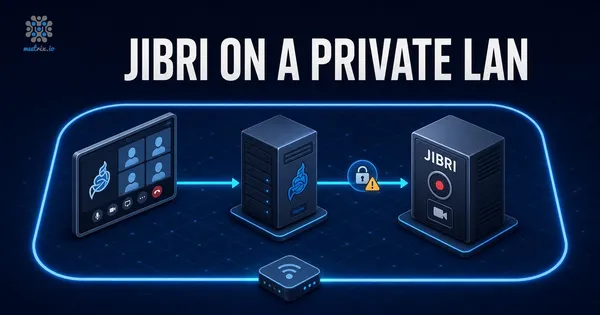
Jibri joins the call as a hidden participant, records on the server, and can upload to S3 or stream to YouTube. It is more work to set up: setting up Jibri on Ubuntu covers the Prosody, Jicofo and Chrome pieces, and running Jibri on a private LAN covers internal networks with self-signed certificates. How Jibri recording and streaming works explains what happens behind the button. Once Jibri is saving MP4s, you can also turn each recording into a transcript and notes with Whisper.
Many teams run both. Local recording stays on for anyone who wants a quick personal copy, and Jibri handles the meetings that matter. While you are in config.js, the other Jitsi features most people never switch on are worth a look too.
Frequently Asked Questions
Can Jitsi record meetings?
Yes, in two ways. Local recording saves the meeting to the computer of whoever presses record, with nothing extra on the server. Server-side recording uses Jibri, a separate service that joins the call and writes the file on the server.
How do I record a Jitsi Meet meeting?
In desktop Chrome or Edge, open More actions, choose Start recording, pick Save recording file locally, choose where to save, and share this tab when asked. Stop the recording from the same menu before leaving, because stopping is what finalizes the file.
Where does a Jitsi local recording get saved?
Wherever you choose. Current builds open the browser's save dialog when recording starts and stream the file to that location instead of holding it in memory. It is a WebM file with VP8 video and Opus audio.
Does Jitsi local recording work in Firefox or Safari?
No. The code only enables it on Chromium-based desktop browsers such as Chrome and Edge, because it depends on tab capture and the File System Access API. It is also unavailable in the Jitsi mobile apps and in the Electron desktop app.
Do other participants know I am recording locally?
Only if the server admin sets notifyAllParticipants: true in the localRecording block of config.js. By default a local recording is silent to everyone else, so if you run a server where consent matters, turn that option on.
Is there a size or time limit on Jitsi local recording?
Older 2022 builds capped local recordings at about 1 GB, roughly 100 minutes. Current code writes straight to disk with no hard cap, so disk space is the limit. At the recorder's 2.5 Mbps video bitrate, plan on a little over 1 GB per hour.
Do I need Jibri for Jitsi Meet recording?
Not for local recording. You need Jibri when recordings must happen on the server: automatic recording, recording on mobile or Firefox users' behalf, uploading to S3, or live streaming to YouTube.
Jitsi Meet with Jibri Recording, Already Set Up
Server-side recording that works for every participant and every browser, with Jibri, Prosody and Jicofo pre-configured.
Get Jitsi Meet with Recording on AWS Marketplace