There are three ways to record a Zoom meeting on a laptop, and which one you use depends on one thing: whether you are the host. The host can record in two clicks. Everyone else needs permission, or a screen recorder, and a quick word with the other people on the call.
Here is each option, from the one that just works to the fallback.
How to record a Zoom meeting on a laptop with Zoom itself
Zoom's local recording runs inside the desktop app on Windows and macOS, and it is available on free accounts too.
- Join or start the meeting in the Zoom desktop app, not the browser.
- Click Record in the meeting toolbar. If you only see More, the Record option is inside it.
- Choose Record on this Computer. A small "Recording" label appears in the top-left corner, and everyone on the call sees it too.
- Pause or stop from the same button. Keyboard shortcuts:
Alt + Ron Windows,Cmd + Shift + Ron Mac. - After the meeting ends, Zoom converts the recording to MP4 and opens the folder. Don't close the app while it converts.
By default the file lands in a Zoom folder inside Documents. You can change the location in Settings, under Recording. Zoom's own local recording guide covers the settings in more detail.
Record each speaker separately
Cloud recording on paid plans
Paid Zoom accounts can also pick Record to the Cloud. Zoom stores the file and emails a link when it is ready. It is handy for long meetings on a laptop that is low on disk space, and it works from the Zoom mobile app too. It does not work on free accounts.
How to record a Zoom meeting on a laptop when you are not the host
If the Record button is missing or greyed out, the host has not given you permission. Ask them: in the participants panel they click your name, then Allow Record. The button appears for you straight away.
If the host says no, that is your answer. Recording a meeting other people have not agreed to is illegal in some places, and a bad idea everywhere else. When you do have agreement but Zoom's recorder is locked, for example because your company's account policy blocks it, use the laptop's own screen recorder below, or a browser-based screen recorder with nothing to install.
How to record a meeting on a laptop without Zoom's recorder
Both Windows and macOS ship a screen recorder, so there is no need to install anything.
| Laptop | Tool | How to start | Meeting audio? |
|---|---|---|---|
| Windows 11 | Snipping Tool | Win + Shift + R, select the Zoom window | Yes, turn on system audio |
| Windows 10 and 11 | Xbox Game Bar | Win + Alt + R | Yes, records one app window |
| Mac | Screenshot toolbar | Cmd + Shift + 5 | Microphone only, no system audio |
The Mac row is the one that catches people out. macOS screen recording picks up your microphone but not the sound coming out of the laptop, so the other people in the meeting are silent in the file. You need a separate audio capture tool, or you use Zoom's recorder instead. Our guide to screen recording without downloading anything goes through these built-in tools, and browser options, in more detail.
Recording from a browser tab
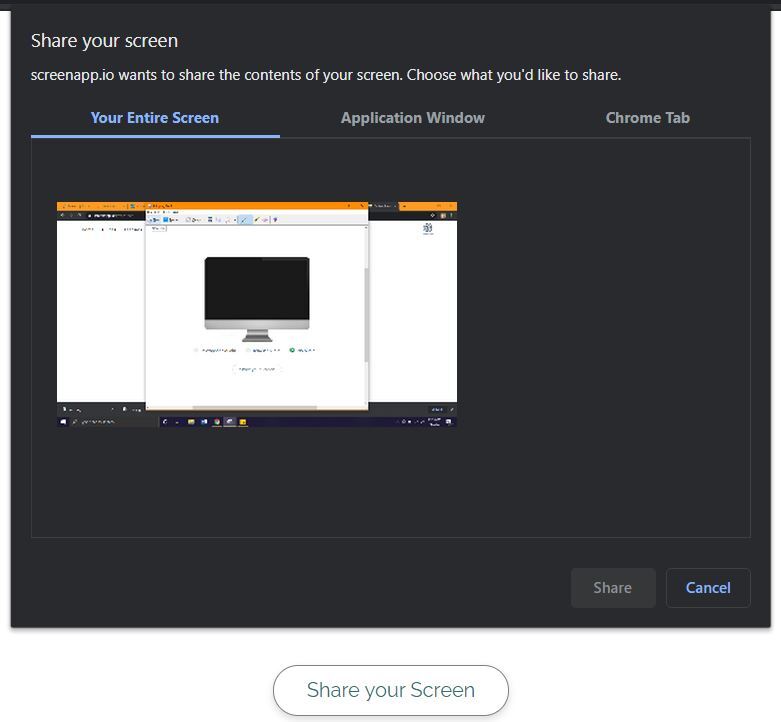
If you joined from the browser, Zoom's web client has no local recording. A browser-based screen recorder such as ScreenApp can capture the tab along with its audio: choose to share the Chrome tab, tick "Also share tab audio", and start recording.
Getting usable audio
- Wear headphones. Speakers leak into your microphone and produce an echo in the recording, even when the call itself sounded fine.
- Check the first minute. Record ten seconds, stop, play it back. It is much better than finding a silent file after a two-hour meeting.
- Leave disk space. An hour of 1080p screen recording can take a few gigabytes. Local Zoom recordings are smaller because Zoom compresses them.
Recording on your own meeting server
If your team runs its own video platform instead of Zoom, recording works differently. On Jitsi Meet, anyone can do a local recording in the browser, and server-side recording runs on Jibri, which is explained in how Jibri recording works. For a straight comparison of the platforms, see Jitsi vs Zoom vs Google Meet.
Frequently Asked Questions
How do I record a Zoom meeting on my laptop if I am not the host?
Ask the host for recording permission. Once granted, the Record button appears in your toolbar. Without permission, Zoom's own recorder is blocked, and recording anyway is a consent question more than a technical one: tell the other participants first.
Can I record a Zoom meeting on a free account?
Yes. Free accounts can record locally to the laptop on the Zoom desktop app. Cloud recording, where Zoom stores the file for you, needs a paid plan.
How do I record a Zoom meeting on my laptop with audio?
Zoom's own local recording always includes the meeting audio. If you use a screen recorder instead, make sure it captures system audio, not only the microphone. On Windows the Snipping Tool can record system audio; macOS screen recording cannot without an extra audio driver.
Where does Zoom save recordings on a laptop?
In a Zoom folder inside Documents by default, on both Windows and Mac. The file is converted to MP4 after the meeting ends, so keep the app open until the conversion finishes.
Can I record a Zoom call from the browser?
Zoom's web client does not offer local recording. You need the desktop app, cloud recording on a paid plan, or a browser-based screen recorder that captures the tab and its audio.