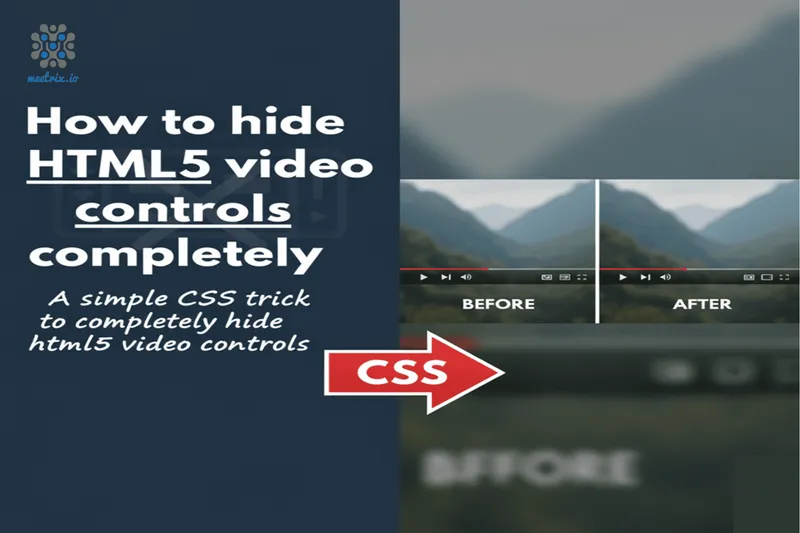
When you build a player on top of Kurento, OpenVidu, Jitsi or any other WebRTC library, the native browser controls get in the way. You want your own UI, or no UI at all. The usual advice is to leave off the controls attribute and move on, but that only covers the first of several ways the controls can come back.
This guide covers the whole surface: removing the controls, stopping the context menu that puts them back, hiding individual buttons while keeping the rest, and what browsers actually honour. It also answers the question people search for most often alongside this one, which is whether any of it stops someone downloading the video. The short answer to that one is no.
Jump to a section
The short version: an HTML video with no controls
Omit controls so nothing renders, then stop the right-click menu from re-enabling it:
<!-- No controls, and the user cannot turn them back on -->
<video src="clip.mp4" autoplay muted loop playsinline
       style="pointer-events: none;"></video>
If you need the video to stay clickable, cancel the context menu instead of disabling pointer events:
<video id="stream" src="clip.mp4" autoplay muted loop playsinline></video>

<script>
  document.getElementById('stream')
    .addEventListener('contextmenu', (event) => event.preventDefault());
</script>
The rest of this article explains why each piece is there and where it stops working.
Step 1: leave off the controls attribute
controls is a boolean attribute on the video element. If it is absent, the browser renders no control bar at all, so there is nothing to hide with CSS:
<video autoplay playsinline></video>A detail that catches people out: the attribute is on or off by presence, not by value. controls="false" renders controls, because the string "false" is still a present attribute. The same rule applies to muted, loop and autoplay. To turn any of them off, remove the attribute.
From JavaScript, use the property rather than the attribute:
const video = document.querySelector('video');

video.controls = false;  // hides the control bar
video.controls = true;   // shows it again
Step 2: block the context menu that puts the controls back
Removing the attribute is not the end of it. In Chrome and Edge, right-clicking a video opens a media-specific context menu, and one of its items is "Show controls". A user can switch the controls on even though your markup never asked for them.
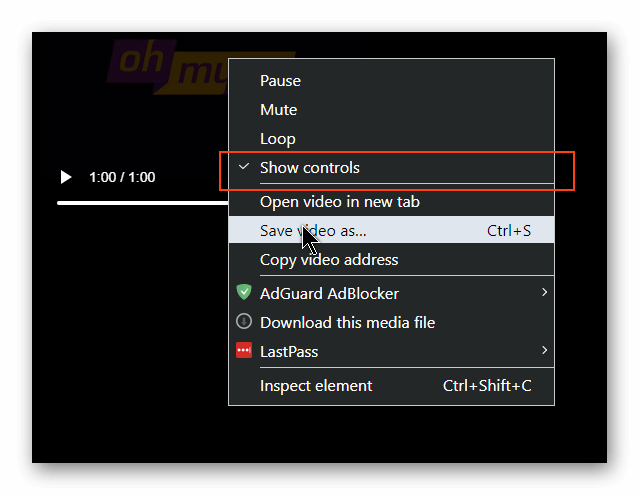
There are two ways to close that door, and the right one depends on whether you need the video to respond to clicks.
Option A: pointer-events: none
This property removes the video from hit testing entirely. The right-click passes through to whatever is behind it, so the browser shows the ordinary page menu instead of the media menu:
video {
  pointer-events: none;
}
It is one line and it works everywhere. The cost is total: no click, no double-click, no hover, no drag on that element. If your player has a click-to-pause behaviour or a hover overlay bound to the video itself, this breaks it.
Option B: cancel the contextmenu event
Preventing the default action on contextmenu suppresses the menu while leaving every other interaction intact:
const video = document.querySelector('video');

video.addEventListener('contextmenu', (event) => {
  event.preventDefault();
});
This is the better default for an interactive player. It does depend on JavaScript running, so it is not a hard guarantee.
Option C: cover the video with your own layer
If you are building custom controls anyway, put a transparent element over the video and hang your handlers on that. The overlay receives the right-click, so the media menu never opens, and the video underneath keeps playing:
<div class="player">
  <video src="clip.mp4" autoplay muted loop playsinline></video>
  <div class="player-surface"></div>
</div>

<style>
  .player { position: relative; }
  .player-surface {
    position: absolute;
    inset: 0;
  }
</style>
This is the pattern most custom players end up with, because it gives you one predictable place to attach click, keyboard and gesture handling.
Hiding individual buttons with controlsList
A different requirement, and a common one: keep the native controls, but drop a button or two. Download and fullscreen are the usual candidates. controlsList takes a space-separated list of tokens and only applies when controls is present:
<video src="clip.mp4" controls
       controlsList="nodownload nofullscreen noremoteplayback noplaybackrate">
</video>| Token | Removes |
|---|---|
nodownload | The download button, and the "Save video as..." item in the context menu |
nofullscreen | The fullscreen button |
noremoteplayback | The cast / remote playback button |
noplaybackrate | The playback speed control |
Two related attributes sit outside the token list. Picture-in-Picture has its own boolean attribute, and remote playback can be blocked at the element level rather than only hidden from the UI:
<video src="clip.mp4" controls
       controlsList="nodownload"
       disablepictureinpicture
       disableremoteplayback
       x-webkit-airplay="deny">
</video>
x-webkit-airplay="deny" is the Safari-specific fallback for AirPlay, since Safari does not implement disableremoteplayback.
Because support is uneven, feature-detect rather than assume. controlsList is a DOMTokenList, so it reports which tokens the browser understands:
const video = document.querySelector('video');

if (video.controlsList && video.controlsList.supports('noplaybackrate')) {
  video.controlsList.add('noplaybackrate');
} else {
  // Browser will render the speed control; hide it in your own UI instead
}
controlsList is a request, not a restriction
The webkit media pseudo-elements
Native controls are built from a shadow DOM tree, and WebKit and Chromium expose parts of it through non-standard pseudo-elements. This is the route people reach for when they want a button that controlsList has no token for:
/* Hide the entire control panel but keep the element interactive */
video::-webkit-media-controls {
  display: none !important;
}

/* Or target single pieces */
video::-webkit-media-controls-enclosure { display: none; }
video::-webkit-media-controls-panel { display: none; }
video::-webkit-media-controls-play-button { display: none; }
video::-webkit-media-controls-fullscreen-button { display: none; }
video::-webkit-media-controls-timeline { display: none; }
video::-webkit-media-controls-volume-control-container { display: none; }
video::-webkit-media-controls-mute-button { display: none; }
video::-webkit-media-controls-current-time-display { display: none; }
video::-webkit-media-controls-time-remaining-display { display: none; }

/* iOS: the big play button drawn over a video that has not started */
video::-webkit-media-controls-start-playback-button { display: none; }
Be clear about what you are relying on. These selectors are not in any specification, MDN has no reference page for most of them, and the exact set differs between Chromium and WebKit and between versions of each. Firefox exposes no equivalent at all.
Read the names off your own browser
pseudo attribute.
Half of the tree is already out of reach
Chromium filed an intent in 2014 to rename these pseudo-elements to -internal-* so that only the user agent stylesheet could touch them. That never happened as a clean sweep, but it did happen piecemeal, and you can see the result in the shadow tree today. Open DevTools with user agent shadow DOM enabled and the control panel contains both kinds of name side by side:
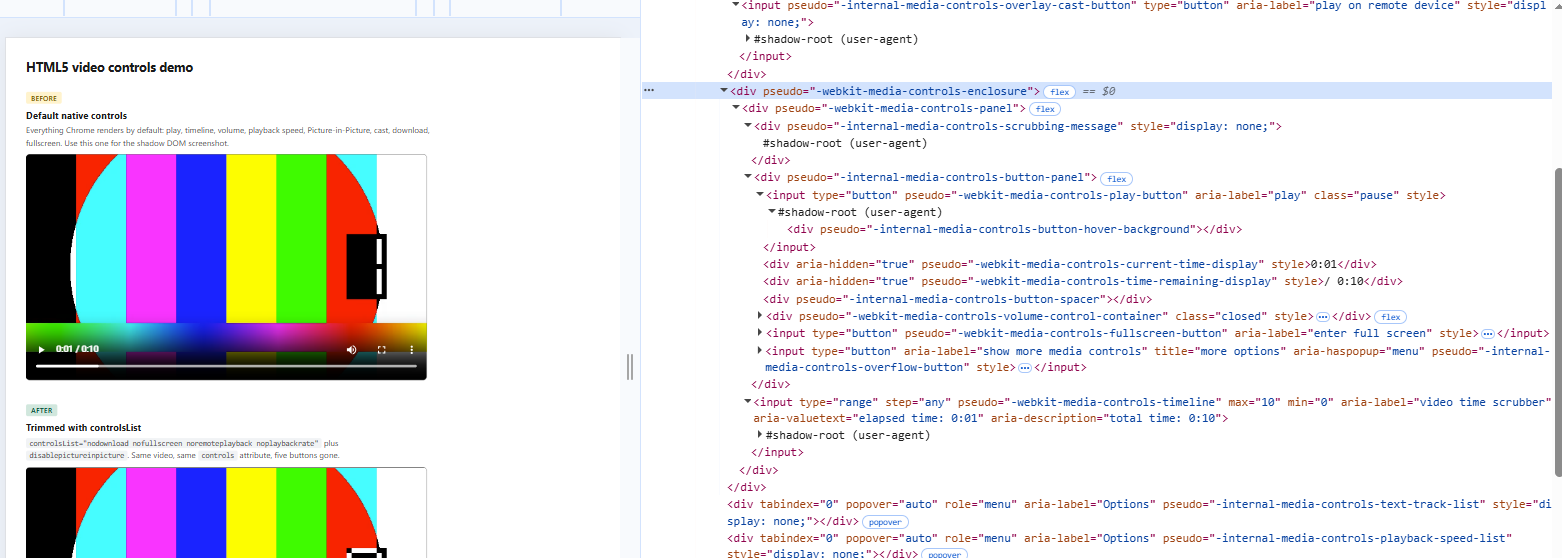
The parts carrying -webkit-media-controls-* are the ones your CSS can select: the enclosure wrapper, the panel inside it, then the play button, time displays, volume container, fullscreen button and timeline. The parts carrying -internal-media-controls-* are not exposed to page styles at all, and in current Chrome that list includes the button panel that holds most of the buttons, the button spacer, the scrubbing message, the hover background on the play button, the text track and playback speed menus, and two that matter more than the rest.
The first is the overflow button. The second is -internal-media-controls-overlay-cast-button, the cast button Chrome draws on top of the video itself rather than in the control bar. Being internal, no stylesheet can remove it. controlsList="noremoteplayback" or the disableremoteplayback attribute can.
The overflow menu survives your CSS
-internal-media-controls-overflow-button is the "show more media controls" menu, and it is the one you cannot hide. Chrome moves buttons into it when the control bar is narrow, so a video that is only a few hundred pixels wide can still offer fullscreen and "Download" from that menu after you have hidden the direct buttons with CSS. controlsList removes the control from the overflow menu as well, which is the concrete reason to prefer the attribute over the pseudo-element.
So use the pseudo-elements for the gaps only, mainly the iOS start-playback button and the Safari fullscreen button. For anything controlsList covers, use the attribute.
Can users still download the video?
Yes, and this is worth being blunt about, because it is the assumption behind most requests to hide controls.
Everything above changes the user interface. None of it changes the fact that the browser fetched a file over HTTP in order to play it. controlsList="nodownload" removes a menu item. pointer-events: none removes a menu. The URL is still sitting in the page source, in the network panel, and in the browser cache. Any of these gets the file in a few seconds:
# The src attribute is right there in the HTML
curl -O https://example.com/media/clip.mp4
If the content genuinely needs protecting, the control has to sit on the server, not in the markup:
- Signed, expiring URLs so a copied link stops working. CloudFront signed URLs or S3 presigned URLs are the usual choice on AWS.
- Segmented delivery with an authenticated manifest, meaning HLS or DASH where the playlist and segments are each authorised. This makes casual copying much harder, since there is no single file to grab.
- DRM via Encrypted Media Extensions with Widevine, PlayReady or FairPlay. This is the only approach that actually restricts playback, and it carries real integration cost.
Hiding the controls is a UI decision. Treat it as one.
HTML video controls: what works in which browser
| Technique | Chrome / Edge | Firefox | Safari | iOS Safari |
|---|---|---|---|---|
Omitting controls | Yes | Yes | Yes | Yes, plus a start-playback button |
pointer-events: none | Yes | Yes | Yes | Yes |
contextmenu preventDefault | Yes | Yes | Yes | Not applicable |
controlsList tokens | Yes | Ignored | Ignored | Ignored |
disablepictureinpicture | Yes | Partial | Partial | Partial |
disableremoteplayback | Yes | Ignored | Use x-webkit-airplay="deny" | Use x-webkit-airplay="deny" |
::-webkit-media-controls-* | Yes, non-standard | No equivalent | Version dependent | Version dependent |
The pattern in that table is the argument for building your own controls: the only rows that hold everywhere are the ones that remove the native UI wholesale.
Silent background video
A video used as page decoration is the most common reason for wanting no controls at all. Four attributes and one CSS rule cover it:
<video src="background.mp4"
       autoplay muted loop playsinline
       poster="background-frame.jpg"
       aria-hidden="true"
       tabindex="-1"
       style="pointer-events: none;"></video>
muted is not optional. Every current browser blocks autoplay for a video with an audible track (Chrome's autoplay policy spells out the rules), so without it the video silently fails to start. playsinline keeps iOS from taking the video fullscreen. poster gives you a frame to show while the file loads. aria-hidden and tabindex="-1" keep a purely decorative element out of the accessibility tree and out of the tab order.
Accessibility: replace the controls, do not just remove them
Native controls are keyboard accessible and screen reader labelled for free, and the shadow tree above shows how much of that you get without asking. The play button carries aria-label="play" and updates it on state change, the fullscreen button reads "enter full screen", and the timeline is a real input type="range" labelled "video time scrubber" with aria-valuetext="elapsed time: 0:01" and aria-description="total time: 0:10". The moment you remove the native controls, all of that becomes your job.
Two success criteria apply directly:
- WCAG 1.4.2 Audio Control (Level A): if audio plays automatically for more than three seconds, there must be a way to pause or stop it, or to change its volume independently of the system volume.
- WCAG 2.2.2 Pause, Stop, Hide (Level A): motion that starts automatically and runs for more than five seconds needs a mechanism to pause, stop or hide it.
A muted, decorative loop marked aria-hidden is not caught by either. Anything with sound, or any video the user is meant to watch, needs controls, and they have to be reachable by keyboard:
<div class="player">
  <video id="clip" src="clip.mp4" playsinline></video>
  <button type="button" id="toggle" aria-label="Play video">Play</button>
</div>

<script>
  const clip = document.getElementById('clip');
  const toggle = document.getElementById('toggle');

  toggle.addEventListener('click', () => {
    if (clip.paused) {
      clip.play();
      toggle.textContent = 'Pause';
      toggle.setAttribute('aria-label', 'Pause video');
    } else {
      clip.pause();
      toggle.textContent = 'Play';
      toggle.setAttribute('aria-label', 'Play video');
    }
  });
</script>
A real <button> gets focus, Enter and Space handling, and screen reader semantics without any extra work. A styled <div> gets none of them.
Also respect users who have asked for less motion:
@media (prefers-reduced-motion: reduce) {
  video[autoplay] {
    display: none;
  }
}
The WebRTC case
In a conferencing UI, every remote participant is a <video> element fed by a MediaStream rather than a file, which is worth understanding before you style anything; our write-up on how WebRTC works covers where that stream comes from. Native controls make no sense on one: there is no timeline to scrub on a live stream, and a stray click on a fullscreen button breaks a tiled layout. Kurento, OpenVidu and Jitsi front ends all render their own controls for this reason.
const remote = document.createElement('video');

remote.srcObject = stream;
remote.autoplay = true;
remote.playsInline = true;
remote.muted = isLocalParticipant;  // avoid feeding your own audio back
remote.controls = false;
remote.style.pointerEvents = 'none';

tile.appendChild(remote);
Note muted = isLocalParticipant. Your own preview has to be muted or you get an echo, while remote participants must not be. This is a more frequent bug in conferencing UIs than anything to do with controls.
With pointer-events: none on the video, mount your click handling on the tile wrapper. The stream keeps rendering and your layout keeps control of every interaction.
Jitsi is the common case here, and the tile layout is one piece of a front end you can change wholesale. Our guide to customising the Jitsi Meet front end covers the rest of it, and if you are wrapping the whole thing in an app, integrating Jitsi Meet with React picks up where this article stops.
Summary
- Omit
controlsto render no control bar, and remember the attribute works by presence, socontrols="false"still shows them. - Block the media context menu as well, with
pointer-events: noneif the video need not be clickable, or acontextmenulistener if it must be. - To subtract single buttons while keeping the native UI, use
controlsListin Chromium and accept that Firefox and Safari ignore it. - Reach for
::-webkit-media-controls-*only for gaps like the iOS start-playback button, knowing the selectors are non-standard. - None of this prevents downloading. Signed URLs, authenticated HLS or DASH, or DRM are what actually do that.
- If you remove the native controls from anything with audio, build accessible replacements.
Frequently Asked Questions
Can you right-click and save an HTML5 video that has no controls attribute?
Yes. Removing the controls attribute changes the UI, not the file. In Chrome and Edge, right-clicking a video without controls still opens the media context menu, which includes 'Save video as...'. Adding controlsList="nodownload" removes that menu item, and pointer-events: none suppresses the media menu entirely, but neither stops the download. The video URL is still in the page source and in the network panel, so anyone who wants the file can fetch it directly.
How do I stop the browser context menu from appearing on a video?
Either set pointer-events: none on the video, which makes it invisible to hit testing so the right-click falls through to the page, or cancel the event with a contextmenu listener that calls preventDefault(). Use the listener if you still need click handlers on the video, because pointer-events: none disables all of them.
How do I hide only the fullscreen button and keep the rest of the controls?
In Chromium browsers use controlsList="nofullscreen" on the video element. That is the supported route, and it also removes the control from the overflow menu. The older CSS approach targets the shadow DOM directly with video::-webkit-media-controls-fullscreen-button { display: none; }, which still works in Chromium but is non-standard, undocumented, has no Firefox equivalent, and leaves the button reachable through the three-dot overflow menu because that menu is an internal pseudo-element your CSS cannot select.
Does controlsList work in Firefox and Safari?
No. controlsList is a WICG proposal implemented in Chromium, so Chrome, Edge, Opera and Brave honour it, while Firefox and Safari ignore it and render their full control set. If your requirement has to hold in every browser, drop the controls attribute and build your own UI instead of trying to subtract buttons from the native one.
Why do my controls still show on iPhone?
iOS Safari adds a large start-playback button over any video that has not begun playing, and it takes videos fullscreen unless you set playsinline. Add playsinline, and add muted if you also want autoplay, because iOS blocks unmuted autoplay. The start button itself is drawn in the shadow DOM and is only reachable through ::-webkit-media-controls-start-playback-button.
How do I show HTML video controls again after hiding them?
Add the controls attribute back to the video tag, or set video.controls = true from JavaScript. If you hid pieces with the webkit pseudo-elements or pointer-events: none, remove those rules too, or the controls come back hidden or unclickable.
How do I mute an HTML5 video that has no controls?
Add the muted attribute to the video tag, or set video.muted = true in JavaScript. Without visible controls the user can't unmute it, so if the video has audio worth hearing, give them your own mute button.
Is it acceptable to hide video controls?
For a silent decorative background video or a WebRTC stream, yes. For anything with an audio track that starts on its own, no. WCAG 1.4.2 Audio Control requires a way to pause, stop or lower audio that plays for more than three seconds, and 2.2.2 Pause, Stop, Hide requires a pause mechanism for motion that runs more than five seconds. Hiding the native controls is fine as long as you replace them.
Run the Video Layer, Not the Servers Behind It
Custom players and hidden controls are the easy half. We publish pre-configured AWS images for the media infrastructure underneath, from Jitsi Meet and TURN relays to recording and streaming, so you can spend your time on the front end.
Browse Meetrix on AWS Marketplace