
Welcome to the Meetrix Metabase developer guide for Google Cloud Platform! Metabase is an open-source business intelligence platform that lets teams explore data, build dashboards, and share reports without writing SQL. With the Meetrix pre-configured GCP image, you can deploy a production-ready Metabase server in minutes, without wiring up the application, a database backend, and SSL yourself.
This guide walks you through finding the product on GCP Marketplace, configuring the deployment, pointing DNS, and accessing Metabase.

Prerequisites
Before you begin, make sure you have the following:
- Basic Google Cloud Platform knowledge.
- An active Google account with a GCP project and billing enabled.
- A domain name you can manage DNS records for.
Launch the Product
Step 1: Find the Product
- Log in to your Google account.
- Go directly to the product page: Metabase BI Analytics Server: Dashboards and Reporting
- You can also browse all Meetrix products at the Meetrix Solutions Page.
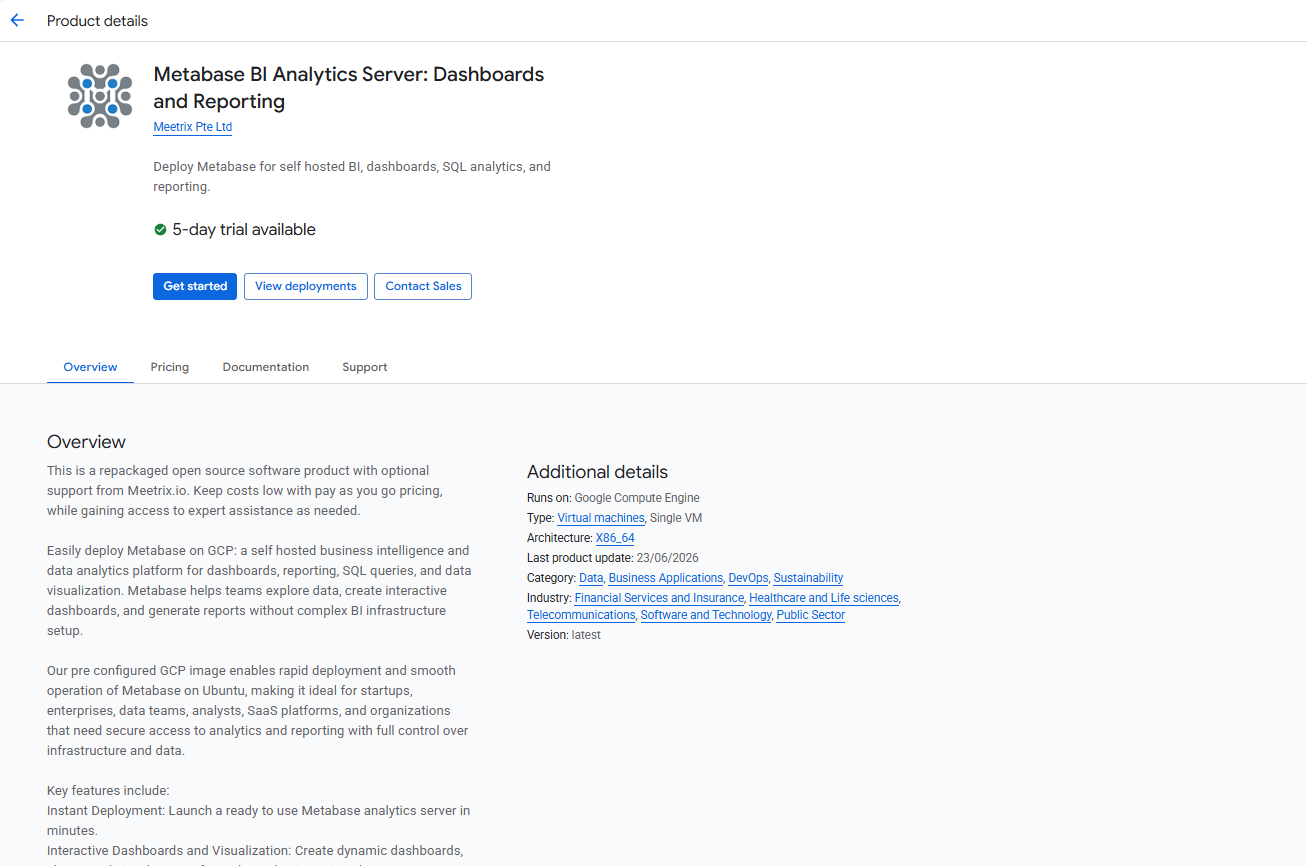
- You will see the product listing page. Click Get started.
Step 2: Accept the Agreements
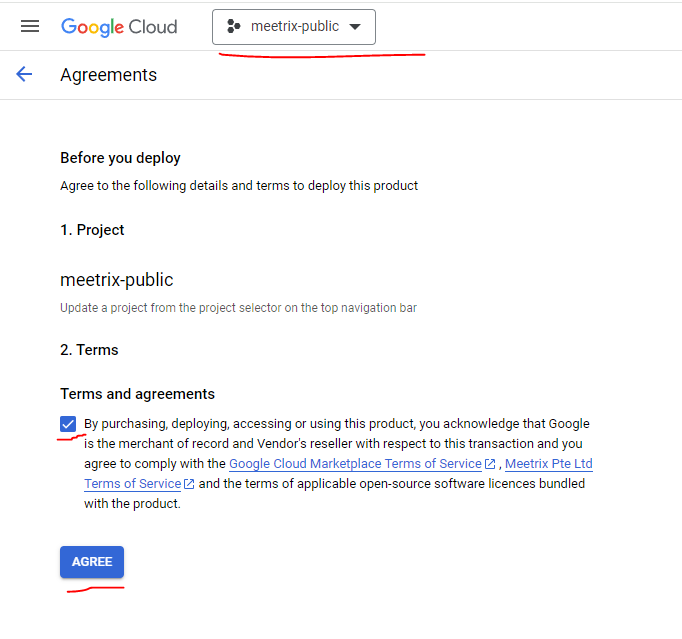
- Confirm your GCP project is selected.
- Tick the box under Terms and agreements to accept the Google Cloud Marketplace and Meetrix Pte Ltd terms of service.
- Click AGREE.
Free Trial
This product includes a 5-day free trial with up to USD 50.00 in licence fee credits. To activate it, tick I accept the solution trial Terms and Conditions on the launch screen before proceeding.

Trial note
Step 3: Configure the Deployment
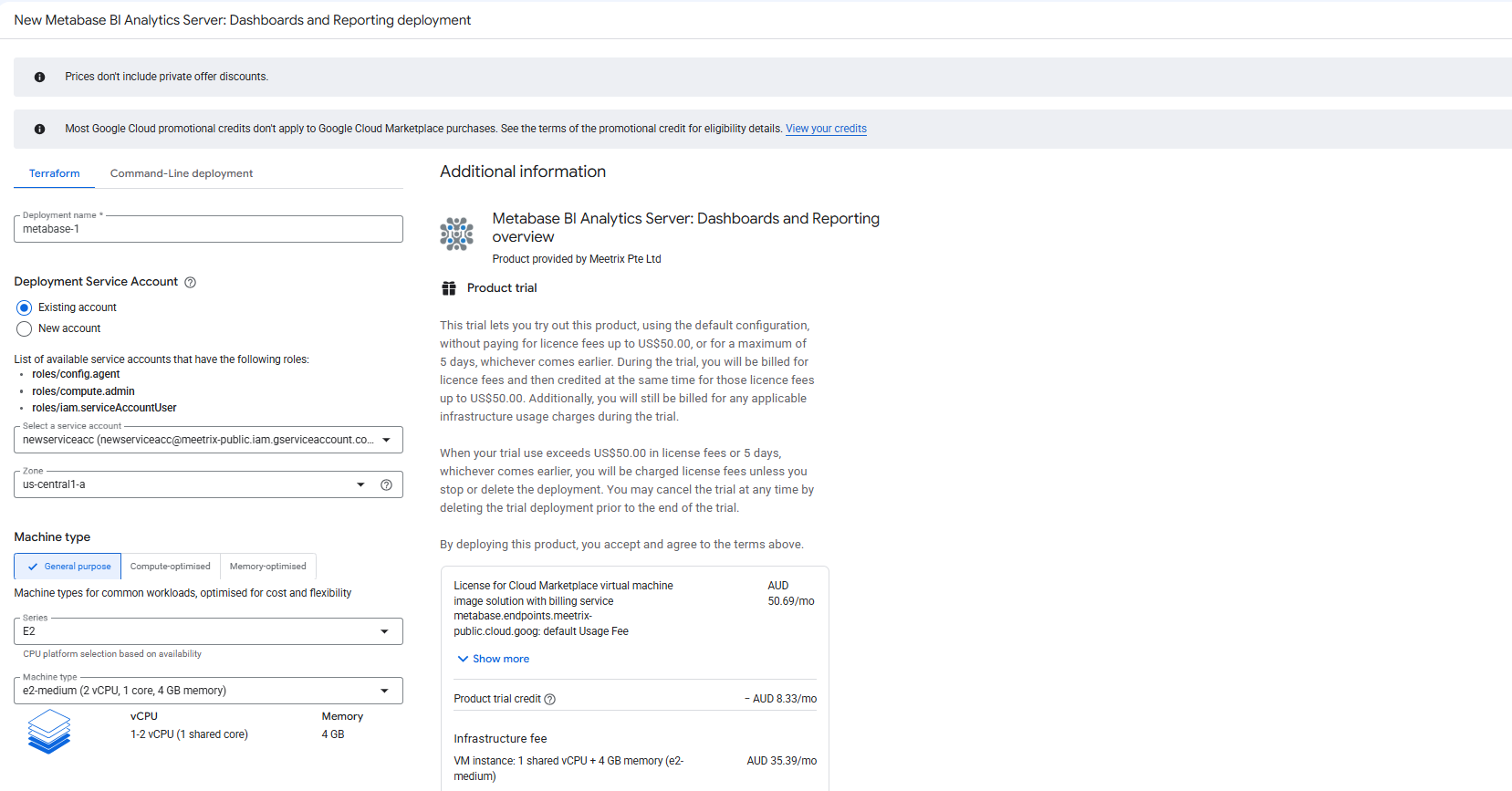
You will see the deployment configuration form, with Terraform and Command-Line deployment tabs. Fill in the fields across the following sections:
General
- Deployment name - A unique name for this deployment.
- Deployment Service Account - Use an existing service account with the
compute.admin,config.agent, andiam.serviceAccountUserroles, or create a new one. - Zone - Select the GCP zone closest to your users (e.g.
us-central1-a). - Machine type - Default
e2-medium(2 vCPU, 1 core, 4 GB memory) is a reasonable starting point. Scale up if you expect heavier query load or many concurrent dashboard users.
Boot Disk
- Boot disk type - Default
Balanced persistent diskis recommended. - Boot disk size - Default 20 GB is sufficient for most deployments.
Networking
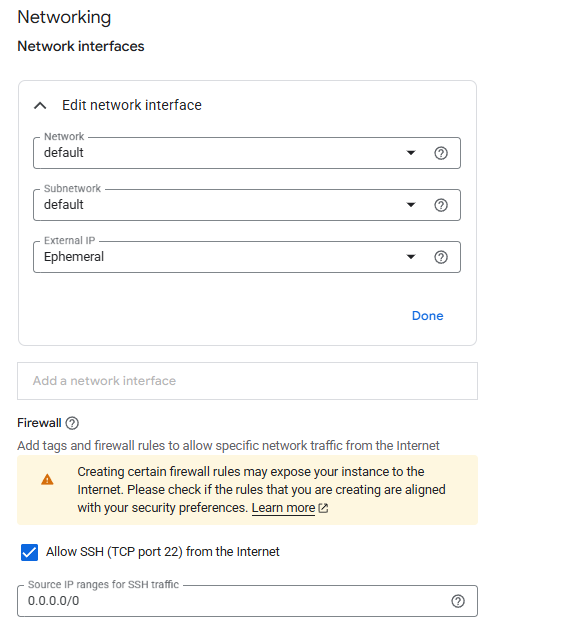
- Network / Subnetwork - Leave as
defaultunless you have a custom VPC. - External IP - Leave as
Ephemeral. - Allow SSH (TCP port 22) - Enabled by default. Restrict the source IP range if you want to limit SSH access to specific IPs.
Once the fields are filled in, follow the on-screen instructions in your chosen tab (Terraform or Command-Line deployment) to deploy, and wait a few minutes for the deployment to complete.
Point DNS to the Server
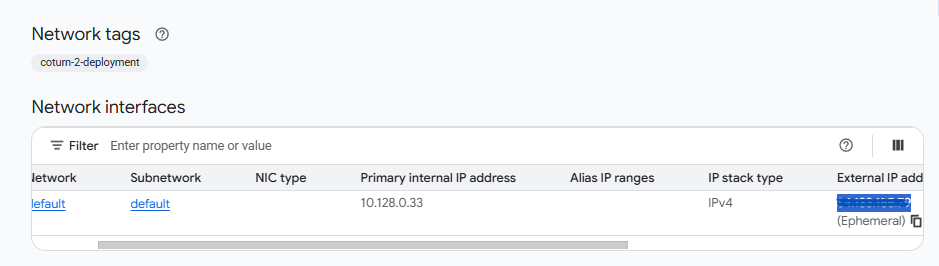
Step 1: Copy the External IP
Open the VM instance created by the deployment and copy the External IP under Network interfaces.
Step 2: Create a DNS A Record
- Go to your DNS provider.
- Add an A record pointing your chosen subdomain (e.g.
data.yourdomain.com) to the copied external IP. - Wait for DNS propagation before proceeding (typically a few minutes to 1 hour).
SSH into the Server
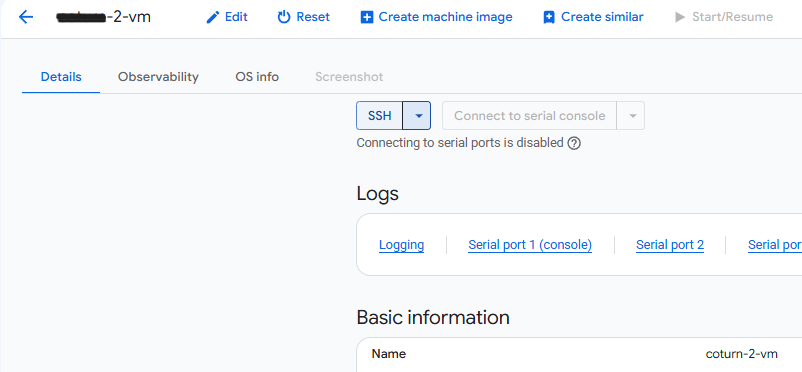
- Go to the VM instance page in the GCP console.
- Click SSH to open a browser-based terminal and authorize access.
Access Metabase
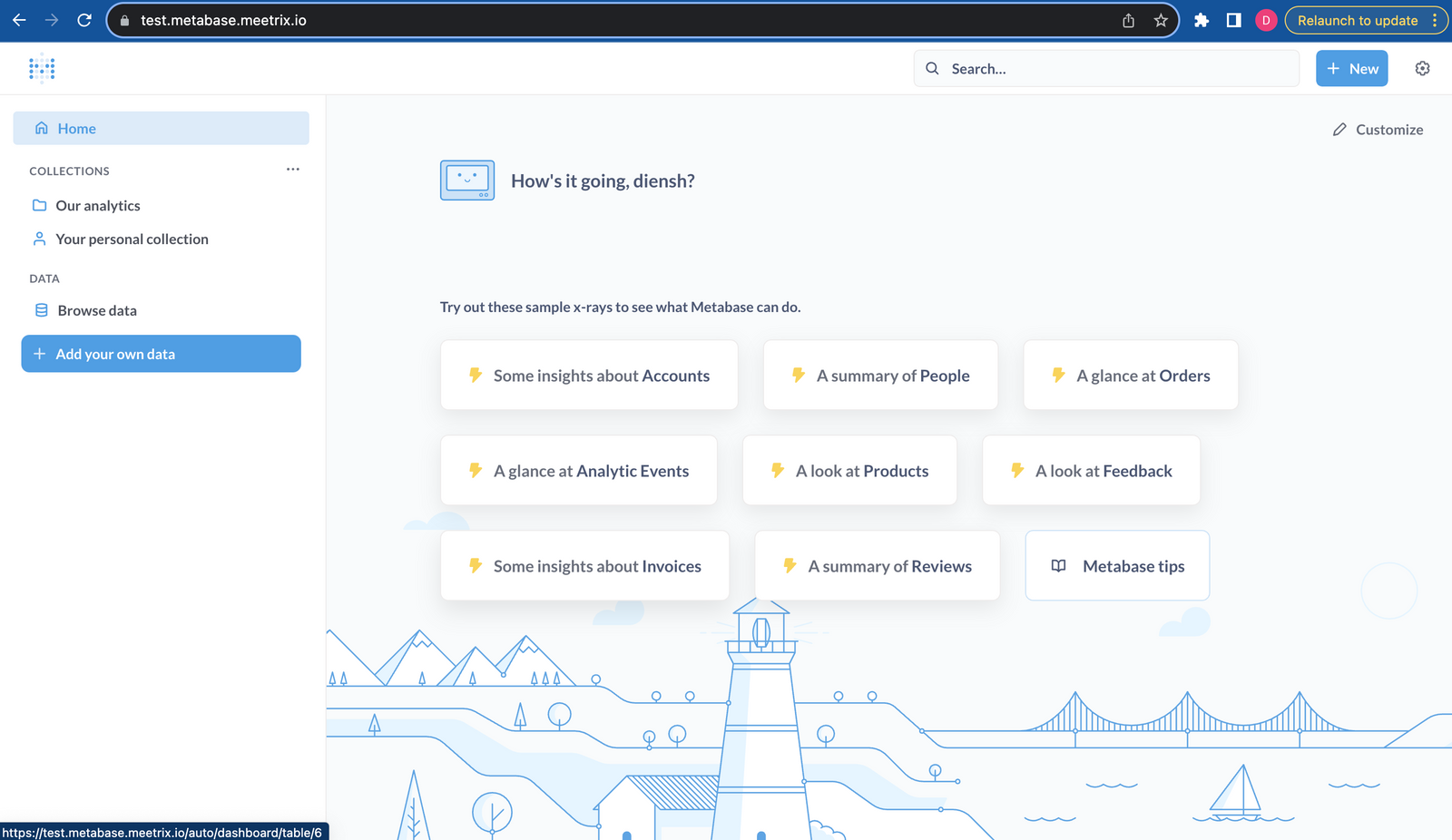
Once DNS has propagated, open https://<your-domain> in your browser. On first visit, Metabase's setup wizard walks you through creating your admin account and adding your first database connection. After setup, you land on the Metabase home page with sample x-rays to explore.
Note
Manage the Server
Check the Service Logs
Metabase runs on Docker. Find the running container and check its logs:
sudo docker ps
sudo docker logs <container-id>
Shut Down the VM
To stop the VM without deleting it, go to Compute Engine → VM Instances in the GCP console, select your instance, and click Stop.
Delete the Deployment
To fully remove the deployment and stop all billing:
- Go to Solution deployments in the GCP console.
- Find your Metabase deployment.
- Click Delete to remove all associated resources.
Troubleshoot
Dashboard Temporarily Inaccessible
If the dashboard is temporarily inaccessible right after deployment, wait 5-10 minutes and retry - the application and its SSL certificate may still be initializing.
Check the Service Logs
sudo docker ps
sudo docker logs <container-id>
Verify Firewall Ports
In the GCP console, go to VPC Network → Firewall and confirm the following rules exist for your VM:
| Service | Ports | Protocol |
|---|---|---|
| HTTP | 80 | TCP |
| HTTPS | 443 | TCP |
| SSH | 22 | TCP |
Conclusion
The Meetrix Metabase developer guide helps you get a self-hosted BI analytics server running on GCP without piecing together the application, database backend, and SSL yourself. Point DNS at the server, finish the setup wizard, and you have a private dashboarding and reporting platform running on infrastructure you control.
Technical Support
If you run into any issues, our support team is here to help. Reach out to us at support@meetrix.io and we will respond within 12 hours.
Frequently Asked Questions
What is Metabase?
Metabase is an open-source business intelligence platform that lets teams explore data, build dashboards, and share reports without writing SQL. It connects directly to your existing databases and data warehouses, so your data stays where it already lives.
What are the prerequisites for deploying Metabase on GCP?
You need basic Google Cloud Platform knowledge, an active Google account with a GCP project and billing enabled, and a domain name you can manage DNS records for if you want to access Metabase over HTTPS on a custom hostname.
What machine type should I choose?
The default e2-medium (2 vCPU, 1 core, 4 GB memory) is a reasonable starting point for a small team. Scale up to a larger E2 or compute-optimised machine type if you run heavier queries or serve many concurrent dashboard users.
What databases can Metabase connect to?
Metabase supports over 20 data sources out of the box, including PostgreSQL, MySQL, MariaDB, SQL Server, BigQuery, Redshift, Snowflake, and MongoDB. Add connections from the Metabase admin panel after deployment - Metabase queries your databases directly rather than copying data into itself.
How do I check that the Metabase container is running?
SSH into the server and run: sudo docker ps. This lists the running containers along with their status. Use sudo docker logs <container-id> to inspect a specific container's logs.
How do I get technical support?
Reach out to Meetrix Support at support@meetrix.io for assistance with Metabase issues.
Deploy Metabase on GCP in Minutes
Launch a production-ready, self-hosted Metabase BI analytics server on Google Cloud with a pre-configured Meetrix image.
Get Started on GCP Marketplace