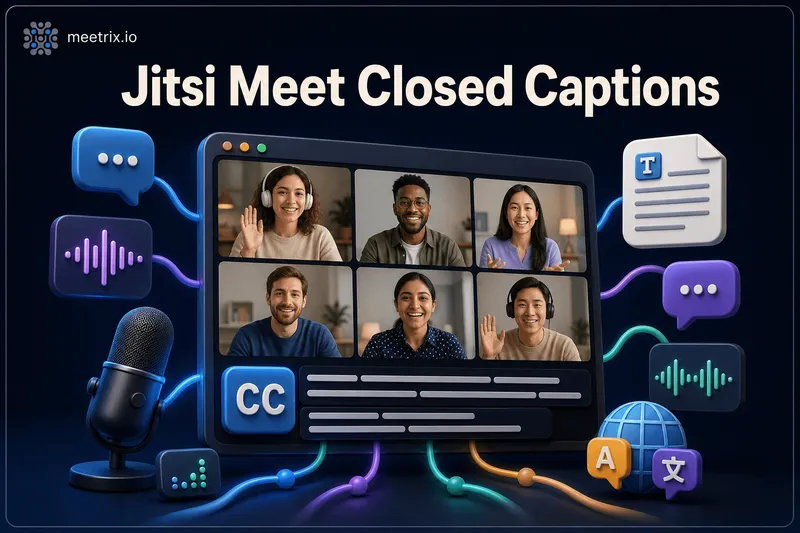
Jitsi Meet closed captions exist. They're just not switched on for you. There's a Subtitles button built into the toolbar that shows live captions to everyone in the call, and with the right backend attached it can save a full transcript too. On the public meet.jit.si instance that button is usually ready to go. On a self-hosted server, which is most of the people landing on this page, it isn't there until someone deploys Jigasi and points it at a speech-to-text engine.
Two different questions get asked here, so this covers both: what the feature does if you're just a participant clicking a button, and how to actually wire it up if you're the one running the server and wondering why the button isn't there.
What Jitsi Meet Closed Captions Do
Jitsi Meet closed captions run on a component called Jigasi, a server-side gateway that joins a conference as a silent participant, streams the audio out to a speech-to-text engine, and sends the text back into the room. Jitsi Meet renders that text two ways: as live subtitles overlaid near the bottom of the video, and as a running log in the CC tab next to Chat. It is the same component that adds phone dial-in to Jitsi, just running in a different mode.
That's the part most people mean by "jitsi meet subtitles." Transcription is the same pipeline kept running for the length of the call and saved to a file, useful for meeting notes even if nobody was watching the live captions at the time. If you already have a recording and only need a subtitle file, our subtitle generator makes an SRT in the browser with no Jigasi involved, and audio to text gives you a plain transcript the same way.
Jigasi does the work, not Jitsi Meet itself
Jitsi Meet has no speech recognition of its own. Every caption you see came from Jigasi relaying results from Vosk, Whisper, Google Cloud Speech-to-Text, or another supported engine. If Jigasi isn't deployed, the Subtitles button either doesn't appear or does nothing when clicked.
Turning On Live Captions
If Jigasi is already running on your server (or you're on meet.jit.si), using it takes a few clicks:
- Open the more-actions menu (the three dots) in the toolbar and select Subtitles, or click the CC icon if your interface shows one directly.
- Pick a caption language from the list. Each participant sets this independently, so a French speaker can caption in French while an English speaker in the same call captions in English.
- Captions appear as an overlay near the video and in the CC tab of the Chat panel. Either participant can toggle the overlay off without stopping the underlying transcription for others.
- Only a moderator can start the Subtitles session in the first place. Once it's running, anyone can pick their own display language.
None of that is Jitsi-specific, it behaves like closed captions in any other video tool. All the actual work happens on the server, before anyone joins.
One thing worth knowing before you rely on it for a client call: the caption overlay renders reliably in Chromium browsers. Firefox has been the flaky one in Jitsi's own bug tracker for years, sometimes the CC tab still works even when the overlay doesn't. If captions matter for an important meeting, ask attendees to join from Chrome or Edge.
Checking Your Subtitles Support
If the Subtitles button isn't in your toolbar at all, that's a server configuration gap, not a broken meeting. Two things have to be true for the button to show up:
transcription.enabledistruein that deployment'sconfig.js.- A Jigasi instance configured for transcription is deployed and able to join rooms on that domain.
Both are off by default on a fresh install. If you're a participant on someone else's server, there's nothing to fix on your end, ask the admin whether Jigasi transcription is deployed. If you run the server, the next two sections cover both pieces.
Jitsi Transcription: Setting Up Jigasi
Jigasi needs an XMPP account to join conference rooms as the transcriber, plus a transcription backend to actually turn audio into text. The setup differs slightly depending on how Jitsi Meet was installed.
On Docker
docker-jitsi-meet ships a Jigasi container (our Jitsi Docker Compose guide covers the base stack), and the account credentials it uses to join rooms are set through your .env file:
JIGASI_XMPP_PASSWORD=<a strong password>
JIGASI_TRANSCRIBER_PASSWORD=<a strong password>
Picking which speech-to-text engine Jigasi talks to isn't something every version exposes as its own environment variable, so the reliable way is mounting a custom properties file into the Jigasi container that sets the values covered in the next section, then restarting:
docker compose down
docker compose up -d
On a Manual Install
Standard apt-based installs (the setup in our Jitsi Meet on Ubuntu guide) configure Jigasi directly in a properties file. Install Jigasi if it isn't already present, then edit:
sudo nano /etc/jitsi/jigasi/sip-communicator.propertiesAdd the base settings that turn on transcription and register the transcriber account:
org.jitsi.jigasi.ENABLE_TRANSCRIPTION=true
org.jitsi.jigasi.ENABLE_SIP=false
org.jitsi.jigasi.xmpp.acc.USER_ID=transcriber@recorder.your-domain
org.jitsi.jigasi.xmpp.acc.PASS=<a strong password>
Restart Jigasi to pick up the change:
sudo systemctl restart jigasiConfiguring Captions in config.js
With Jigasi deployed, the frontend still needs to know transcription exists so it can show the Subtitles button. In your Jitsi Meet config.js (on a package install, /etc/jitsi/meet/<your-domain>-config.js, the same file our front-end customization guide edits):
transcription: {
    enabled: true,
    translationEnabled: true,
    translationLanguages: ['en', 'es', 'fr', 'de'],
    translationLanguagesHead: ['en'],
    useAppLanguage: true,
    autoCaptionOnTranscribe: true,
    autoTranscribeOnRecord: false,
}
autoCaptionOnTranscribe is the setting that makes captions appear the moment Jigasi joins, instead of waiting for someone to click Subtitles manually. autoTranscribeOnRecord is the one that ties transcription to recording, useful if the goal is a saved transcript rather than live captions. Reload the page after saving, config.js changes don't apply to a call already in progress.
Translation, letting each participant pick a caption language different from what's spoken, needs its own translation service behind Jigasi.
Choosing a Speech-to-Text Backend
Jigasi's customService property decides which engine it sends audio to. Vosk works well as a free, self-hosted default:
org.jitsi.jigasi.transcription.customService=org.jitsi.jigasi.transcription.VoskTranscriptionService
org.jitsi.jigasi.transcription.SEND_JSON=true
Whisper is the accuracy upgrade, at the cost of needing a GPU-backed service to talk to:
org.jitsi.jigasi.transcription.customService=org.jitsi.jigasi.transcription.WhisperTranscriptionService
org.jitsi.jigasi.transcription.whisper.websocket_url=wss://your-whisper-host:8000
Google Cloud Speech-to-Text is the third common option, billed per use rather than hosted, and is Jigasi's default backend if you don't set customService at all. SEND_JSON=true matters regardless of backend: it's what tells Jitsi Meet to render results as subtitles instead of dropping plain text into the chat window.
For most self-hosted teams I'd start with Vosk. It's free, keeps audio on your own infrastructure, and for live captions on an internal standup, that's plenty good. Save Whisper for when the transcript itself is the deliverable, board minutes, support call records, anything someone will actually read back later, because the accuracy gap between the two shows up fast on real, messy audio.
Limits and Saving Full Transcripts
- Captions are per-participant display only, nobody else sees your chosen language unless they set the same one.
- Accuracy tracks whatever the underlying engine delivers. Vosk is usable but noticeably behind Whisper on accented or crosstalk-heavy audio.
- A saved transcript only exists if
autoTranscribeOnRecordis on or someone manually keeps Jigasi in the room, closing captions alone doesn't write a file to disk. Recording itself needs Jibri, which our Jibri setup guide walks through. - If you'd rather not run Jigasi and a speech-to-text backend yourself, our Meetrix Transcriber product turns a recorded meeting into a transcript afterward without any server-side transcription setup.
Frequently Asked Questions
Does Jitsi Meet support closed captions?
Yes, through a Subtitles button in the toolbar that a moderator starts. On meet.jit.si it usually just works. On a self-hosted server it needs Jigasi connected to a speech-to-text backend first, it isn't on by default.
How do I turn on live captions in Jitsi Meet?
As a moderator, open the more-actions menu and click Subtitles (or the CC icon), then choose a language. Captions appear as an overlay and in the CC tab of chat for everyone in the call, not just you.
Why is the Subtitles button missing from my Jitsi Meet toolbar?
Almost always because Jigasi isn't deployed or isn't connected to a transcription service on that server. The button only appears once transcription.enabled is true in config.js and a working Jigasi transcriber has joined the room.
How does Jitsi transcription work?
Jitsi Meet itself doesn't transcribe anything. Jigasi, a separate server component, joins the call as a silent participant and streams the audio to a speech-to-text engine like Vosk, Whisper, or Google Cloud Speech-to-Text, then sends the text back as captions.
Can Jitsi Meet translate captions into another language?
Yes, with translationEnabled set in config.js each participant can pick their own caption language independently of what's spoken. Translation quality depends on the backend you connect, not on Jitsi Meet itself.
Which speech-to-text engine should I use with Jigasi?
Vosk if you want everything running locally with no per-minute cost. Whisper for noticeably better accuracy at the cost of running a GPU-backed service. Google Cloud Speech-to-Text if you'd rather pay per use than host anything.
Does Jitsi Meet save a transcript after the meeting ends?
Only if you enable it. Setting autoTranscribeOnRecord starts Jigasi automatically whenever recording starts, and the transcript is saved alongside the recording. Live captions alone don't produce a saved file unless you turn this on.
Related Articles
Deploy Jitsi Meet 250-User With Recording, Add Captions on Top
Meetrix's pre-configured Jitsi Meet AMI (250 users, with a dedicated Jibri recording server and automatic S3 upload) gives you a correctly built Jitsi and JVB stack to start from, so the Jigasi and speech-to-text setup above is the only piece you add yourself.
Launch Jitsi Meet 250-User AMI on AWS Marketplace