Welcome to the Meetrix Hermes Agent developer guide for AWS! Hermes Agent is a self-hosted, self-improving autonomous AI agent built by Nous Research that learns from experience, builds its own skills, and remembers past conversations across sessions. It connects to Telegram, Discord, Slack, WhatsApp, and Signal through a unified gateway, runs scheduled automations, and works with any LLM provider, including OpenAI, OpenRouter, and custom endpoints, giving you a flexible, vendor-neutral foundation for autonomous AI workflows without vendor lock-in. For pricing, instance sizes and what the stack includes, see Hermes Agent on AWS Marketplace.
With the Meetrix pre-configured AMI, you can deploy a production-ready Hermes Agent instance on your own AWS account in minutes using a CloudFormation stack. This guide walks you through finding the product on AWS Marketplace, launching the stack, pointing DNS and issuing SSL, choosing a model provider, and connecting your first messaging channel.
Prerequisites
Before you get started with the Hermes Agent AMI, ensure you have the following prerequisites:
- Basic knowledge of AWS services, including EC2 instances and CloudFormation.
- An active AWS account with appropriate permissions.
- If you encounter a vCPU quota error when launching the stack, follow https://meetrix.io/blogs/increase-aws-vcpu-quota/ to increase your vCPU limit.
Launching the AMI
Step 1: Find and Select Hermes Agent AMI
- Log in to your AWS Management Console.
- Navigate to 'Hermes Agent' in AWS Marketplace.
Step 2: Initial Setup & Configuration
- Click the "Continue to Subscribe" button.
- After subscribing, accept the terms and click "Accept Terms".
- Wait a few minutes until processing completes, then click "Continue to Configuration".
- Select "CloudFormation script to deploy Hermes Agent" as the fulfillment option and choose your region. Click "Continue to Launch".
- From the "Choose Action" dropdown, select "Launch CloudFormation" and click "Launch".
Create CloudFormation Stack
Step 1: Create a stack
- Ensure the "Template is ready" option is selected under "Prepare template".
- Click "Next".
Step 2: Specify stack options
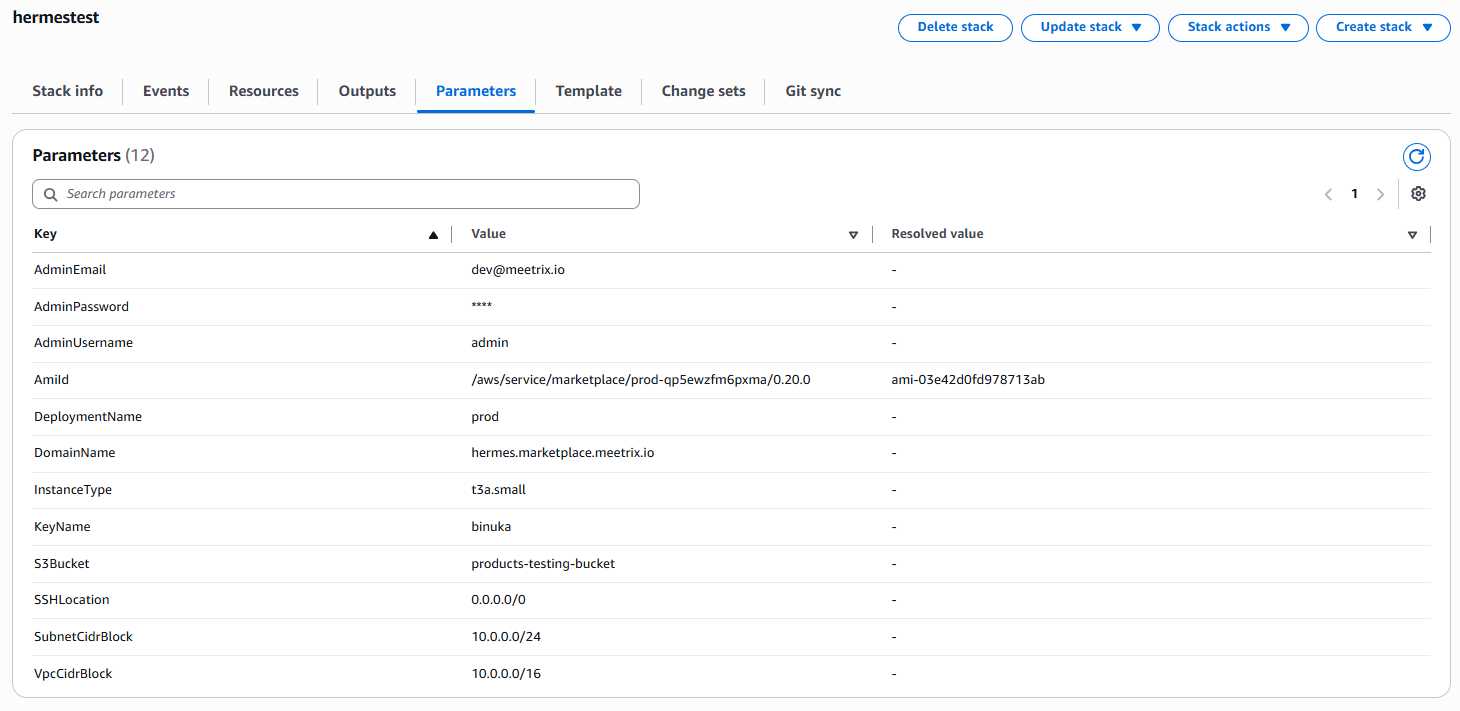
Provide a unique "Stack name", then fill in the stack parameters:
- DeploymentName - a short identifier for this deployment (for example
prod). - DomainName - the public domain for your Hermes Agent instance (for example
hermes.yourdomain.com). Hermes Agent will automatically try to set up SSL if the domain is hosted on Route53. If unsuccessful, you must set up SSL manually. - InstanceType - the EC2 instance type (Recommended: t3a.small).
- AdminEmail, AdminUsername, and AdminPassword - the account used to sign in to the Hermes Agent dashboard. Keep the password secure.
- KeyName - your preferred EC2 key pair, used for SSH access.
- S3Bucket - an S3 bucket in your account that Hermes Agent can use for backups and file storage.
- SSHLocation - set to
0.0.0.0/0, or restrict it to your own IP range. - SubnetCidrBlock - keep as
10.0.0.0/24. - VpcCidrBlock - keep as
10.0.0.0/16.
Click "Next".
Step 3: Configure stack options
- Choose "Roll back all stack resources" and "Delete all newly created resources" under "Stack failure options".
- Click "Next".
Step 4: Review
Review and verify the details you've entered. Here's an example of a completed set of stack parameters:
Tick "I acknowledge that AWS CloudFormation might create IAM resources with custom names", then click "Submit".

Afterward, you'll be directed to the CloudFormation stacks page. Please wait for 5-10 minutes until the stack has been successfully created.
Point DNS to Your Hermes Agent Server
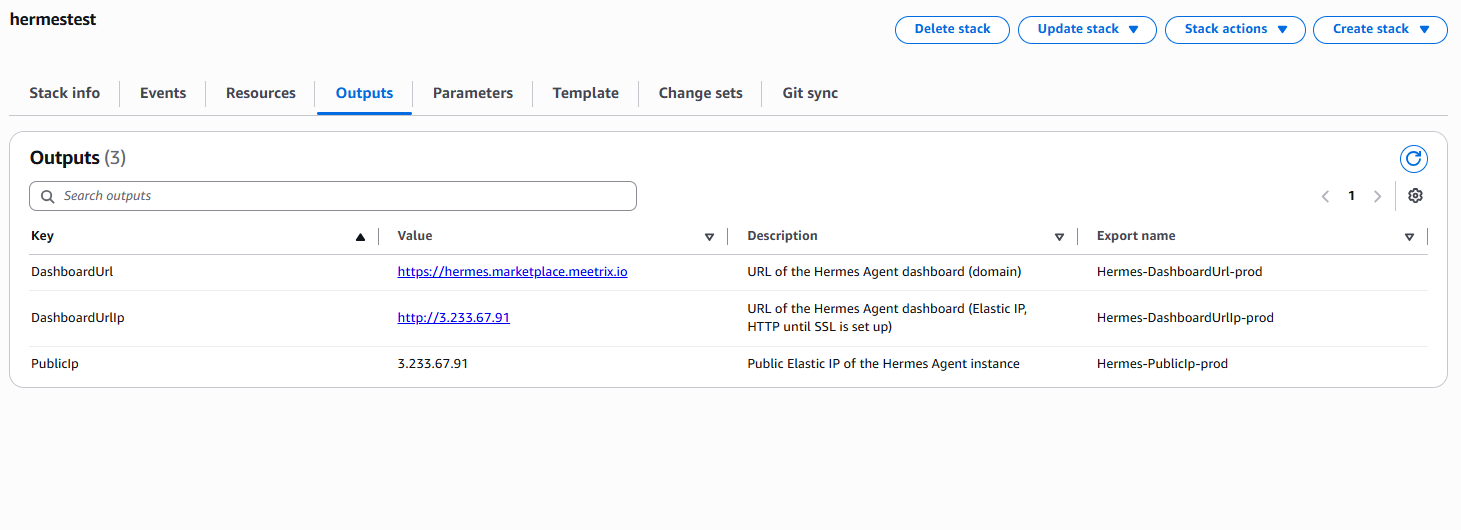
Step 1: Get the Stack Outputs
Open the "Outputs" tab of your stack. You'll see three values: DashboardUrl, DashboardUrlIp, and PublicIp.
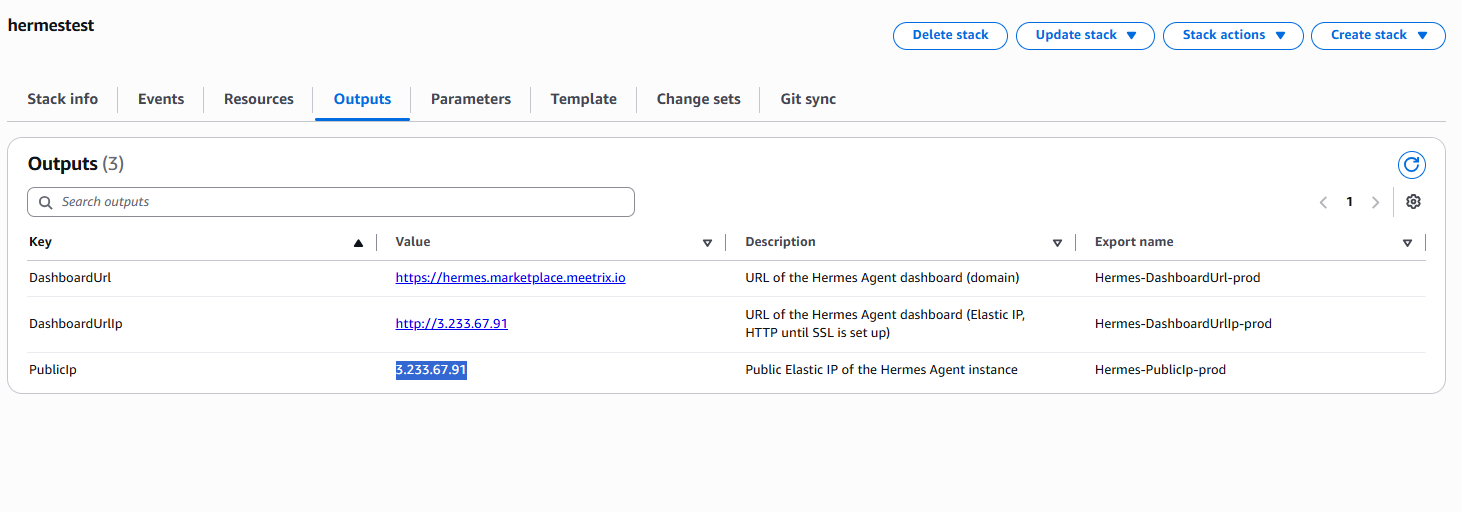
Step 2: Copy the Public IP
Copy the value labeled "PublicIp".
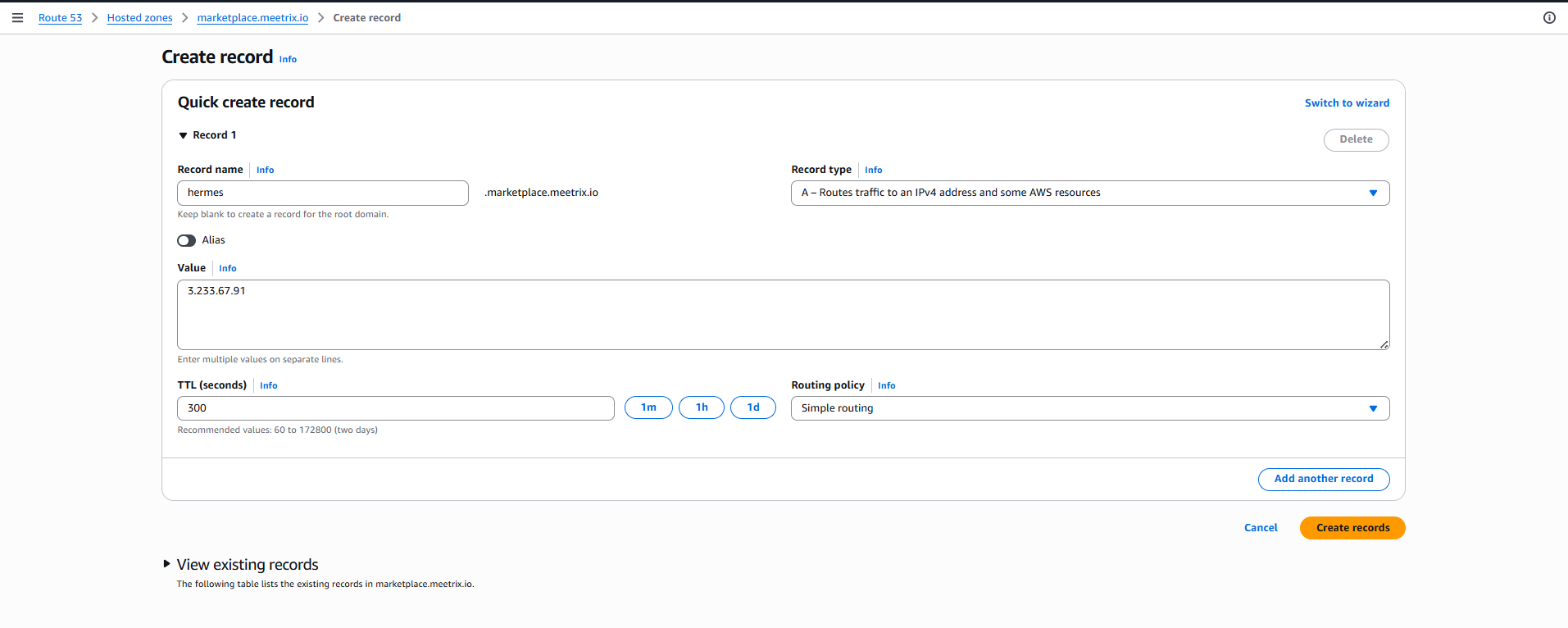
Step 3: Create a DNS Record
- Go to AWS Route 53 and navigate to "Hosted Zones".
- Click Create record.
- Add a record name matching the domain you set in DomainName, and paste the copied PublicIp into the value textbox.
- Click "Create records".
DNS must propagate first
Access Hermes Agent
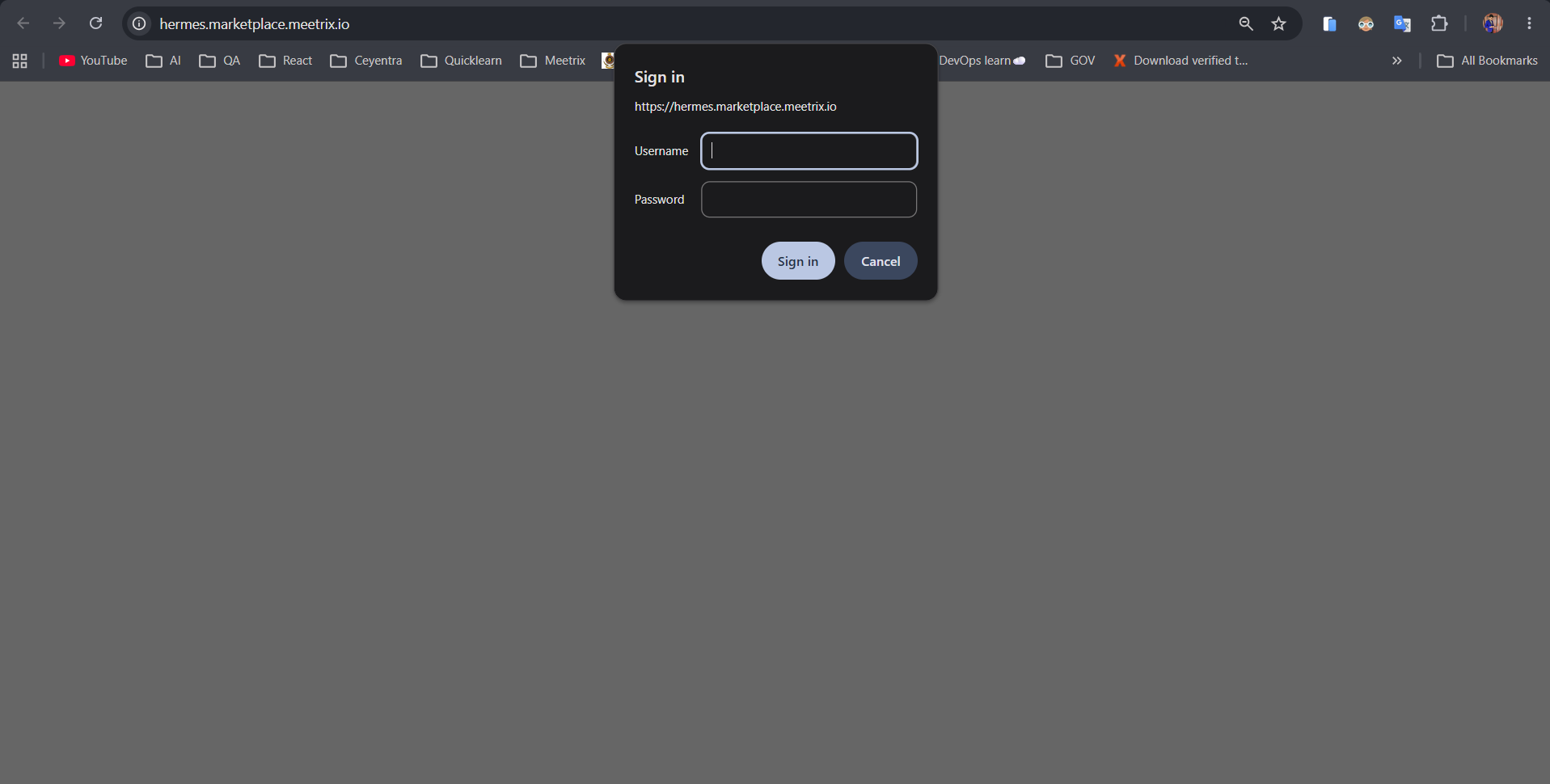
Once DNS has propagated and SSL has issued, visit your domain. Your browser will prompt for the AdminUsername and AdminPassword you set as stack parameters.
Note
Generate an SSL Certificate for Hermes Agent Manually
Hermes Agent will automatically try to issue SSL for the domain name you provided as the DomainName stack parameter. If it's unsuccessful, for example if DNS hadn't propagated yet, you can generate it manually.
Step 1: Log in to the Server
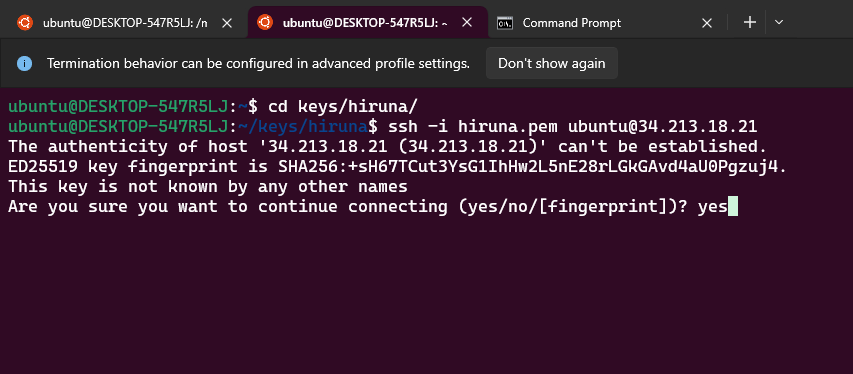
- Open a terminal and go to the directory where your private key is located.
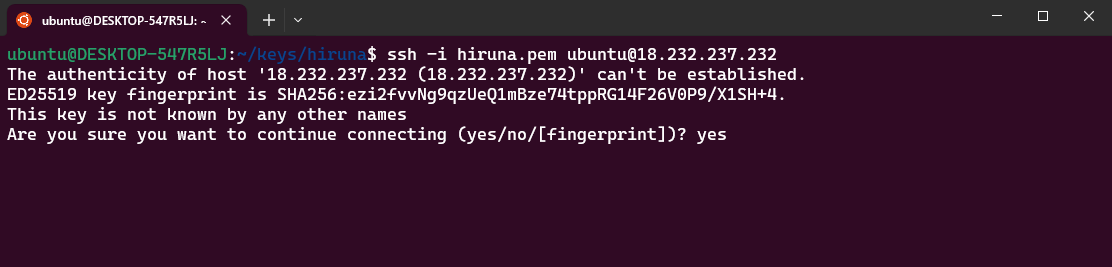
- Run: ssh -i <your key name> ubuntu@<Public IP address>
- Type "yes" and press Enter to confirm the host's authenticity.
Step 2: Generate SSL
Run the following command and follow the prompts:
sudo bash /root/certificate_generate_standalone.shThis script runs certbot using the domain name and admin email you provided as stack parameters.
Configure a Model Provider
Hermes Agent needs at least one LLM provider configured before it can respond to messages. SSH into the instance:
ssh -i <your key name> ubuntu@<Public IP address>Run the Hermes CLI inside the container to select a model provider:
sudo docker exec -it hermes hermes model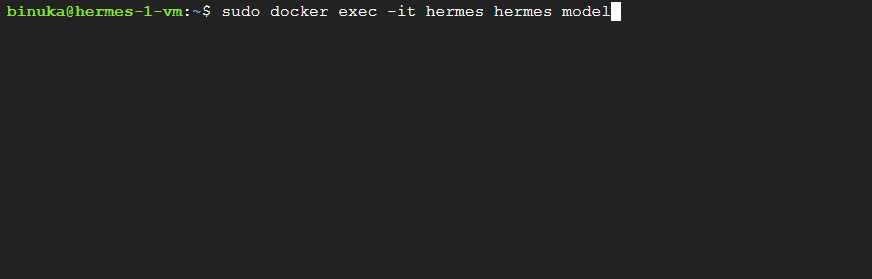
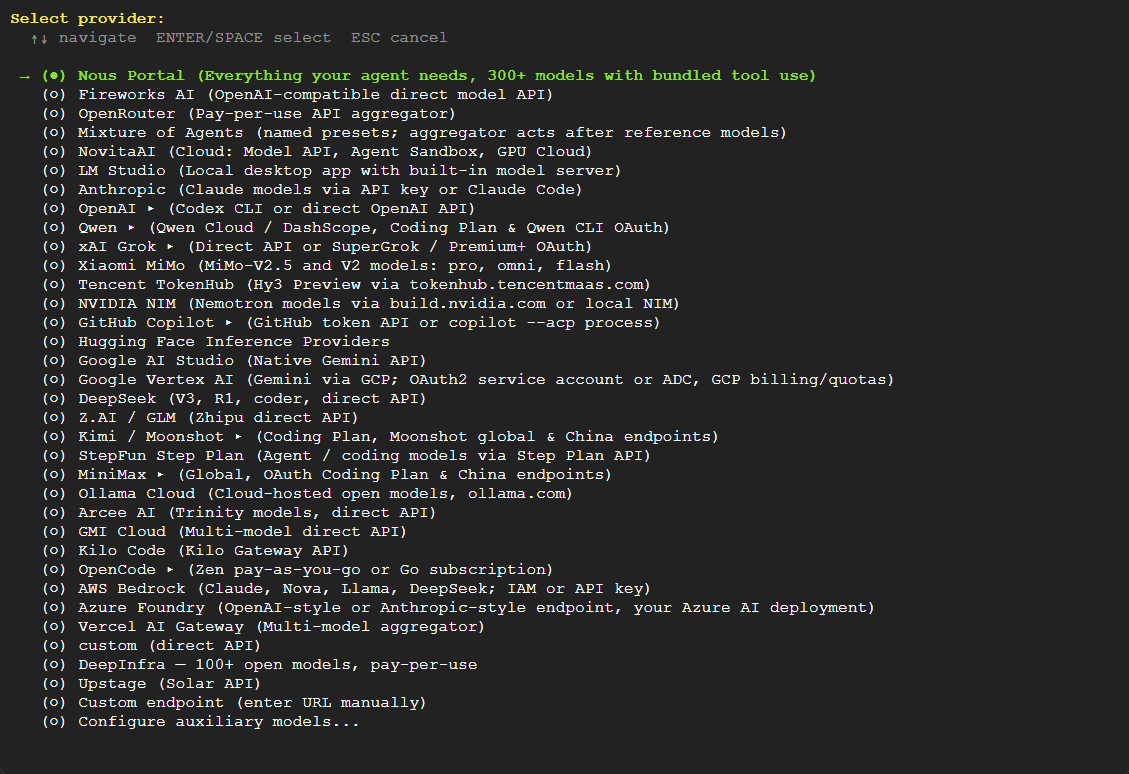
Use the arrow keys to select a provider and press Enter. The built-in Nous Portal option gives you access to 300+ models with bundled tool use out of the box, or you can pick a provider you already have an API key for, such as OpenAI, OpenRouter, Anthropic, Google Vertex AI, or AWS Bedrock.
Using Hermes Agent
Once a model provider is configured, sign back in to the web dashboard. The sidebar gives you access to every part of the agent:
- Chat and Sessions - talk to the agent directly and review past conversations.
- Files, Models, and Skills - manage documents, connected models, and the skills the agent has learned.
- Logs and Cron - review activity and schedule recurring automations.
- Plugins and MCP - extend the agent with plugins or Model Context Protocol servers.
- Channels - pair Telegram, Discord, Slack, WhatsApp, and Signal through the unified gateway.
- Webhooks, Pairing, and Profiles - manage integrations, device pairing, and agent profiles.
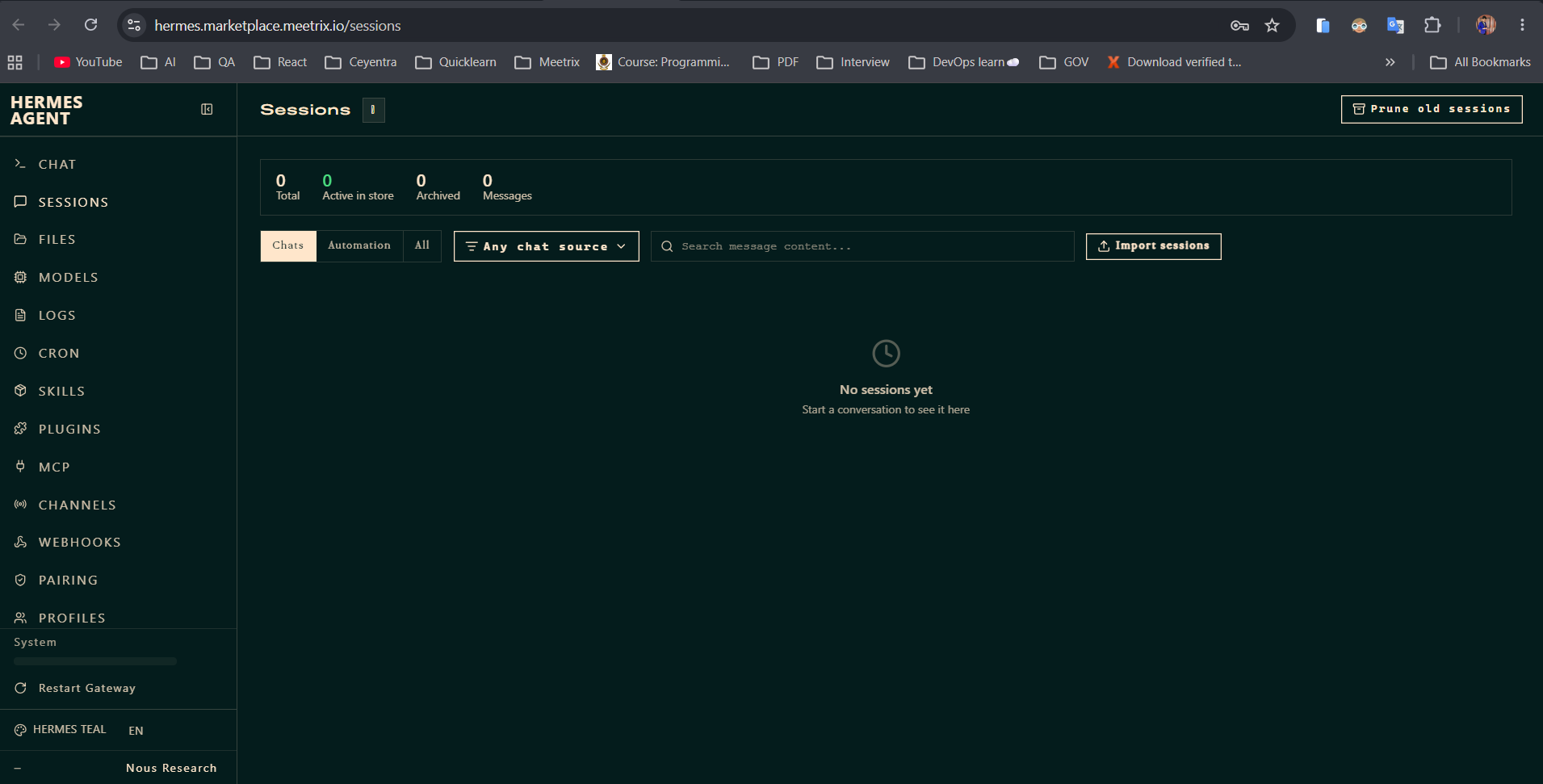
The System panel at the bottom of the sidebar lets you restart the gateway if a channel connection gets stuck.
Manage the Deployment
Stop the Instance
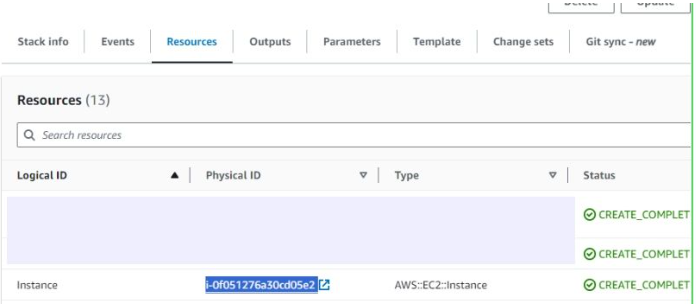
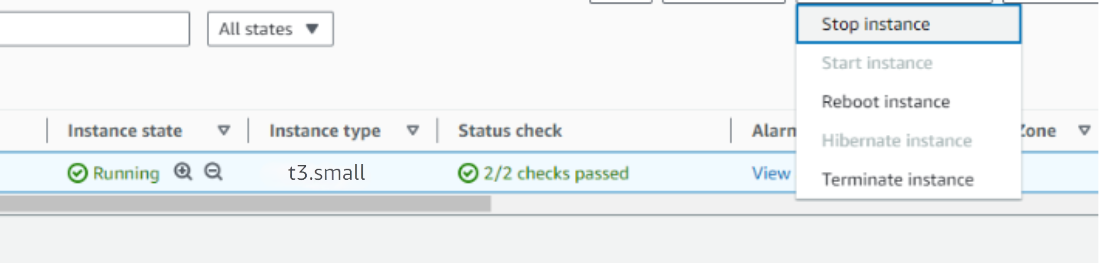
- In CloudFormation, open the "Resources" tab and click the link next to the "Instance" resource to open the EC2 instance.
- Stop the Hermes Agent instance from the Instance state dropdown. You can restart it later as needed.
Change the Basic Auth Password
The AdminUsername and AdminPassword stack parameters are only used once, at first boot, to generate /etc/nginx/.htpasswd. To change them afterward, SSH into the server and regenerate the file:
ssh -i <your key name> ubuntu@<Public IP address>

# replace "newusername". keep the ":"
echo -n "newusername:" | sudo tee /etc/nginx/.htpasswd

# replace "newpassword"
openssl passwd -apr1 "newpassword" | sudo tee -a /etc/nginx/.htpasswd

sudo systemctl reload nginx
Remove Hermes Agent
Delete the CloudFormation stack from the AWS Management Console under "CloudFormation Stacks" by clicking "Delete". Back up any session history, files, or skills you need before deleting the stack.
Upgrades
When a new version is available in AWS Marketplace, remove the previous deployment after backing up necessary server data, then relaunch with the new version.
Troubleshoot
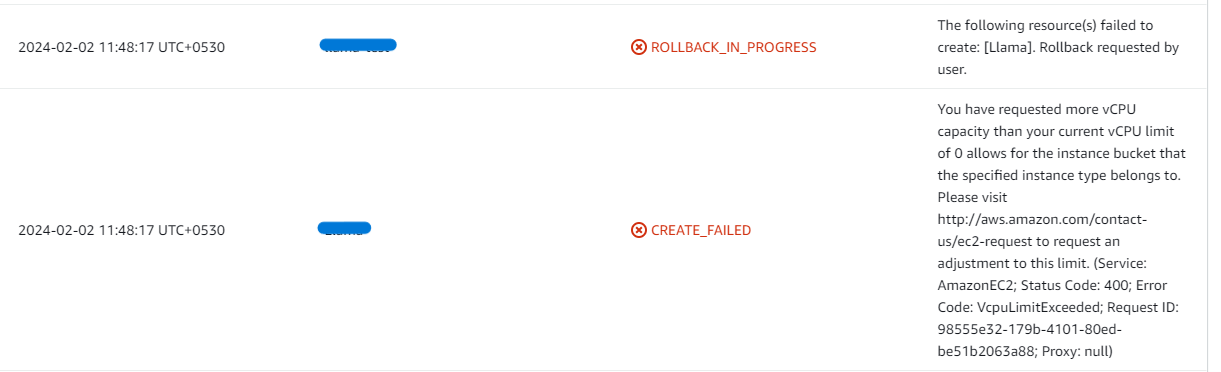
vCPU Quota Errors
If you face vCPU quota limits, the stack will fail with a VcpuLimitExceeded error. Request an increase by following How to increase AWS quota.
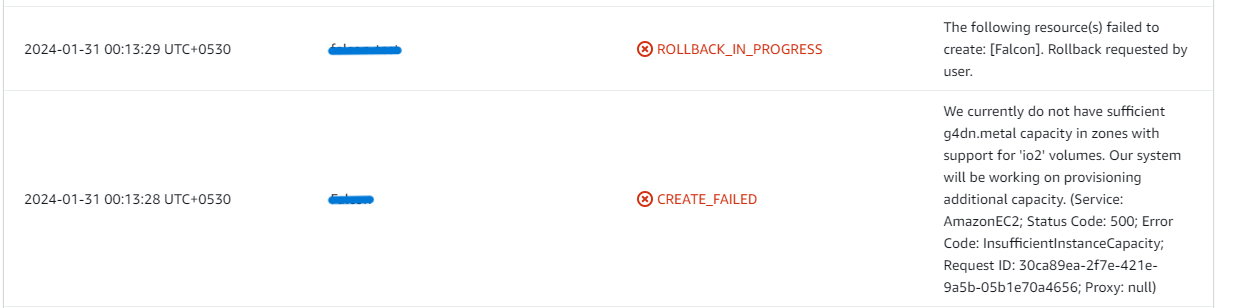
Insufficient Capacity Errors
If you face an InsufficientInstanceCapacity error while creating the stack, try a different instance type, Availability Zone, or region.
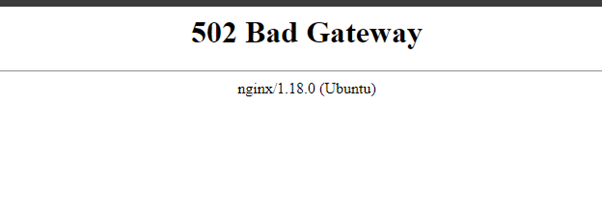
502 Bad Gateway
If the dashboard is temporarily inaccessible, wait 5-10 minutes and retry. The application is likely still starting up.
Disk Space
If Hermes Agent becomes unresponsive, check whether the instance storage is full:
df -h
If the root volume is between 90-100%, resize the EBS volume (per AWS docs), then reboot and restart the service.
Conclusion
The Meetrix Hermes Agent Deployment Guide helps you get a self-hosted, self-improving AI agent running on your own AWS account in minutes. Whether you're automating routine tasks, running a Telegram or Slack assistant, or building a vendor-neutral AI workflow, this guide gives you a secure, working starting point.
Technical Support
Reach out to Meetrix Support (support@meetrix.io) for assistance with Hermes Agent issues.
Frequently Asked Questions
What is Hermes Agent?
Hermes Agent is a self-hosted, self-improving autonomous AI agent built by Nous Research. It maintains persistent memory across sessions, builds its own skills over time, runs scheduled automations, and connects to messaging platforms like Telegram, Discord, Slack, WhatsApp, and Signal through a single unified gateway.
What are the prerequisites for installing Hermes Agent on AWS?
You need basic knowledge of AWS services (EC2, CloudFormation), an active AWS account with appropriate permissions, and a sufficient vCPU limit to launch the required instance type.
Which instance type should I choose?
t3a.small is the recommended default for getting started. Choose a larger instance type if you plan to run many concurrent automations, connect several messaging channels at once, or route requests to larger local models.
Which LLM providers does Hermes Agent support?
Hermes Agent works with any LLM provider, including the built-in Nous Portal (300+ models with bundled tool use), OpenAI, OpenRouter, Anthropic, Google Vertex AI, AWS Bedrock, and custom OpenAI-compatible endpoints. Select and configure a provider from the CLI after deployment with hermes model.
How do I connect Hermes Agent to Telegram, Discord, Slack, WhatsApp, or Signal?
Open the Channels section of the Hermes Agent dashboard and follow the pairing flow for each platform. Hermes Agent connects to all of them through a single unified gateway, so you do not need separate integrations.
What is the default admin login?
The admin username and password are the AdminUsername and AdminPassword values you set as CloudFormation stack parameters during deployment. There is no separate default credential to look up.
How do I renew the SSL certificate?
Certificates issued by Let's Encrypt renew automatically. If you generated one manually with the certificate script, you can re-run it at any time: sudo bash /root/certificate_generate_standalone.sh
How do I change the basic auth username or password after deployment?
The AdminUsername and AdminPassword parameters are only used once, at first boot, to generate /etc/nginx/.htpasswd. To change them afterward, SSH into the server and regenerate the file: echo -n "newusername:" | sudo tee /etc/nginx/.htpasswd, then openssl passwd -apr1 "newpassword" | sudo tee -a /etc/nginx/.htpasswd, then sudo systemctl reload nginx.
How do I get technical support?
Reach out to Meetrix Support at support@meetrix.io for assistance with Hermes Agent issues.
Deploy Hermes Agent on AWS in Minutes
Launch a production-ready, self-hosted Hermes Agent with persistent memory and automation on AWS with a pre-configured Meetrix image.
Get Started on AWS Marketplace