Private VMs, Reachable From a Browser
You did the right thing and took the external IPs off your Compute Engine VMs. Now someone on the support team needs a Windows desktop on one of them, and they don't have gcloud, don't have a Google Cloud account in your organisation, and definitely don't want to learn what an IAP tunnel is.
That's the gap Apache Guacamole fills. One login page in your project. Click a machine, get the desktop in a browser tab.
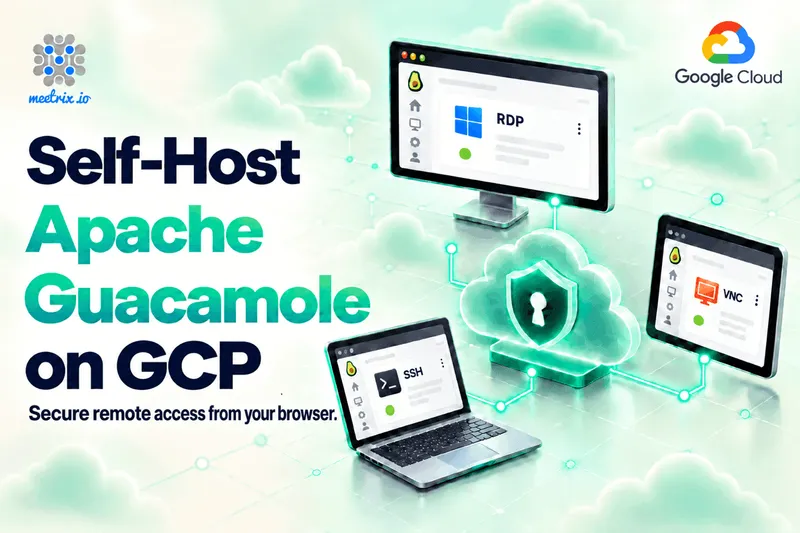
The Guacamole remote desktop gateway on GCP Marketplace by Meetrix deploys that gateway into your own Google Cloud project from a single form: Guacamole with PostgreSQL, behind Nginx, with a Let's Encrypt certificate. If you want every field with screenshots, the Guacamole on GCP developer guide has them.
The Quick Verdict
Private VMs, mixed users
The sweet spot. Helpdesk, contractors, and admins all get a browser session, and the targets keep internal IPs only.
Only engineers, all with gcloud
IAP TCP forwarding may be enough. It's built in, but every user needs the CLI or IAP Desktop and IAM roles.
You want to try it first
The listing has a 5-day trial with up to USD 50 in licence credits. You still pay for the VM and disk.
Whole networks, not single machines
A VPN fits better. Guacamole gives access to specific machines, not to a subnet.
What the Guacamole Gateway Does
Apache Guacamole is a clientless remote desktop gateway from the Apache Software Foundation, released under the Apache License 2.0. The browser renders the session over HTML5, and a server-side daemon, guacd, speaks RDP, SSH, VNC, or Telnet to the real machine.
On Google Cloud, that split is the whole point. The connection to the target starts from the gateway, inside your VPC, so the target only has to accept traffic from one VM on an internal IP. Nothing on the internet talks to your Windows server directly.
The Guacamole manual covers the rest: per-user and per-group connection permissions, file transfer (SFTP over SSH, a virtual drive inside RDP), session recording, and sign-in extensions for LDAP, TOTP, Duo, SAML, and OpenID Connect.
Why run it in your own GCP project
A note on the current release: Guacamole 1.6.0 shipped on June 22, 2025, and it's still the latest stable release as of October 2026. A 1.6.1 release has been in the works for a while: the dependency update ticket has been open since September 2025 and was still being worked on in October 2026. On the Apache mailing list in May 2026, a maintainer said there's no official release date yet: "It's ASAP, but this is an open source project." So 1.6.0 remains the version you'll get, and it fixed CVE-2024-35164, a console code validation flaw in the terminal emulator that could allow arbitrary code execution with the privileges of the guacd process. That's the one that matters most if you're running anything older.
Deploying Guacamole on GCP
A manual install means building guacd, deploying the web app, setting up a database for users and connections, and putting a reverse proxy with SSL in front. The Meetrix image has all of that running when the deployment finishes. Here's the sequence:
- Launch from GCP Marketplace Open the Guacamole listing, click Launch, pick your project, and accept the terms. Tick the trial checkbox at the bottom of the form if you want the 5-day trial.
- Fill In the Deployment Form A deployment name, a service account, a zone, and a machine type (e2-small unless you expect a lot of concurrent sessions). Under Networking, pick the VPC that holds the machines you want to reach. Under Application Settings, enter your domain, an admin email for Let's Encrypt, and the password for the guacadmin account.
- Point DNS at the VM Copy the External IP from the VM's network interfaces and add an A record at whichever DNS provider you use. Let's Encrypt checks the domain over HTTP, so the record has to resolve before the certificate request runs.
- Log In and Add Connections Open your domain and log in as guacadmin. Then Settings, Connections, New Connection: pick RDP, SSH, or VNC, enter the target's internal IP and credentials, and grant it to users or groups.
The network choice in step 2 is the one that's easy to get wrong. Guacamole reaches targets over internal IPs, so it has to sit in the same VPC as them, or in one that's peered with it. Deploy it into default while your VMs live in a custom VPC, and every connection will time out.
A 502 on first visit just means Guacamole is still starting, so give it 5 minutes. If the certificate didn't issue because DNS was slow, SSH in from the console and run the bundled certificate script; the exact command is in the developer guide.
Reserve a Static IP Early
The form leaves the external IP as Ephemeral. Google's IP address docs say an ephemeral address is released when you stop the VM, so a stop and start can hand it a new IP. Your A record then points nowhere, and the login page is gone until DNS catches up.
The fix takes a minute: in VPC network, under IP addresses, promote the ephemeral address to static. Google says promotion doesn't drop traffic to the VM, so you can do it on a running gateway. A reserved address carries its own small charge. Same advice we give for Rancher on GCP, for the same reason.
The Part That Actually Trips People Up
The gateway is easy. The first connection that won't open is where the time goes, and on GCP it's almost always one of two things.
The VPC firewall rule
Each target has to accept its protocol's port from the Guacamole VM: 3389 for RDP, 22 for SSH, 5900 for VNC. On Google Cloud that's a VPC firewall rule, not a per-instance setting. Use the Guacamole VM's network tag or service account as the source rather than its IP, so the rule survives a redeploy. And don't open 3389 to 0.0.0.0/0 "just to test." That undoes the reason you deployed a gateway.
RDP certificates and security mode
A fresh Windows server presents a self-signed certificate, and an RDP connection that won't trust it simply fails. The RDP parameters include a security mode and an "Ignore server certificate" option. Inside a private VPC, ticking it is a common and reasonable choice. It only skips certificate validation, though.
There's a better option than blanket ignoring. Guacamole supports a cert-tofu option, Trust On First Use. The first time guacd connects to an RDP server, it stores the certificate fingerprint and trusts it from then on. The catch is that when guacd runs in Docker with its default configuration, those trusted fingerprints are written to /home/guacd/.config/freerdp/known_hosts2 inside the container, so they're lost whenever the container is re-created. GUACAMOLE-2291 resolves this for 1.6.1 as a documentation change: the Docker docs will tell you to mount that file as a volume. Until then, if you're using the Docker-based image, mount a volume over that path yourself to persist the trust store.
If a connection still fails, the cause is usually the security mode or NLA settings on the Windows side, and the error shows up in the guacd container logs, not the browser: sudo docker ps, then sudo docker logs on the guacd container.
One more Windows gotcha
A standard Windows Server licence allows two concurrent RDP sessions for administration. A third user on the same server needs Remote Desktop Services licences, whichever gateway they come through.
A Linux gotcha worth knowing
If you're connecting to Ubuntu 26.04 servers over SSH, there's a known issue where the shell output comes through garbled. Starting with systemd 258, a script at /etc/profile.d/80-systemd-osc-context.sh adds OSC (Operating System Command) context sequences to the bash prompt. Most terminal emulators ignore them; Guacamole 1.6.0's terminal prints them as visible text. This is tracked as GUACAMOLE-2213 and is fixed for 1.6.1, but since 1.6.1 isn't released yet, the workaround is to stick with Ubuntu 24.04 targets for SSH sessions if you can, disable that profile script on the target, or apply the patch yourself if you're building from source.
What the Meetrix Image Gives You
- A running gateway. Guacamole and guacd in Docker, with PostgreSQL holding users and connections, behind Nginx.
- SSL with any DNS provider. Let's Encrypt is requested for the domain on the form, with a certificate script as the fallback.
- The guacadmin password from the form, so there's no default credential on a public login page.
- A trial before you commit. Five days and up to USD 50 in licence credits. Delete the deployment to cancel.
- A plain upgrade path. When a newer version is on the listing, back up, delete the old deployment from Solution deployments, and launch the new one.
- Support at support@meetrix.io, with a reply within 12 hours. The Apache Guacamole store page has the AWS and GCP options side by side.
One thing it doesn't do: backups. The AWS version of this image asks for an S3 bucket at launch; the GCP form has no backup setting. Your users and connections live in PostgreSQL on the boot disk, so a snapshot schedule on that disk is the simplest cover. Set it up before you've entered fifty connections, not after.
Right after first login, create a non-admin user for yourself and stop using guacadmin day to day. If your team already runs an identity provider, the SAML or OpenID Connect extension can sit in front; our Keycloak developer guide covers one you can host yourself.
Who Is Guacamole on GCP Right For?
I'd point a platform or IT lead here when their Compute Engine VMs are already on internal IPs, a few are Windows, and the people who need into them aren't all engineers. It also fits:
- Helpdesk and support teams who need desktops on internal machines from any laptop
- Contractors and partners outside your Google Workspace, who can't be given IAM roles easily
- Training labs and classrooms, where every student gets a desktop in a browser tab
- Teams already on AWS too, since the same image is on AWS Marketplace with the same login and connection setup
Guacamole vs IAP, Google's Reference Build, and a VPN
| Feature | Guacamole on GCP by Meetrix | IAP TCP forwarding | Google's Guacamole reference architecture | Self-hosted VPN |
|---|---|---|---|---|
| What the user needs | A browser and a Guacamole login | gcloud or IAP Desktop, plus IAM roles | A browser and an account in your organisation | A VPN client |
| RDP in the browser | Yes | No; tunnel to a local RDP client | Yes | No; local RDP client |
| Protocols | RDP, SSH, VNC, Telnet | SSH, RDP, and other TCP | RDP, SSH, VNC | Anything on the network |
| Users outside your organisation | Yes, any Guacamole account | Only with IAM access | No, sign-in is internal to the organisation | Yes, with a VPN profile |
| What you run | One Compute Engine VM | Nothing extra | GKE, Cloud SQL, a load balancer, and IAP | One VPN server |
| Targets need external IPs | No | No | No | No |
| Access scope | Specific machines you grant | Instances the IAM policy allows | Specific machines you grant | The whole network segment |
IAP details are from Google's TCP forwarding docs, which also note IAP Desktop is open source and not an officially supported Google product. The reference build is Google's Guacamole on GKE and Cloud SQL architecture.
My honest take: if every person who needs access is an engineer with gcloud installed, IAP TCP forwarding is already there and costs you nothing to try. Google's reference architecture is the heavyweight version of this same gateway, with GKE and Cloud SQL behind it, and it only lets in accounts from your own organisation. For most teams that just want browser desktops on private VMs this week, one VM running Guacamole is the shortest path.
Want network-level access instead? OpenVPN on Google Cloud and our roundup of the best self-hosted VPNs cover that route. And for support work on end-user laptops rather than servers, RustDesk on GCP is the better tool.
Resources
Where I'd Start
First hour
Start the trial, deploy into the VPC your VMs live in, point DNS, and add one SSH and one RDP connection.
Same day
Promote the external IP to static, tighten the firewall rule to the gateway's tag, and create a non-admin user.
That week
Add a snapshot schedule on the boot disk, then TOTP or your identity provider, and grant connections by group.
Before more people join
Move up from e2-small if lots of people will hold sessions at the same time.
Guacamole releases are infrequent (1.6.0 came out in June 2025, and 1.6.1 is still unreleased as of October 2026), so security comes down to what you control: patch the VM, keep guacadmin's password strong, and keep target ports closed to everything but the gateway.
Frequently Asked Questions
What is the Guacamole remote desktop gateway?
It's a clientless gateway that lets users reach RDP, SSH, VNC, or Telnet machines through a browser. The protocol work happens server-side, so users install nothing.
Is there a free trial for Guacamole on GCP Marketplace?
Yes. The listing includes a 5-day trial with up to USD 50 in licence fee credits. Infrastructure charges for the VM and disk still apply.
What are the default login details?
The username is guacadmin, and the password is whatever you set in the deployment form. There's no default password on the image.
Which machine type does Guacamole need on GCP?
The default is e2-small (2 vCPU and 2 GB of memory), which is enough for a small team. Size up if you expect many concurrent sessions.
Do my Compute Engine VMs need external IPs?
No. That's the point. Guacamole reaches them over internal IPs from inside the VPC, so the targets stay private.
How is Guacamole different from IAP TCP forwarding?
IAP tunnels TCP to a local client, so users still need gcloud or IAP Desktop plus IAM roles. Guacamole renders the full desktop in a browser tab and manages its own user accounts, including for people outside your organisation.
Why does my RDP connection fail when SSH works?
Usually the RDP certificate or security mode. Enable "Ignore server certificate," or better, use cert-tofu to trust the certificate on first use. In Docker, TOFU fingerprints are lost when the container is re-created unless you mount a volume over /home/guacd/.config/freerdp/. If it still fails, check the guacd logs.
What's the latest Guacamole version?
1.6.0, released June 22, 2025, is still the latest stable release. 1.6.1 has been in preparation since 2025 and was still unreleased as of October 2026.
Put One Gateway in Front of Your GCP VMs
Launch Apache Guacamole in your own Google Cloud project, reach private VMs over RDP, SSH, and VNC from any browser, and try it free for five days.
Deploy on GCP Marketplace