Welcome to the Meetrix Apache Guacamole developer guide for Google Cloud Platform! Apache Guacamole is an open-source, clientless remote desktop gateway. Users open a browser, log in, and get a Windows desktop over RDP, a Linux shell over SSH, or a VNC session, with nothing installed on their own device. The Meetrix GCP image runs Guacamole with PostgreSQL behind an Nginx reverse proxy with automated SSL, so you get a working gateway in your own GCP project in minutes.
This guide walks you through finding the product on GCP Marketplace, configuring the deployment, pointing DNS, logging in for the first time, and managing the server. For what the image includes and how it compares with Teleport, see the Apache Guacamole store page. If you would rather give each user a desktop client, our RustDesk on GCP developer guide covers a self-hosted alternative, and the OpenVPN on GCP developer guide shows how to put a whole network behind a VPN instead.
Prerequisites
Before you begin, make sure you have the following:
- Basic Google Cloud Platform knowledge.
- An active Google account with a GCP project and billing enabled.
- A domain name you can manage DNS records for.
Launch Guacamole from GCP Marketplace
Step 1: Find the Product
- Log in to your Google account.
- Go directly to the product page: Apache Guacamole Remote Desktop Gateway on GCP Marketplace
- You can also browse all Meetrix products at the Meetrix Solutions Page.
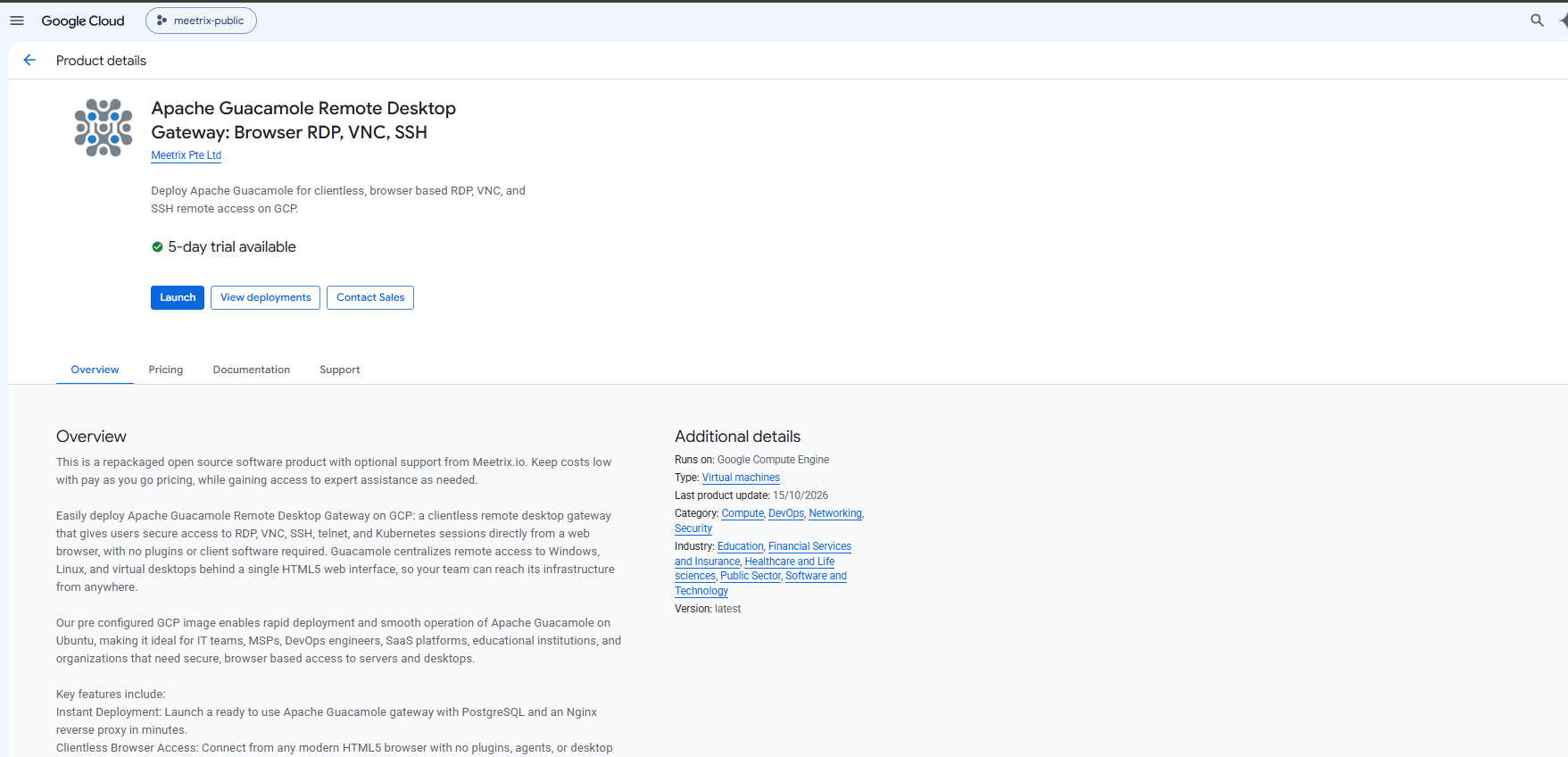
- You will see the following product listing page. Click Launch.
Step 2: Accept the Agreement
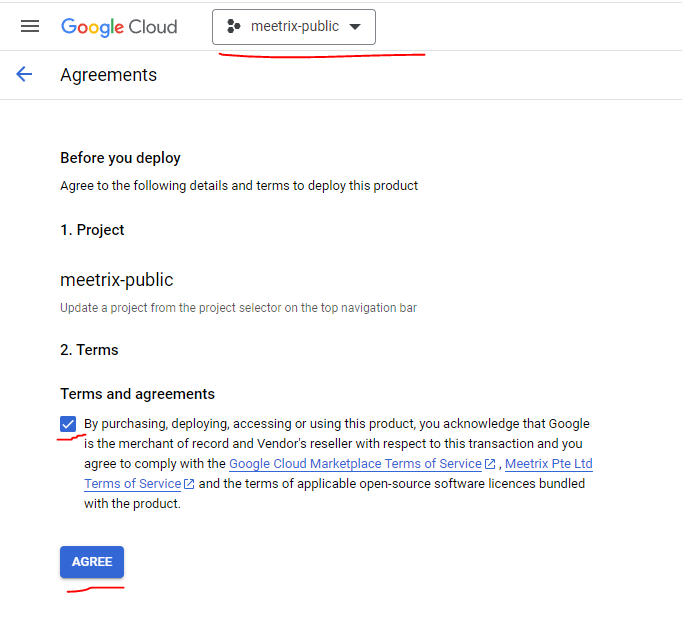
- Select your GCP project from the project selector at the top.
- Tick the terms and agreements checkbox.
- Click AGREE.
Free Trial
This product includes a 5-day free trial with up to USD 50.00 in licence fee credits. To activate it, tick I accept the solution trial Terms and Conditions at the bottom of the deployment form before you click Deploy.

Trial note
Configure Your Guacamole Deployment on GCP
You will see the deployment configuration form. Fill in the fields across the following sections:
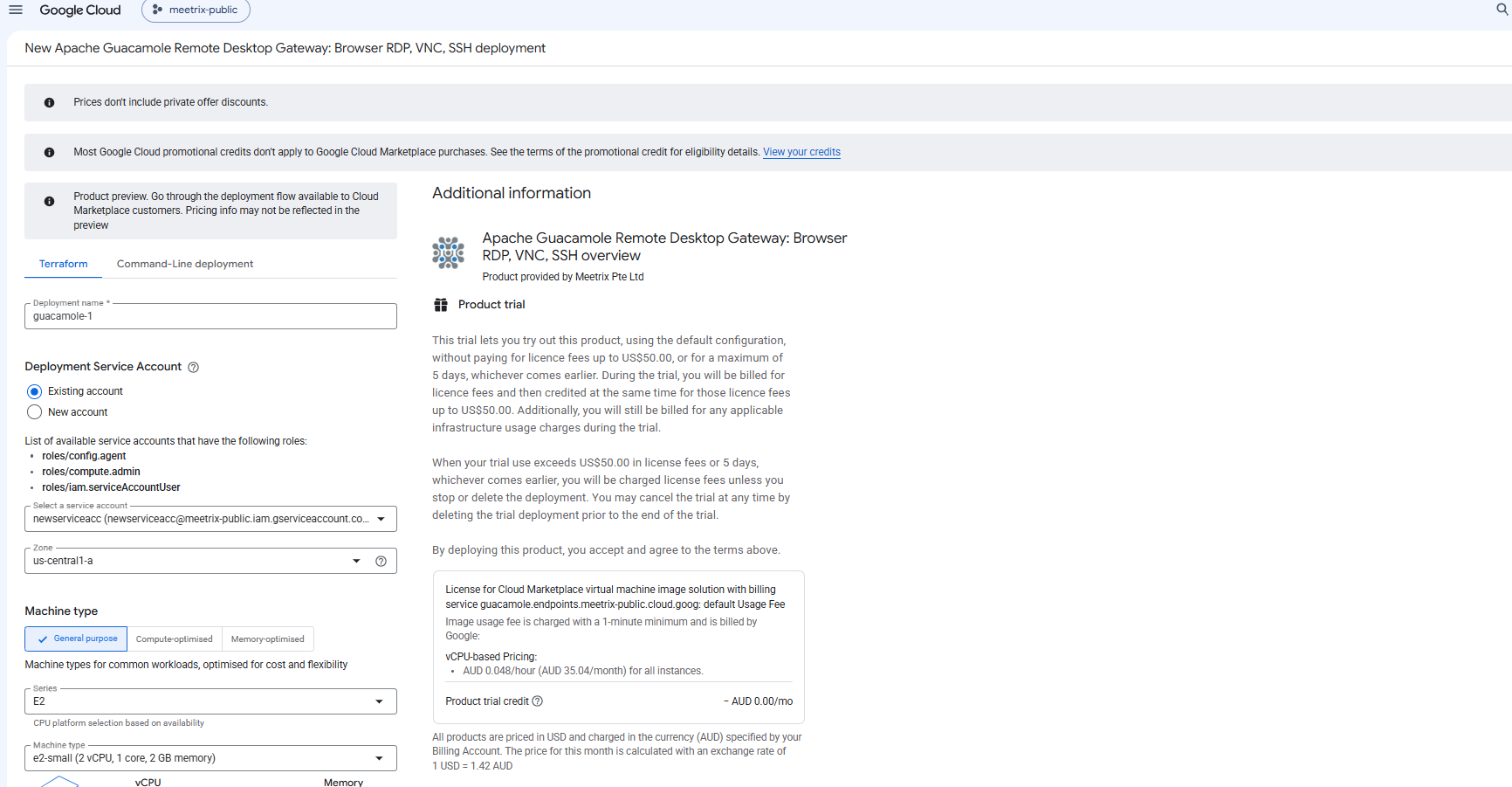
General
- Deployment name: A unique name for this deployment.
- Deployment Service Account: Use an existing account that has the
roles/config.agent,roles/compute.adminandroles/iam.serviceAccountUserroles, or create a new one. - Zone: Select the GCP zone closest to your users, or to the machines Guacamole will connect to.
- Machine type: The default
e2-small(2 vCPU, 2 GB memory) handles a small team. Go larger if many users will hold remote sessions at the same time.
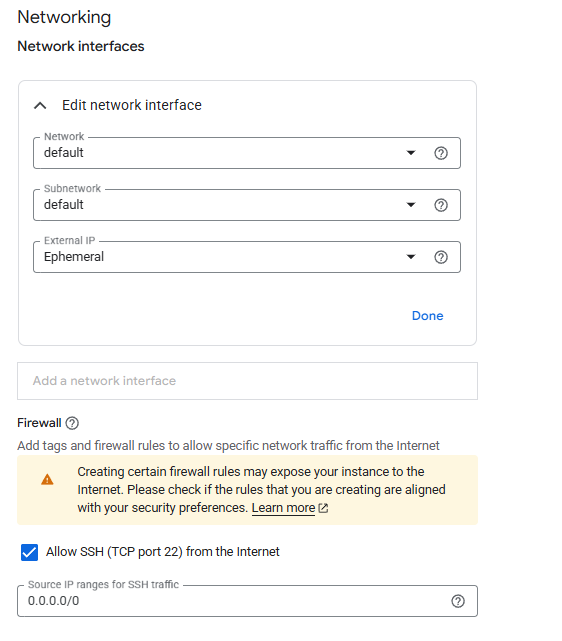
Networking
- Network / Subnetwork: Leave as
defaultunless you have a custom VPC. Choose the VPC that holds the machines you want to reach, so Guacamole can connect to them over their internal IPs. - External IP: Leave as
Ephemeralso users can reach the dashboard from the internet. - Allow SSH (TCP port 22): Enabled by default. Restrict the source IP range if you want to limit SSH access to specific IPs.
Application Settings
- Domain name: The domain for your Guacamole server (e.g.
guacamole.yourdomain.com). Point your DNS A record to the instance IP before or shortly after deploying. - Admin email: Used for SSL certificate registration via Let's Encrypt.
- Admin password: The password for the guacadmin account you log in with. Store it securely.
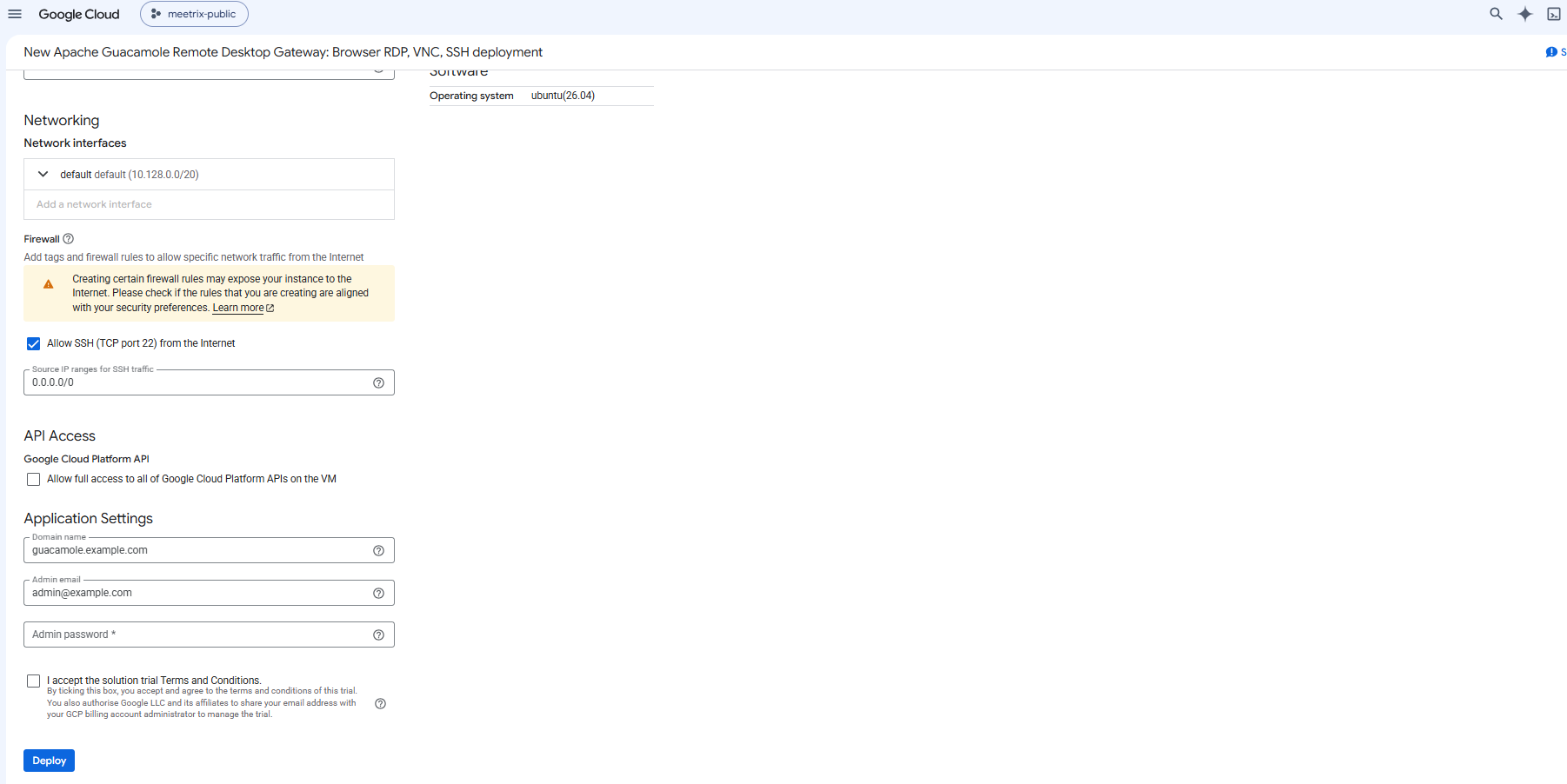
Click Deploy and wait a few minutes for the deployment to complete.
Point DNS to Your Guacamole Server
Step 1: Get the External IP
- Once deployment is complete, click the VM instance resource name in the deployment details.
- Copy the External IP from the Network interfaces section.
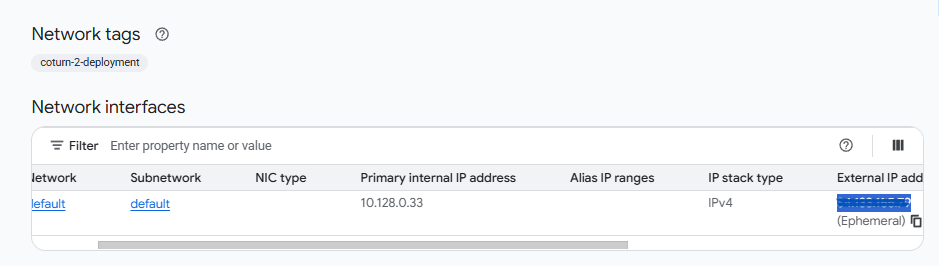
Step 2: Create a DNS A Record
- Go to your DNS provider.
- Add an A record pointing your Guacamole domain (e.g.
guacamole.yourdomain.com) to the copied external IP. - Wait for DNS propagation before proceeding (typically a few minutes to 1 hour).
DNS must propagate first
Access Guacamole
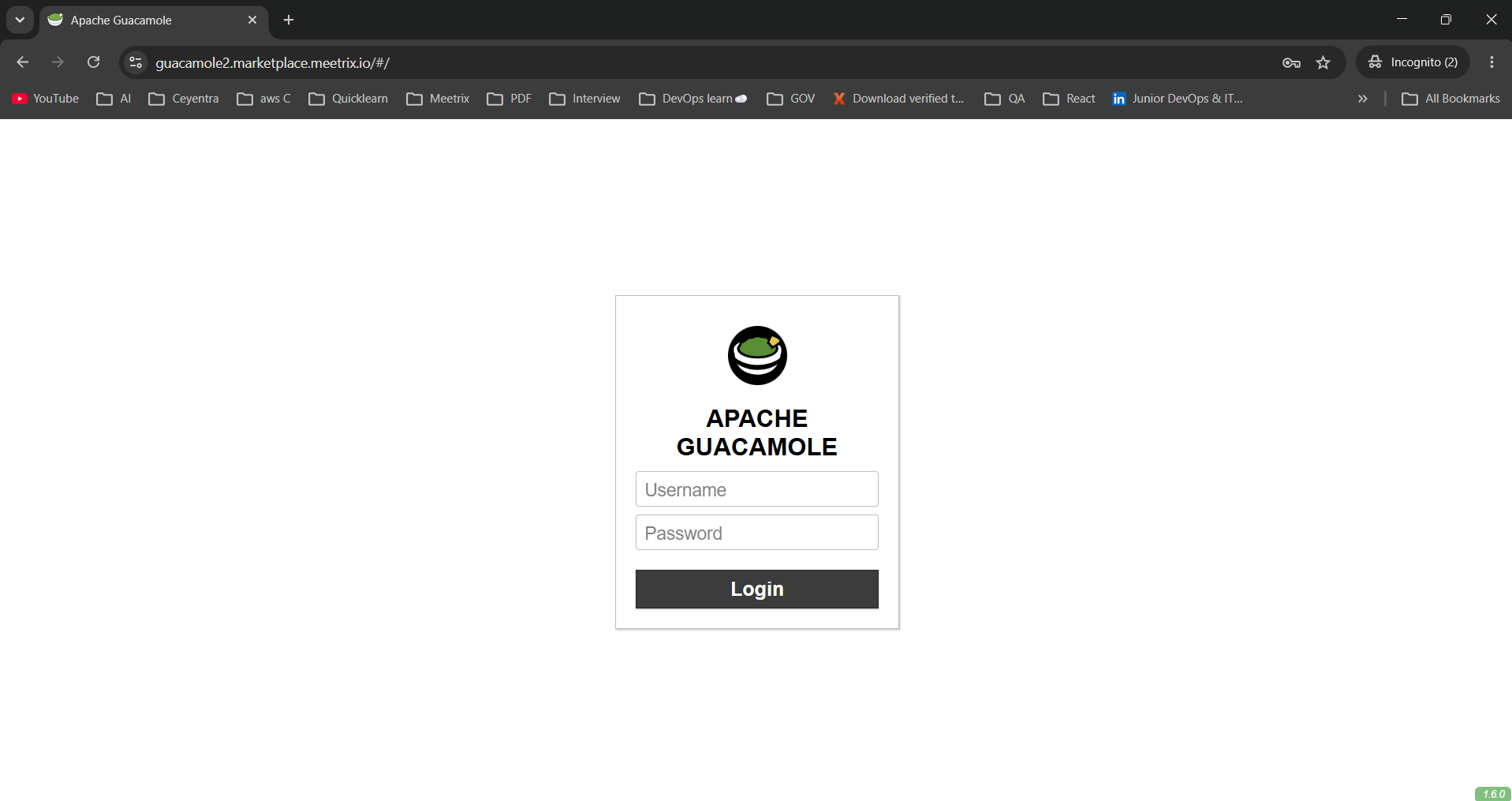
Once DNS has propagated and SSL has been issued, visit your domain. On the login screen, enter the username guacadmin and the Admin password you set in the Application Settings, then click Login.
502 Bad Gateway Error?
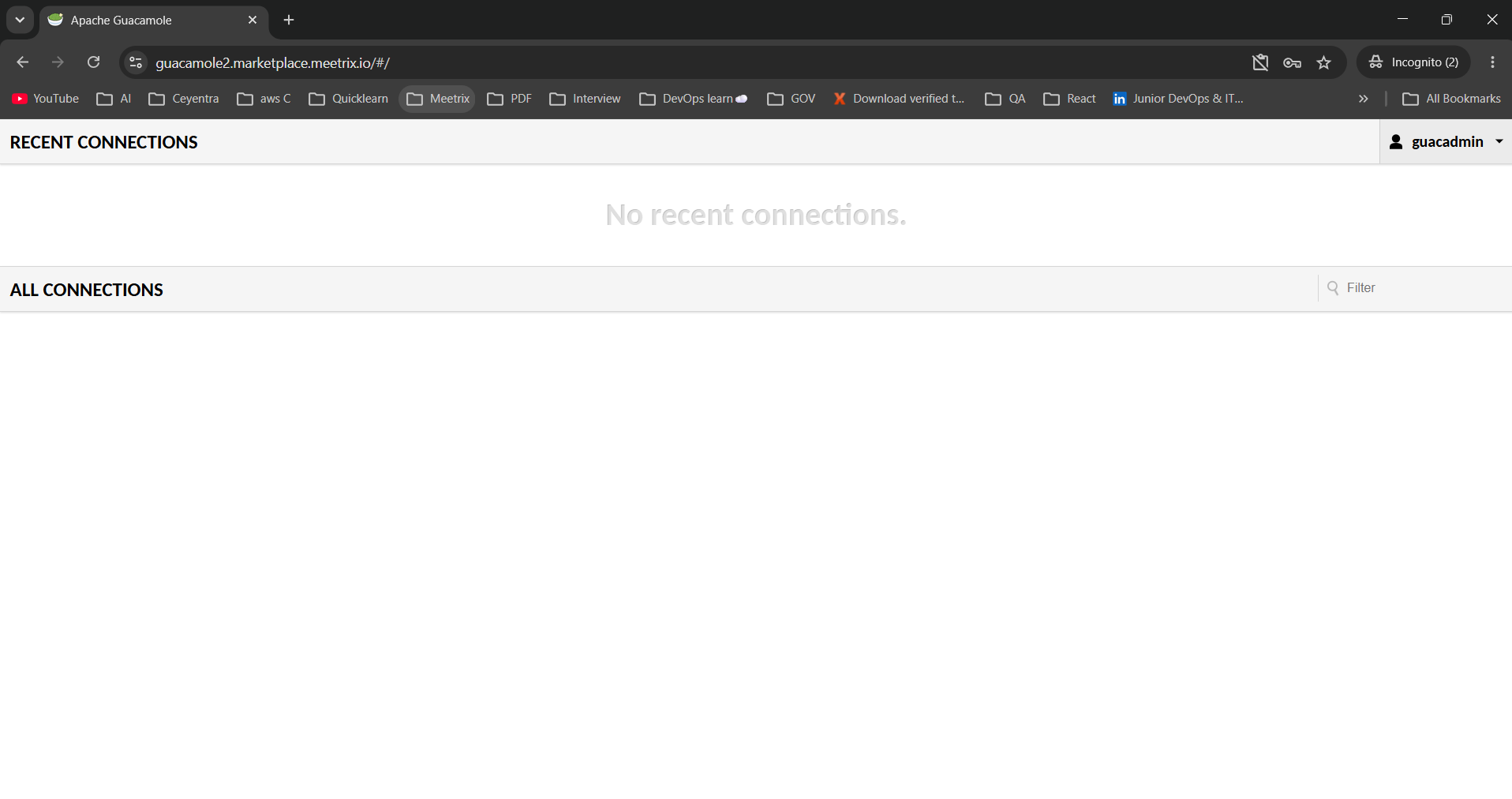
After login you land on the Guacamole home page. It lists Recent Connections and All Connections, both empty on a fresh deployment.
Add Your First Connection
Open the guacadmin menu in the top right, go to Settings and then Connections, and click New Connection. Choose the protocol (RDP, SSH or VNC), enter the target's hostname or IP address and its credentials, and save. The connection then appears on the home page for every user you grant it to. The Guacamole manual lists every parameter each protocol supports.
For VMs in the same VPC, use their internal IP. Those VMs then do not need an external IP at all, which is what makes Guacamole a good bastion host on GCP. Allow the traffic with a VPC firewall rule from the Guacamole VM to the targets on the ports they use: RDP (3389), SSH (22) or VNC (5900).
Admin account
Generate an SSL Certificate for Guacamole Manually
Guacamole automatically tries to issue SSL for the domain name you provided during deployment. If that fails, for example because DNS had not propagated yet, generate it manually.
Step 1: SSH into the Server
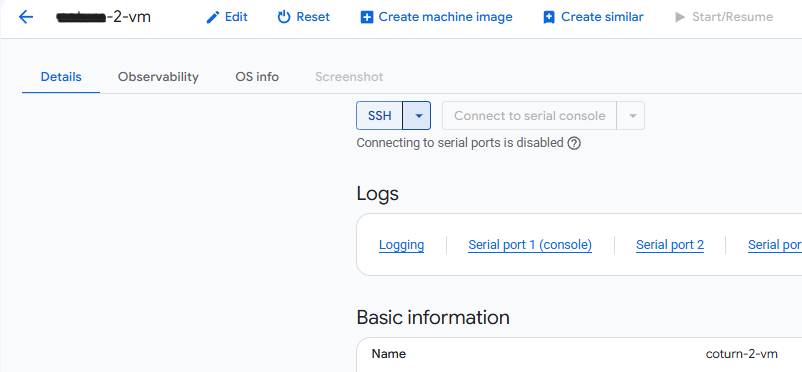
- Go to the VM instance page in the GCP console.
- Click SSH to open a browser-based terminal and authorize access.
Step 2: Run the Certificate Script
The image includes a pre-configured certificate script. Run it with:
sudo bash /root/certificate_generate_standalone.shThis script runs certbot using the domain name and admin email you provided during deployment.
Check Guacamole Server Logs
SSH into the server as shown above. List the running containers, then view the logs of a container using the first few characters of its container ID. Connection problems usually show up in the guacd container, which handles the RDP, SSH and VNC protocols:
sudo docker ps

sudo docker logs <container-id-prefix>
Nginx sits in front of Guacamole and terminates SSL. If the dashboard does not load at all, check it too:
sudo systemctl status nginxManage Your Guacamole Deployment on GCP
Shut Down the VM
To stop the VM without deleting it, go to Compute Engine → VM Instances in the GCP console, select your instance, and click Stop. You can restart it later by clicking Start/Resume.
Note
Delete the Deployment
To fully remove the deployment and stop all billing:
- Go to Solution deployments in the GCP console.
- Find your Guacamole deployment.
- Click Delete to remove all associated resources.
Upgrades
When there is an upgrade, we update the product with a newer version. You can check the product version in GCP Marketplace. If a newer version is available, back up your server data, delete the current deployment, and launch the product again using the newer version.
Troubleshoot Guacamole on GCP
Insufficient Capacity Error
If you see an error stating there is not sufficient capacity for the selected machine type while deploying, try a different zone or try again later.
502 Bad Gateway
If you see a 502 Bad Gateway error when accessing your domain, Guacamole is still starting up. Wait 5-10 minutes and try again. If it persists, check the container status and logs as shown above.
A Connection Fails to Open
If a saved connection fails, check that a VPC firewall rule allows RDP (3389), SSH (22) or VNC (5900) from the Guacamole VM to the target, and that the hostname or IP in the connection is correct. Then check the guacd container logs as shown above.
Storage Full Error
Container images, database data and logs can fill the boot disk over time. If the dashboard becomes unresponsive, SSH into the server and run:
df -hIf the root volume is between 90-100%, resize the boot disk from the Compute Engine console, then reboot the instance.
Conclusion
You now have a self-hosted Apache Guacamole gateway running in your own GCP project, with SSL and your own domain. From here, add connections to your servers and desktops, create non-admin users, and keep the target VMs on internal IPs behind it. If you are still weighing remote access options, our roundup of the best self-hosted VPNs covers the network-level approach.
Technical Support
If you run into any issues, our support team is here to help. Reach out to us at support@meetrix.io and we will respond within 12 hours.
Frequently Asked Questions
What is Apache Guacamole?
Apache Guacamole is an open-source, clientless remote desktop gateway. It lets you reach machines over RDP, VNC, SSH and Telnet from a web browser, with no plugin or desktop client installed on the user's device.
What are the login details for the Guacamole dashboard?
Log in with the username guacadmin and the Admin password you set in the Application Settings section of the deployment form. Store the password securely, since it is the administrator account for every connection you add.
Which machine type should I choose for Guacamole on GCP?
The default e2-small (2 vCPU, 2 GB memory) is enough for a small team. Guacamole itself is light, but each active remote session uses CPU and memory on the gateway, so choose a larger machine type if many users will connect at the same time.
Can I use Guacamole as a bastion host for private Compute Engine VMs?
Yes. Add connections that point at the internal IP addresses of VMs in the same VPC network, and add a VPC firewall rule that allows RDP, SSH or VNC traffic to them from the Guacamole VM. Those VMs then need no external IP, and users reach them through the browser.
Is there a free trial?
Yes. The Meetrix Guacamole listing includes a 5-day free trial with up to USD 50.00 in licence fee credits. Infrastructure charges for the VM and disk still apply during the trial.
How do I upgrade Guacamole?
When a newer version is available in GCP Marketplace, back up the data you need, delete the current deployment, and launch the product again with the new version.
How do I get technical support?
Reach out to Meetrix Support at support@meetrix.io for help with the Guacamole GCP deployment.
Deploy Apache Guacamole on GCP in Minutes
Launch a production-ready Apache Guacamole gateway on Google Cloud with a pre-configured Meetrix image and reach your desktops and servers from any browser.
Get Started on GCP Marketplace