Welcome to the DeepSeek R1 Developer Guide for AWS integration! DeepSeek R1 is an advanced open-weight language model designed for deep reasoning, code generation, and complex problem-solving. With an optimized transformer architecture and enhanced efficiency, it excels in tasks such as logical reasoning, mathematical problem-solving, and multi-turn conversations. Read more about the model on its GitHub page or the Hugging Face model card.
DeepSeek AI enables organizations to make precise, fast, and intelligent data-driven decisions by utilizing advanced deep learning algorithms, state-of-the-art natural language processing (NLP), and real-time data analysis. Let’s dive in and explore how to seamlessly integrate DeepSeek R1 into your AWS environment to unlock its full potential. If you want to compare it with other models first, see our guide to the best open source LLMs to self-host, or browse the DeepSeek R1 store page.
Prerequisites
Before you get started with the DeepSeek AMI, ensure you have the following prerequisites:
- Basic knowledge of AWS services, including EC2 instances and CloudFormation.
- An active AWS account with appropriate permissions.
- Enough vCPU limit to create g4dn type instances. If you encounter a vCPU quota error when launching the stack, follow https://meetrix.io/blogs/increase-aws-vcpu-quota/ to increase your vCPU limit.
Launching the AMI
Step 1: Find and Select "DeepSeek" Product
- Log in to your AWS Management Console.
- Follow the provided link to access the "DeepSeek" product you wish to set up: DeepSeek R1 on AWS Marketplace.
Step 2: Initial Setup & Configuration
- Click the "Continue to Subscribe" button.
- After subscribing, you will need to accept the terms and conditions. Click on "Accept Terms" to proceed.
- Please wait for a few minutes while the processing takes place. Once it’s completed, click on "Continue to Configuration".
- Select the "CloudFormation Template for DeepSeek deployment" as the fulfilment option and choose your preferred region on the "Configure this software" page. Afterward, click the "Continue to Launch" button.
- From the "Choose Action" dropdown menu in "Launch this software" page, select "Launch CloudFormation" and click "Launch" button.
Create CloudFormation Stack
Step 1: Create stack
- Ensure the "Template is ready" radio button is selected under "Prepare template".
- Click "Next".
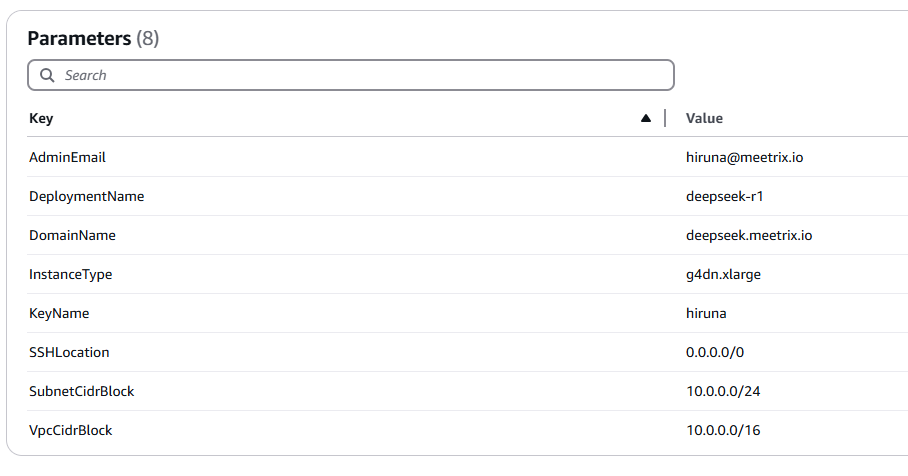
Step 2: Specify stack options
| Parameter | Description |
|---|---|
| Stack name | Provide a unique stack name. |
| Admin Email | Provide the admin email, used for SSL generation. |
| DeploymentName | Enter a name of your choice. |
| DomainName | Provide a public domain name. DeepSeek will automatically try to set up SSL for this domain if it is hosted on Route 53. Make sure your domain is hosted on Route 53; if it is not, or the setup is unsuccessful, you have to set up SSL manually. |
| InstanceType | Choose an instance type. Recommended: g4dn.xlarge. |
| keyName | Select your preferred key pair. |
| SSHLocation | Set to 0.0.0.0/0. |
| SubnetCidrBlock | Keep as 10.0.0.0/24. |
| VpcCidrBlock | Keep as 10.0.0.0/16. |
Click "Next".
Step 3: Configure stack options
- Choose "Roll back all stack resources" and "Delete all newly created resources" under the "Stack failure options" section.
- Click "Next".
Step 4: Review
- Review and verify the details you’ve entered.
- Tick the box that says, "I acknowledge that AWS CloudFormation might create IAM resources with custom names".

- Click "Submit".
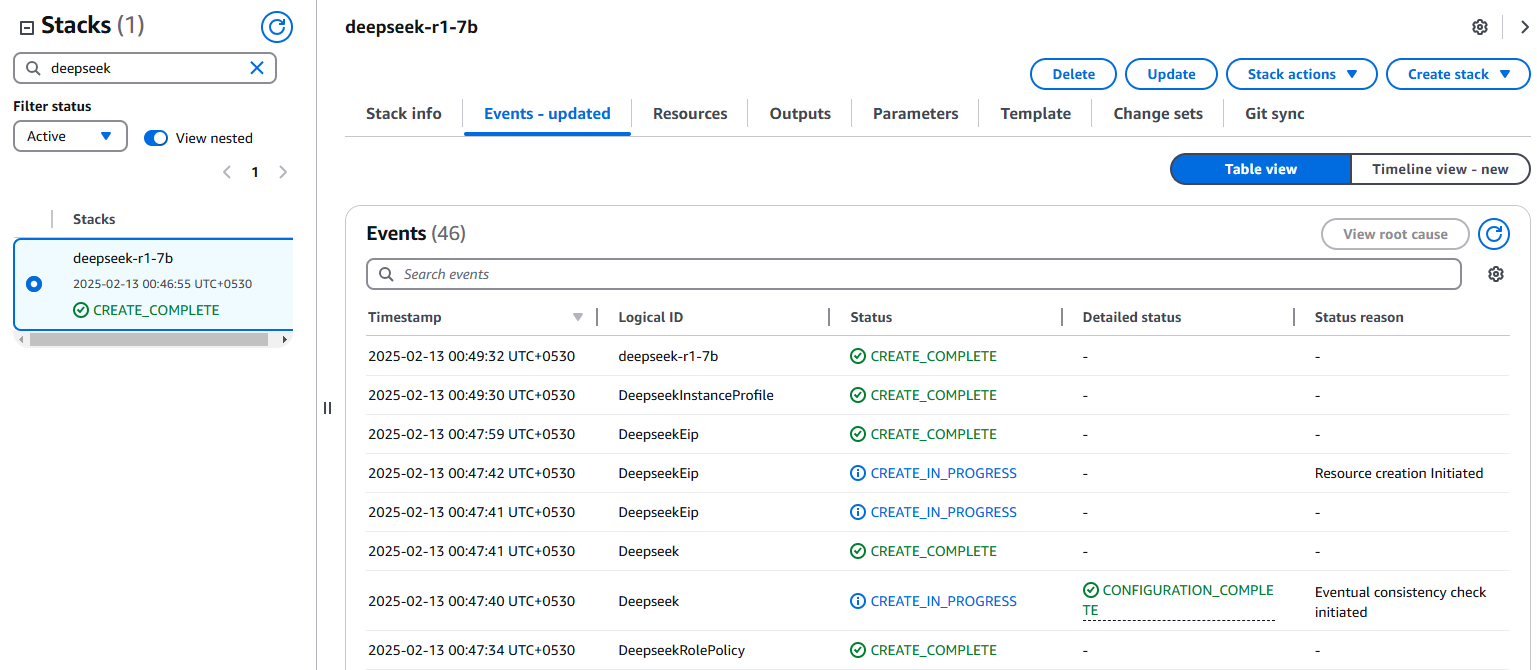
Afterward, you’ll be directed to the CloudFormation stacks page. Please wait for 5-10 minutes until the stack has been successfully created.
Update DNS
Step 1: Copy IP Address
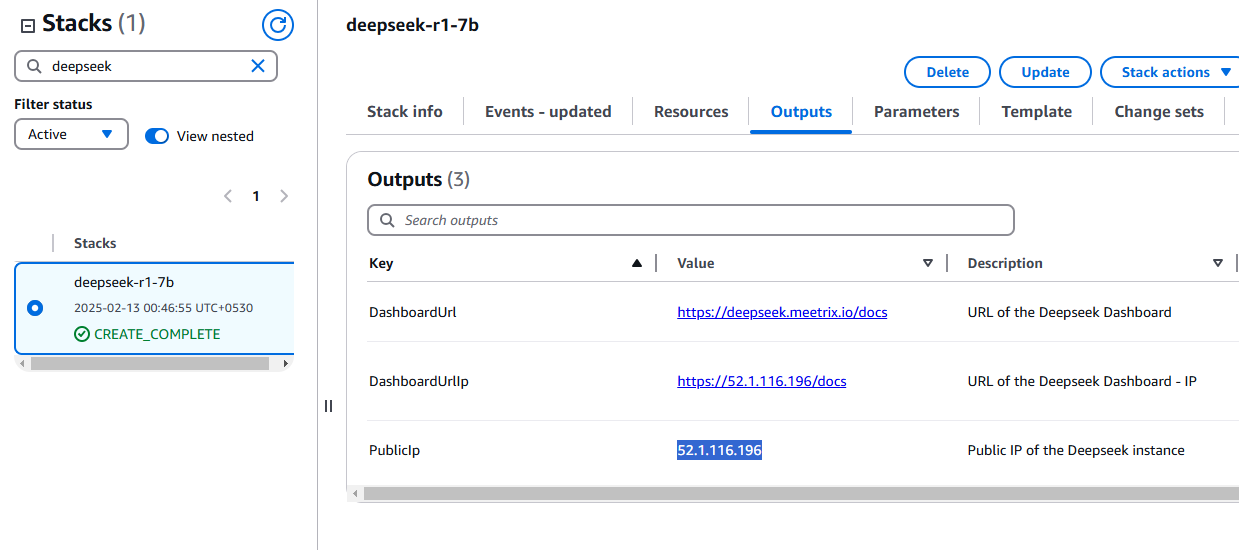
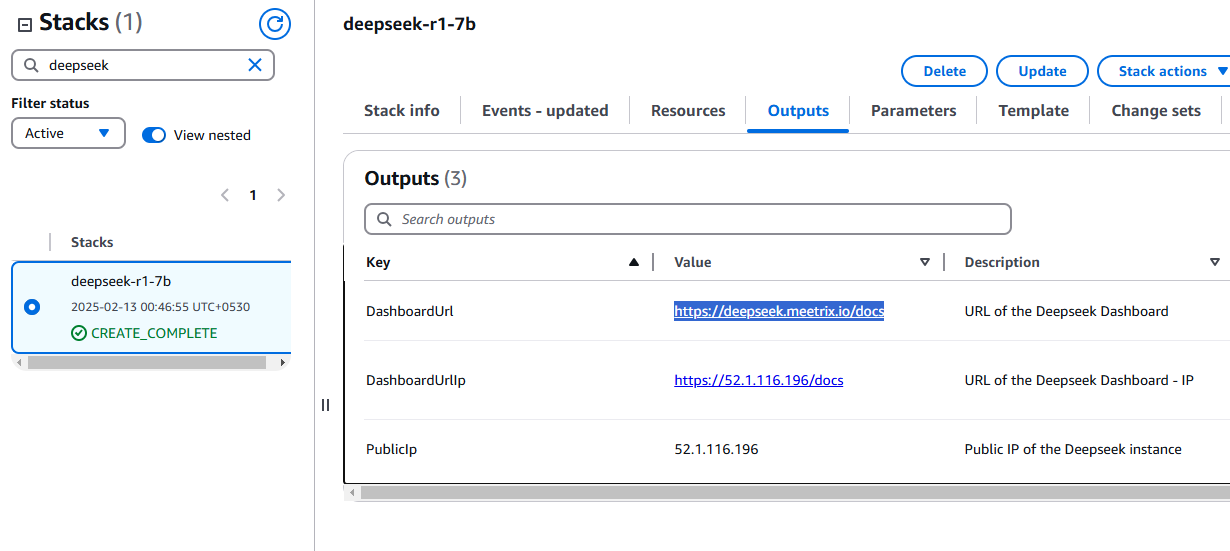
- Copy the public IP labeled "PublicIp" in the "Outputs" tab.
Step 2: Update DNS
- Go to AWS Route 53 and navigate to "Hosted Zones".
- From there click on Create record.
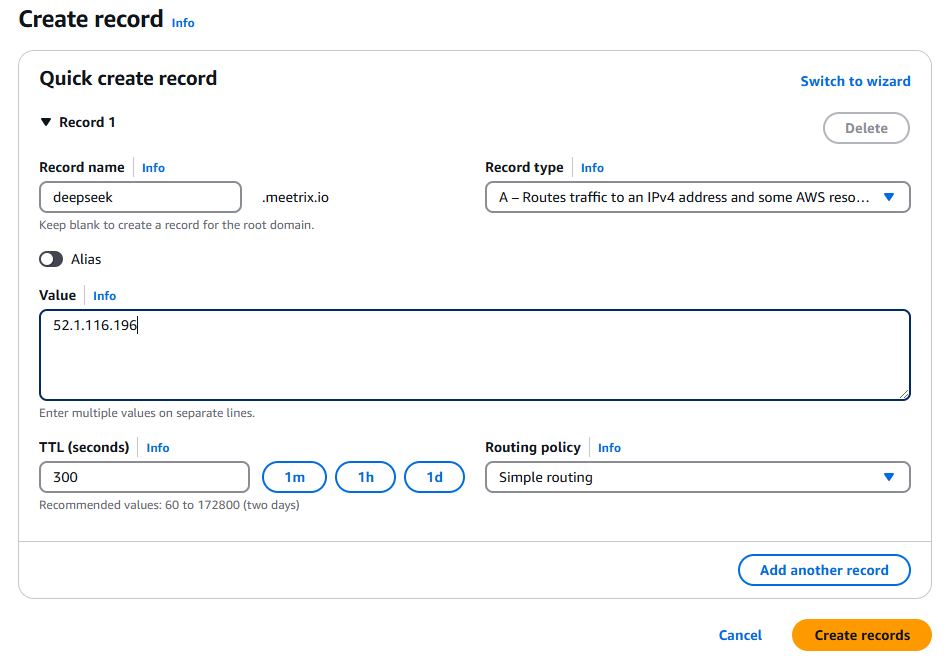
- Add the record name and then paste the copied "PublicIp" into the "value" textbox.
- Click "Save".
Access DeepSeek
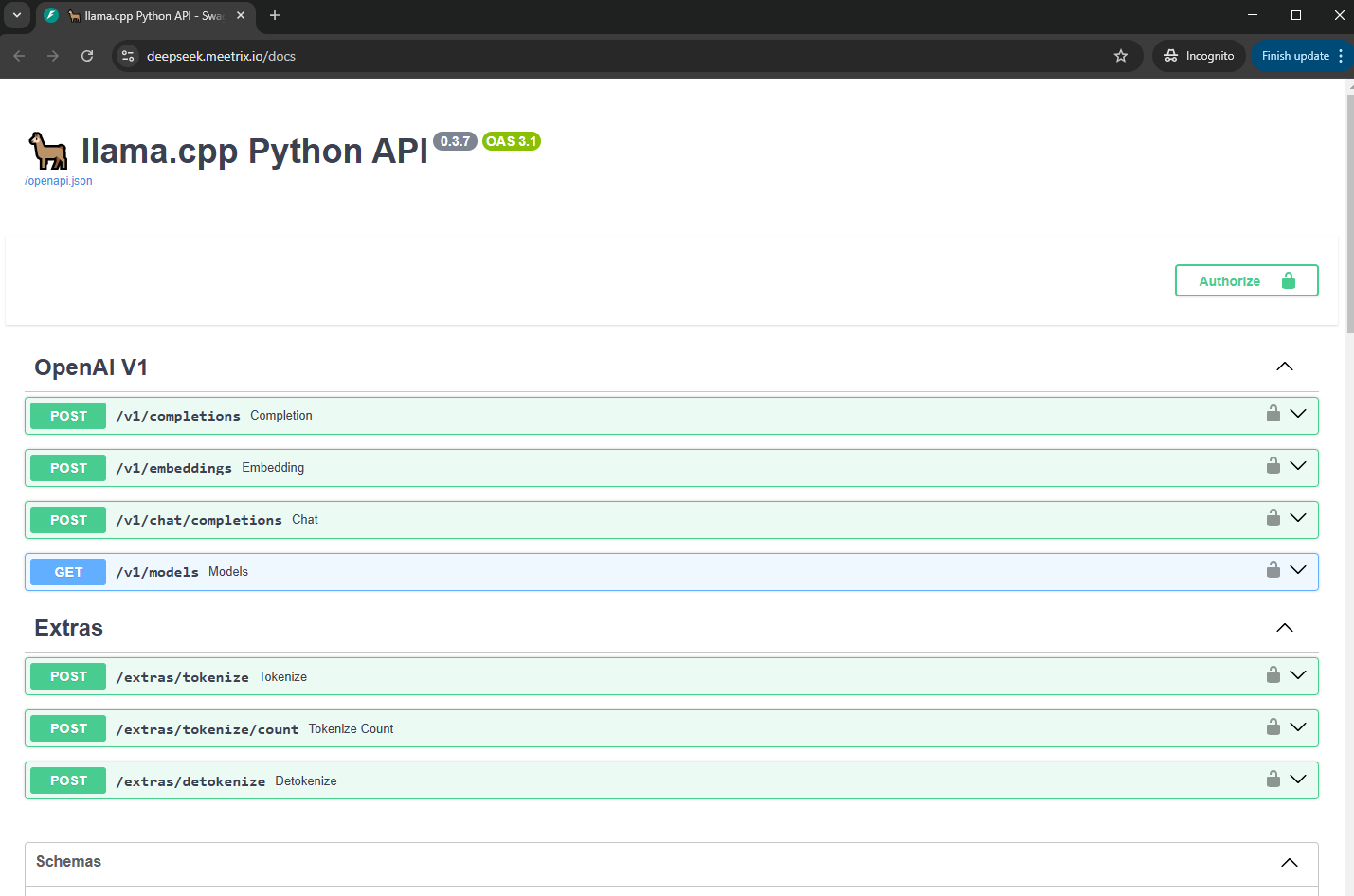
You can access the DeepSeek application through the "DashboardUrl" or "DashboardUrlIp" provided in the "Outputs" tab.
Note
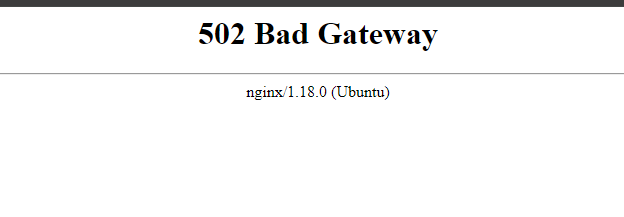
If you encounter a "502 Bad Gateway" error, please wait for about 5 minutes before refreshing the page.
Generate SSL Manually
DeepSeek will automatically try to set up SSL based on the provided domain name, if that domain is hosted on Route 53. If it is unsuccessful, you have to set up SSL manually.
Step 1: Copy IP Address
- Proceed with the instructions outlined in the above "Update DNS" section, if you have not already done so.
- Copy the Public IP address indicated as "PublicIp" in the "Outputs" tab.
Step 2: Log in to the server
- Open the terminal and go to the directory where your private key is located.
- Paste the following command into your terminal and press Enter:
ssh -i <your key name> ubuntu@<Public IP address>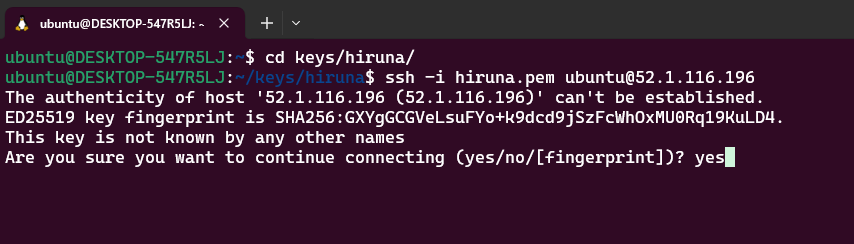
- Type "yes" and press Enter. This will log you into the server.
Step 3: Generate SSL
Paste the following command into your terminal and press Enter and follow the instructions:
sudo /root/certificate_generate_standalone.shThe admin email is required to generate SSL certificates.
Shutting Down DeepSeek
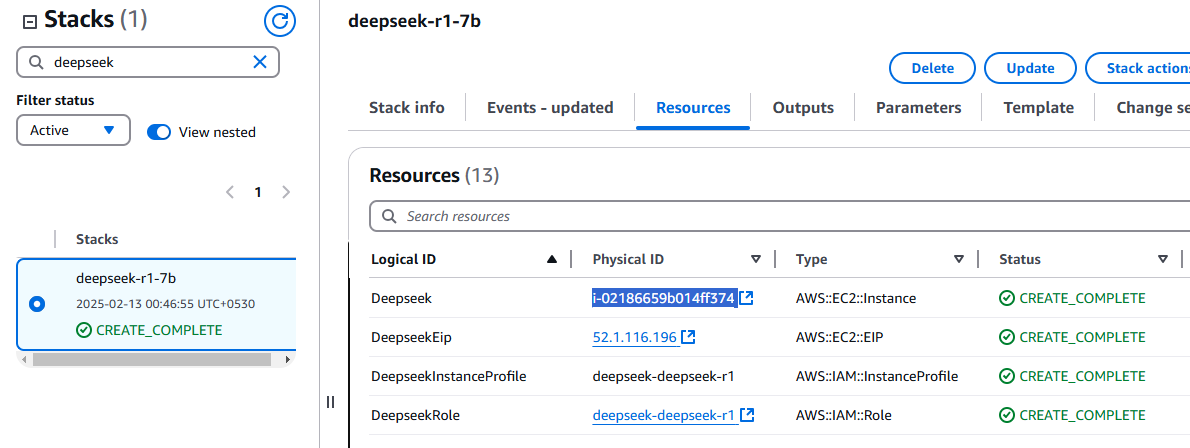
- Click the link labeled "DeepSeek" in the "Resources" tab to access the EC2 instance. You will be directed to the DeepSeek instance in EC2.
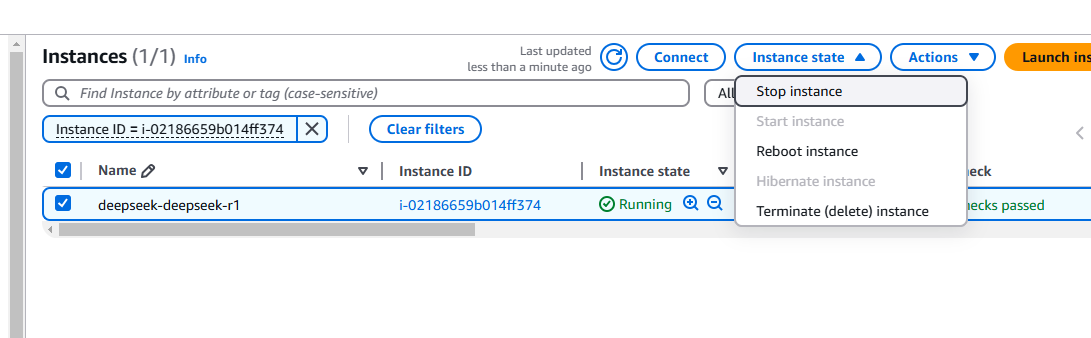
- Select the DeepSeek instance by marking the checkbox and click "Stop instance" from the "Instance state" dropdown. You can restart the instance at your convenience by selecting "Start instance".
Remove DeepSeek
Delete the stack that has been created in the AWS Management Console under "CloudFormation Stacks" by clicking the "Delete" button.
API Documentation
The server exposes an OpenAI-compatible API. If you are new to that idea, see how to self-host an OpenAI-compatible LLM API.
1. Retrieve Completions
Retrieves completions based on the provided prompt.
- Endpoint: /v1/completions
- Method: POST
Request Body:
{
  "model": "deepseek-r1-7b",
  "prompt": "\n\n### Instructions:\nWhat is the capital of France?\n\n### Response:\n",
  "stop": [
    "\n",
    "###"
  ]
}
Response Body:
{
  "id": "cmpl-58878dfc-61d8-4818-9799-19cd2a957701",
  "object": "text_completion",
  "created": 1739388733,
  "model": "deepseek-r1-7b",
  "choices": [
    {
      "text": "The capital of France is Paris.",
      "index": 0,
      "logprobs": null,
      "finish_reason": "stop"
    }
  ],
  "usage": {
    "prompt_tokens": 15,
    "completion_tokens": 7,
    "total_tokens": 22
  }
}
2. Retrieve Embeddings
Not supported
The embeddings method is currently not supported.
- Endpoint: /v1/embeddings
- Method: POST
Request Body:
{
  "input": "The food was delicious and the waiter...",
  "model": "deepseek-r1-7b"
}
Response Body: 500 Error
{
  "error": {
    "message": "Llama model must be created with embedding=True to call this method",
    "type": "internal_server_error",
    "param": null,
    "code": null
  }
}
3. Retrieve Chat Completions
Retrieves chat completions based on the provided chat messages.
- Endpoint: /v1/chat/completions
- Method: POST
Request Body:
{
  "model": "deepseek-r1-7b",
  "messages": [
    {
      "content": "You are a helpful assistant.",
      "role": "system"
    },
    {
      "content": "What is the capital of France?",
      "role": "user"
    }
  ],
  "stop": [
    "\n",
    "###"
  ]
}
Response Body:
{
  "id": "chatcmpl-e03153d7-0055-4c58-8b9c-14120748300e",
  "object": "chat.completion",
  "created": 1739388891,
  "model": "deepseek-r1-7b",
  "choices": [
    {
      "index": 0,
      "message": {
        "content": "The capital of France is Paris.",
        "role": "assistant"
      },
      "logprobs": null,
      "finish_reason": "stop"
    }
  ],
  "usage": {
    "prompt_tokens": 48,
    "completion_tokens": 12,
    "total_tokens": 60
  }
}
4. List Models
Retrieves a list of available models.
- Endpoint: /v1/models
- Method: GET
Response Body:
{
  "object": "list",
  "data": [
    {
      "id": "deepseek-r1-distill-qwen-7b",
      "object": "model",
      "owned_by": "me",
      "permissions": []
    }
  ]
}
5. Extras
There are also methods for tokenize and detokenize available. Feel free to use them as well.
Testing the API
- Create a directory.
- Create 3 files (full code is given below): app.js, package.json, .env
- Run the following command:
npm install- Edit the variable file (.env).
- Run the following command:
npm start- You will get the responses.
app.js
const axios = require('axios');
require('dotenv').config();

const makePostRequest = async (url, data, timeout) => {
  try {
    const response = await axios.post(url, data, { timeout });
    return { success: response.status === 200, data: response.data };
  } catch (error) {
    return { success: false, error: error.message };
  }
};

const makeGetRequest = async (url, timeout) => {
  try {
    const response = await axios.get(url, { timeout });
    return { success: response.status === 200, data: response.data };
  } catch (error) {
    return { success: false, error: error.message };
  }
};

const printResponseData = (endpoint, data) => {
  console.log(`Response for ${endpoint}:`);
  console.log(JSON.stringify(data, null, 2));
  console.log('');
};

const checkEndpoints = async () => {
  const baseUrl = process.env.BASE_URL;
  const model = process.env.MODEL;

  const endpoints = [
    { path: '/completions', method: makePostRequest, data: { "model": model, "prompt": process.env.PROMPT1 }, printEnv: 'PRINT_COMPLETIONS_RESPONSE' },
    { path: '/embeddings', method: makePostRequest, data: { "input": process.env.PROMPT2, "model": model }, printEnv: 'PRINT_EMBEDDINGS_RESPONSE' },
    { path: '/chat/completions', method: makePostRequest, data: { "messages": [{ "content": "You are a helpful assistant.", "role": "system" }, { "content": process.env.PROMPT1, "role": "user" }], "model": model }, printEnv: 'PRINT_CHAT_COMPLETIONS_RESPONSE' },
    { path: '/models', method: makeGetRequest, printEnv: 'PRINT_MODELS_RESPONSE' }
  ];

  for (const endpoint of endpoints) {
    const url = `${baseUrl}${endpoint.path}`;
    const { success, data, error } = await endpoint.method(url, endpoint.method === makePostRequest ? endpoint.data : null, process.env.REQUEST_TIMEOUT || 50000);
    const printResponse = process.env[endpoint.printEnv] === 'true';

    if (success) {
      console.log(`*** Endpoint ${endpoint.path} is reachable.`);
      if (printResponse) {
        printResponseData(endpoint.path, data);
      }
      console.log('');
    } else {
      console.log(`*** Endpoint ${endpoint.path} is not reachable. Error:`, error);
    }
  }
};

checkEndpoints();
package.json
{
  "name": "test-deepseek",
  "version": "1.0.0",
  "description": "",
  "main": "index.js",
  "scripts": {
    "start": "node app.js",
    "test": "echo \"Error: no test specified\" && exit 1"
  },
  "author": "",
  "license": "ISC",
  "dependencies": {
    "axios": "^1.6.7",
    "dotenv": "^16.4.1"
  }
}
.env
# Base URL for the API (replace with your own DeepSeek domain)
BASE_URL=https://<your-domain>/v1

# Model to be used in requests
MODEL=deepseek-r1-7b

# Prompts for different endpoints
# /completions and /chat/completions
PROMPT1=What is the capital of France?
# /embeddings
PROMPT2=The food was delicious and the waiter...

# Whether to print responses for each endpoint
PRINT_COMPLETIONS_RESPONSE=true
PRINT_EMBEDDINGS_RESPONSE=false
PRINT_CHAT_COMPLETIONS_RESPONSE=true
PRINT_MODELS_RESPONSE=true

# Timeout for requests in milliseconds (default is 50000)
REQUEST_TIMEOUT=50000
Check Server Logs
Step 1: Log in to the server
- Open the terminal and go to the directory where your private key is located.
- Paste the following command into your terminal and press Enter:
ssh -i <your key name> ubuntu@<Public IP address>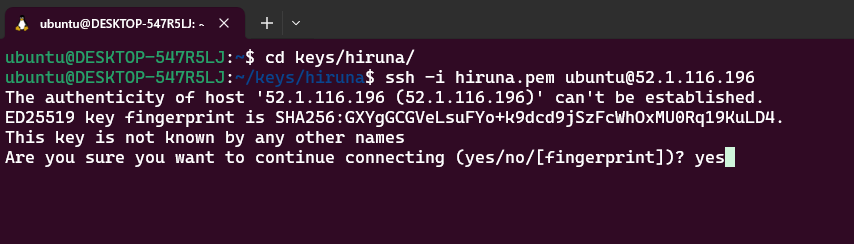
- Type "yes" and press Enter. This will log you into the server.
Step 2: Check the logs
sudo tail -f /var/log/syslogUpgrades
When there is an upgrade, we will update the product with a newer version. You can check the product version in AWS Marketplace. If a newer version is available, you can remove the previous version and launch the product again using the newer version. Remember to back up the necessary server data before removing.
Troubleshoot
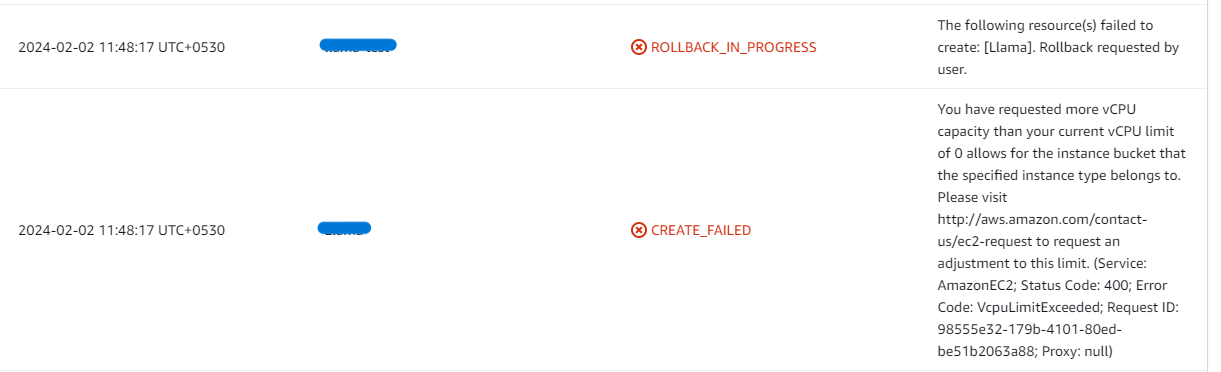
- If you face the following error, please follow https://meetrix.io/blogs/increase-aws-vcpu-quota/ to increase your vCPU quota.
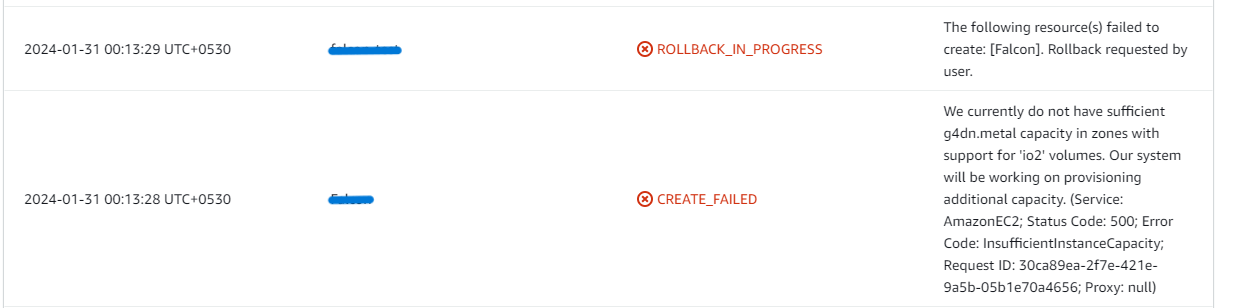
- If you face the following error ("do not have sufficient <instance_type> capacity...") while creating the stack, try changing the region or try creating the stack at a later time.
- If you face the error below when you try to access the API dashboard, please wait 5-10 minutes and then try again.
- If the llama service gets stuck, follow the steps below:
- Log into the server (find the steps in the Check Server Logs section).
- Run the command below.
sudo systemctl restart llama.serviceWait for several minutes and reload the dashboard URL.
- Check whether the instance storage is full. Log into the server and run the command below.
df -h
If the root volume is between 90-100%, it is better to resize the EBS volume. Please follow the AWS documentation to increase the EBS volume. Then reboot the instance and restart the llama service.
Conclusion
In conclusion, the DeepSeek R1 Developer Guide provides everything you need for a seamless integration of DeepSeek R1 into your AWS environment. Whether you’re a beginner or an experienced developer, this guide offers clear, step-by-step instructions to ensure a smooth deployment. DeepSeek R1 excels in logical reasoning, mathematical problem-solving, and multi-turn conversations, making it a powerful tool for AI-driven applications. By leveraging its optimized transformer architecture and efficient deep learning capabilities, you can unlock new possibilities in natural language processing, data analysis, and intelligent automation with scalability and precision. Looking for a model built for code instead? See the DeepSeek Coder developer guide.
Technical Support
Reach out to Meetrix Support (aws@meetrix.io) for assistance with DeepSeek issues.
Frequently Asked Questions
What is DeepSeek R1?
DeepSeek R1 is an open-weight reasoning language model built for logical reasoning, mathematical problem-solving, code generation and multi-turn conversations. The Meetrix AMI serves the distilled DeepSeek-R1 7B model (Qwen-7B based) behind an OpenAI-compatible API.
What do I need before deploying DeepSeek R1 on AWS?
Basic knowledge of AWS services such as EC2 and CloudFormation, an active AWS account with the right permissions, and enough vCPU quota to launch a g4dn instance. If the stack fails on a vCPU limit, request an increase using the vCPU quota guide.
Which instance type should I use?
g4dn.xlarge is the recommended instance type in the CloudFormation stack. DeepSeek R1 runs on a GPU instance from the g4dn family.
Does the DeepSeek R1 API support embeddings?
No. The /v1/embeddings endpoint is not supported and returns a 500 error. Use /v1/completions or /v1/chat/completions, and /v1/models to list the available model.
How do I set up SSL for DeepSeek R1?
If your domain is hosted on Route 53, the stack tries to set up SSL automatically. If that fails, SSH into the server and run sudo /root/certificate_generate_standalone.sh, then follow the prompts.
I get a 502 Bad Gateway error after the stack is created. What should I do?
Wait about 5 to 10 minutes and refresh. The model takes a few minutes to load after the instance starts.
How do I get technical support?
Reach out to Meetrix Support at aws@meetrix.io for assistance with DeepSeek R1 issues.
Ready to Deploy Your Own DeepSeek R1 Instance?
Get started in minutes with our pre-configured AMI and run DeepSeek R1 behind an OpenAI-compatible API in your own AWS account.
Deploy DeepSeek R1 from AWS Marketplace