Welcome to the OpenVPN Deployment Guide for AWS! OpenVPN is a widely adopted open-source VPN solution that enables secure, encrypted tunnels between clients and your private cloud infrastructure. This guide walks you through deploying Meetrix's OpenVPN AMI on AWS using CloudFormation, generating client configuration files, and connecting with the OpenVPN Connect application.
Prerequisites
Before you get started with the OpenVPN, ensure you have the following prerequisites:
- Basic knowledge of AWS services, including EC2 instances and CloudFormation.
- An active AWS account with appropriate permissions.
- Enough vCPU limit to create an instance.
(Follow this guide to ensure this) - An SSH key pair created in your target AWS region.
- OpenVPN Connect client installed on your local machine.
- An SFTP client (e.g.Termius, Cyberduck, FileZilla) to download the generated
.ovpnprofile.
Launching the AMI
Step 1: Find and Select the 'OpenVPN' AMI
- Log in to your AWS Management Console.
- Navigate to the 'OpenVPN' product in AWS Marketplace.
Step 2: Initial Setup & Configuration
- Click the "Continue to Subscribe" button.
- Accept the terms and click "Continue to Configuration".
Step 3: Launching the Instance
- Click "Continue to Launch". You will be presented with two service options:
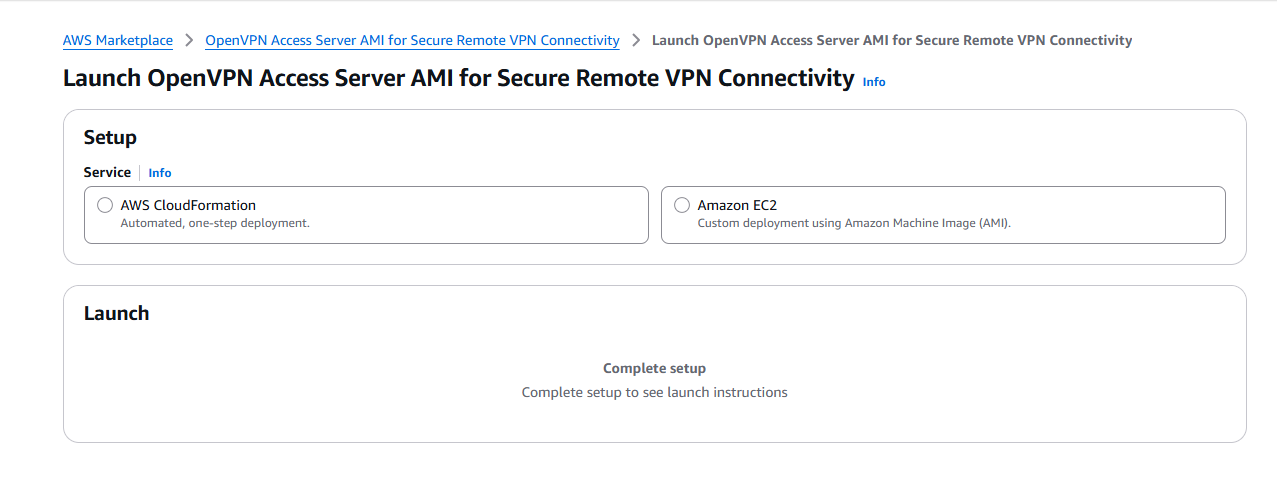
- AWS CloudFormation - Automated, one-step deployment. (Recommended - this guide follows this path.)
- Amazon EC2 - Custom deployment using Amazon Machine Image (AMI).
If you select "Amazon EC2", two additional launch methods appear:
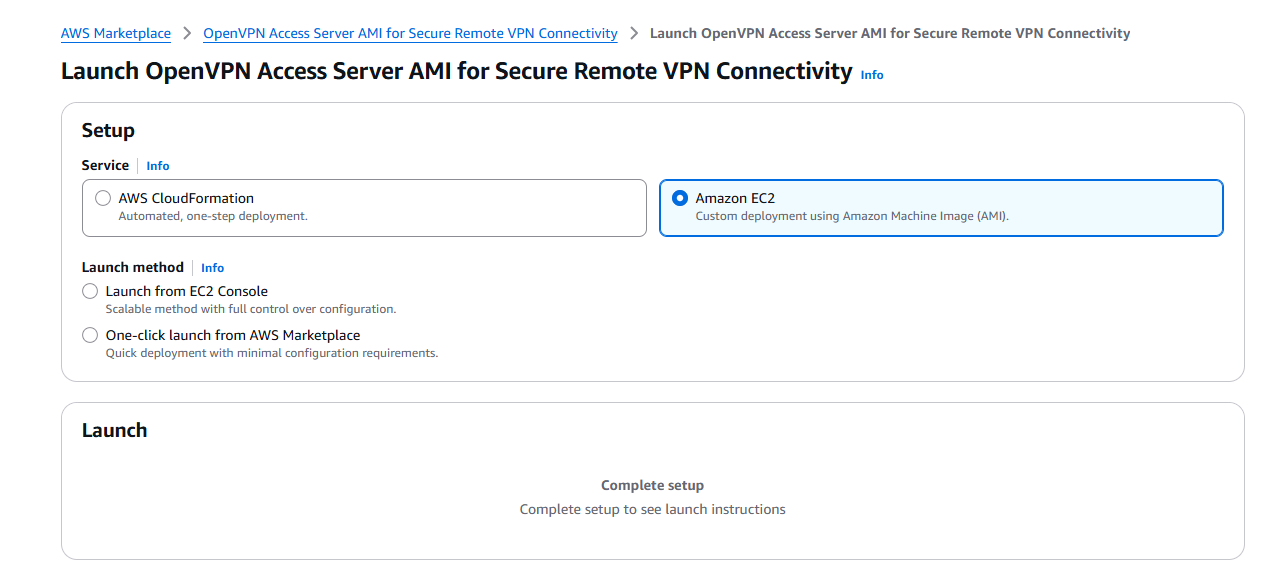
- Launch from EC2 Console - Scalable method with full control over configuration. Selecting this reveals the AMI details panel and a "Launch from EC2" button. Click it to be taken to the EC2 launch wizard.
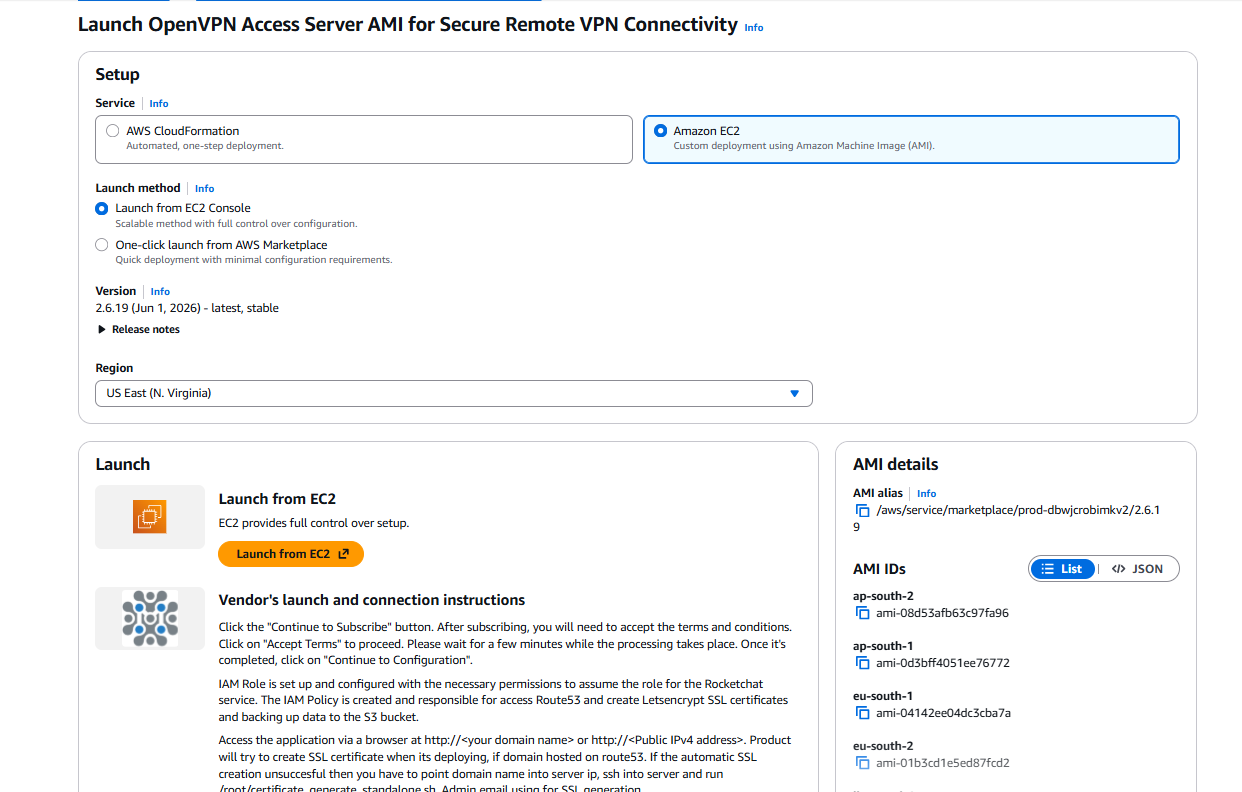
- One-click launch from AWS Marketplace - Quick deployment with minimal configuration. Selecting this reveals a configuration form where you set the region, number of instances, instance type (default: t3a.small), VPC, subnet, security group, and key pair.
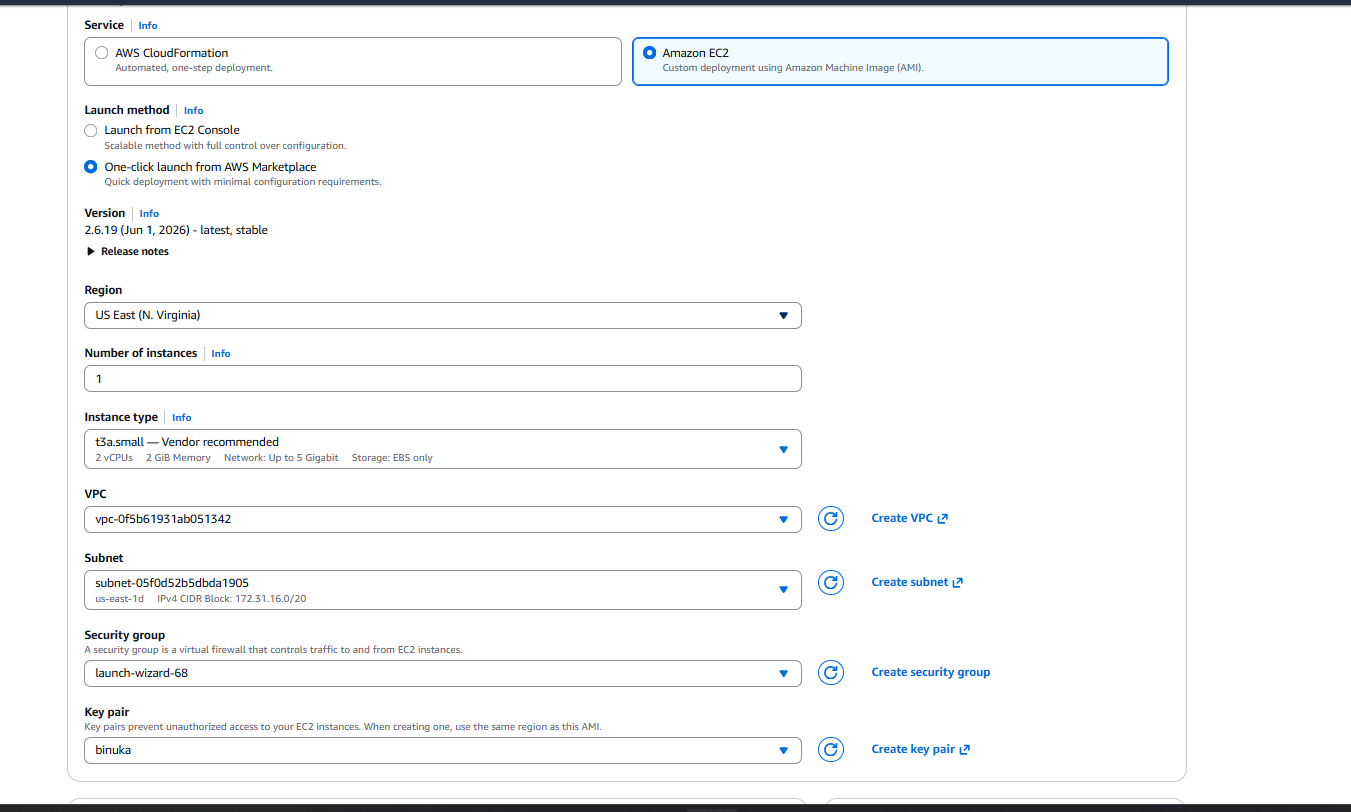
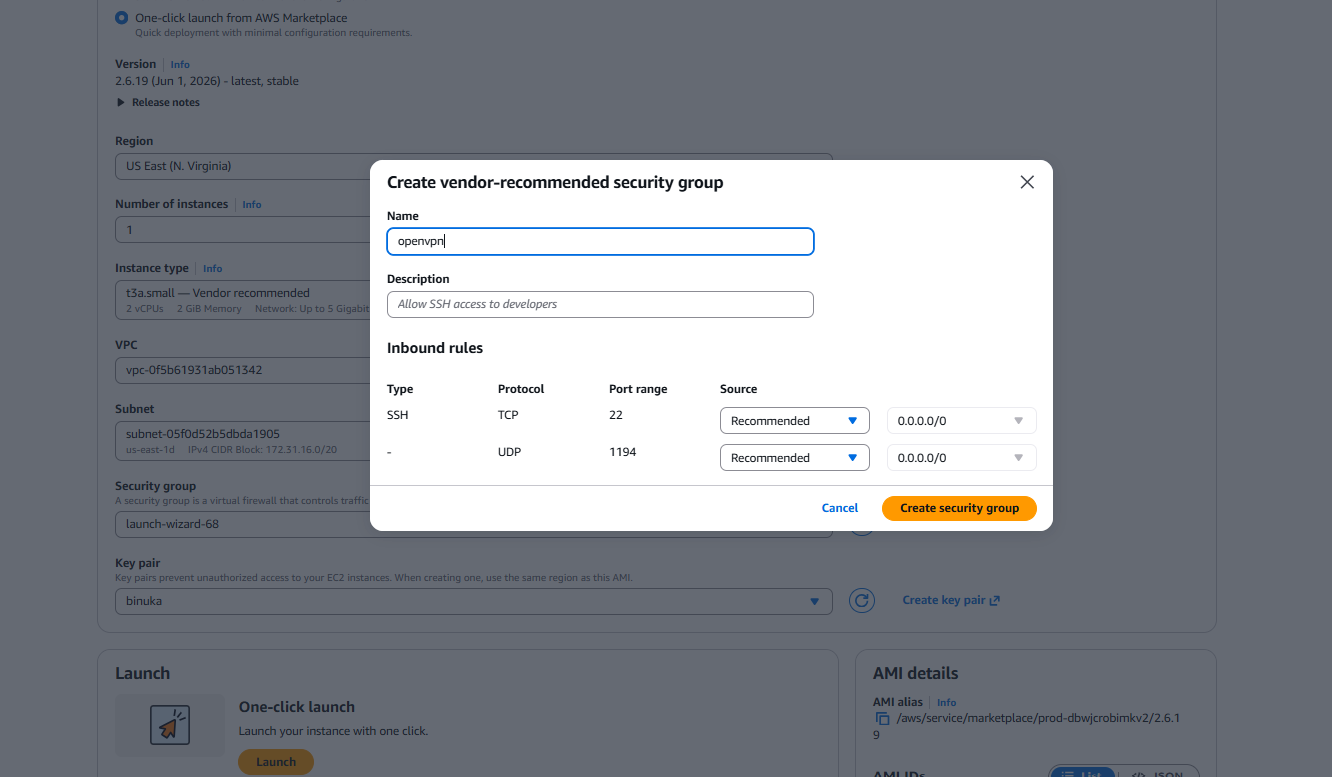
For the security group, click "Create security group" to auto-generate a vendor-recommended group with the required inbound rules: SSH (TCP/22) and UDP/1194 (OpenVPN).
This guide follows the AWS CloudFormation path. Select "AWS CloudFormation" and click "Launch" to continue.
Create CloudFormation Stack
Step 1: Create Stack
- Ensure the "Template is ready" option is selected under "Prepare template".
- Click "Next".
Step 2: Specify Stack Details
- Provide a unique "Stack name".
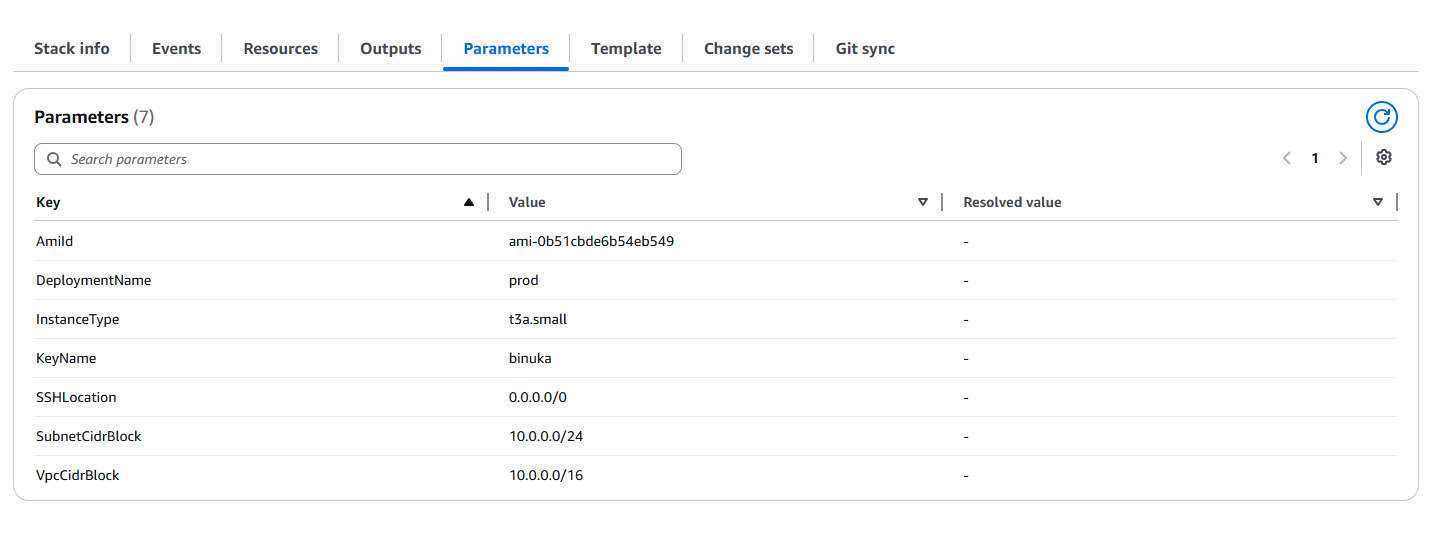
- For "DeploymentName", enter a name of your choice (e.g.,
prod). - Choose an instance type for "InstanceType" (Recommended: t3a.small).
- Select your SSH key pair for "KeyName".
- Set "SSHLocation" to
0.0.0.0/0to allow SSH from any IP, or restrict it to your own IP for better security. - Keep "SubnetCidrBlock" as
10.0.0.0/24. - Keep "VpcCidrBlock" as
10.0.0.0/16. - Click "Next".
Step 3: Configure Stack Options
- Choose "Roll back all stack resources" and "Delete all newly created resources" under the "Stack failure options" section.
- Click "Next".
Step 4: Review and Submit
- Review and verify all the details you have entered.
- Tick the box that says "I acknowledge that AWS CloudFormation might create IAM resources with custom names".
- Click "Submit".

You will be directed to the CloudFormation stacks page. Please wait 3-5 minutes until the stack status shows CREATE_COMPLETE.
Get the Server IP
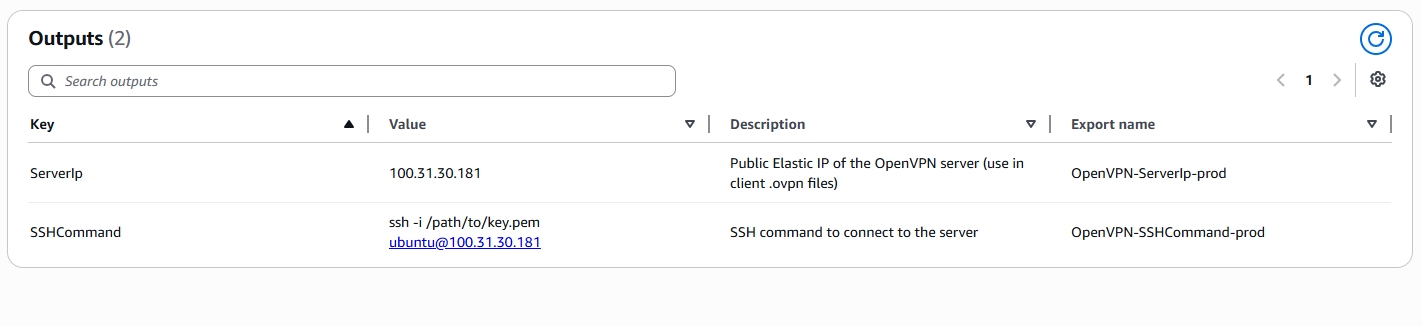
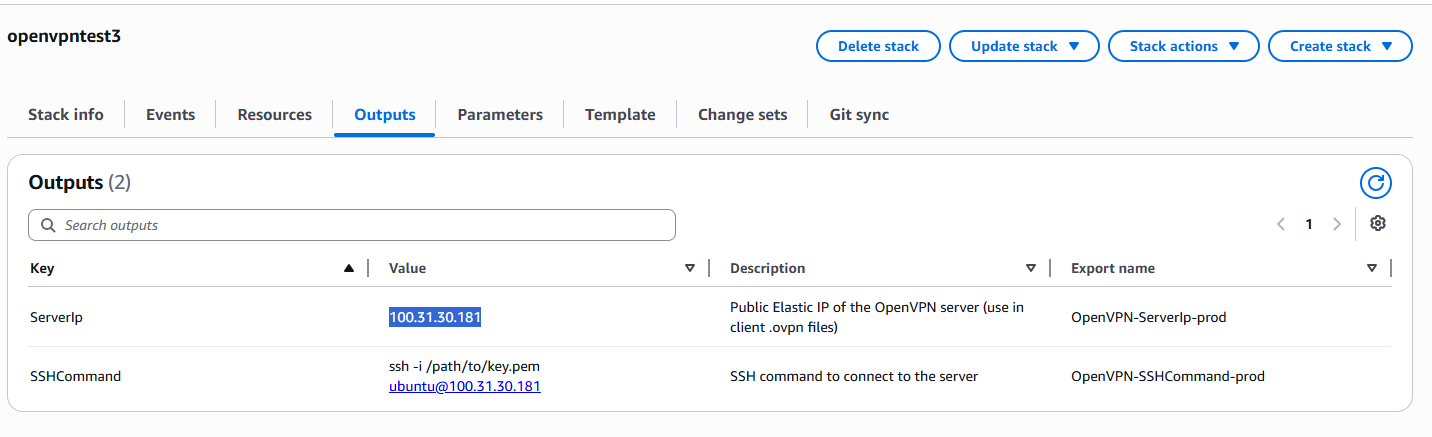
Once the stack is created, open the "Outputs" tab of your CloudFormation stack. You will find two values:
- ServerIp - the public Elastic IP address of your OpenVPN server. Use this in your client
.ovpnfiles. - SSHCommand - the ready-made SSH command to connect to the server.
Copy the ServerIp value - you will need it in the next steps.
Generate a Client Configuration
Step 1: Log in to the Server
- Open your terminal and navigate to the directory where your private key (
.pem) file is located. - Run the SSH command from the Outputs tab (or construct it manually):
ssh -i /path/to/your-key.pem ubuntu@<ServerIp>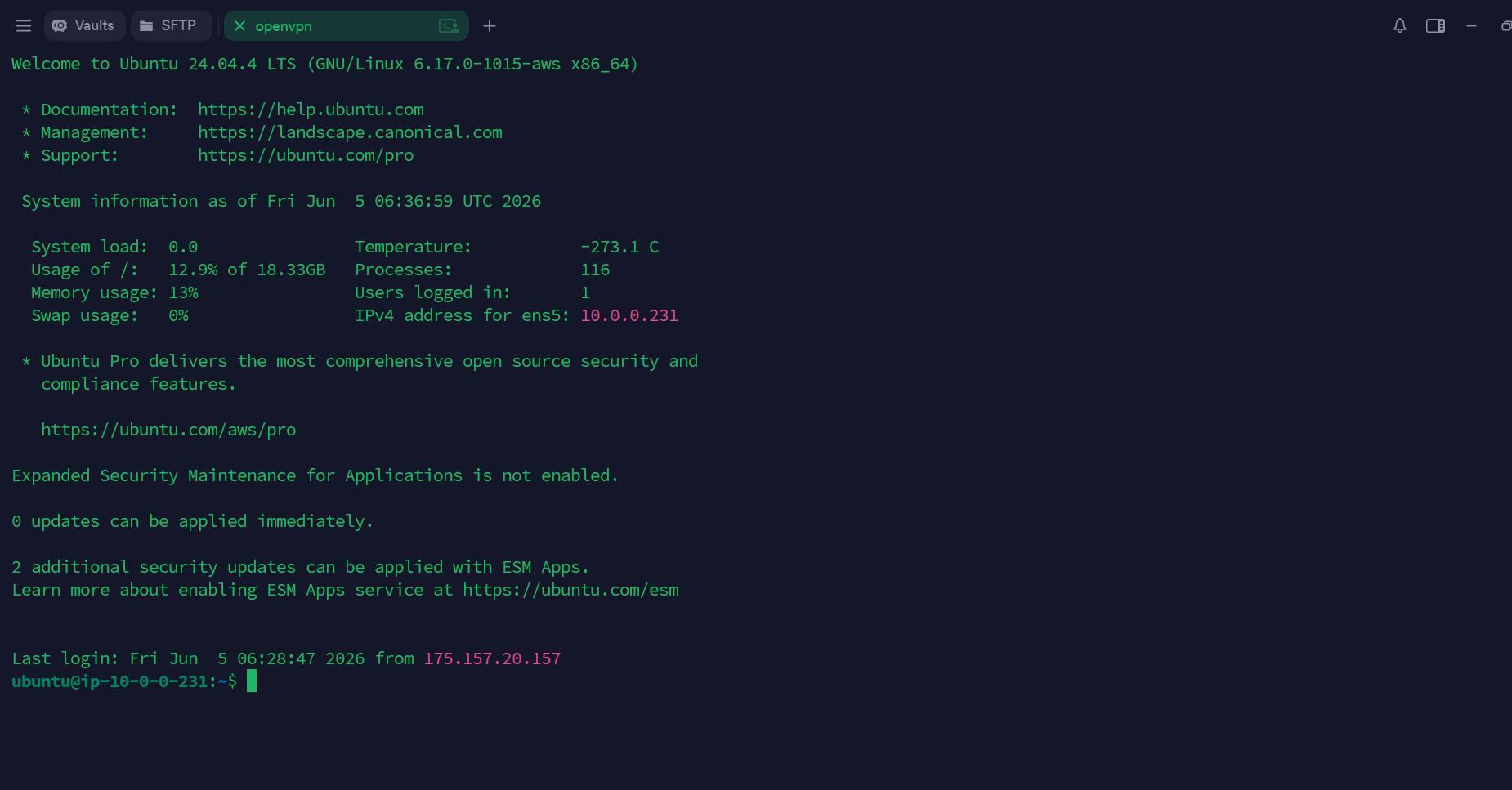
- Type
yeswhen prompted to accept the host fingerprint. You are now logged into the server.
Step 2: Add a Client
Run the built-in client generation script, replacing myclient1 with your desired client name:
sudo bash /opt/openvpn/add-client.sh myclient1The script will generate a PKI certificate and produce a ready-to-use .ovpn profile file at:
/home/ubuntu/clients/myclient1.ovpn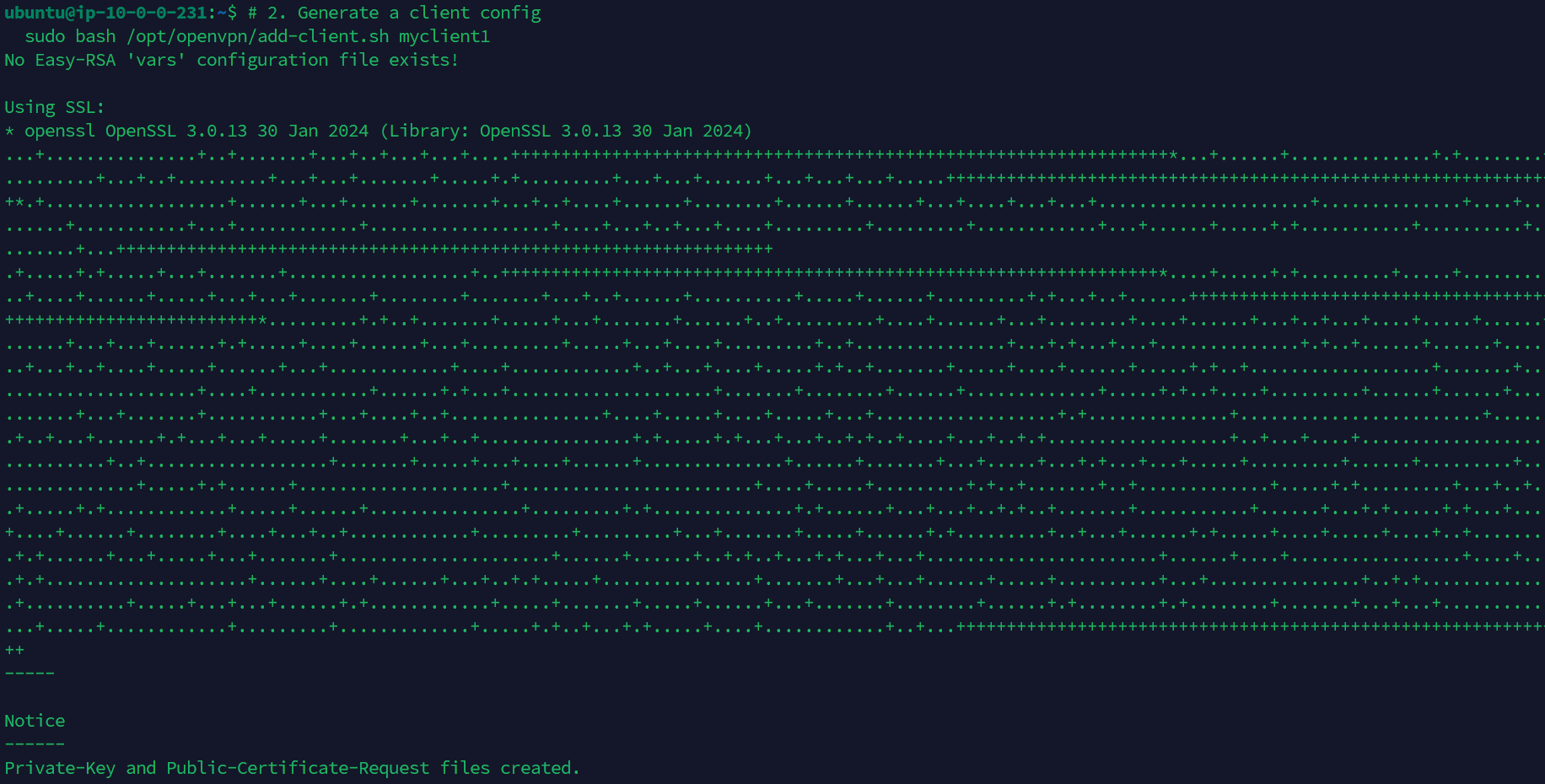
Download the .ovpn File
Use an SFTP client (e.g., Cyberduck) to connect to the server with your SSH key and download the generated profile from /home/ubuntu/clients/myclient1.ovpn to your local machine.
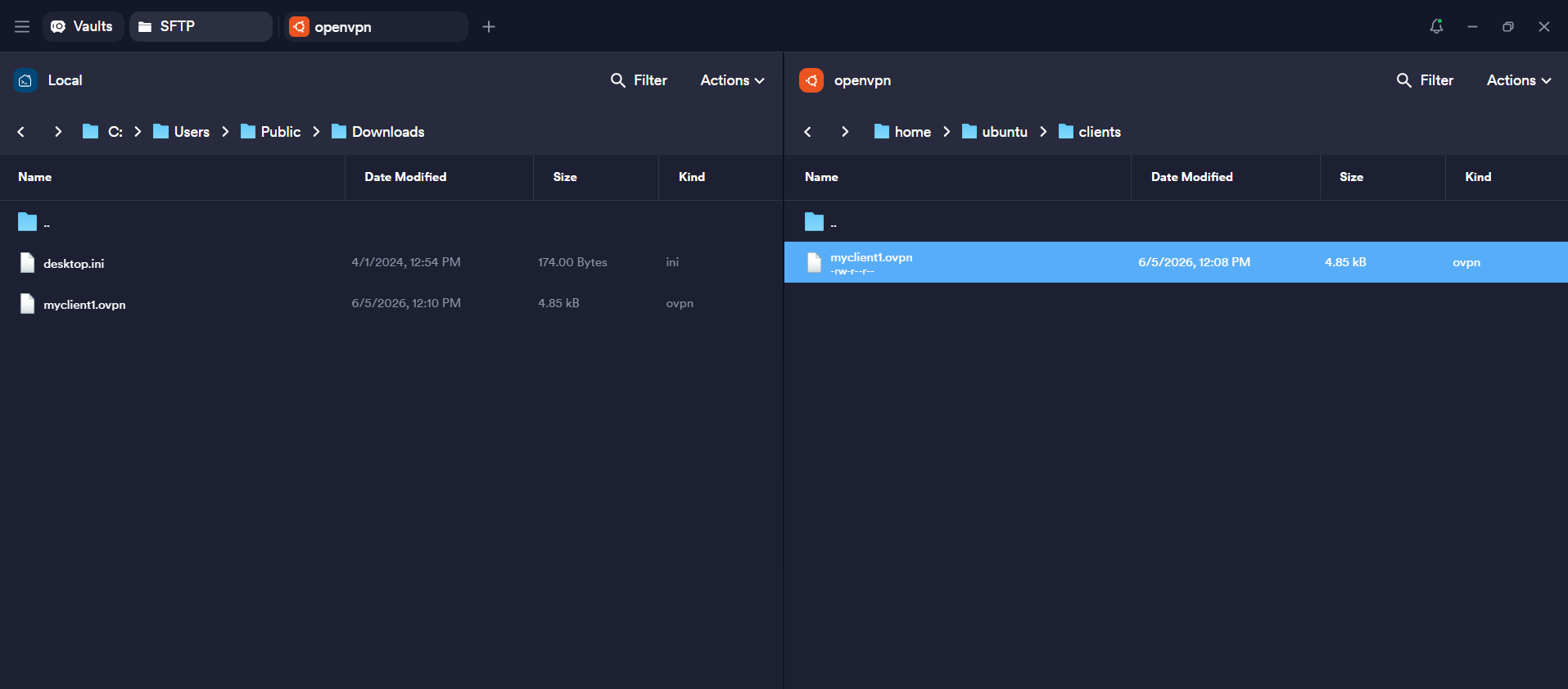
Alternatively, you can use scp from your terminal:
scp -i /path/to/your-key.pem ubuntu@<ServerIp>:/home/ubuntu/clients/myclient1.ovpn ./Connect Using OpenVPN Connect
Step 1: Open OpenVPN Connect
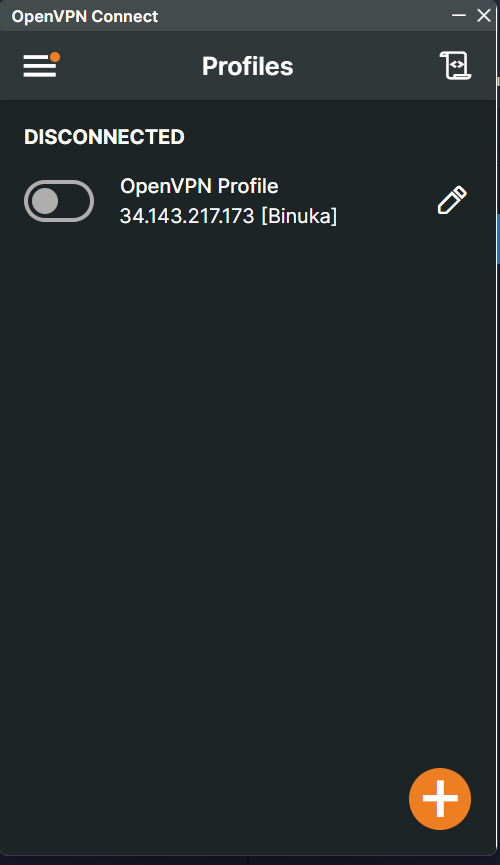
Launch the OpenVPN Connect application on your local machine. The Profiles screen will be shown.
Step 2: Import the Profile
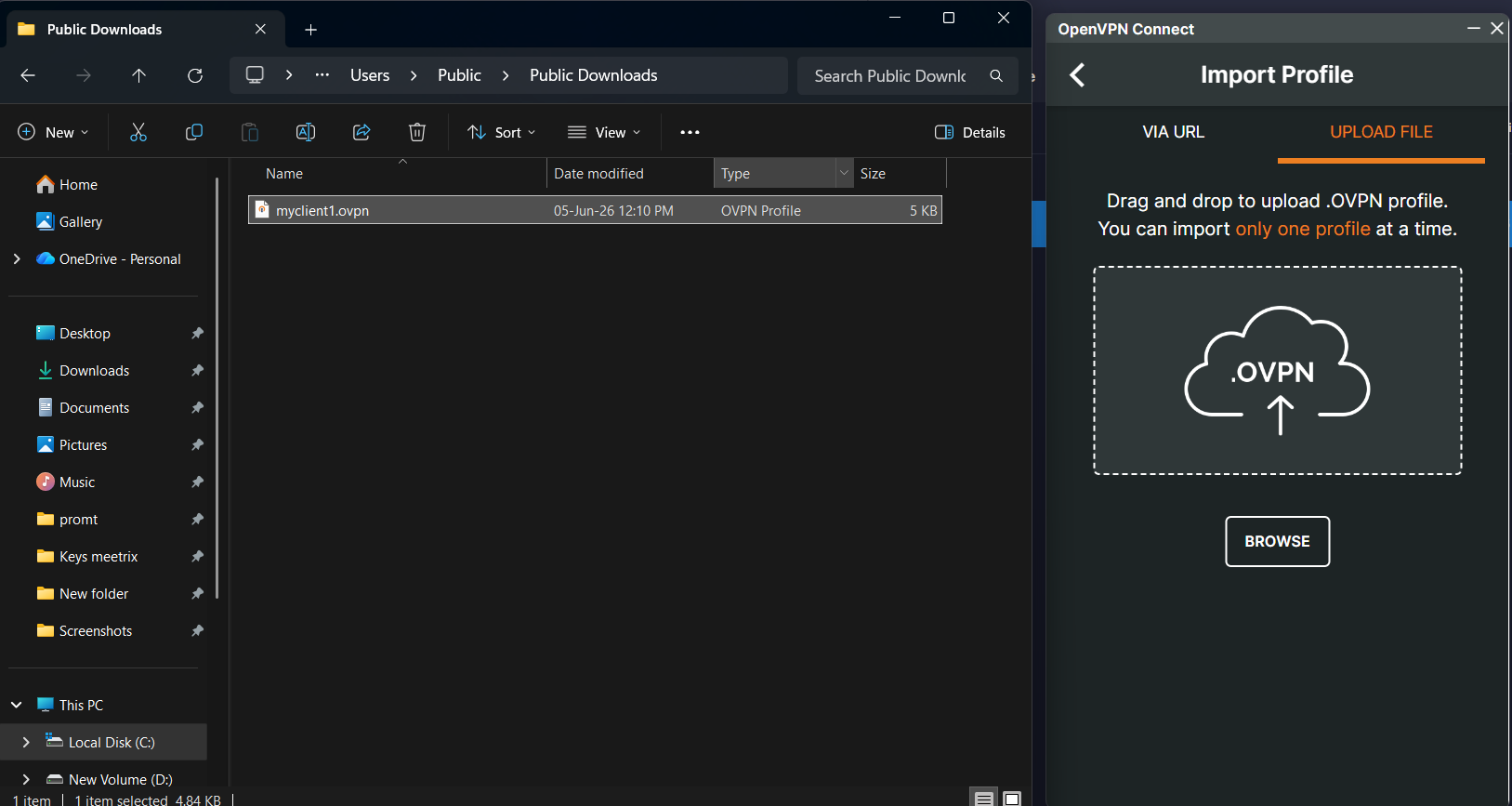
- Click the "+" button (bottom-right) or select "Import Profile".
- Choose the "UPLOAD FILE" tab.
- Click "BROWSE" and select the
myclient1.ovpnfile you downloaded, or drag and drop it into the upload area.
Step 3: Connect
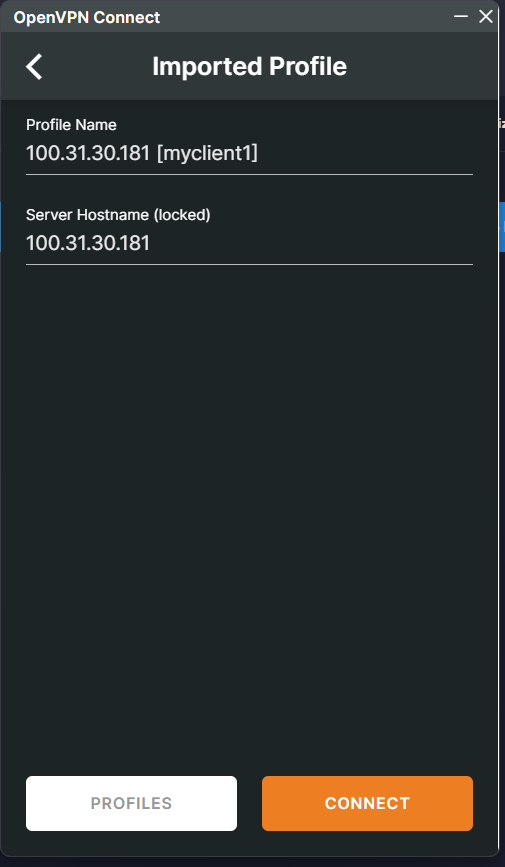
- After the profile is imported, you will see the Profile Name and Server Hostname pre-filled from the
.ovpnfile. - Click "CONNECT".
Once connected, the profile toggle will turn green and the status will change to CONNECTED. The connection stats panel will show live bandwidth and packet metrics.

Check Server Logs
Step 1: Log in to the Server
- Open the terminal and go to the directory where your private key is located.
- SSH into the server:
ssh -i /path/to/your-key.pem ubuntu@<ServerIp>Step 2: View Live Logs
Use journalctl to follow the OpenVPN server logs in real time:
sudo journalctl -u openvpn@server -fYou will see client connection events, assigned virtual IPs, cipher negotiation, and tunnel activity.

Shutting Down OpenVPN
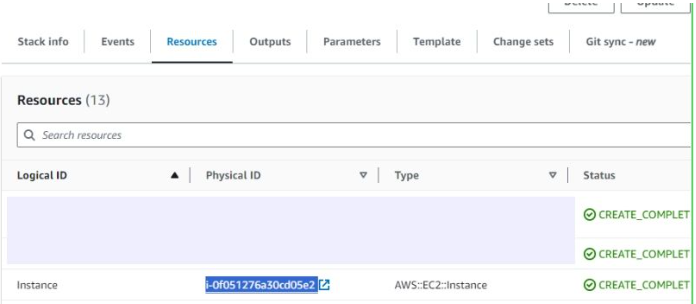
- In the CloudFormation stack, click the "Resources" tab and find the "Instance" link to navigate to the EC2 instance.
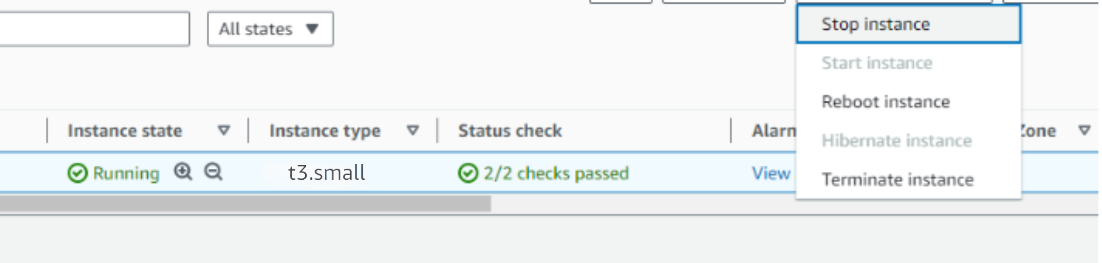
- In the EC2 console, select the instance checkbox and choose "Stop instance" from the "Instance state" dropdown. You can restart it at any time by selecting "Start instance".
Remove OpenVPN
To fully remove the deployment, delete the CloudFormation stack from the AWS Management Console under CloudFormation → Stacks by selecting the stack and clicking the "Delete" button. This will remove all associated AWS resources including the EC2 instance, VPC, and Elastic IP.
Upgrades
When a newer version of the OpenVPN AMI is published, we will update the product in AWS Marketplace. To upgrade, check the product version in the Marketplace. If a newer version is available, remove the previous deployment and re-launch using the updated AMI. Always back up your client .ovpn files and any custom server configuration before removing.
Troubleshoot
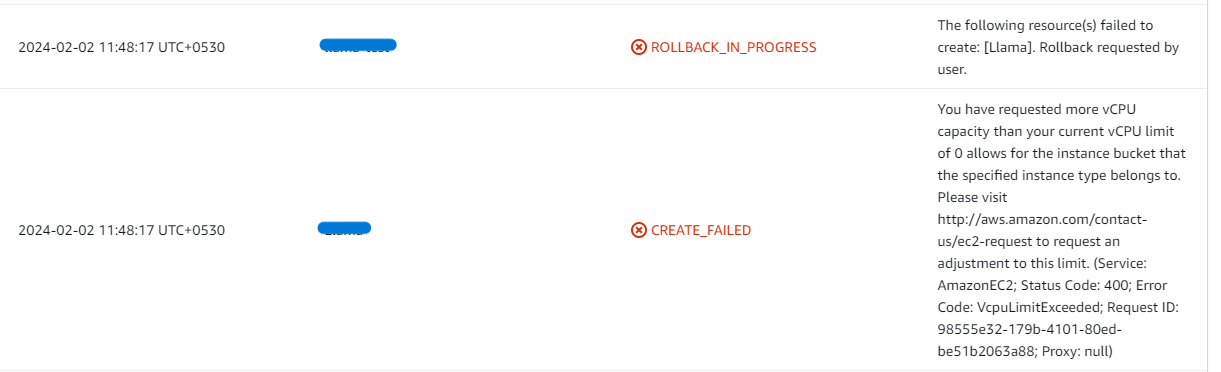
- vCPU quota exceeded - if you see the error below during stack creation, follow this guide to request a vCPU quota increase.
- Insufficient instance capacity - if the stack creation fails with an
InsufficientInstanceCapacityerror, try a different AWS region or retry at a later time.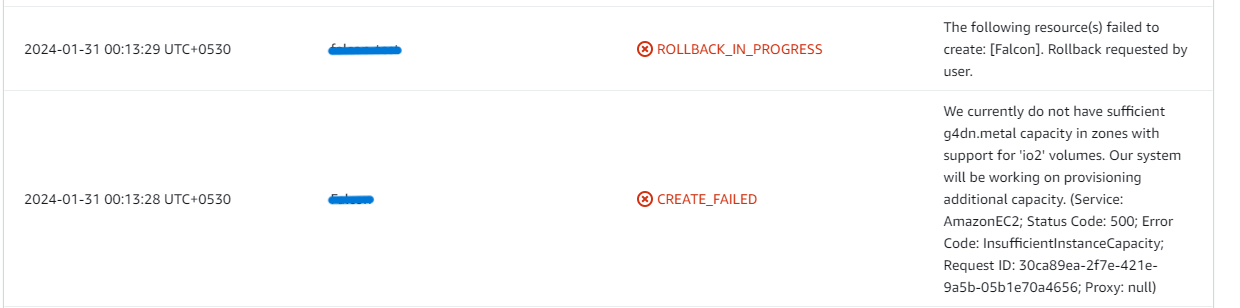
- Internal Server Error - if you encounter a 500 Internal Server Error when accessing the server, wait 3-5 minutes for services to fully start and then try again. If the error persists, SSH into the server and check the OpenVPN service status:
sudo systemctl status openvpn@server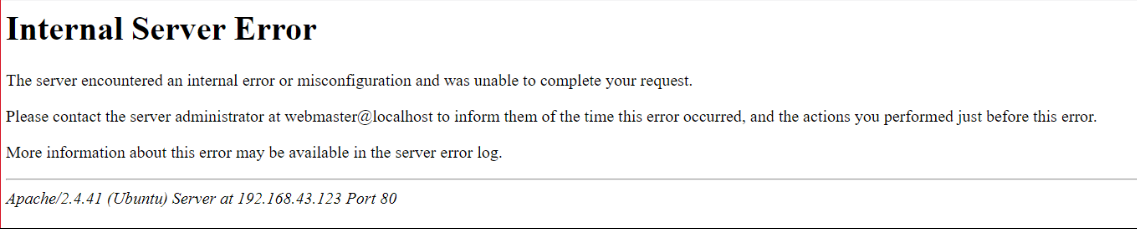
- Disk usage full - check disk usage to ensure the instance storage is not full. Log into the server and run:
df -h If the root volume is between 90-100% used, increase the EBS volume size following AWS documentation, then reboot the instance.
Conclusion
The Meetrix OpenVPN Deployment Guide helps you set up a secure VPN server on AWS quickly and reliably. Whether you're a DevOps engineer securing internal service access or an administrator managing remote team connectivity, this guide provides everything you need to deploy OpenVPN, generate client profiles, and connect securely from any device.
Technical Support
Reach out to Meetrix Support (aws@meetrix.io) for assistance with OpenVPN deployment issues.