Welcome to the Meetrix PostgreSQL Developer Guide! This guide is designed to assist you in seamlessly integrating PostgreSQL into your AWS environment through detailed, step-by-step instructions.
Video Guide
Prerequisites
Before you get started with the PostgreSQL AMI, ensure you have the following prerequisites:
- Basic knowledge of AWS services, including EC2 instances and CloudFormation.
- An active AWS account with appropriate permissions.
- Enough vCPU limit to create instances. If you encounter a vCPU quota error when launching the stack, follow https://meetrix.io/blogs/increase-aws-vcpu-quota/ to increase your vCPU limit.
Launching the AMI
Step 1: Find and Select AMI
- Log in to your AWS Management Console.
- Navigate to the "PostgreSQL" in AWS Marketplace.
Step 2: Initial Setup & Configuration
- Click the "Continue to Subscribe" button.
- After subscribing, you will need to accept the terms and conditions. Click on "Accept Terms" to proceed.
- Please wait for a few minutes while the processing takes place. Once it's completed, click on "Continue to Configuration".
- Select the "CloudFormation Template" as the fulfillment option and choose your preferred region on the "Configure this software" page. Afterward, click the "Continue to Launch" button.
- From the "Choose Action" dropdown menu in "Launch this software" page, select "Launch CloudFormation" and click "Launch" button.
Create CloudFormation Stack
Step 1: Create stack
- Ensure the "Template is ready" radio button is selected under "Prepare template".
- Click "Next".
Step 2: Specify stack options
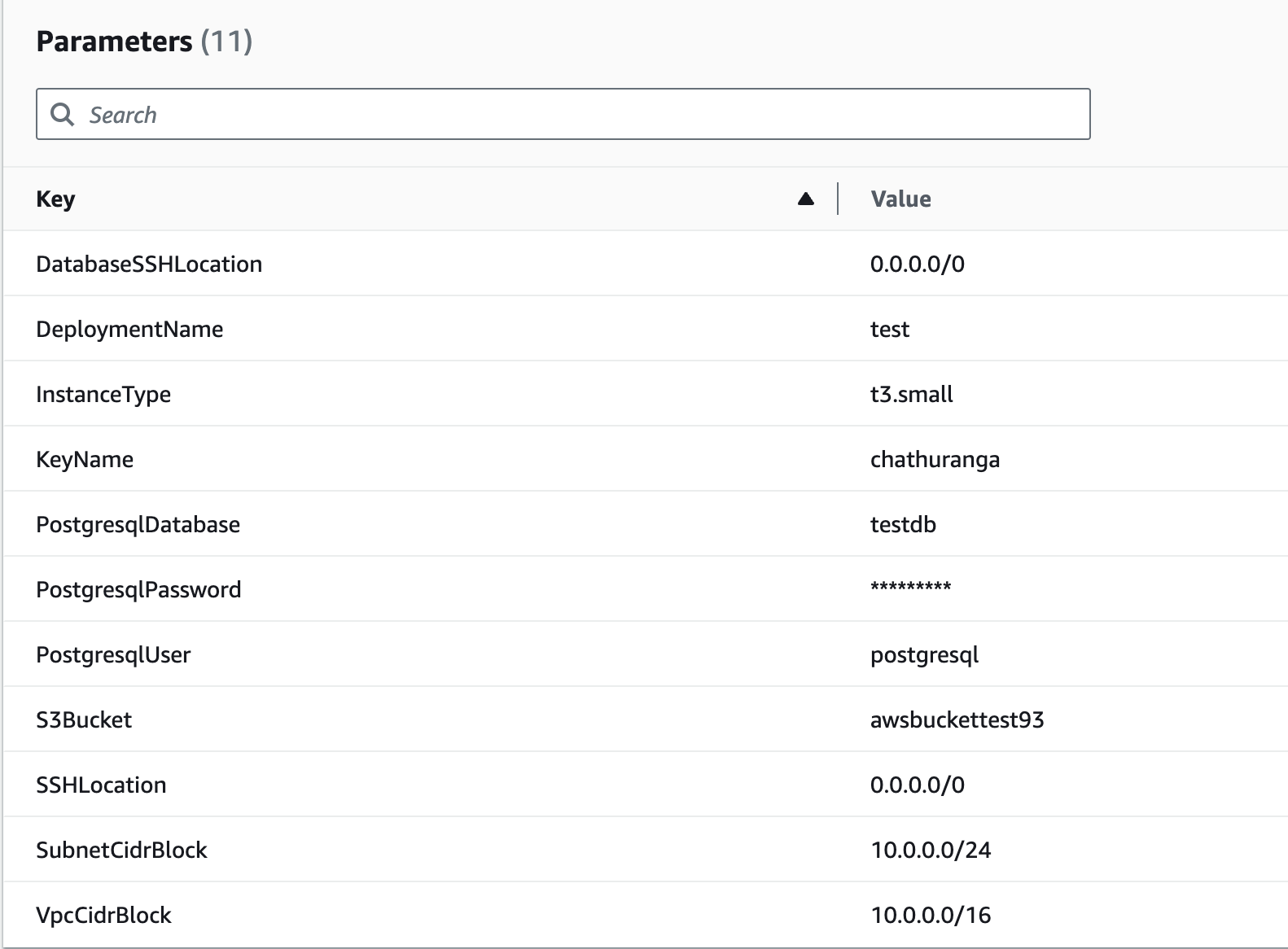
Provide the necessary parameters for your PostgreSQL deployment. These settings define how your instance will be configured.
| Parameter | Description |
|---|---|
| Stack name | A unique name for your CloudFormation stack. |
| DatabaseSSHLocation | Set to 0.0.0.0/0. |
| DeploymentName | A name for your deployment, of your choice. |
| InstanceType | The EC2 instance type. Recommended: t3.small. |
| keyName | The name of your preferred EC2 key pair for SSH access. |
| PostgresqlDatabase | A name of your choice for the PostgreSQL database. |
| PostgresqlPassword | A strong password for the PostgreSQL database. |
| PostgresqlUser | A username for the PostgreSQL database. |
| S3Bucket | The name of an S3 bucket used for storing backups. |
| SSHLocation | The IP address range for SSH access. Defaults to 0.0.0.0/0 (open to all). For better security, restrict this to your IP. |
| SubnetCidrBlock | The CIDR block for the subnet. Defaults to 10.0.0.0/24. |
| VpcCidrBlock | The CIDR block for the VPC. Defaults to 10.0.0.0/16. |
Click "Next".
Step 3: Configure stack options
- Choose "Roll back all stack resources" and "Delete all newly created resources" under the "Stack failure options" section.
- Click "Next".
Step 4: Review
- Review and verify the details you've entered.
- Tick the box that says, "I acknowledge that AWS CloudFormation might create IAM resources with custom names".
- Click "Submit".

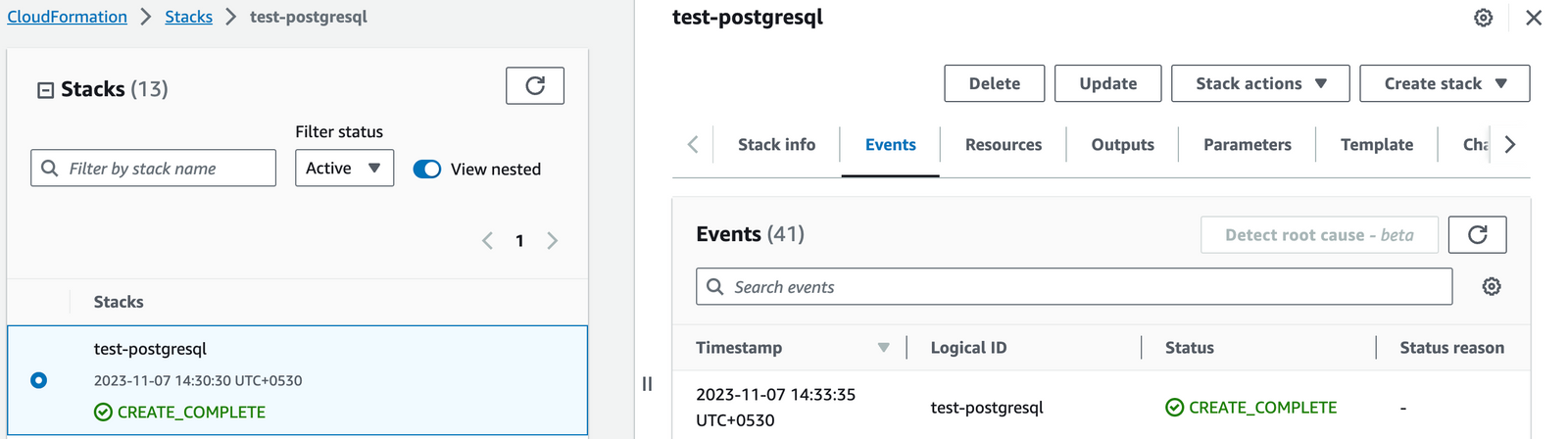
Afterward, you'll be directed to the CloudFormation stacks page.
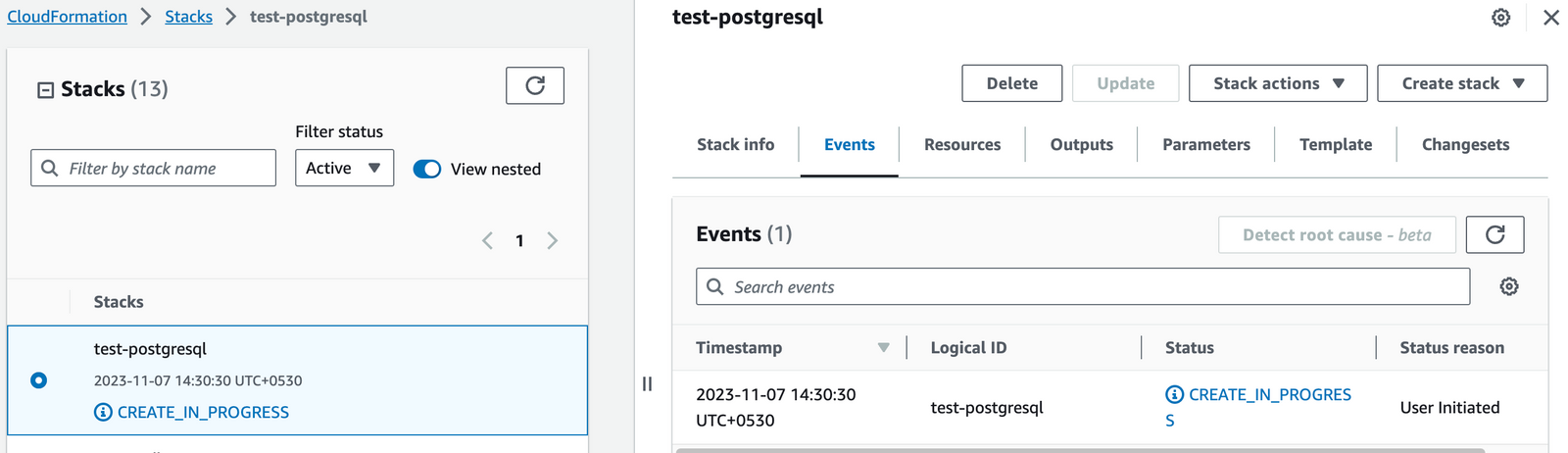
Please wait for 5-10 minutes until the stack has been successfully created.
Connect to the Database
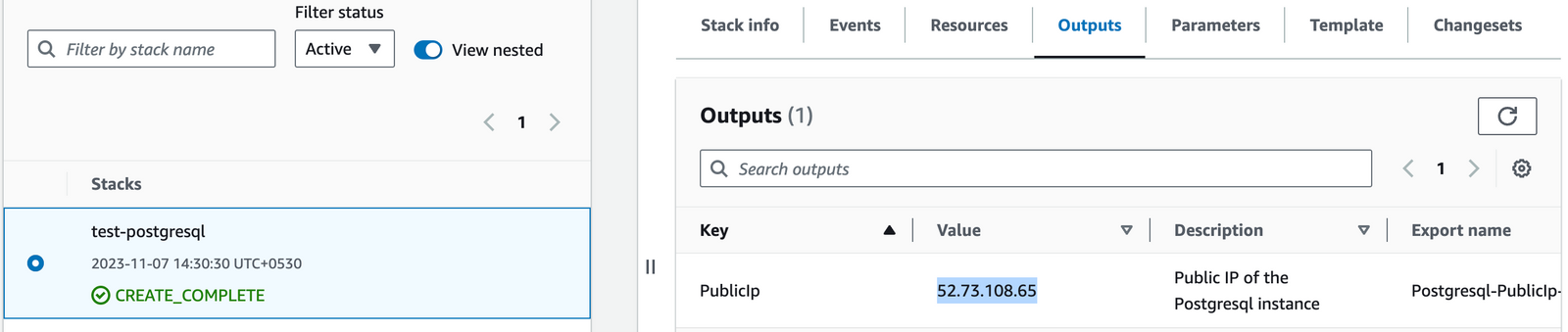
- To obtain the IP address, navigate to the "Outputs" tab and look for "PublicIp".
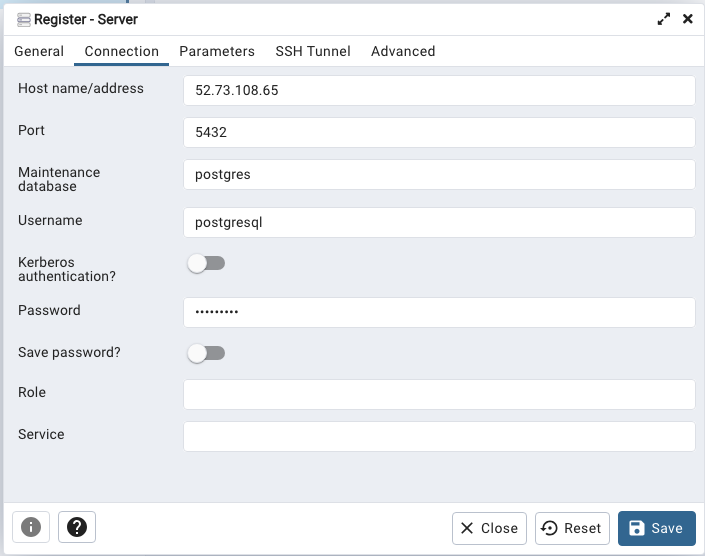
- Use "PostgresqlUser" as the username and "PostgresqlPassword" as the password, which you entered in "Step 2: Specify stack options" within the "Create CloudFormation Stack" section.
- You can access the database via port 5432.
You can access PostgreSQL using a tool like pgAdmin:
Shutting Down PostgreSQL
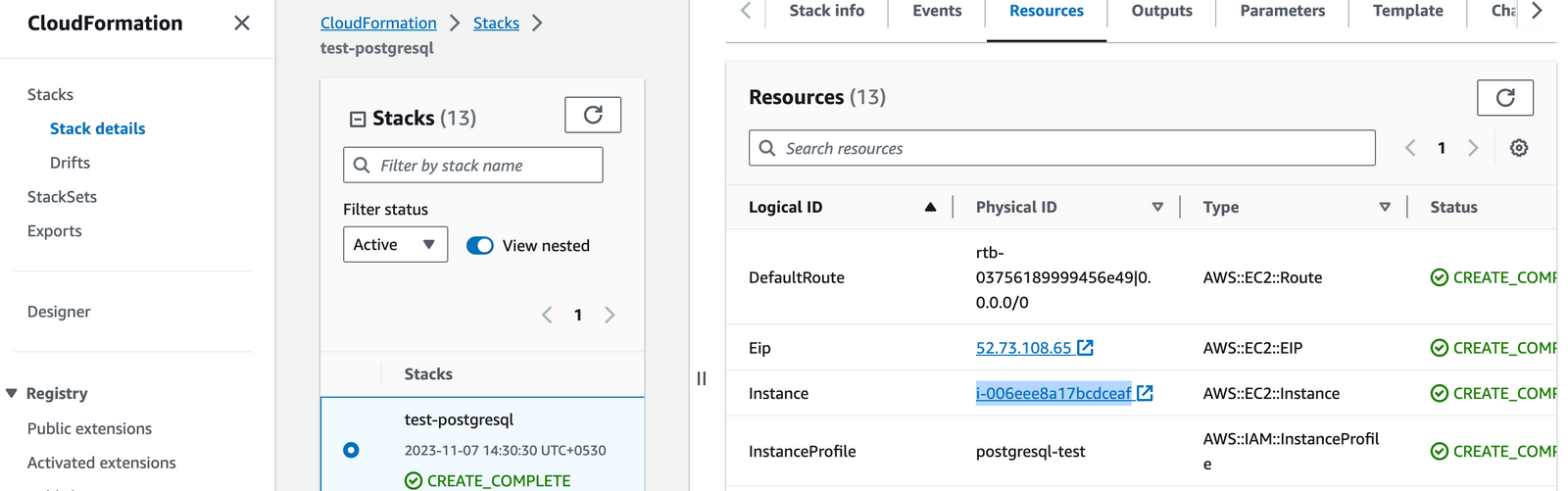
- Click the link labeled "Instance" in the "Resources" tab to access the EC2 instance, you will be directed to the PostgreSQL instance in EC2.
- Select the PostgreSQL instance by marking the checkbox and click "Stop instance" from the "Instance state" dropdown. You can restart the instance at your convenience by selecting "Start instance".

Remove PostgreSQL
Delete the stack that has been created in the AWS Management Console under "CloudFormation Stacks" by clicking the "Delete" button.
Upgrades
When there is an upgrade, we will update the product with a newer version. You can check the product version in AWS Marketplace. If a newer version is available, you can remove the previous version and launch the product again using the newer version. Remember to backup the necessary server data before removing.
Troubleshoot
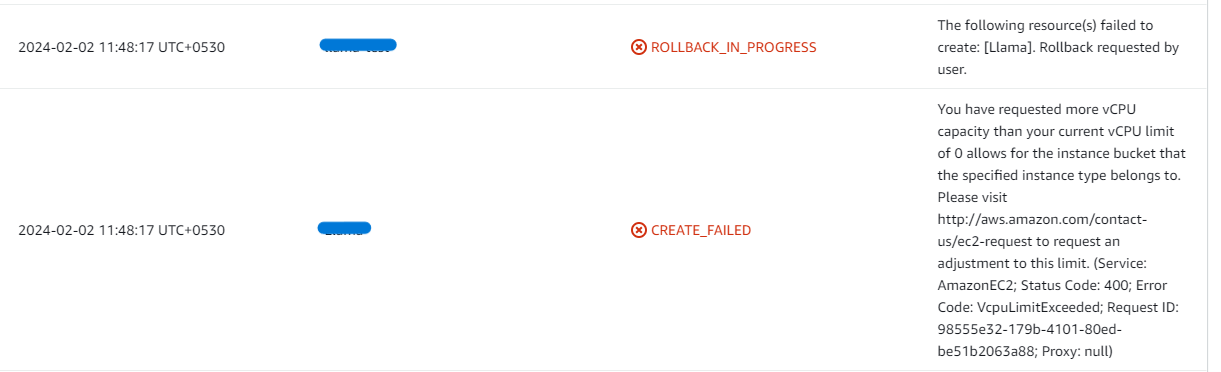
- If you face the following error, please follow https://meetrix.io/blogs/increase-aws-vcpu-quota/ to increase vCPU quota.
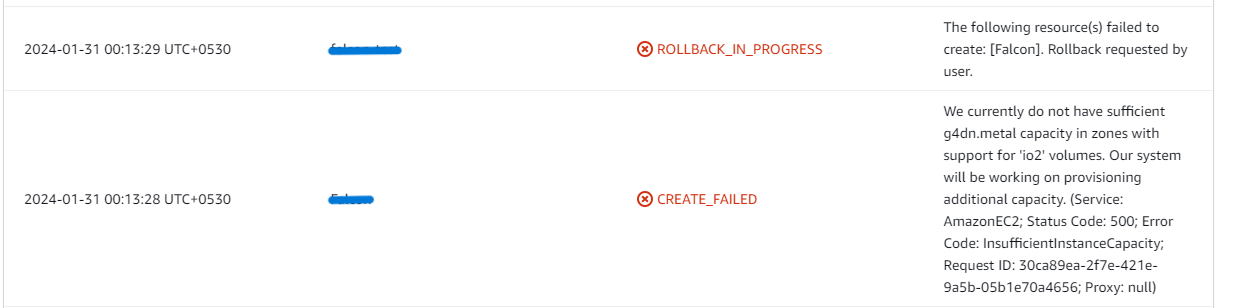
- If you face the following error ("do not have sufficient <instance_type> capacity...") while creating the stack, try changing the region or try creating the stack at a later time.
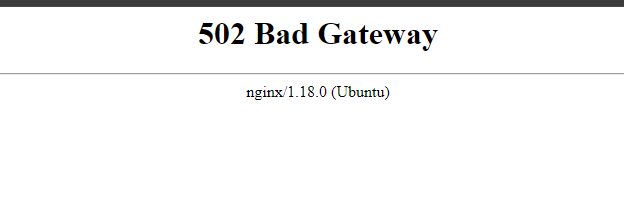
- If you face the below error, when you try to access the API dashboard, please wait 5-10 minutes and then try.
Conclusion
The Meetrix PostgreSQL Developer Guide provides detailed, step-by-step instructions for seamlessly integrating PostgreSQL into your AWS environment. PostgreSQL, a free open-source database system, supports both relational (SQL) and non-relational (JSON) queries, making it versatile for dynamic websites and web applications. With robust support for essential programming languages like Python, PostgreSQL ensures compatibility and performance in diverse development environments.
Technical Support
Reach out to Meetrix Support (aws@meetrix.io) for assistance with PostgreSQL issues.
Frequently Asked Questions
What is PostgreSQL?
PostgreSQL is a free, open-source object-relational database system that supports both relational (SQL) and non-relational (JSON) queries, making it versatile for dynamic websites and web applications, with robust support for languages like Python.
What are the prerequisites for deploying PostgreSQL on AWS?
You need basic knowledge of AWS services (EC2, CloudFormation), an active AWS account with appropriate permissions, and enough vCPU limit to launch the required instance type.
Which instance type is recommended for PostgreSQL?
t3.small is recommended as a baseline for running PostgreSQL on AWS.
How do I connect to the PostgreSQL database?
Use the PublicIp from the CloudFormation Outputs tab as the host, port 5432, and the PostgresqlUser / PostgresqlPassword you configured during stack creation - for example, via pgAdmin.
How do I handle upgrades?
When a newer version is available in AWS Marketplace, back up any necessary server data, remove the previous deployment, and relaunch the product using the newer version.
How do I get technical support?
Reach out to Meetrix Support at aws@meetrix.io for assistance with PostgreSQL issues.
Ready to Deploy Your Own PostgreSQL Instance?
Get started in minutes with our pre-configured AMI and bring reliable, scalable database management to your development environment.
Deploy PostgreSQL from AWS Marketplace