Welcome to the Open WebUI AWS Deployment Guide
Open WebUI brings real-time collaboration, LLM integration, and workflow automation to your AWS environment. Designed for high-trust enterprise use cases, it enables secure, scalable deployments with minimal setup. Empower your teams with an intuitive interface for managing AI workloads and enhancing productivity.
Video Guide
Prerequisites
Before you get started with the Open WebUI AMI, ensure you have the following prerequisites:
- Basic knowledge of AWS services, including EC2 instances and CloudFormation.
- An active AWS account with appropriate permissions.
- Enough vCPU limit to create an instance (Follow this guide to ensure this).
Launching the AMI
Step 1: Find and Select "Open WebUI" AMI
- Log in to your AWS Management Console.
- Navigate to the 'Open WebUI' in AWS Marketplace.
Step 2: Initial Setup & Configuration
- Click the "Continue to Subscribe" button.
- After subscribing, you will need to accept the terms and conditions. Click on "Accept Terms" to proceed.
- Please wait for a few minutes while the processing takes place. Once it's completed, click on "Continue to Configuration".
- Select the "CloudFormation script to deploy Open WebUI" as the fulfilment option and choose your preferred region on the "Configure this software" page. Afterward, click the "Continue to Launch" button.
- From the "Choose Action" dropdown menu in "Launch this software" page, select "Launch CloudFormation" and click "Launch" button.
Create CloudFormation Stack
Step 1: Create stack
- Ensure the "Template is ready" radio button is selected under "Prepare template".
- Click "Next".
Step 2: Specify stack options
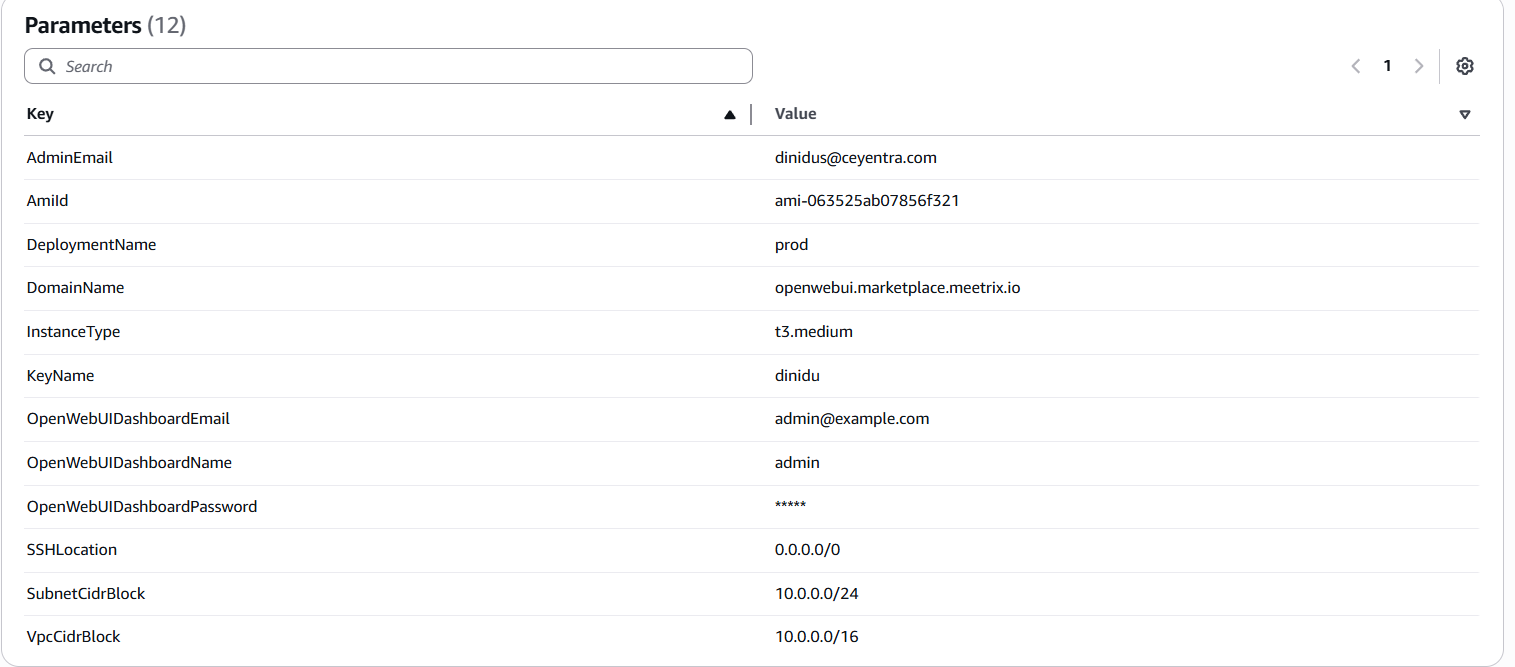
Provide the necessary parameters for your Open WebUI deployment. These settings define how your instance will be configured.
| Parameter | Description |
|---|---|
| Stack name | A unique name for your CloudFormation stack (e.g., my-open-webui-deployment). |
| Admin Email | The email address for generating SSL certificates with Let's Encrypt. |
| DeploymentName | A name for your deployment, of your choice. |
| DomainName | Your public domain name (e.g., openwebui.yourdomain.com). SSL will be set up automatically if the domain is hosted on Route 53. |
| InstanceType | The EC2 instance type. We recommend t3.medium or larger for optimal performance. |
| KeyName | The name of your EC2 key pair for SSH access. |
| SSHLocation | The IP address range for SSH access. Defaults to 0.0.0.0/0 (open to all). For better security, restrict this to your IP. |
| SubnetCidrBlock | The CIDR block for the subnet. Defaults to 10.0.0.0/24. |
| VpcCidrBlock | The CIDR block for the VPC. Defaults to 10.0.0.0/16. |
Step 3: Configure stack options
- Choose "Roll back all stack resources" and "Delete all newly created resources" under the "Stack failure options" section.
- Click "Next".
Step 4: Review
- Review and verify the details you've entered.
- Tick the box that says, "I acknowledge that AWS CloudFormation might create IAM resources with custom names".
- Click "Submit".

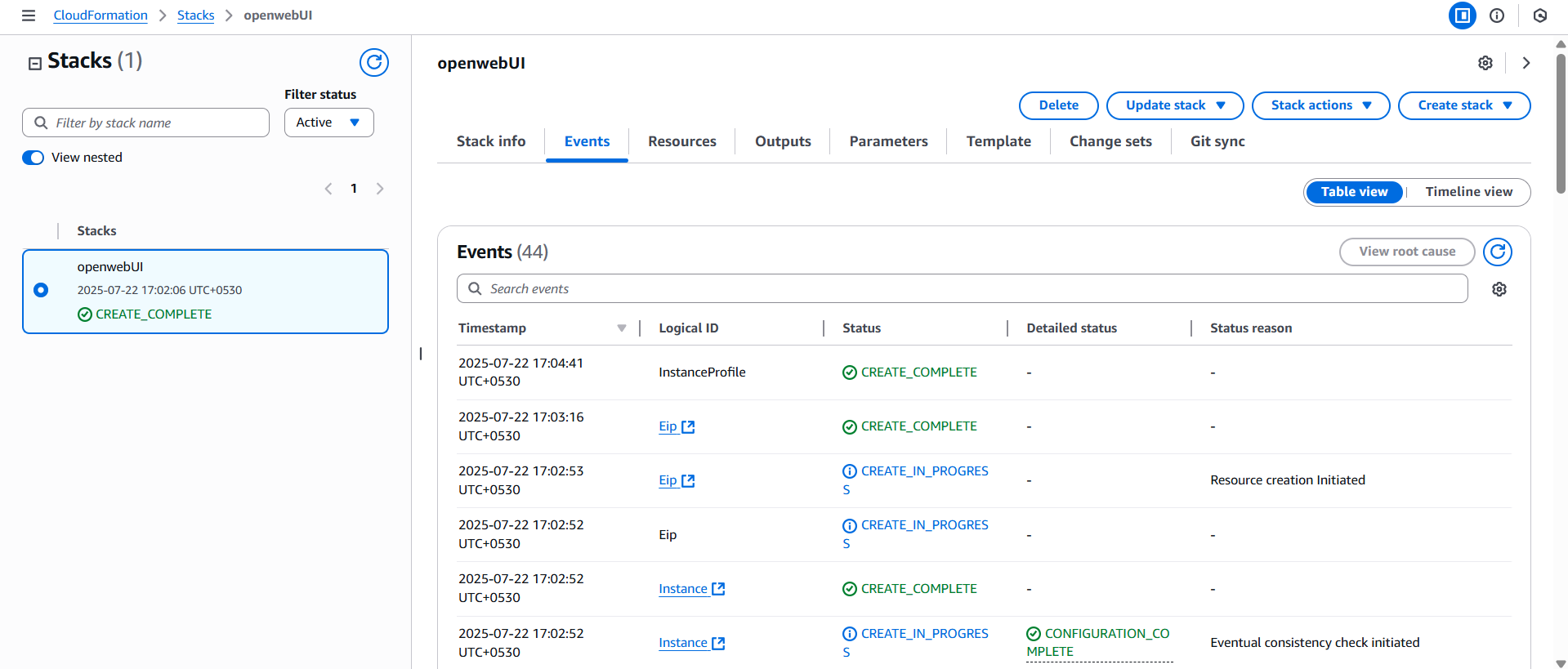
Afterward, you'll be directed to the CloudFormation stacks page. Please wait for 5-10 minutes until the stack has been successfully created.
Update DNS
Step 1: Copy IP Address
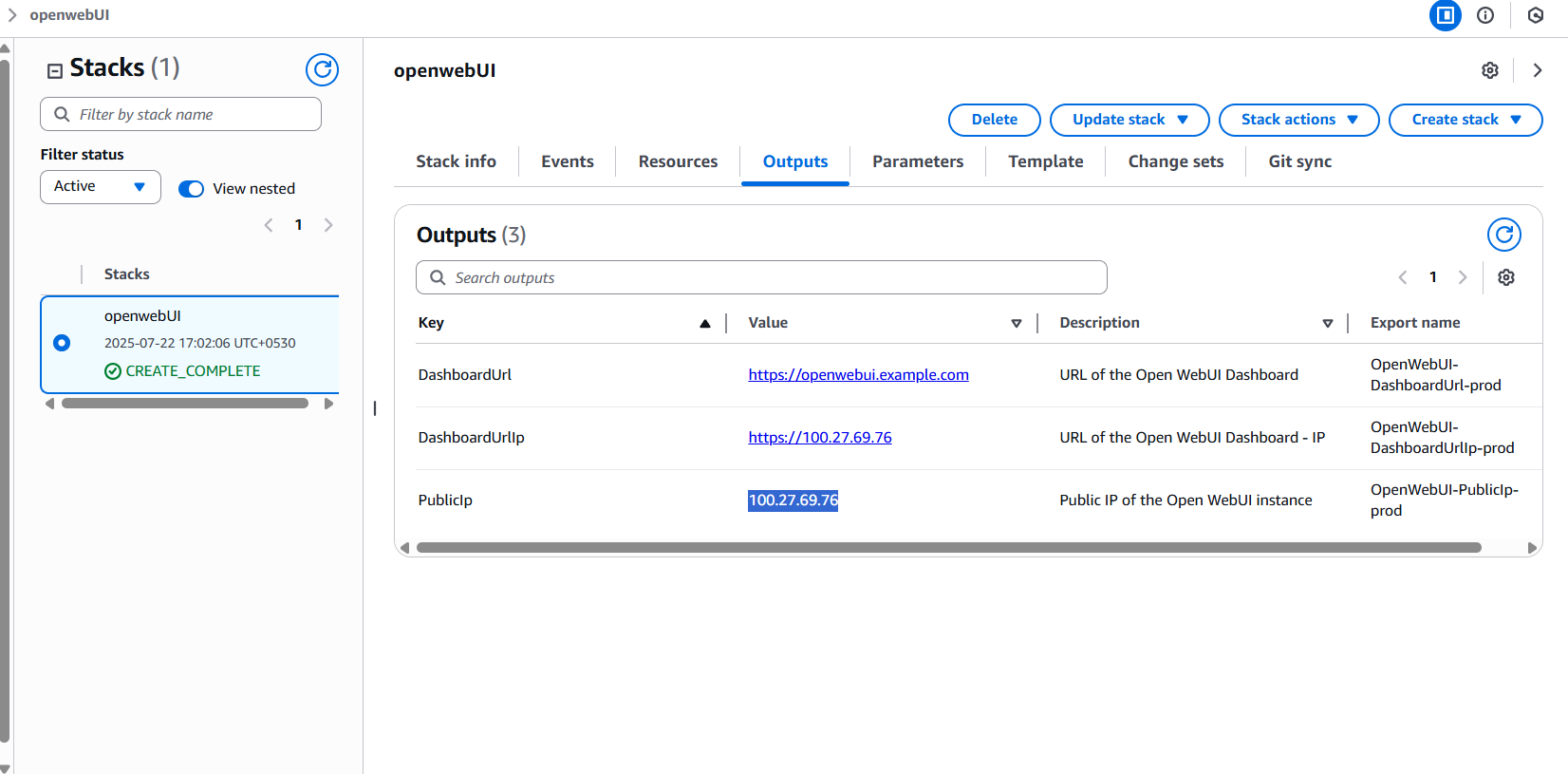
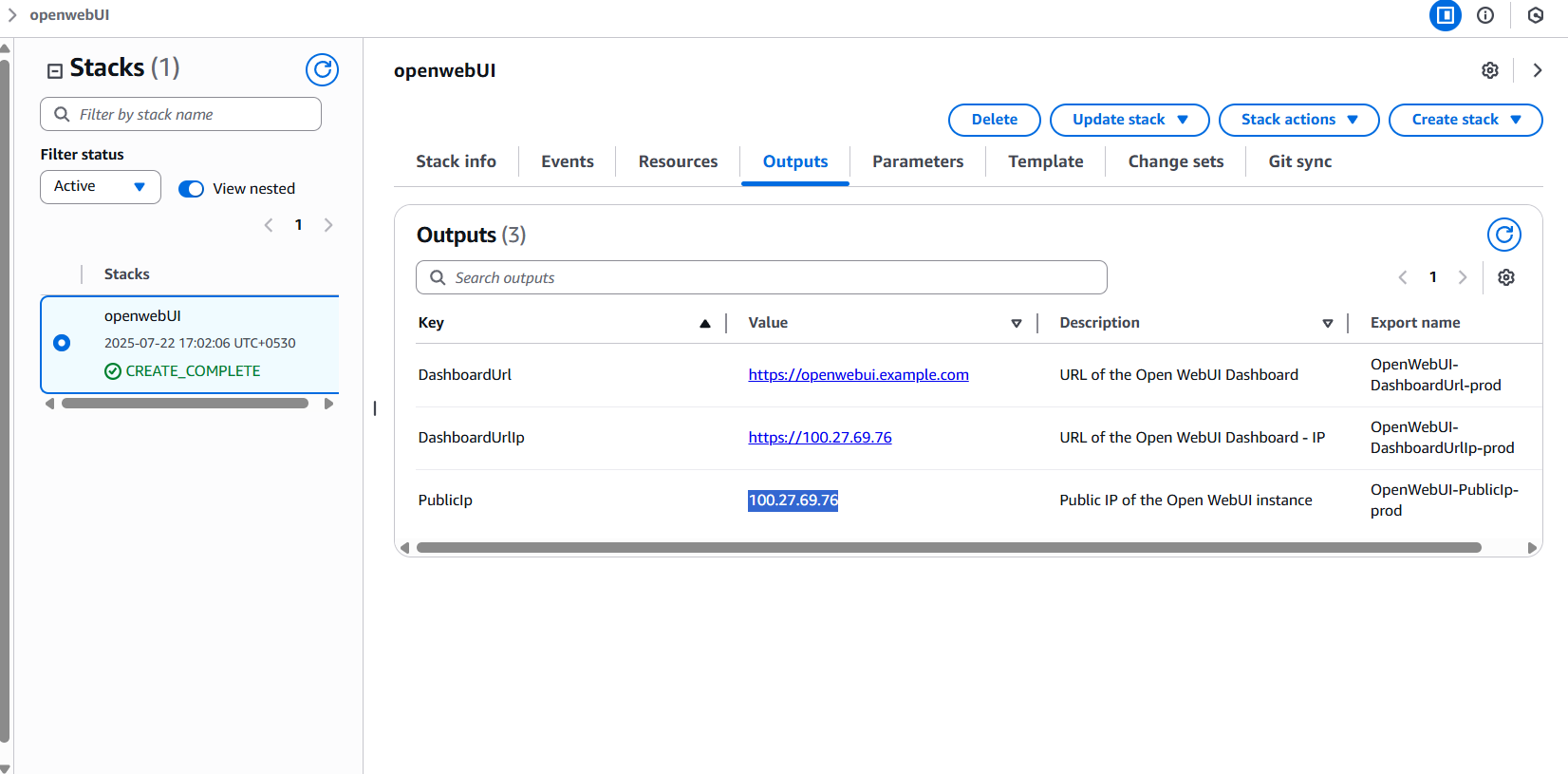
Copy the public IP labeled "PublicIp" in the "Outputs" tab.
Step 2: Update DNS
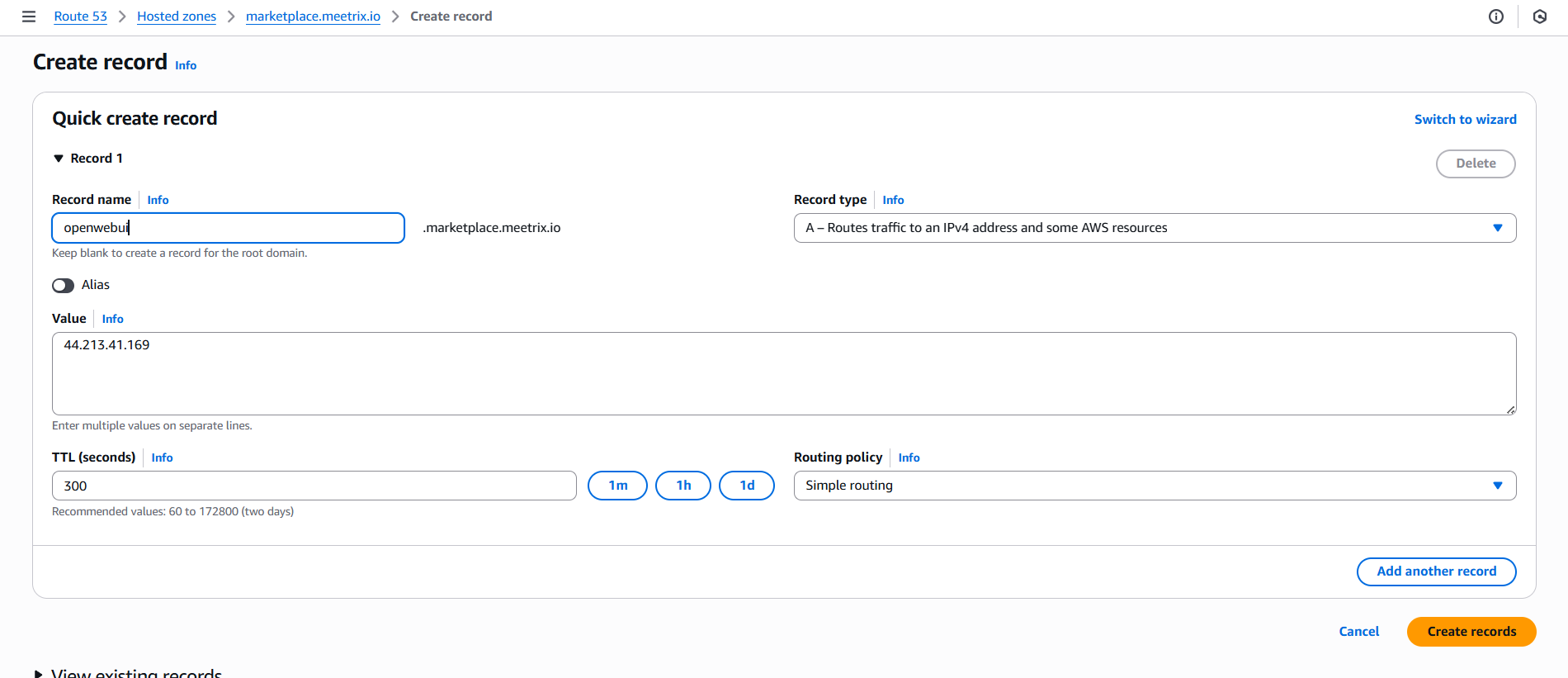
- Go to AWS Route 53 and navigate to "Hosted Zones". Click on the correct hosted zone.
- From there, click on Create record.
- Add the record name and then paste the copied "PublicIp" into the "value" textbox.
- Click "Save".
Access Open WebUI
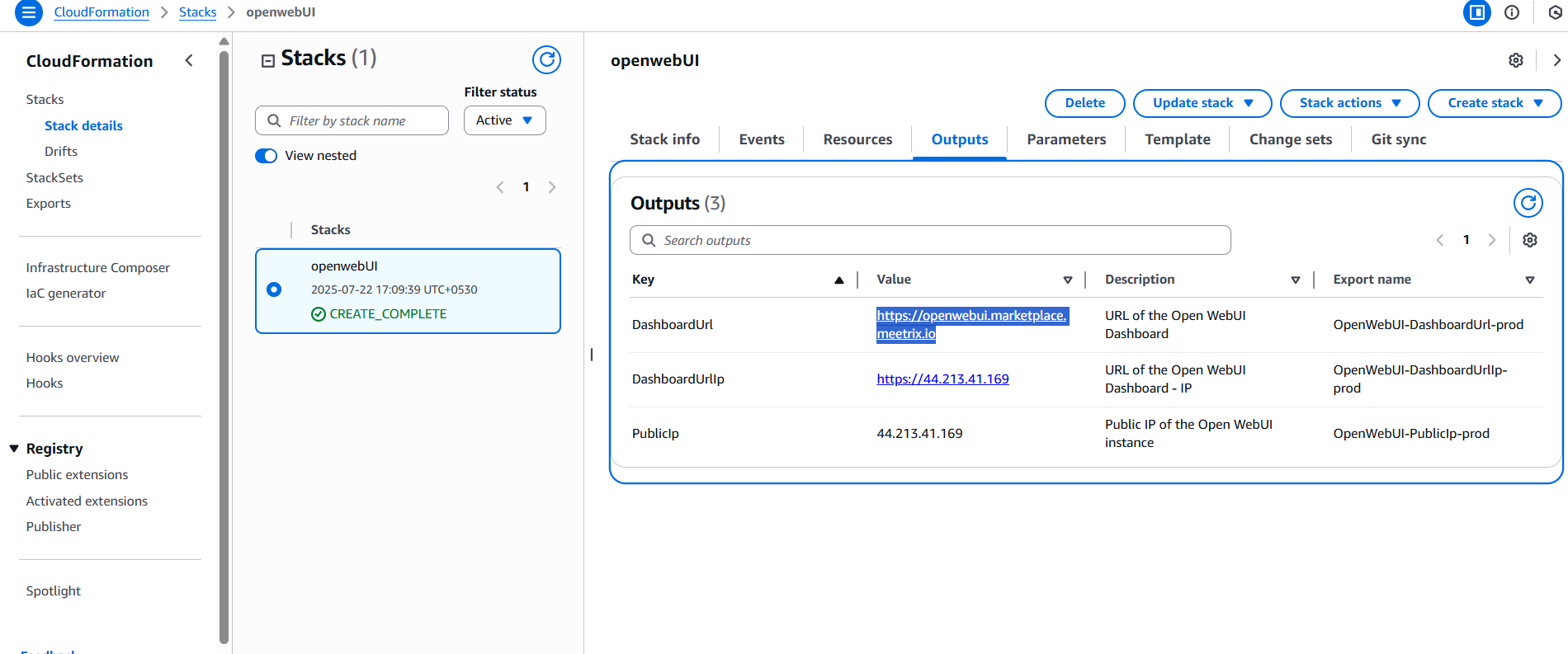
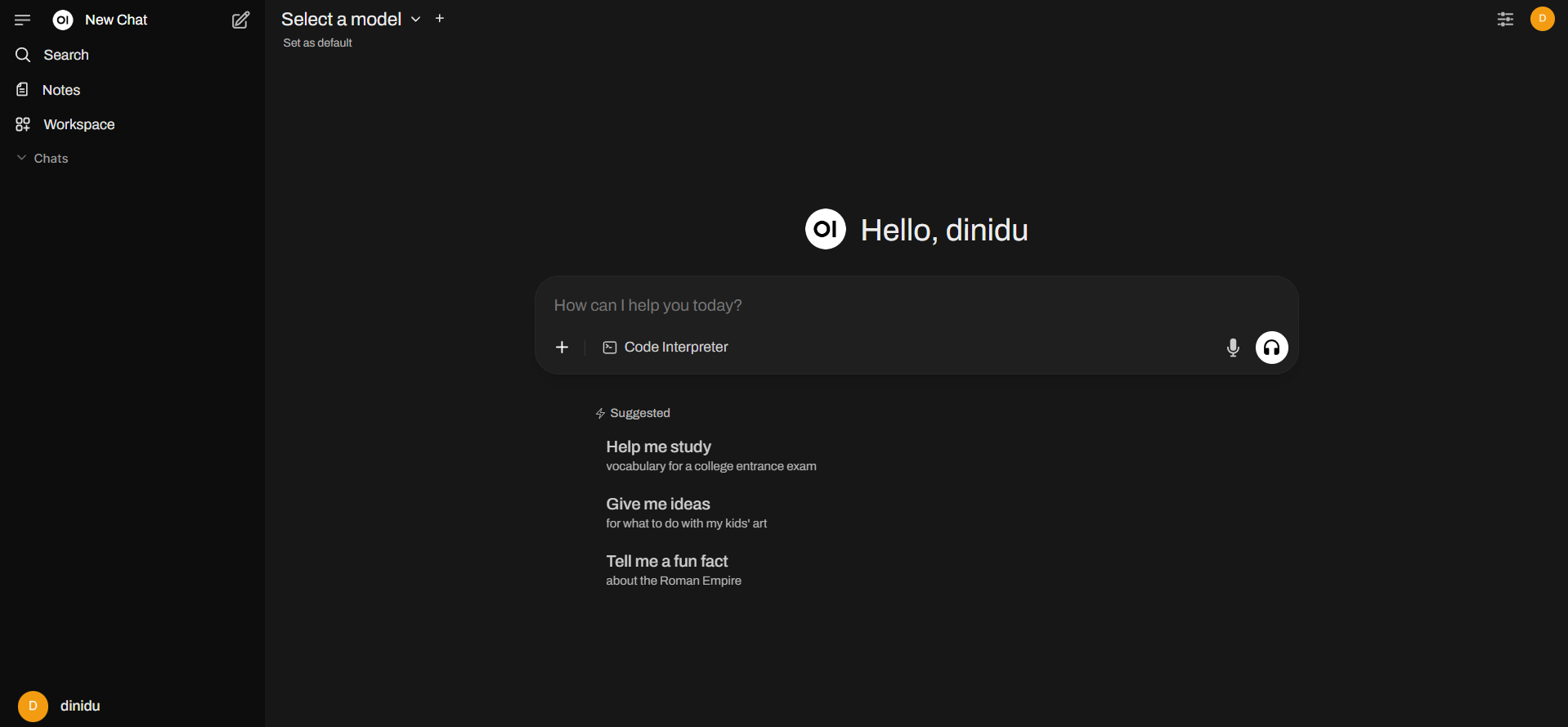
You can set up the Open WebUI application through the "DashboardUrl" or "DashboardUrlIp" provided in the "Outputs" tab. This will allow you to create an Admin account, and all future accounts will be created through the Admin panel.
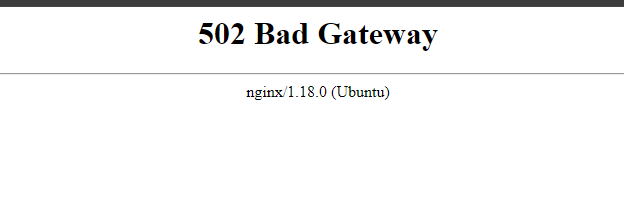
502 Bad Gateway Error?

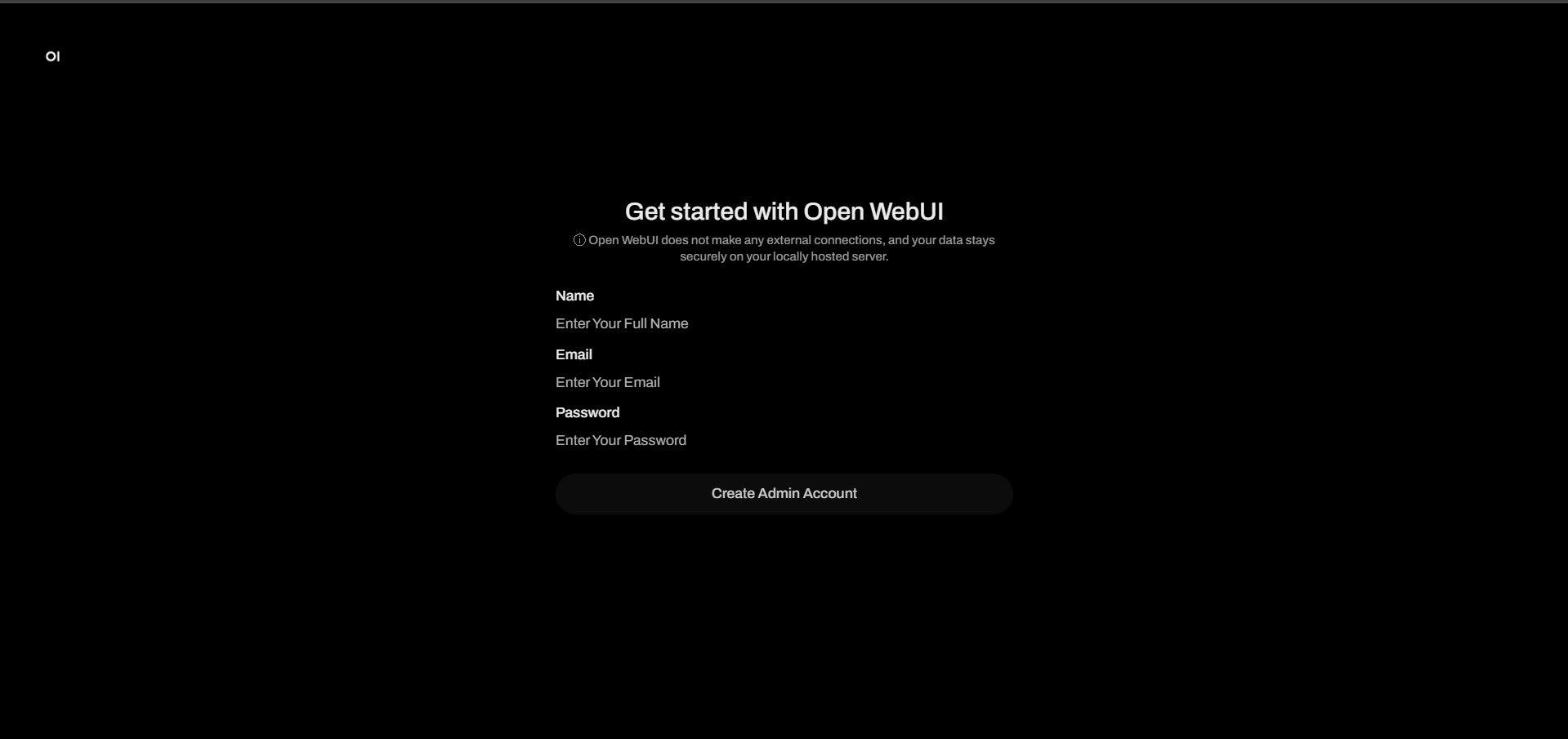
Enter all the required details and click on the "Create Account" button.
Important: You are now creating the Admin Account for your Open WebUI deployment. The email address and password you provide here will be used to manage your entire workspace including inviting team members, configuring system settings, and maintaining overall access.
Make sure to choose a strong password and store your credentials securely, as they are critical for future access and team management.
Generate SSL Manually
Step 1: Copy IP Address
Open WebUI will automatically try to setup SSL; if unsuccessful, you have to setup SSL manually. Proceed with the instructions outlined in the above "Update DNS" section, if you have not already done so. Copy the Public IP address indicated as "PublicIp" in the "Outputs" tab.
Step 2: Log in to the server
- Open the terminal and go to the directory where your private key is located.
- Paste the following command into your terminal and press Enter:
ssh -i <your key name> ubuntu@<Public IP address>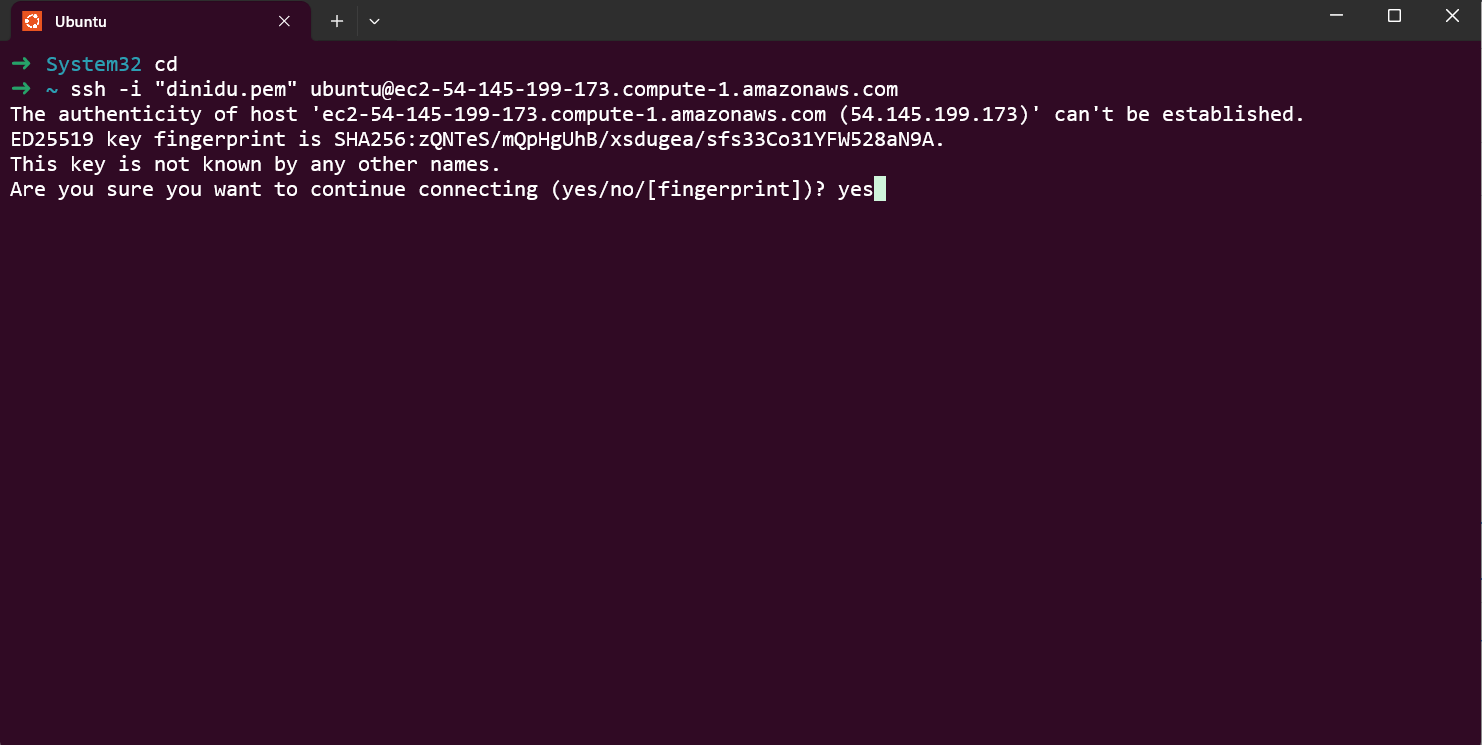
- Type "yes" and press Enter. This will log you into the server.
Step 3: Generate SSL
Paste the following command into your terminal and press Enter and follow the instructions:
sudo /root/certificate_generate_standalone.shAdmin Email is needed to generate SSL certificates.
Check Server Logs
Step 1: Log in to the server
- Open the terminal and go to the directory where your private key is located.
- Paste the following command into your terminal and press Enter:
ssh -i <your key name> ubuntu@<Public IP address>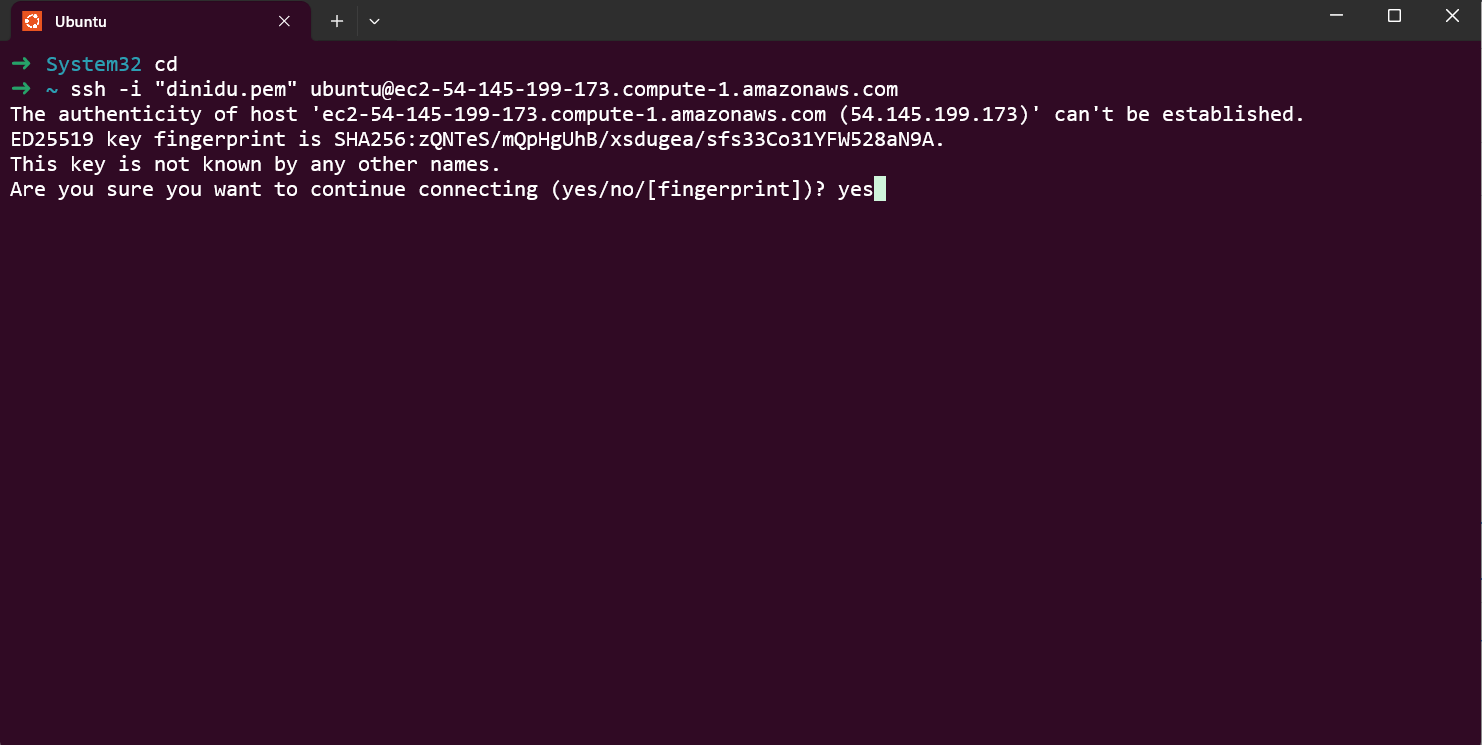
- Type "yes" and press Enter. This will log you into the server.
Step 2: Check the logs
sudo docker psSelect the correct container and check logs:
sudo docker logs d1
sudo docker logs 43
Shutting Down Open WebUI
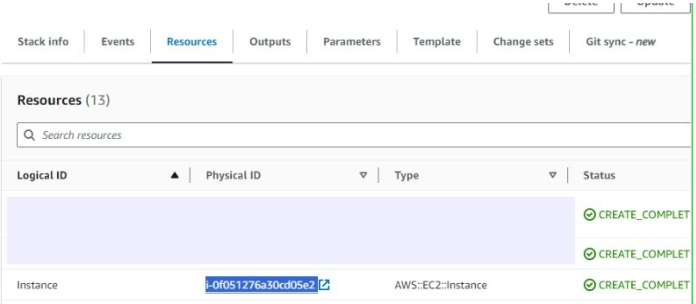
- Click the link labeled "Instance" in the "Resources" tab to access the EC2 instance; you will be directed to the Open WebUI instance in EC2.
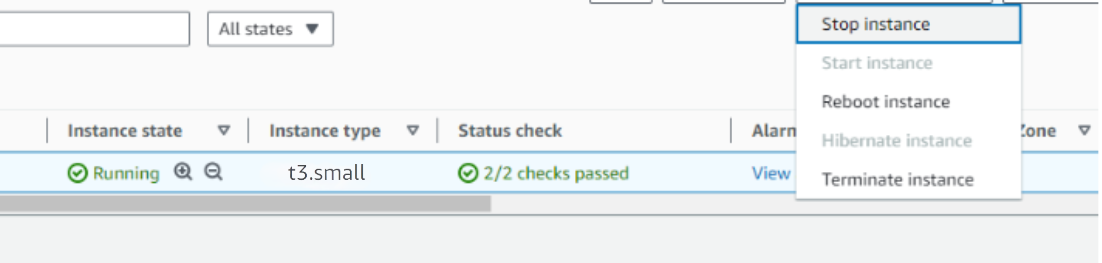
- Select the Open WebUI instance by marking the checkbox and click "Stop instance" from the "Instance state" dropdown. You can restart the instance at your convenience by selecting "Start instance".
Remove Open WebUI
Delete the stack that has been created in the AWS Management Console under 'CloudFormation Stacks' by clicking the 'Delete' button.
Upgrades
When there is an upgrade, we will update the product with a newer version. You can check the product version in AWS Marketplace. If a newer version is available, you can remove the previous version and launch the product again using the newer version. Remember to backup the necessary server data before removing.
Troubleshoot
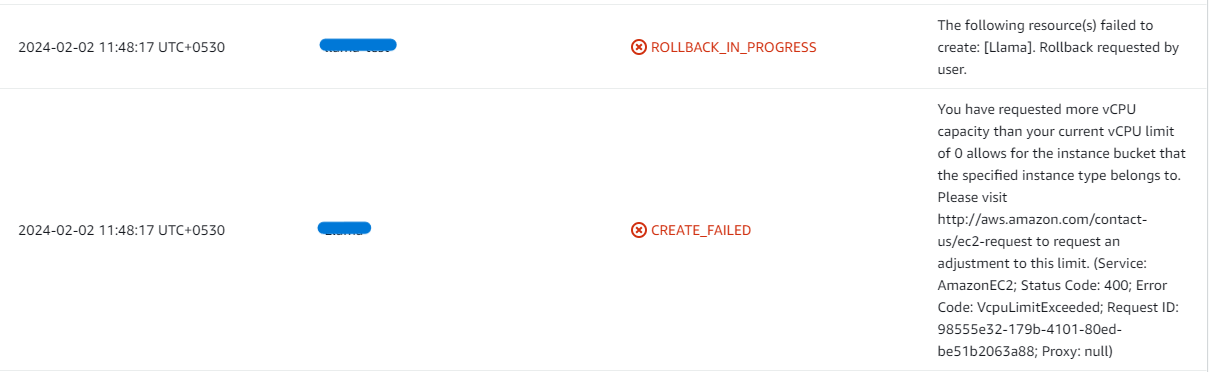
- If you face the following error, please follow this guide to increase vCPU quota.
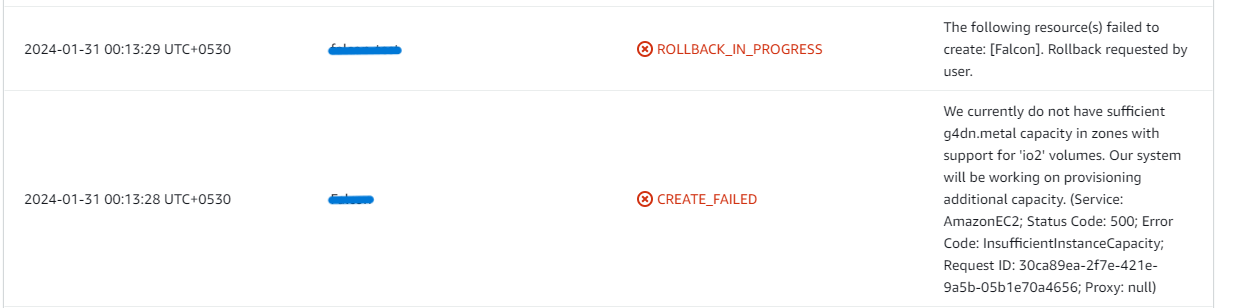
- If you face the following error (do not have sufficient <instance_type> capacity...) while creating the stack, try changing the region or try creating the stack at a later time.
- If you face the below error, when you try to access the API dashboard, please wait 5-10 minutes and then try.
- Check whether the instance storage is full.
- Log into the server and run the below command
df -h
- If the root volume is between 90-100%, it is better to resize EBS volume. Please follow AWS documentation to increase the EBS volume.
- Then reboot the instance and restart the Open WebUI service.
- Log into the server and run the below command
Conclusion
The Meetrix Open WebUI AMI empowers teams to quickly deploy a secure, scalable, and fully self-hosted collaboration platform on AWS. Whether you're a DevOps engineer, IT admin, or enterprise architect, our solution enables real-time communication, automation, and seamless LLM integration all within your own cloud environment. Unlock the full potential of Open WebUI with our step-by-step deployment guide and build a platform that grows with your organization.
Technical Support
Reach out to Meetrix Support (aws@meetrix.io) for assistance with Open WebUI issues.
Frequently Asked Questions
Can I use my own domain name with Open WebUI?
Yes, Open WebUI supports custom domain names. The deployment guide provides instructions for configuring DNS records to point to your Open WebUI instance.
Is my Open WebUI data secure on AWS?
Absolutely. When you deploy Open WebUI on your AWS account, you retain full control over your data, network security, and access policies, ensuring a secure environment.
Which LLMs can I use with Open WebUI?
Open WebUI offers a sleek, team-friendly interface for interacting with local or remote LLMs like Llama, Mistral, Deepseek, and Grok, giving you flexibility to choose the models that fit your workflow.
How do I scale my Open WebUI deployment?
Open WebUI deployments on AWS leverage scalable infrastructure. You can adjust your EC2 instance type and other AWS resources to handle varying workloads. For advanced scaling, consider configuring auto-scaling groups.
Deploy Open WebUI on AWS Today
Launch your Open WebUI instance with Meetrix. Empower your team with an intuitive interface for managing AI workloads, real-time collaboration, and enterprise-ready workflow orchestration.
Get Started on AWS Marketplace