Welcome to the Meetrix Hermes Agent developer guide for Google Cloud Platform! Hermes Agent is a self-hosted, self-improving autonomous AI agent built by Nous Research that learns from experience, builds its own skills, and remembers past conversations across sessions. It connects to Telegram, Discord, Slack, WhatsApp, and Signal through a unified gateway, runs scheduled automations, and works with any LLM provider, including OpenAI, OpenRouter, and custom endpoints, giving you a flexible, vendor-neutral foundation for autonomous AI workflows without vendor lock-in.
With the Meetrix pre-configured GCP image, you can deploy a production-ready Hermes Agent instance in minutes. This guide walks you through finding the product on GCP Marketplace, configuring the deployment, pointing DNS and issuing SSL, choosing a model provider, and connecting your first messaging channel.
Prerequisites
Before you begin, make sure you have the following:
- Basic Google Cloud Platform knowledge.
- An active Google account with a GCP project and billing enabled.
- Sufficient Compute Engine CPU quota in your target region for the machine type you plan to use.
Launch the Product
Step 1: Find the Product
- Log in to your Google account.
- Go directly to the product page: Hermes Agent - Self-Hosted AI Agent with Memory & Automation on GCP Marketplace
- You can also browse all Meetrix products at the Meetrix Solutions Page.
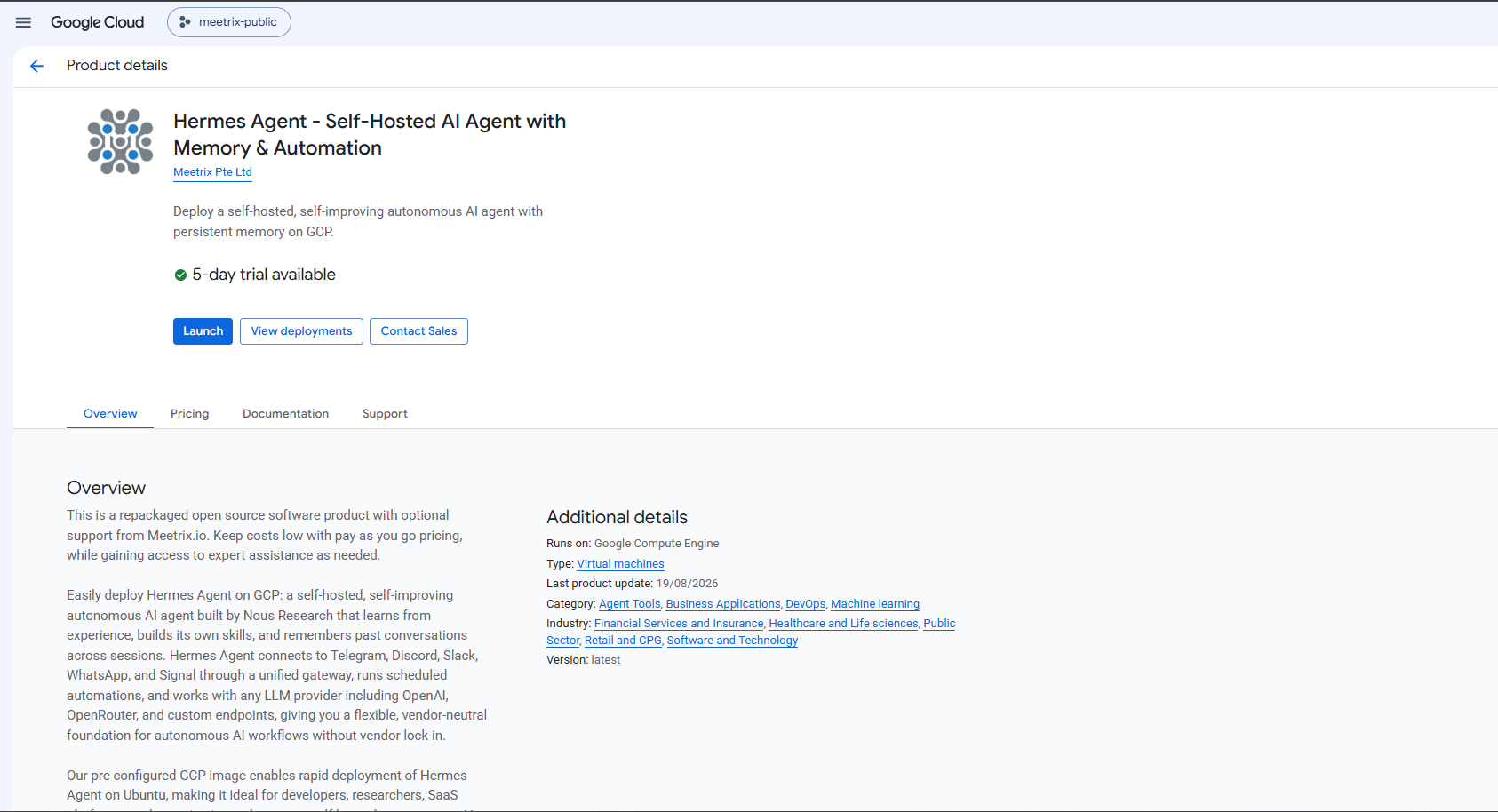
Step 2: Launch the Product
- Select your GCP project from the project selector at the top.
- Click the Launch button.
- Review the terms and agreements, tick the acknowledgement checkbox, and click AGREE.
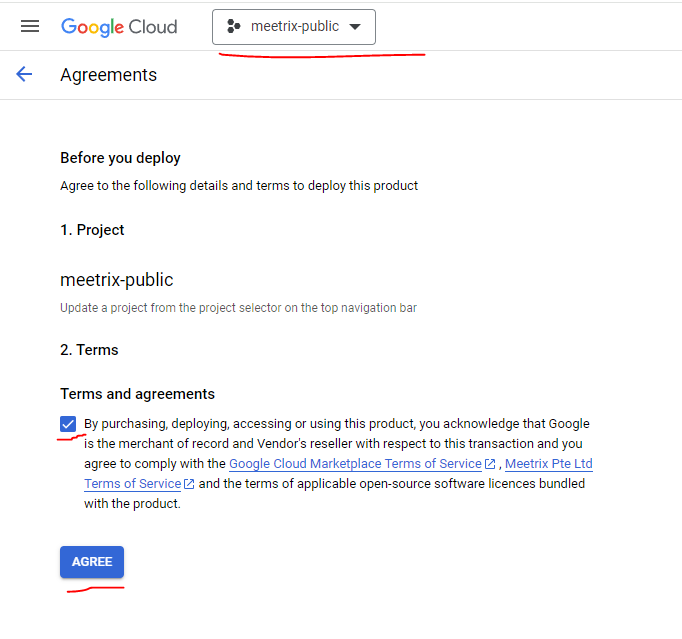
Free Trial
This product includes a 5-day free trial with up to USD 50.00 in licence fee credits. To activate it, tick I accept the solution trial Terms and Conditions before proceeding.

Trial note
Step 3: Configure the Deployment
You will see the deployment configuration form. Fill in the fields across the following sections:
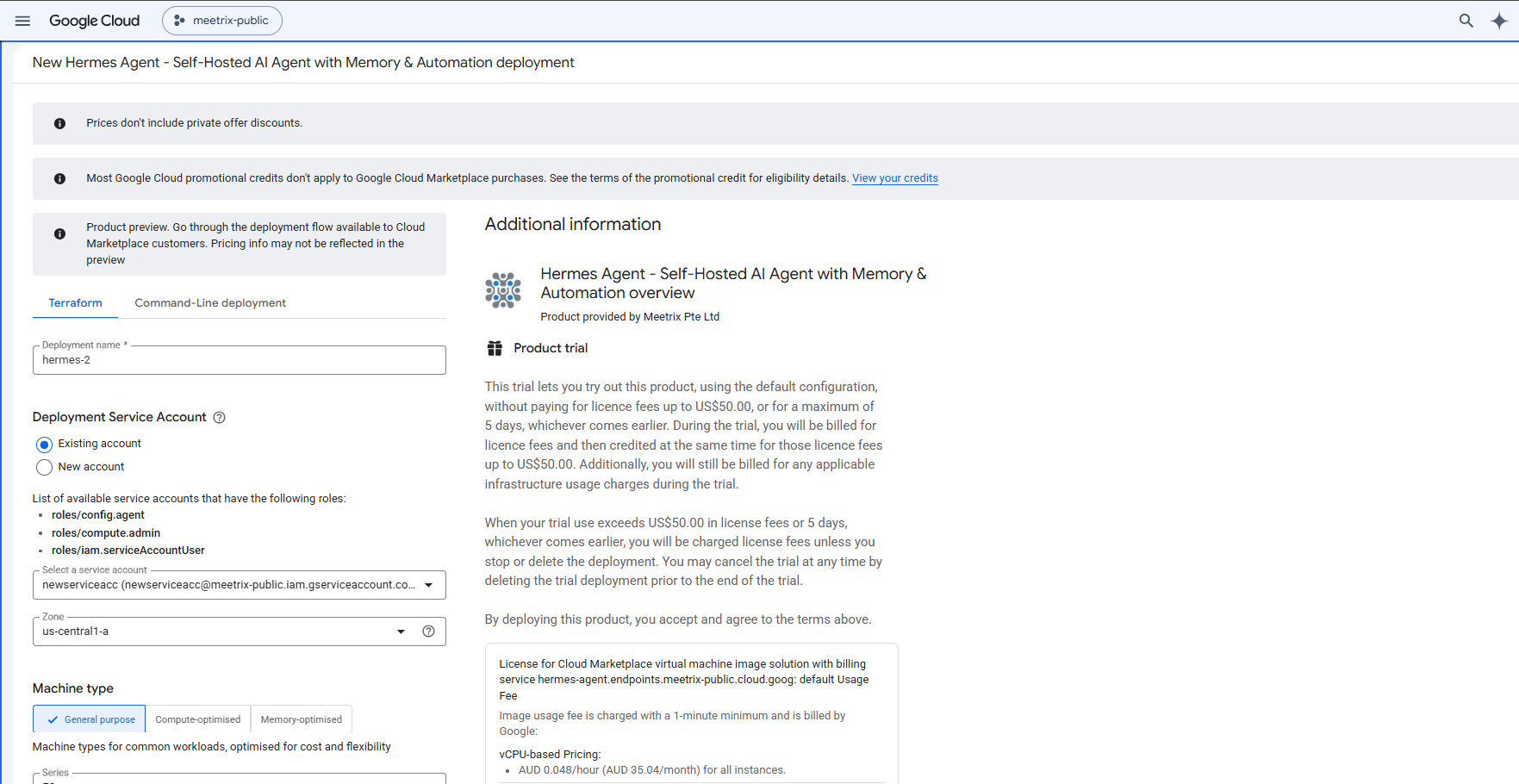
General
- Deployment name - A unique name for this deployment (a default is pre-filled).
- Deployment Service Account - Select an existing service account that has the
roles/config.agent,roles/compute.admin, androles/iam.serviceAccountUserroles, or let GCP create a new one for you. - Zone - Select the GCP zone closest to your users (for example
us-central1-a).
Machine Type
- Series - Default
General purposetab is preselected. - Machine type - The preselected default is enough to get started. Choose a larger type if you plan to run many concurrent automations or connect several messaging channels at once.
GCP shows an estimated monthly cost, made up of the Meetrix licence fee and the underlying infrastructure fee, based on your selected machine type and disk size before you deploy.
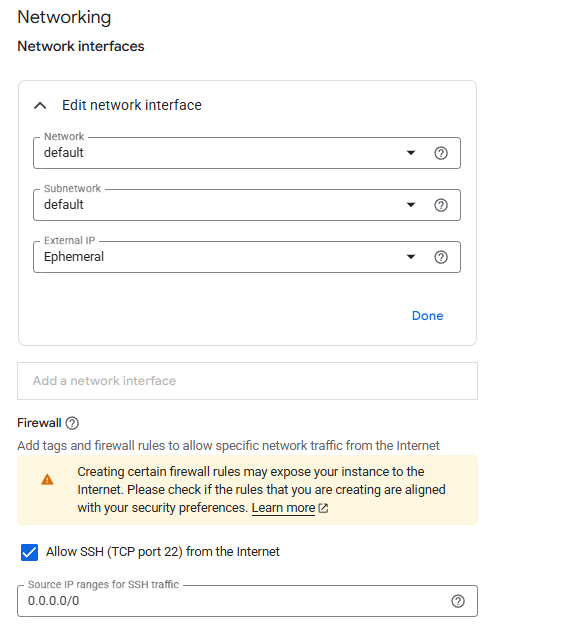
Step 4: Configure Networking
- Network and Subnetwork - Leave as
defaultunless you have a custom VPC. - External IP - Leave as
Ephemeral. SelectNoneonly if you do not need public internet access. - Allow SSH (TCP port 22) from the Internet - Enabled by default. Restrict the source IP range if you want to limit SSH access to specific IPs.
Step 5: Application Settings
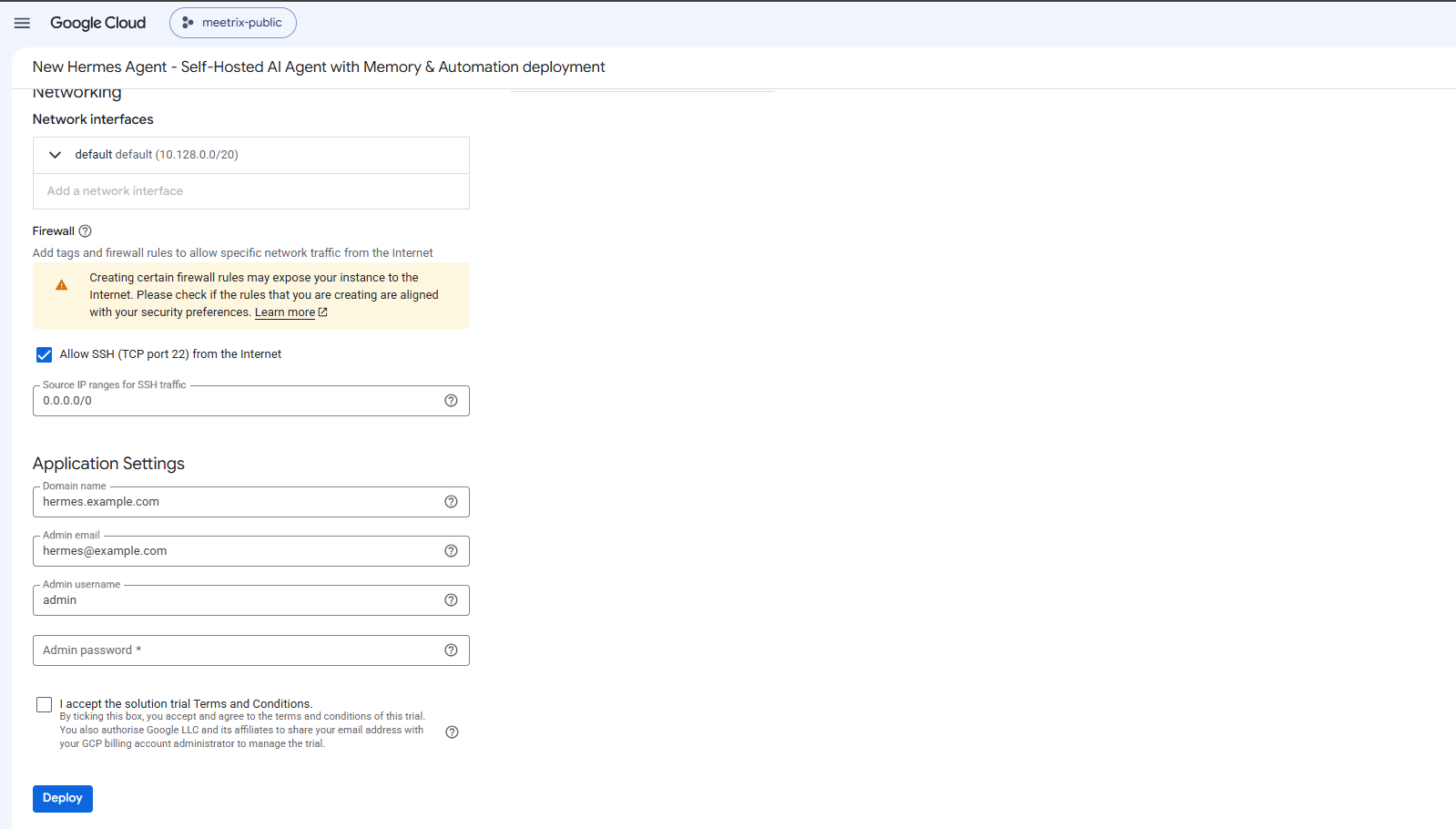
Scroll down to the Application Settings section and provide:
- Domain name - The domain for your Hermes Agent instance (e.g.
hermes.yourdomain.com). Make sure to point your DNS A record to the instance IP before or shortly after deploying. - Admin email - Used as the account contact for this deployment.
- Admin username - The username you will use to sign in to the Hermes Agent dashboard.
- Admin password - A strong password for the admin account. Keep this secure.
Tick I accept the solution trial Terms and Conditions, then click Deploy and wait a few minutes for the deployment to complete.
Point DNS to Your Hermes Agent Server
Step 1: Get the External IP
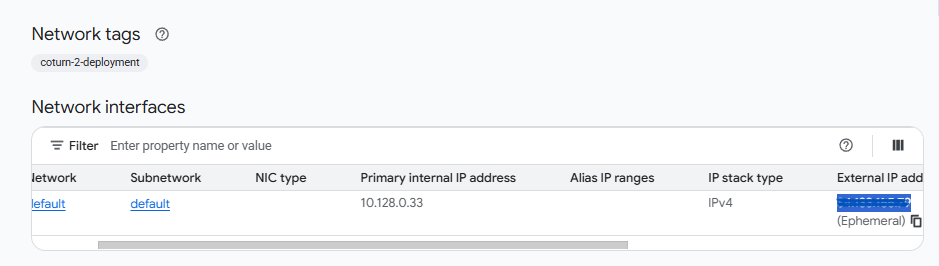
- Once deployment is complete, open the VM instance from the deployment details.
- Copy the External IP from the Network interfaces section.
Step 2: Create a DNS A Record
- Go to your DNS provider.
- Add an A record pointing your Hermes Agent domain (e.g.
hermes.yourdomain.com) to the copied external IP. - Wait for DNS propagation before proceeding (typically a few minutes to 1 hour).
DNS must propagate first
Access Hermes Agent
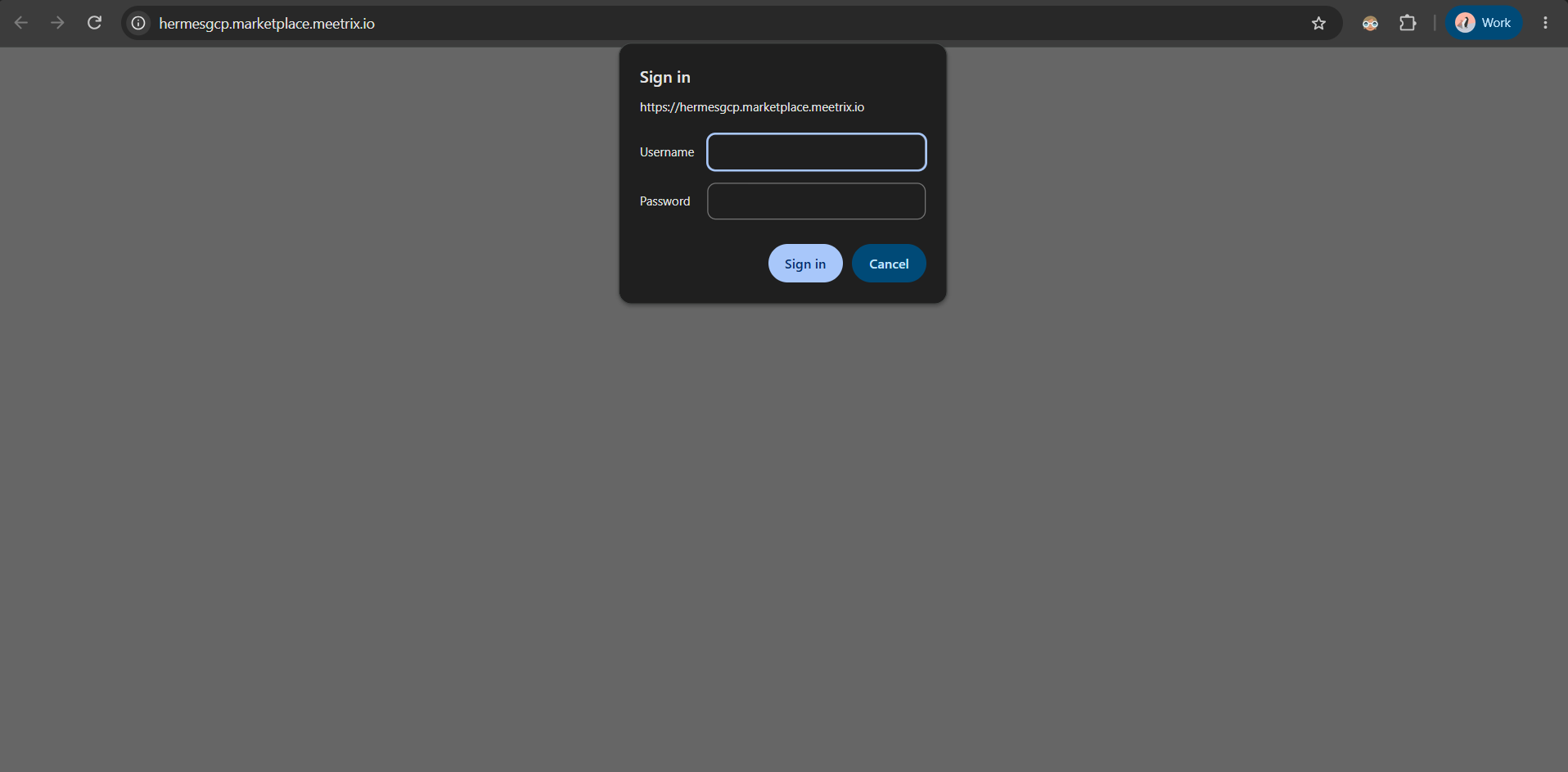
Once DNS has propagated and SSL has issued, visit your domain. Your browser will prompt for the Admin username and Admin password you set in the deployment's Application Settings.
502 Bad Gateway Error?
Generate an SSL Certificate for Hermes Agent Manually
Hermes Agent will automatically try to issue SSL for the domain name you provided during deployment. If it's unsuccessful, for example if DNS hadn't propagated yet, you can generate it manually.
Step 1: SSH into the Server
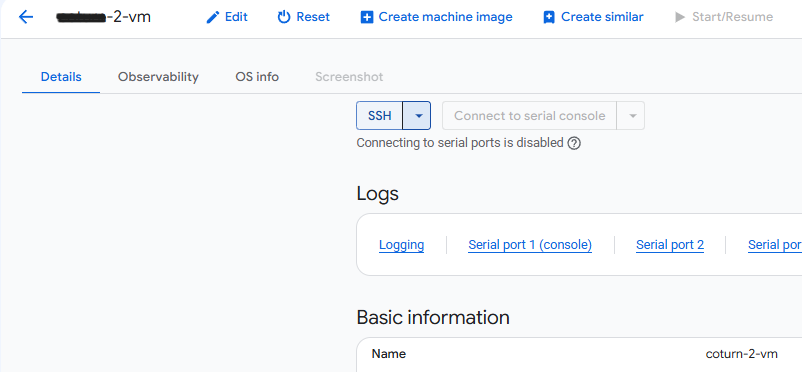
- Go to the VM instance page in the GCP console.
- Click SSH to open a browser-based terminal and authorize access.
Step 2: Run the Certificate Script
The image includes a pre-configured certificate script. Run it with:
sudo bash /root/certificate_generate_standalone.shThis script runs certbot using the domain name and admin email you provided during deployment.
Configure a Model Provider
Hermes Agent needs at least one LLM provider configured before it can respond to messages. Open another SSH session to the instance (or reuse the one above):
Run the Hermes CLI inside the container to select a model provider:
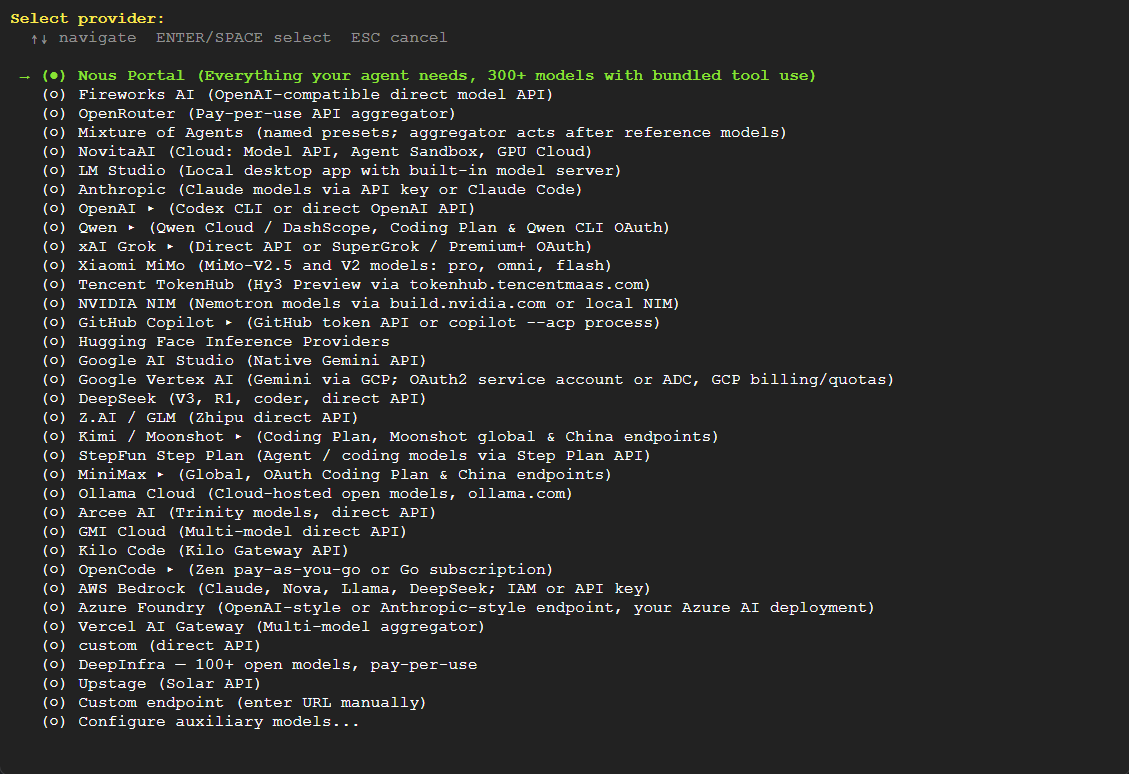
sudo docker exec -it hermes hermes model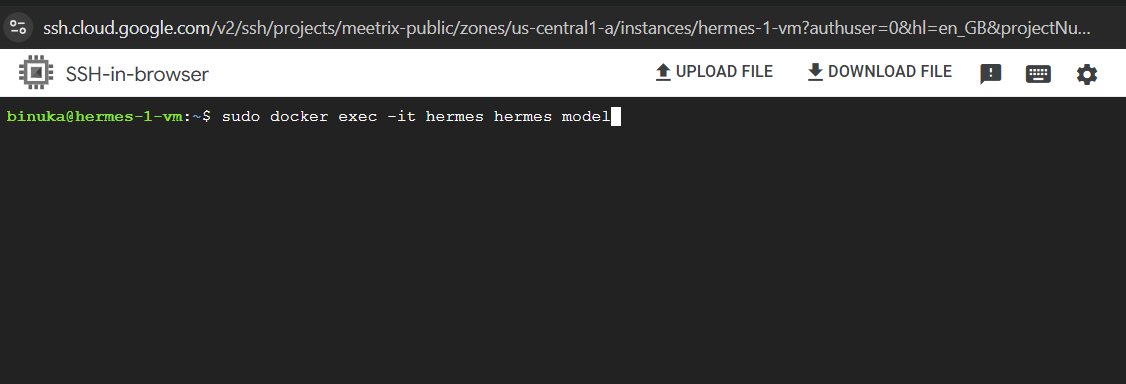
Use the arrow keys to select a provider and press Enter. The built-in Nous Portal option gives you access to 300+ models with bundled tool use out of the box, or you can pick a provider you already have an API key for, such as OpenAI, OpenRouter, Anthropic, Google Vertex AI, or AWS Bedrock.
Using Hermes Agent
Once a model provider is configured, sign back in to the web dashboard. The sidebar gives you access to every part of the agent:
- Chat and Sessions - talk to the agent directly and review past conversations.
- Files, Models, and Skills - manage documents, connected models, and the skills the agent has learned.
- Cron - schedule recurring automations.
- Plugins and MCP - extend the agent with plugins or Model Context Protocol servers.
- Channels - pair Telegram, Discord, Slack, WhatsApp, and Signal through the unified gateway.
- Webhooks, Pairing, and Profiles - manage integrations, device pairing, and agent profiles.
- Config - adjust agent-wide configuration settings.
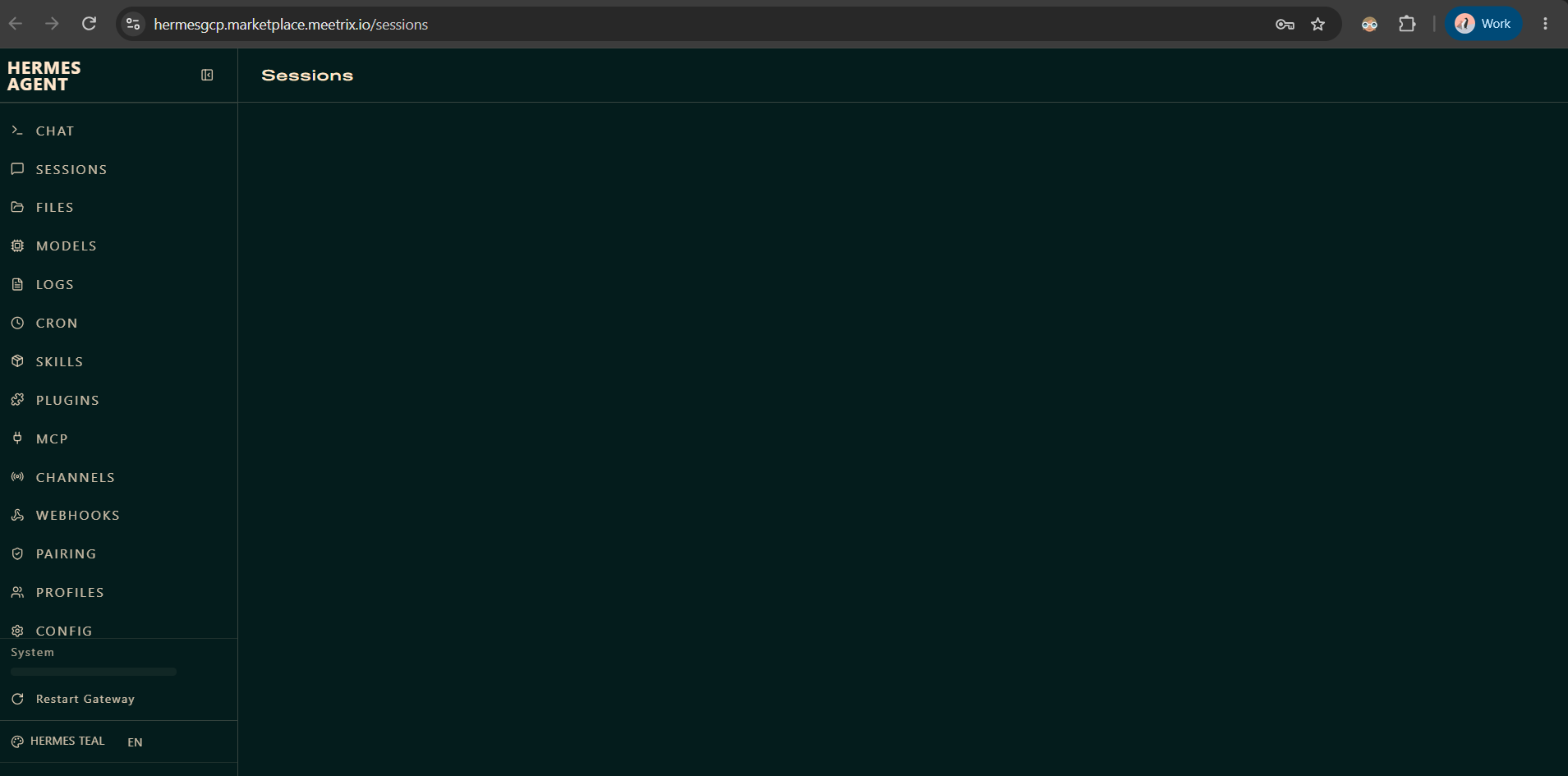
The System panel at the bottom of the sidebar lets you restart the gateway if a channel connection gets stuck.
Manage the Deployment
Stop the VM
To stop the VM without deleting it, go to Compute Engine → VM Instances in the GCP console, select your instance, and click Stop. You can restart it later with your data intact.
Change the Basic Auth Password
The Admin username and Admin password you set in Application Settings are only used once, at first boot, to generate /etc/nginx/.htpasswd. To change them afterward, SSH into the server and regenerate the file:
ssh -i /path/to/your-key ubuntu@<EXTERNAL_IP>

# replace "newusername". keep the ":"
echo -n "newusername:" | sudo tee /etc/nginx/.htpasswd

# replace "newpassword"
openssl passwd -apr1 "newpassword" | sudo tee -a /etc/nginx/.htpasswd

sudo systemctl reload nginx
Delete the Deployment
To fully remove the deployment and stop all billing:
- Go to Solution deployments in the GCP console.
- Find your Hermes Agent deployment.
- Click Delete to remove all associated resources.
Back up any session history, files, or skills you need before deleting the deployment.
Upgrades
When a new image version is available in the GCP Marketplace, back up your Hermes Agent data, delete the previous deployment, and relaunch with the new version.
Troubleshoot
Check Server Logs
Open an SSH session to the instance from the GCP console, then check the running containers and their logs:
sudo docker ps

sudo docker logs hermes
Gateway Not Responding
If a connected channel stops responding, open the dashboard and use Restart Gateway in the System panel, or restart the container directly:
sudo docker restart hermesQuota or Capacity Errors
GCP enforces regional CPU quotas. If you hit a quota error when deploying, request a Compute Engine API CPU quota increase for that region, or choose a different region or zone with available capacity.
Disk Space
If Hermes Agent becomes unresponsive, check whether the boot disk is full:
df -hIf the root volume is between 90-100% full, resize the persistent disk in the GCP console, then reboot the instance and restart the service.
Conclusion
The Meetrix Hermes Agent Deployment Guide helps you get a self-hosted, self-improving AI agent running on your own GCP project in minutes. Whether you're automating routine tasks, running a Telegram or Slack assistant, or building a vendor-neutral AI workflow, this guide gives you a secure, working starting point. For the wider picture of what the listing includes, pricing, the 5-day trial and how it compares to a hosted agent SaaS, see our overview of Hermes Agent on GCP Marketplace.
Technical Support
If you run into any issues, our support team is here to help. Reach out to us at support@meetrix.io and we will respond within 12 hours.
Frequently Asked Questions
What is Hermes Agent?
Hermes Agent is a self-hosted, self-improving autonomous AI agent built by Nous Research. It maintains persistent memory across sessions, builds its own skills over time, runs scheduled automations, and connects to messaging platforms like Telegram, Discord, Slack, WhatsApp, and Signal through a single unified gateway.
What are the prerequisites for installing Hermes Agent on GCP?
You need basic knowledge of Google Cloud Platform, an active Google account with a GCP project and billing enabled, and sufficient Compute Engine CPU quota in your target region for the machine type you plan to use.
Which machine type should I choose?
The default General purpose machine type preselected in the deployment form is enough to get started. Increase it if you plan to run many concurrent automations, connect several messaging channels at once, or route requests to larger local models.
Which LLM providers does Hermes Agent support?
Hermes Agent works with any LLM provider, including the built-in Nous Portal (300+ models with bundled tool use), OpenAI, OpenRouter, Anthropic, Google Vertex AI, AWS Bedrock, and custom OpenAI-compatible endpoints. Select and configure a provider from the CLI after deployment with hermes model.
How do I connect Hermes Agent to Telegram, Discord, Slack, WhatsApp, or Signal?
Open the Channels section of the Hermes Agent dashboard and follow the pairing flow for each platform. Hermes Agent connects to all of them through a single unified gateway, so you do not need separate integrations.
What is the default admin login?
The admin username and password are the values you set in the Application Settings section during deployment. There is no separate default credential to look up.
How do I renew the SSL certificate?
Certificates issued by Let's Encrypt renew automatically. If you generated one manually with the certificate script, you can re-run it at any time: sudo bash /root/certificate_generate_standalone.sh
How do I change the basic auth username or password after deployment?
The admin_username and admin_password fields are only used once, at first boot, to generate /etc/nginx/.htpasswd. To change them afterward, SSH into the server and regenerate the file: echo -n "newusername:" | sudo tee /etc/nginx/.htpasswd, then openssl passwd -apr1 "newpassword" | sudo tee -a /etc/nginx/.htpasswd, then sudo systemctl reload nginx.
How do I get technical support?
Reach out to Meetrix Support at support@meetrix.io for assistance with Hermes Agent issues.
Deploy Hermes Agent on GCP in Minutes
Launch a production-ready, self-hosted Hermes Agent with persistent memory and automation on Google Cloud with a pre-configured Meetrix image.
Get Started on GCP Marketplace